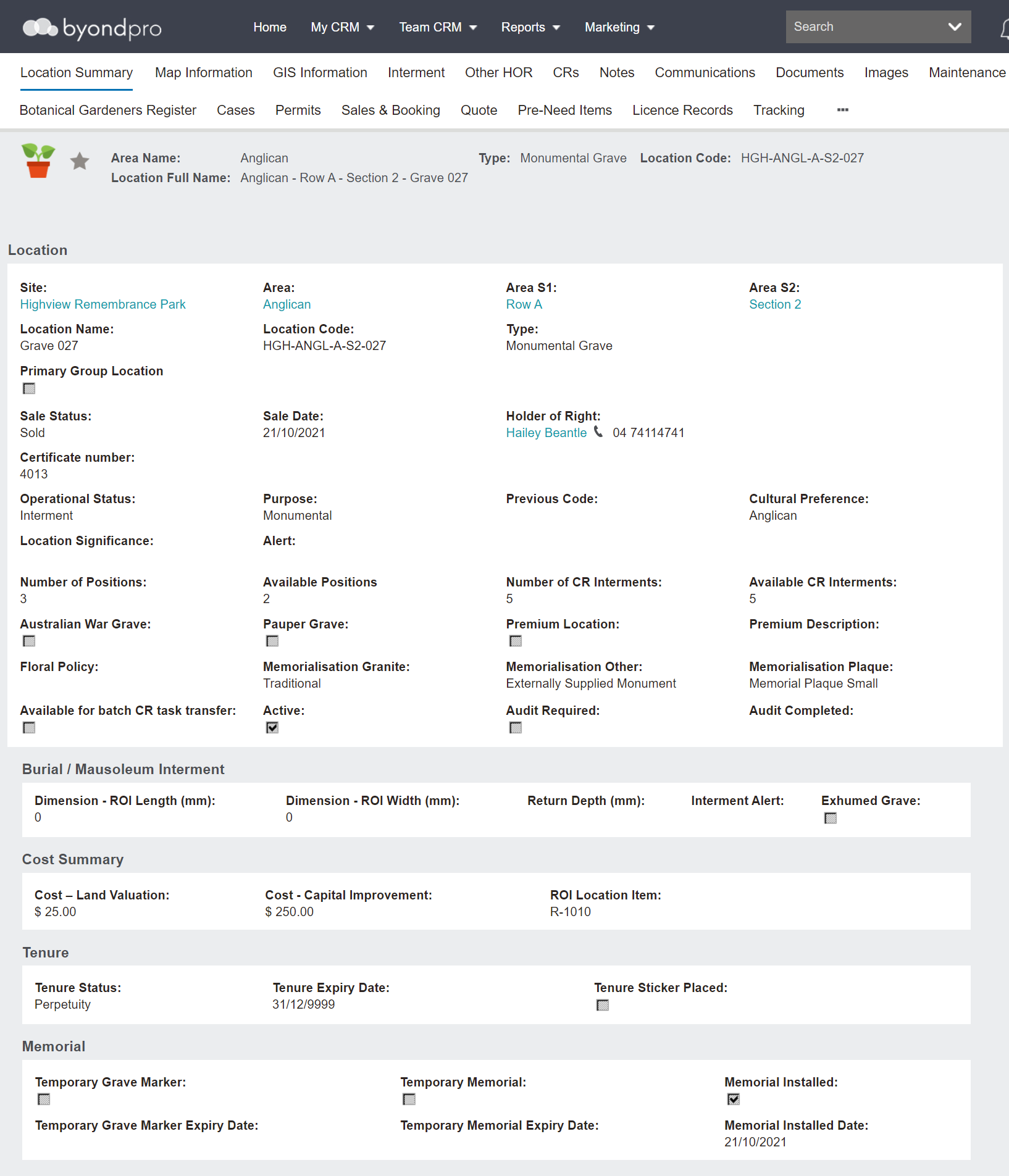
A location record represents physical graves, cremation memorials or mausoleum crypts within your cemetery.
Header
The header includes:
-
-
-
-
-
Star to mark the record as a favourite
Location Information Block
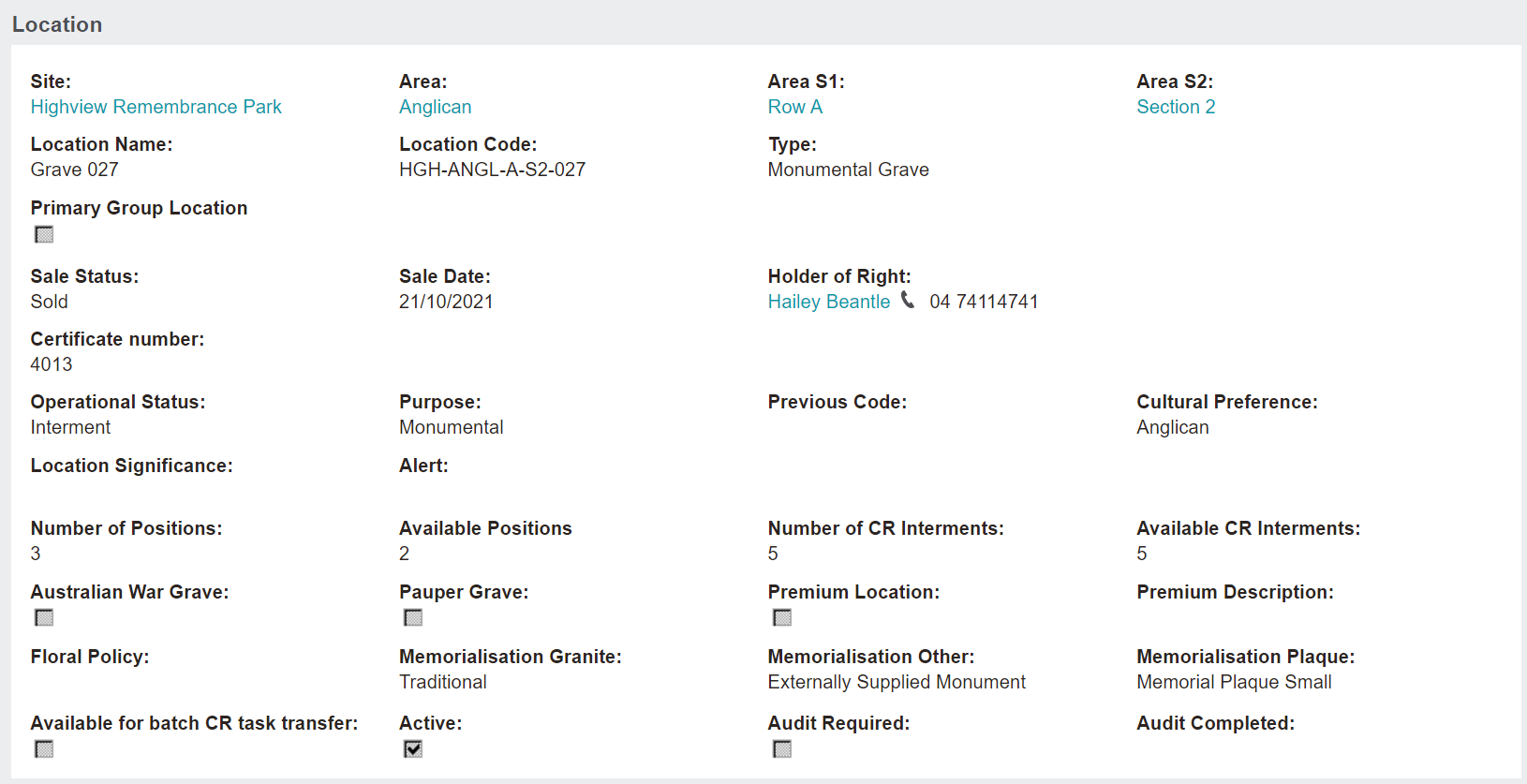
The Location information block includes hyperlinks to :
The Number of Positions and Available Positions displays how many burial interments are intended in this location and how many of those interment positions are still available.
If the location has a place for cremated remains, the Number of CR Interments field displays the total the location can manage and the Available CR Interments field displays how many of those CR locations are still available.
Below customisable tick boxes may display to mark if the location is:
-
-
-
-
A Premium Location, accompanied by the
Premium Description text box to add more information as to why the location is premium.
-
-
Audit required, accompanied by the
Audit Completed field to be filled with the date that audit was performed
Burial / Mausoleum Interment Information Block
The Burial or Mausoleum Interment information block is where dimensions on the maximum grave size can be set using the Dimension - ROI Length, Dimension - ROI Width and Return Depth fields.
The Interment Alert field is a text field that can be used for reporting purposes. It will print on burial schedules to alert grounds staff to potential site issues.
Cost Summary Information Block
The Cost Summary information block details
-
-
The cost of capital improvement
The
ROI Location Item field drives the mechanics behind
selling the location. The item code recorded here indicates the item that will sell this location.
Tenure Information Block
The Tenure information block refers to how long the rights to the location last, if tenure is applicable.
The Tenure Status will display, in our example there is a status of 'Perpetuity.'
The Tenure Expiry Date auto populates based on the tenure of the location.
If the expiry date is approaching or has passed, there may a sticker placed on the physical location as a reminder to the family. On the location record, you can note this sticker being placed in the Tenure Sticker Placed field.
Memorial Information Block
In the Memorial information block, the Temporary Grave Marker field auto populates on completion of a burial booking when a first interment occurs.
The Temporary Grave Marker Expiry Date field will populate based on the settings in your byondpro.
If a temporary memorial is installed, the Temporary Memorial tick box will be ticked along with the system generated Temporary Memorial Expiry Date field.
Once the
memorial has been installed the
Memorial Installed tick box will be flagged accordingly, along with the
Memorial Installed Date.
Action Buttons
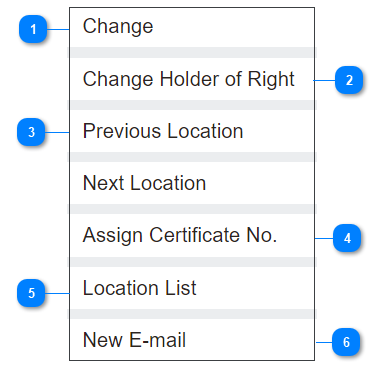
On the right-hand side of the page are the action buttons for what can be performed on the location record.
|
The Change button brings the user to edit mode where changes can be made to many fields.
Be careful about updating this screen as this could affect certain processes linked to location records, such as changing the sale status without the location being involved in a sales transaction.
|
|
|
The Change Holder of Right button will allow the user to change the holder of right on the location record.
Use the search select field to search via a list of contacts to the original holder of right or tick the Search all contact tick box to be able to search the whole database.
|
|
|
The Previous Location and Next Location buttons allow the user to switch between location records seamlessly.
|
|
|
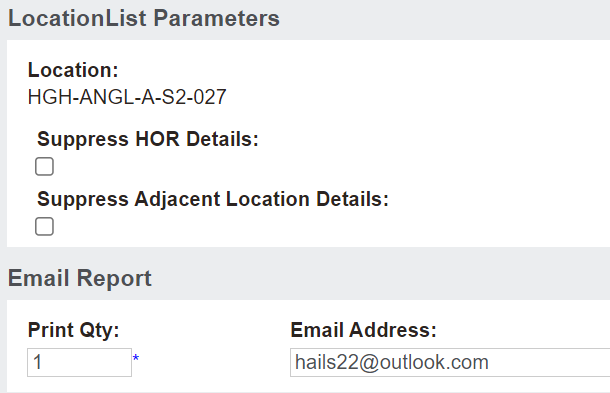
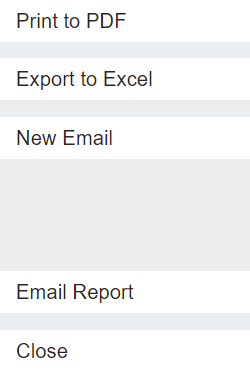
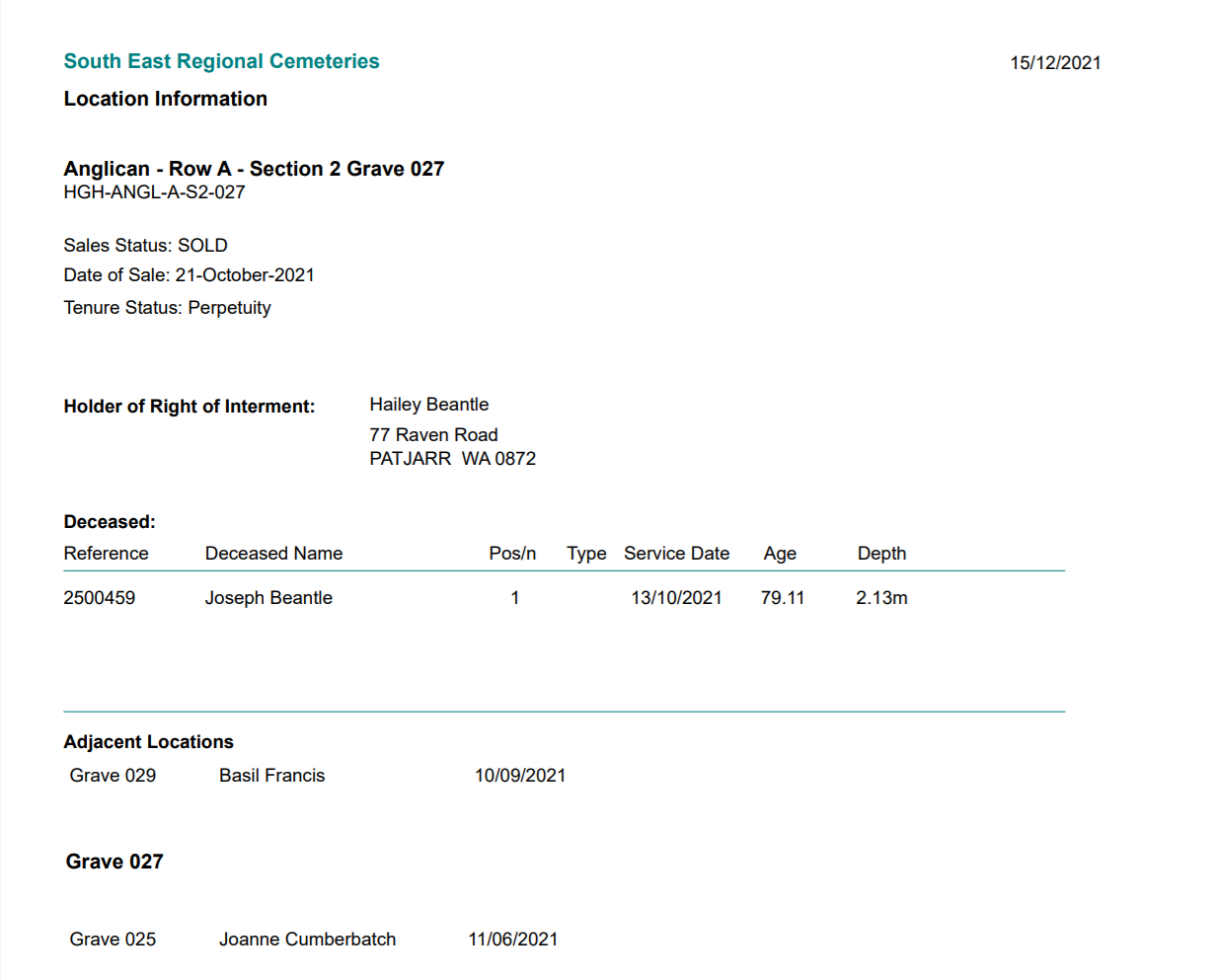
The Location List button will bring the user to a screen where they can print or email a report which shows key location attributes and interments.
From the additional pop-up window, select whether to Suppress HOR Details or Suppress Adjacent Location Details in the tick boxes.
Then, select to email or print the document.
In the example below, we chose to print to the report to PDF.
|
|
|
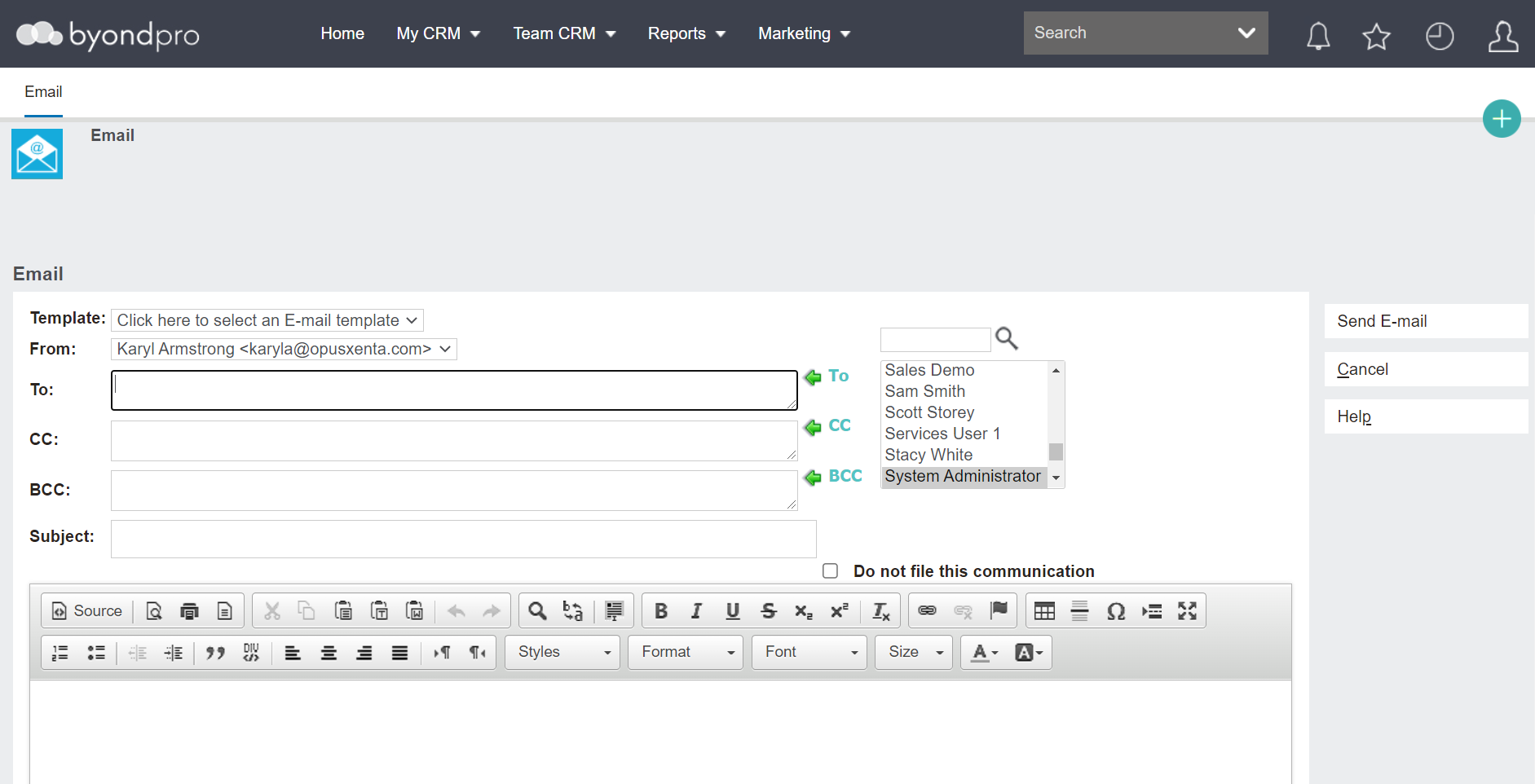
The New Email button will allow users to send an email directly from the location record.
|
|