To add a new individual location, locate the area or sub-area the location is being added to.
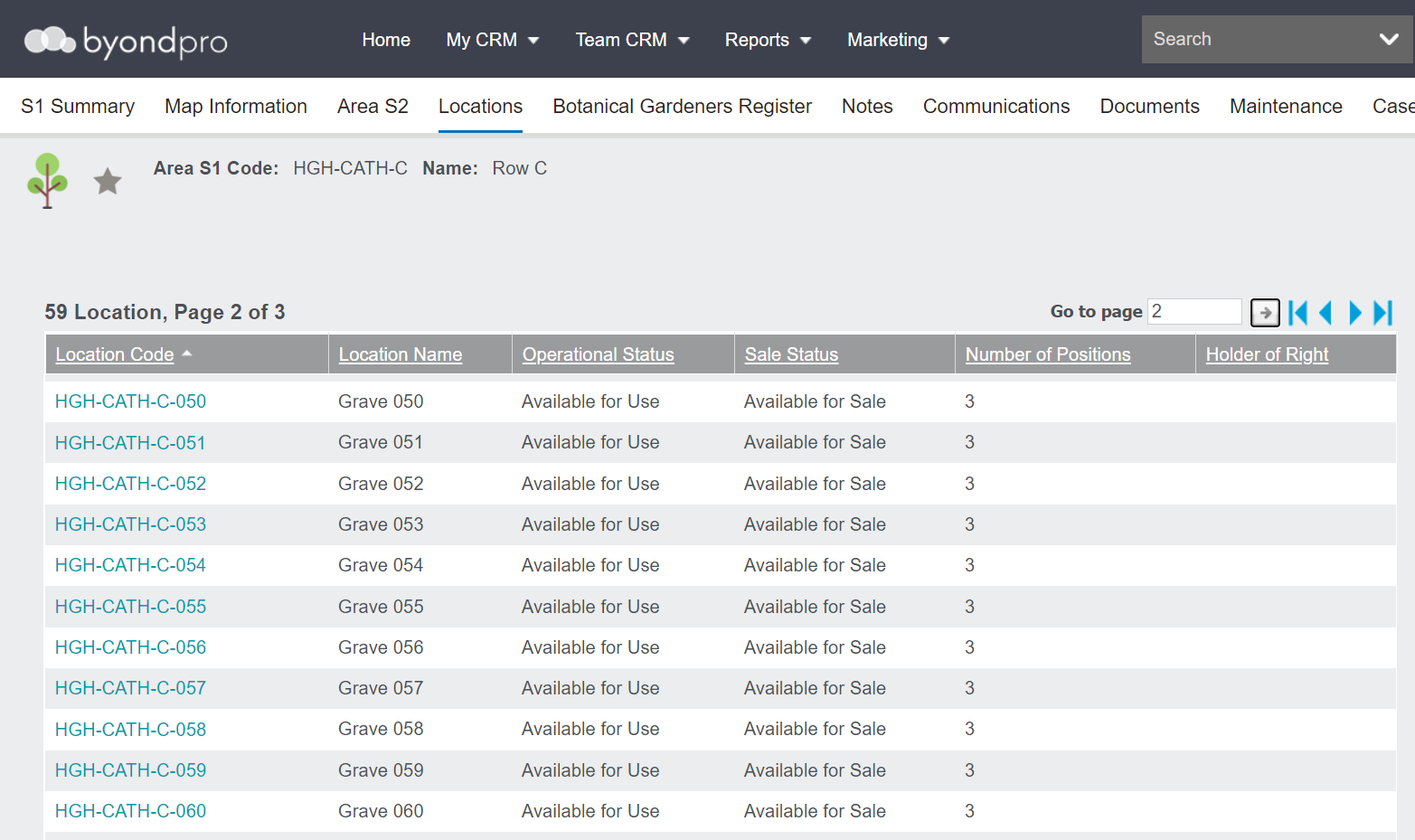
From the area or sub-area record, visit the Locations tab.
It may be useful to press Control ( Ctrl ) & Click on one of the locations, to have it available for reference on another tab, should a majority of the fields on the new location duplicate the other locations in that area.
From the Locations tab, choose the Create Single Location button on the right-hand side of the page.
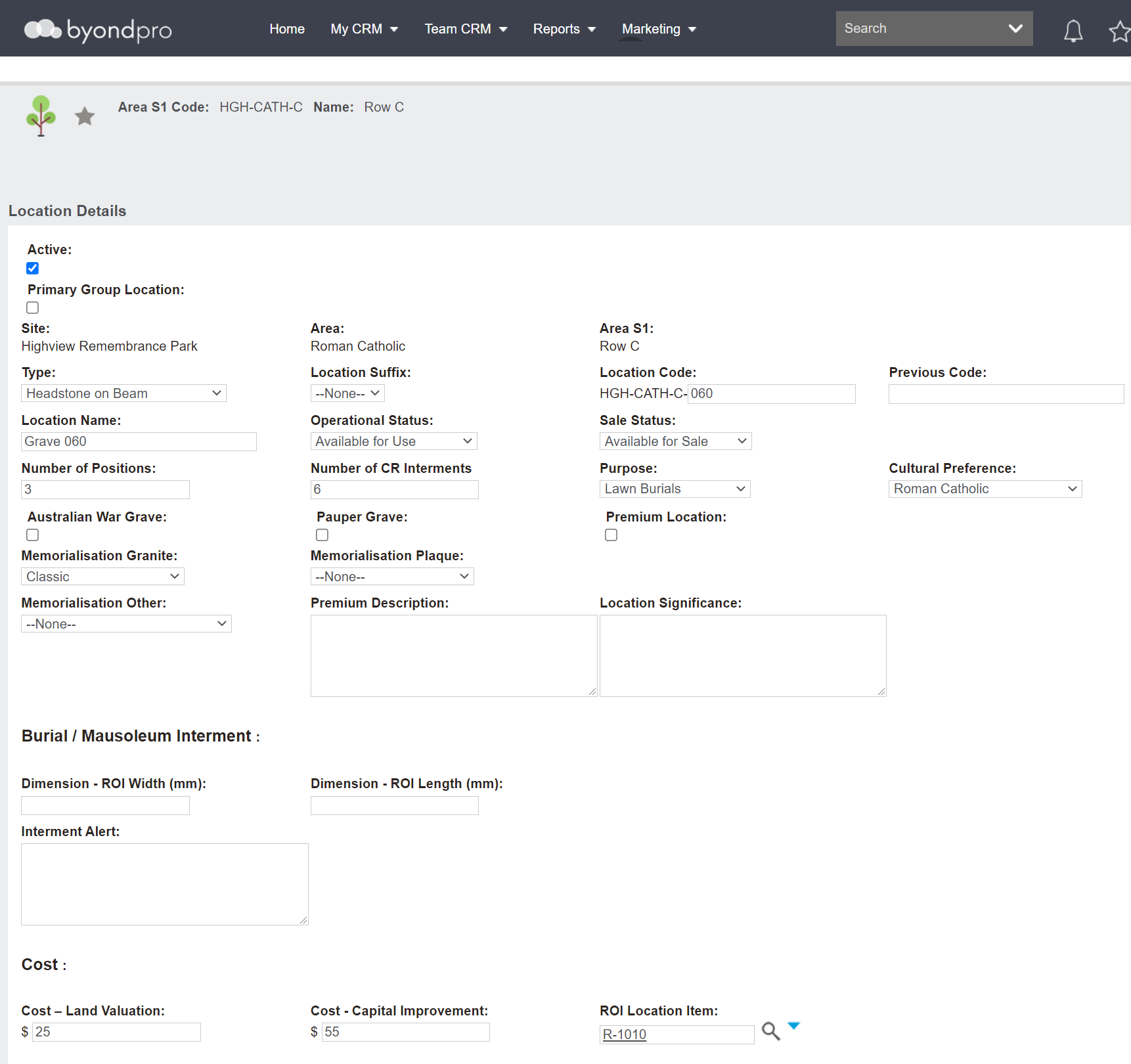
Complete the fields as necessary.
If you are replicating a location, complete the fields as on your reference location.
The location will have the Active tick box ticked.
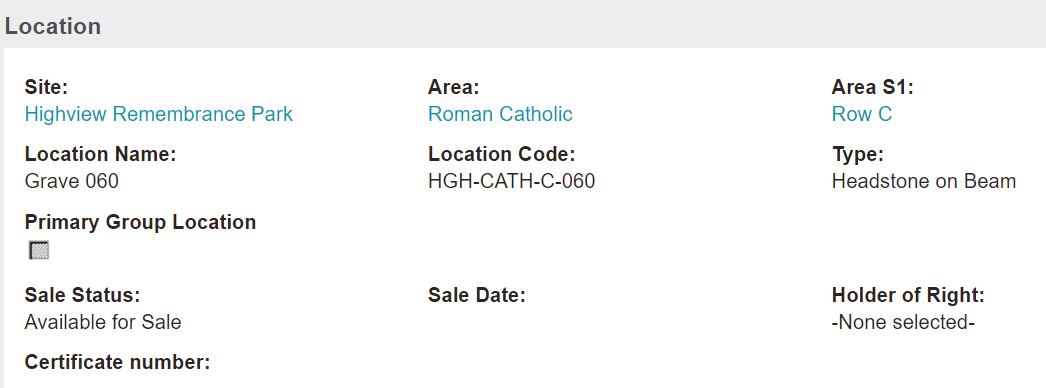
Site, Area, and any applicable Sub-area /s will flow through from the area record.
Select the Type from the drop-down selection list.
Select a Location Suffix from the selection list, if this is necessary.
Type in the Location Code segment applicable. This code will likely replicate that of the location numbering convention in the area.
Enter in a Previous Code, if necessary.
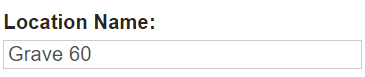
Enter in the Location Name as per the area. The code and any suffix will populate after the name entered in this field.
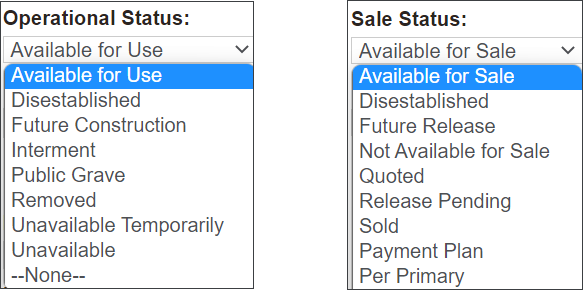
Select the appropriate Operational Status and Sale Status for the location from the selection lists.
Enter in the burial positions available in the Number of Positions field and the CR positions available in the Number of CR Interments field.
The Purpose, Cultural Preference, and remaining fields in the details block flow through from the area record and can be updated for the location, if necessary.
In the Dimension - ROI Width and Dimension - ROI Length fields, enter in the maximum dimensions for this location, if in use by your cemetery.
If an Interment Alert is required at this stage, type the information into that field.
Add the Cost- Land Valuation and Cost- Capital Improvement values into these fields. At the time of sale of the location, these values will be automatically posted to the general ledger, reducing the amount held on the balance sheet and recording the cost of goods sold on the profit and loss.
Press Save on the right-hand side of the page when you are finished.
Your new location will appear on the Location tab of the area or sub-area record.