On the location record are different tabs which provide more information about the location.
Interment Tab
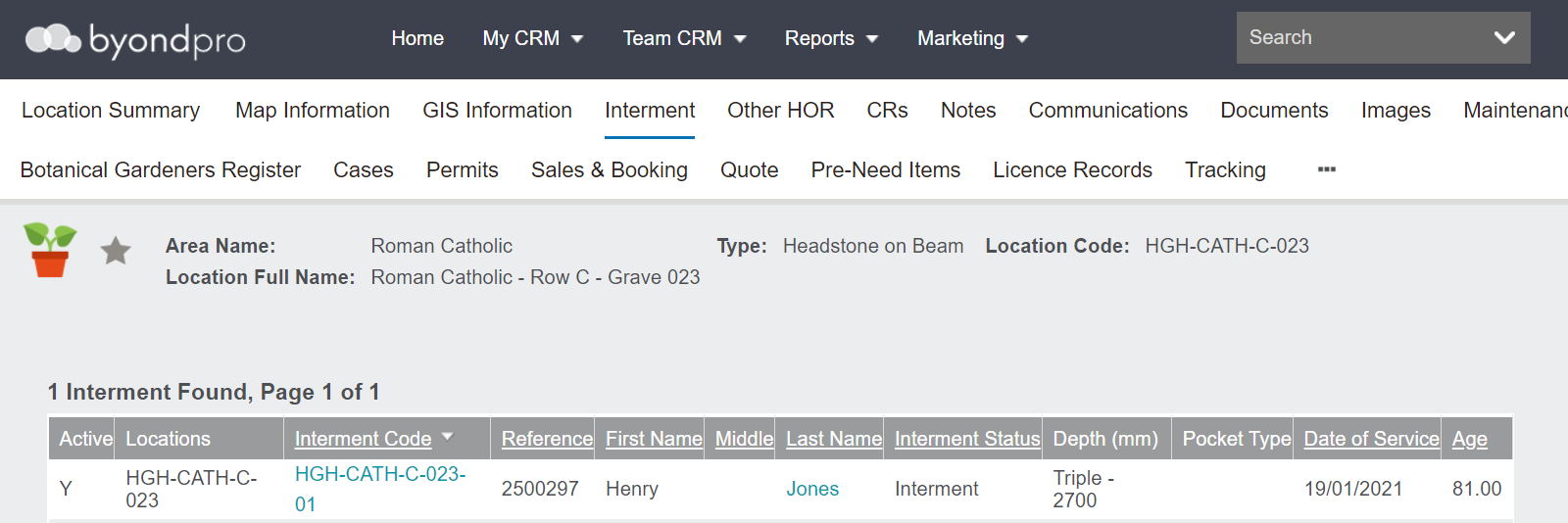
If someone is recorded as being interred in the location, the following will display:
-
The status of the interment
-
-
The interment code serving as a hyperlink to the interment record
-
Person details, such as Reference Number, Names, and a hyperlink to the person record.
-
-
The first person in the location has an interment code which includes the location code and an 01 attached to it. The second person would have an interment code with an 02, etc.
Other HOR Tab
The Other Holder of Rights tab is for when there is more than one holder of the rights to the location or where there is an additional interested party to be recorded.
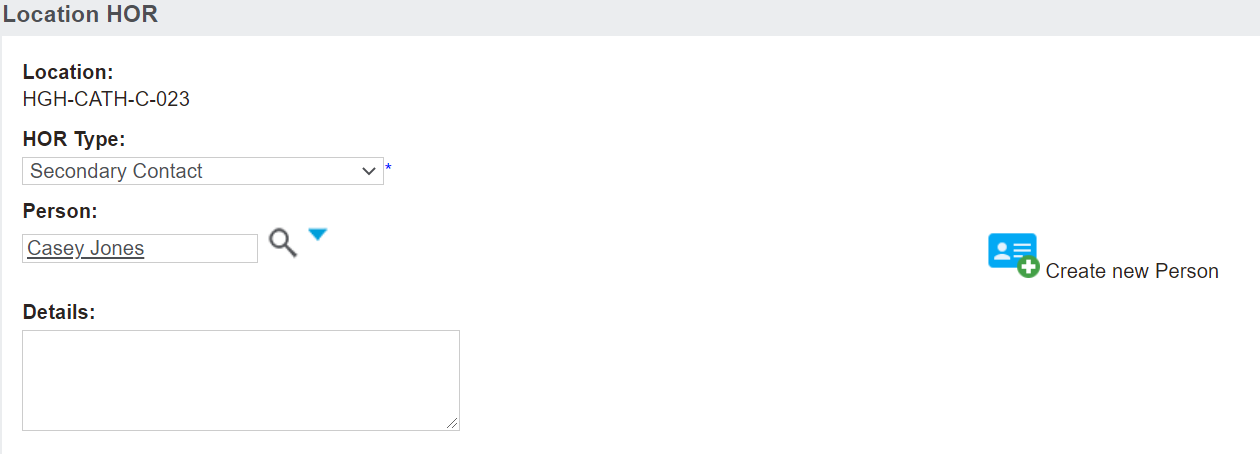
The additional person can be added by choosing the Create new HOR Link on the right-hand side of the page.
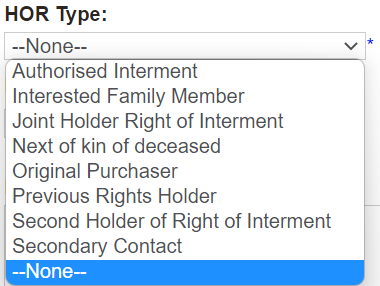
In the HOR Type field, select the appropriate option from the selection list.
Enter any information about the relationship in the Details field.
Once completed, press the Save button.
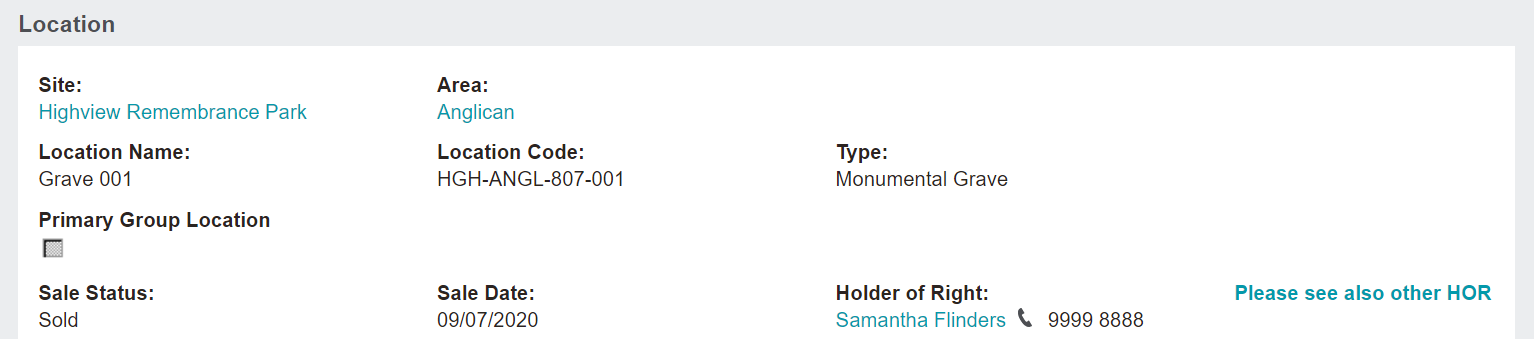
The Summary tab of the location record will be flagged 'Please see also other HOR.'
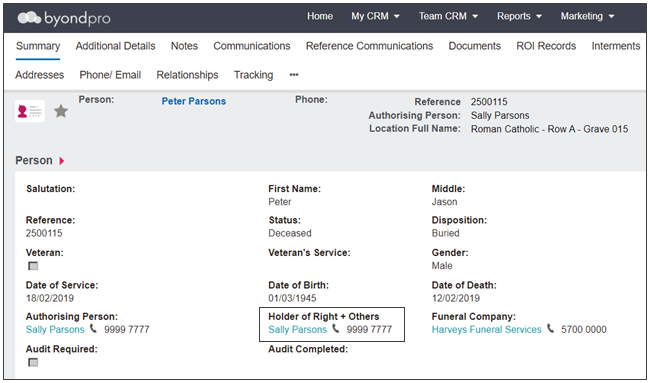
The Summary tab of the Deceased person record will be flagged as 'Holder of Right + Others.'
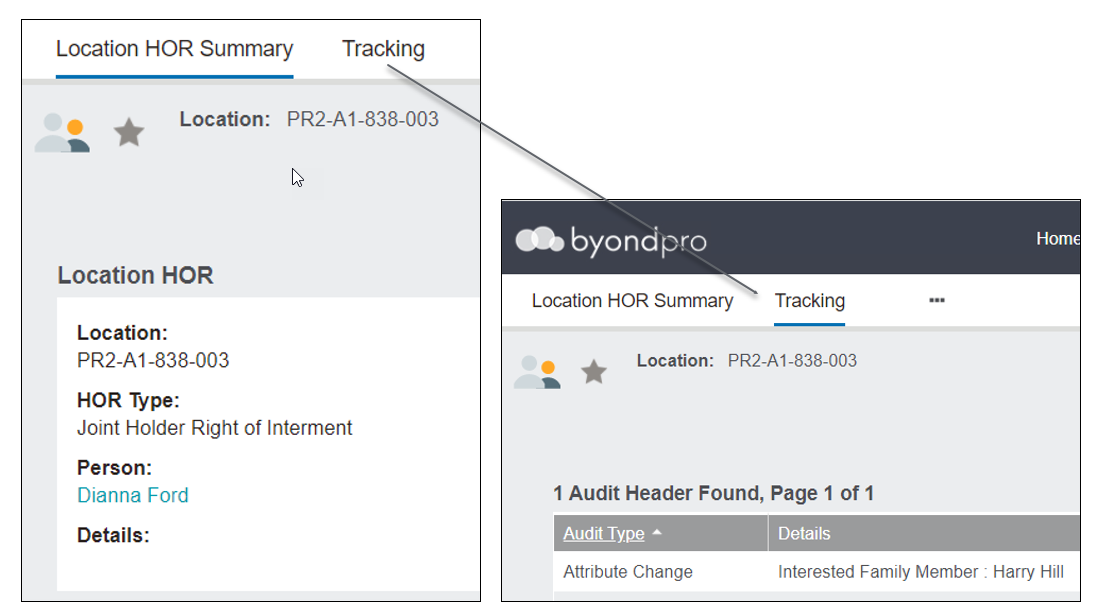
Tracking changes will be captured on Additional Holder of Rights along with tracking for all the additional rights holders for the same location.
In our example below Ann Wilson and Harry Hill are both recorded as holders of right. Changes made on Harry’s HOR record are visible on the Location HOR Summary, tracking tab against both records.
CRs Tab
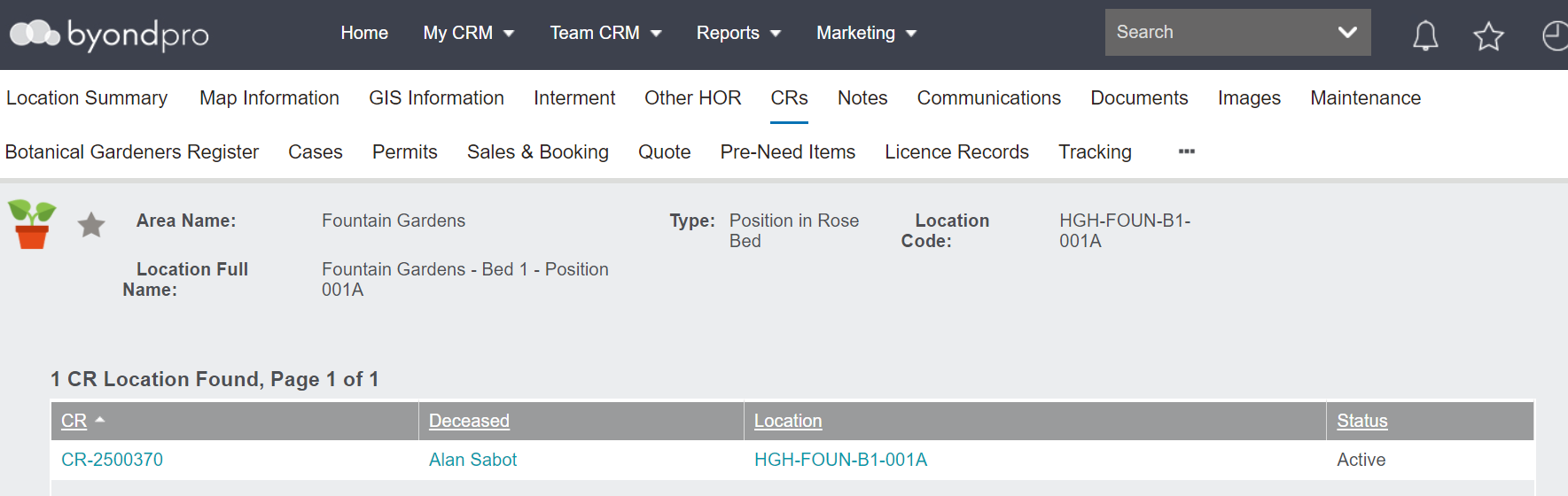
The CRs tab houses details about any cremated remains interred in the location, including:
-
A hyperlink to the Cremated Remains record
-
A hyperlink to the deceased record
-
A hyperlink to the location
-
The status of the interment.
For a location such as the crematorium, this tab might have multiple CRs listed, indicating the various cremated remains held at the crematorium in storage.
Notes Tab
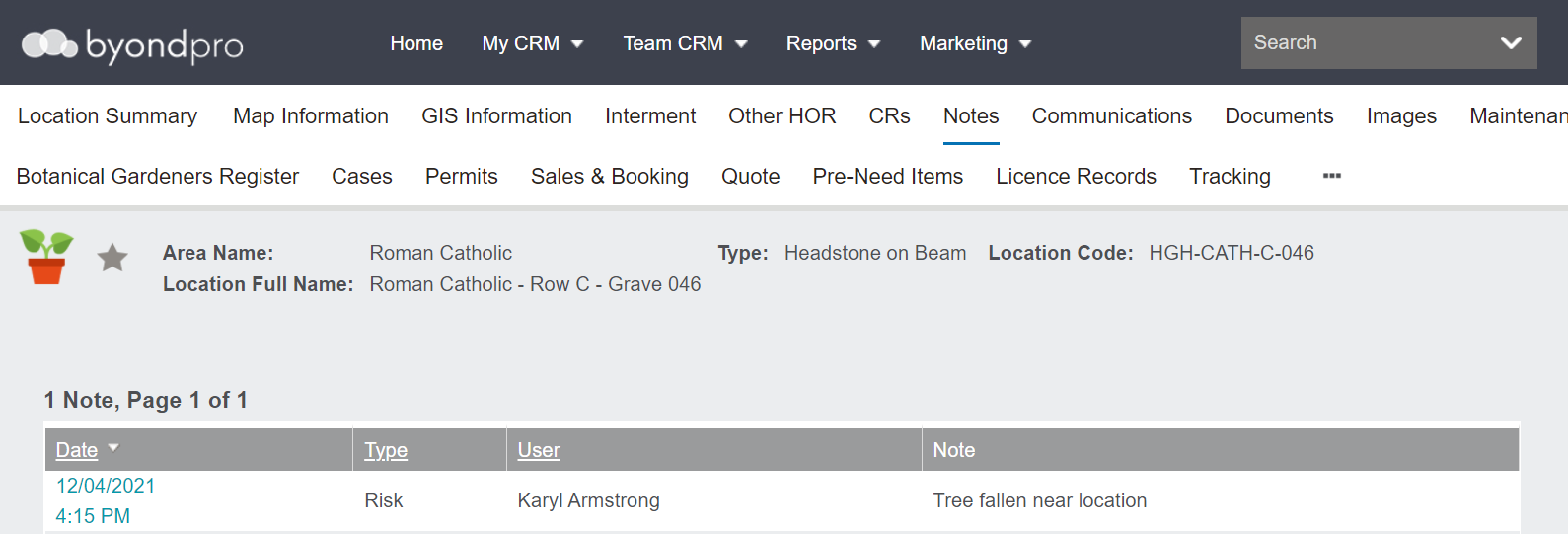
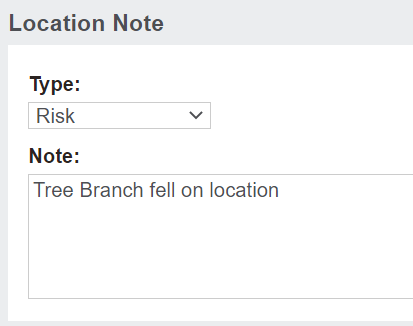
The Notes tab is where users can add notes about the location record.
To add a new note, click New on the right-hand side of the page.
Select the Type of note and then type in the Note field.
When complete, press Save on the right-hand side of the page.
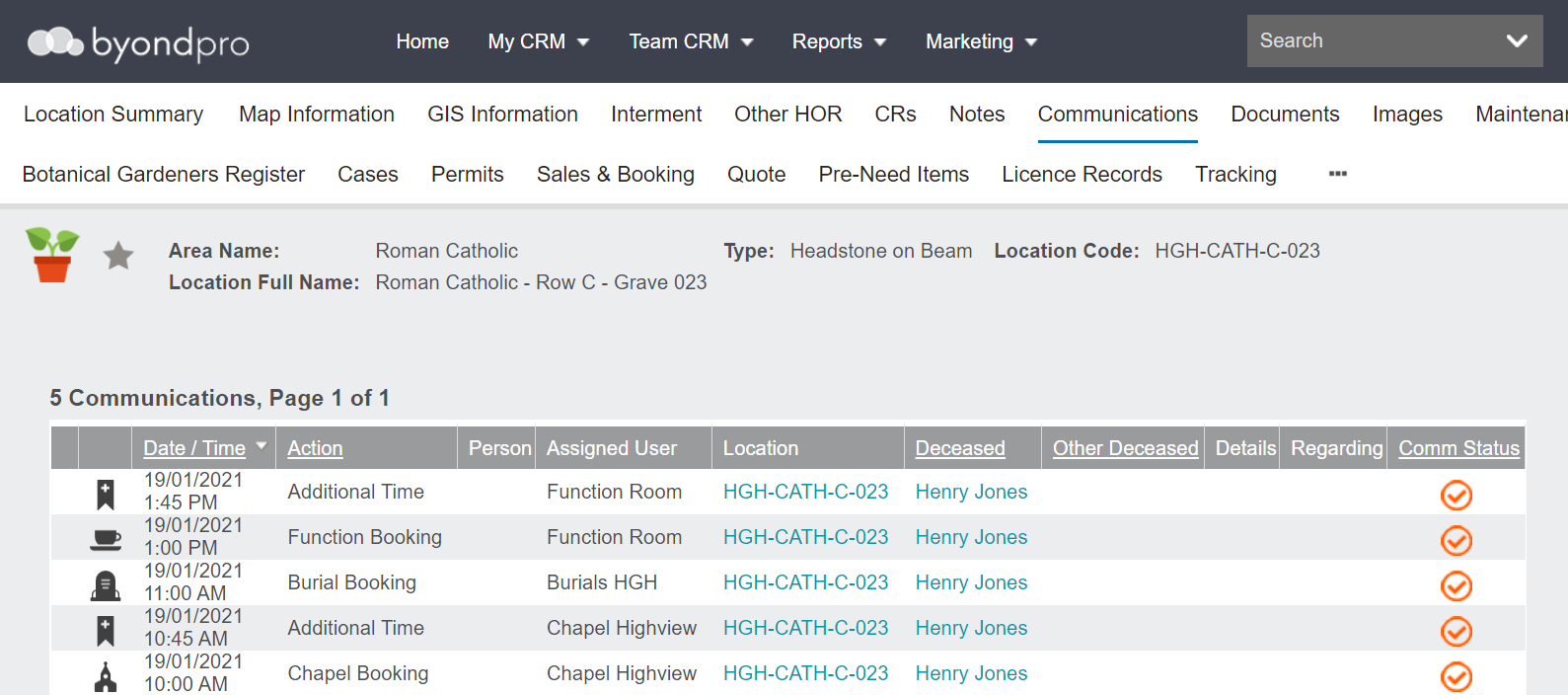
Communications Tab
The Communications tab houses any
appointments,tasks or communication notes that the location has been referenced in, such as a burial booking appointment made in a
Burial Sales & Booking.
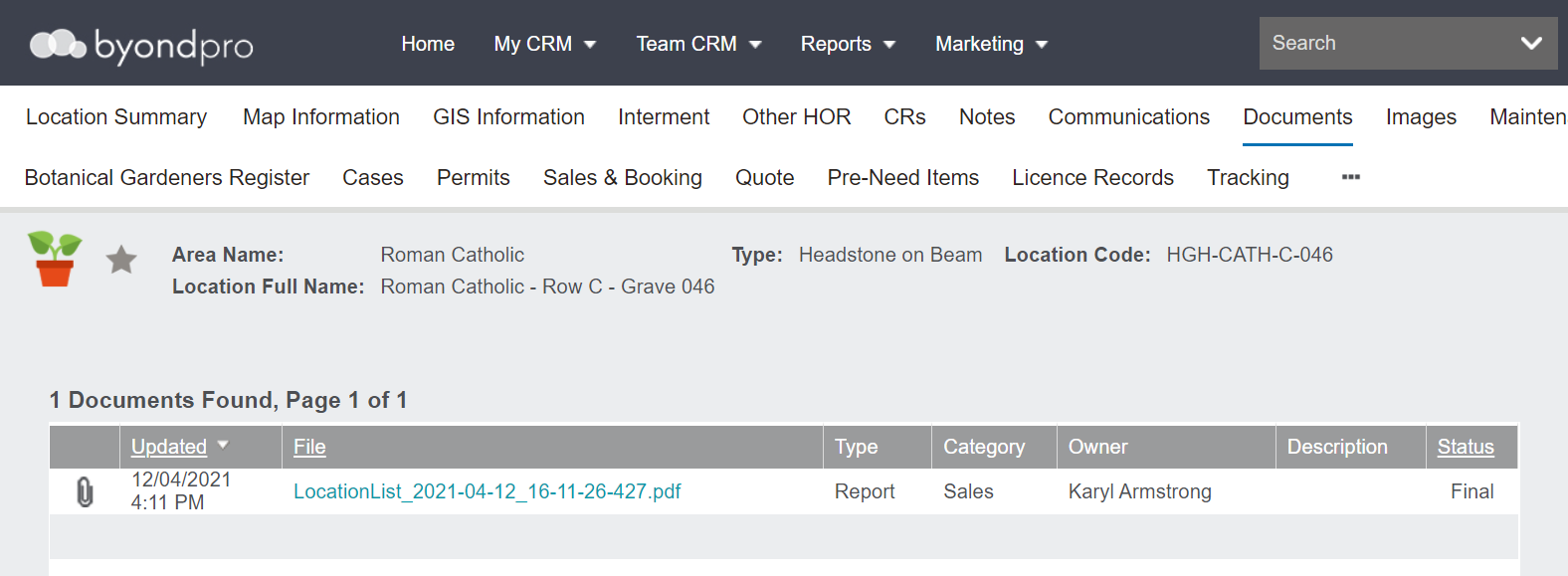
Documents Tab
The Documents tab houses any documents generated on the location record, such as the location listing that can be generated from the Location Summary.
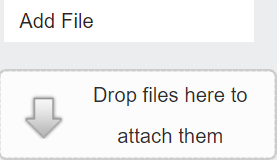
Users can also upload files by selecting the Add File button or simply using the drag and drop feature.
Images Tab
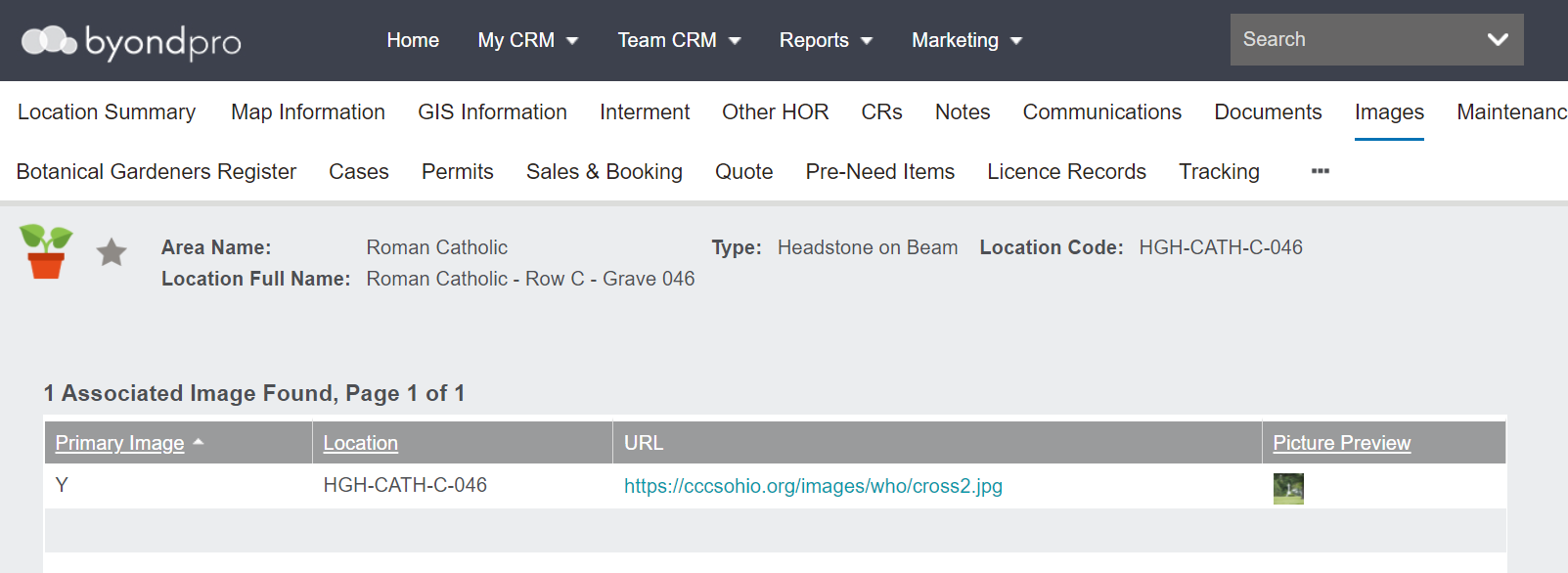
The Images tab allows for a photo or graphic representation of the location to be displayed on the Location Summary screen and also be integrated with mapping features, including on a website or kiosk deceased search.
To add a new image, click on New on the right-hand side of the page.
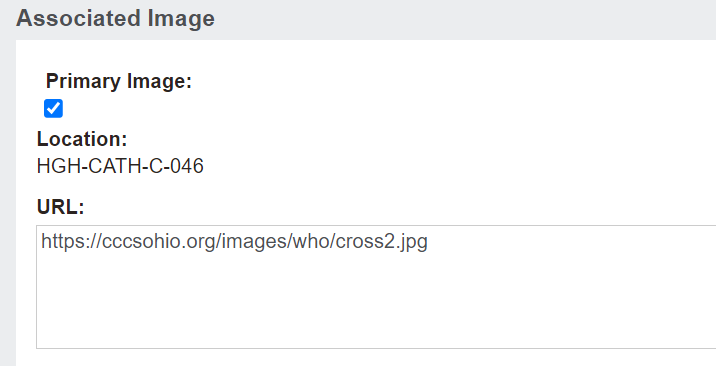
Determine if the image is the Primary Image. The primary image will display on the Location Summary and on the mapping screens
Add the URL to either an internal network storage drive or to an external image file stored on the internet.
Please note that network security and firewall settings may not allow the display of images stored outside of a network.
Then press Save on the right-hand side of the page.
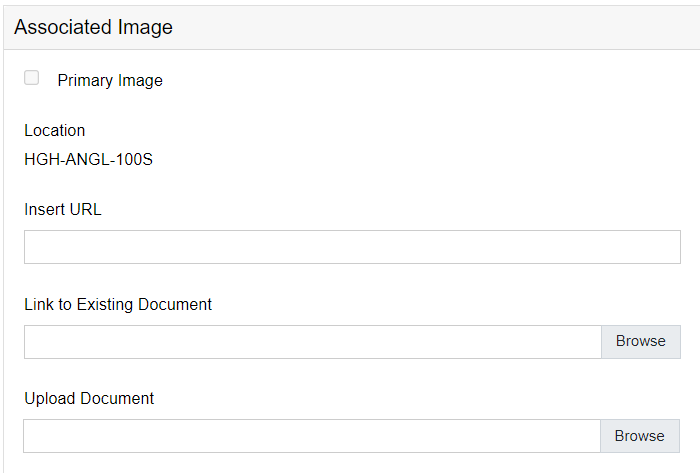
Alternatively, select the
Add New Image button for the following additional options.
-
Insert URL – link to an external web URL.
-
Link to Existing Document – link to an existing document already linked to another location.
Once you click on browse, a text box will appear where you can search existing documents already in the system. Once you start typing in the text box and press enter, the results will appear in the box below where you can choose the appropriate option.
-
Upload Document – Browse normally to a document/image that you can upload
Maintenance Tab
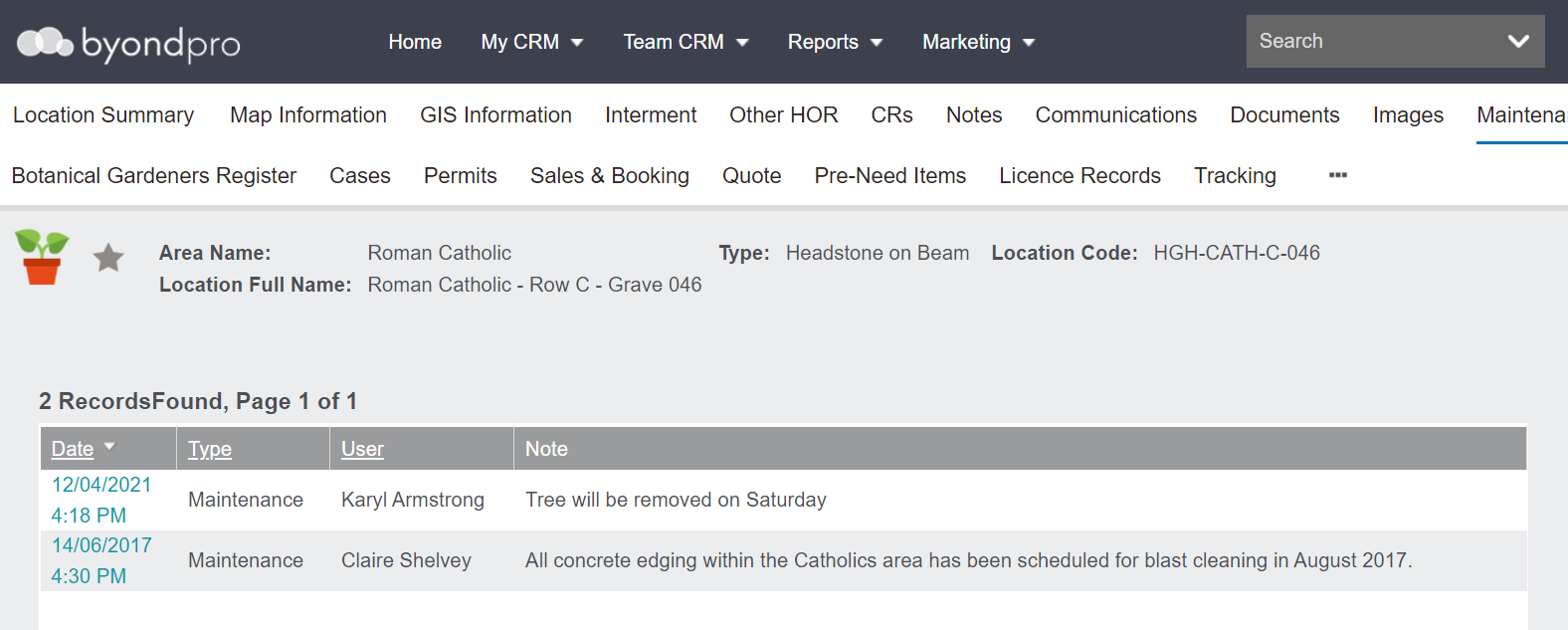
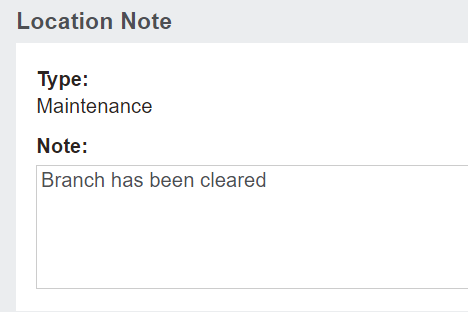
The Maintenance tab is intended for notes to record activities being performed against a single location or a series of areas and locations.
A maintenance note can be attached to any level of the location hierarchy and will be visible to all sub-ordinate records.
A note created on the Maintenance tab of an individual Location record is only visible against that single location record.
To add a new maintenance note, simply press New on the right-hand side of the page.
Type in the Note field.
Once completed, press Save on the right-hand side of the page.
Botanical Gardeners Register Tab
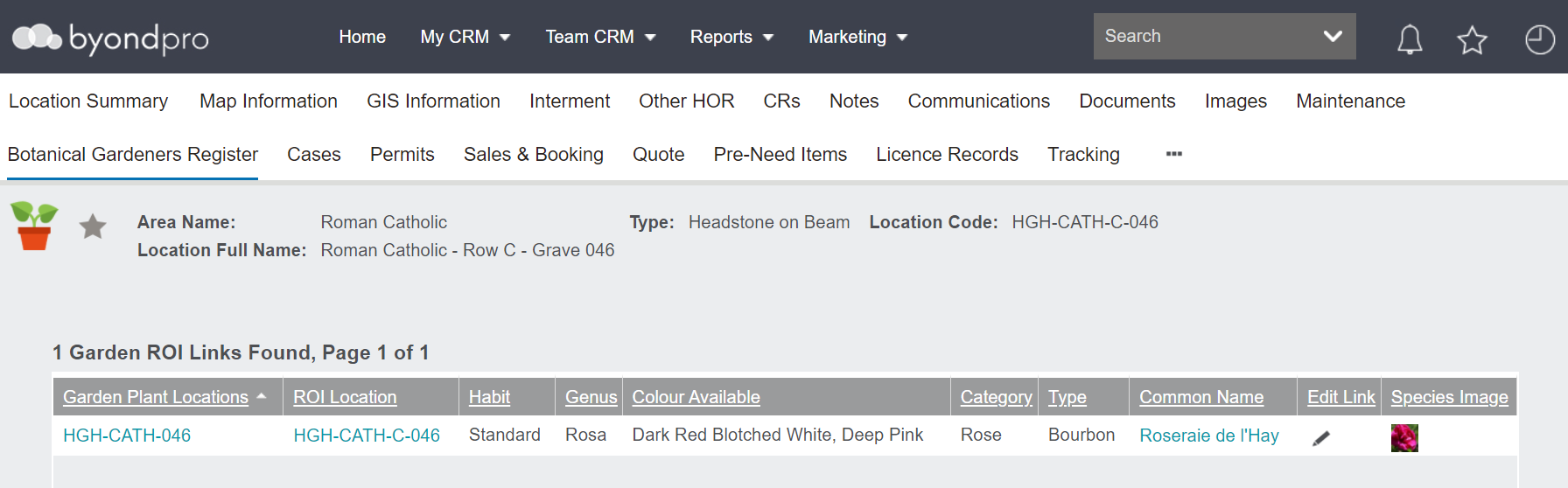
The Botanical Gardeners Register tab is populated when the Garden Plants Register is in use.
If plants are linked to the location, the following will display:
-
A hyperlink to the garden plant location
-
A hyperlink to the ROI location
-
Details about the plants, such as habit, genus, colours, category, and type.
-
The common name of the plant, which serves as a hyperlink
-
Cases Tab
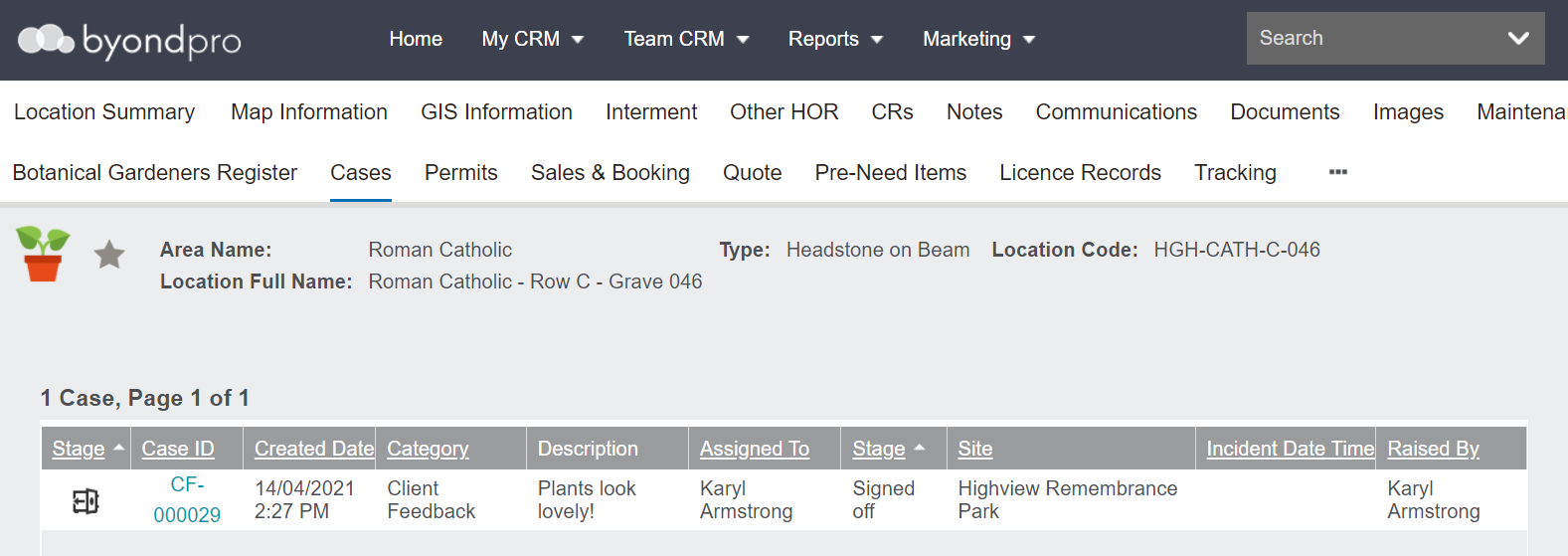
The Cases tab houses any work requests, incidents or feedback or cases regarding the location.
Permits Tab
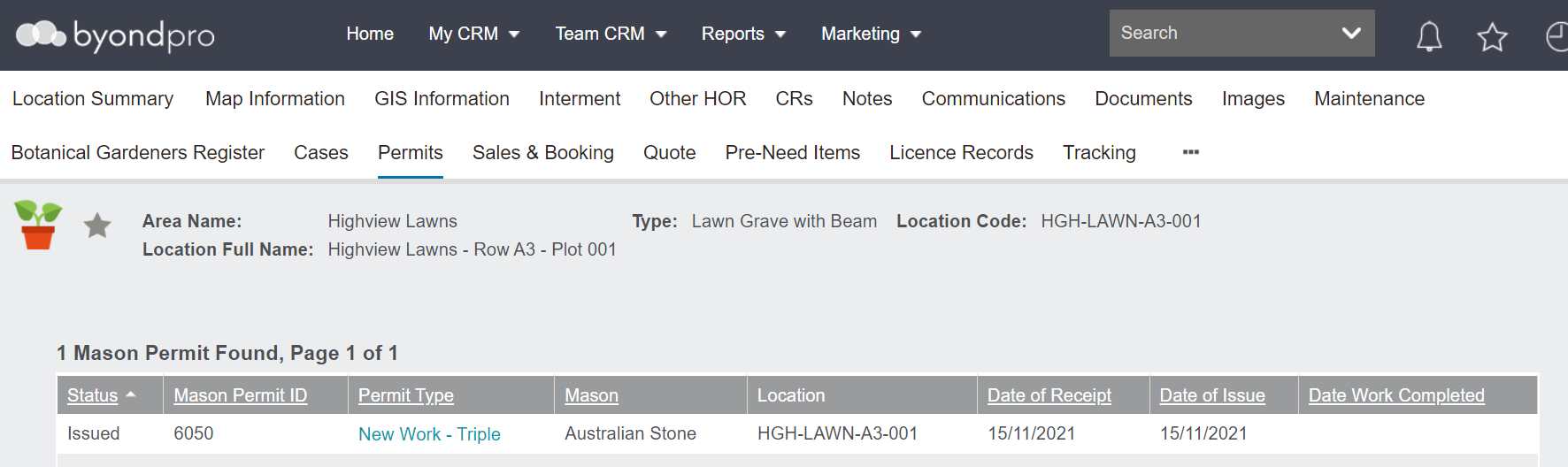
The Permits tab houses Mason Permits that have been applied for that reference the location.
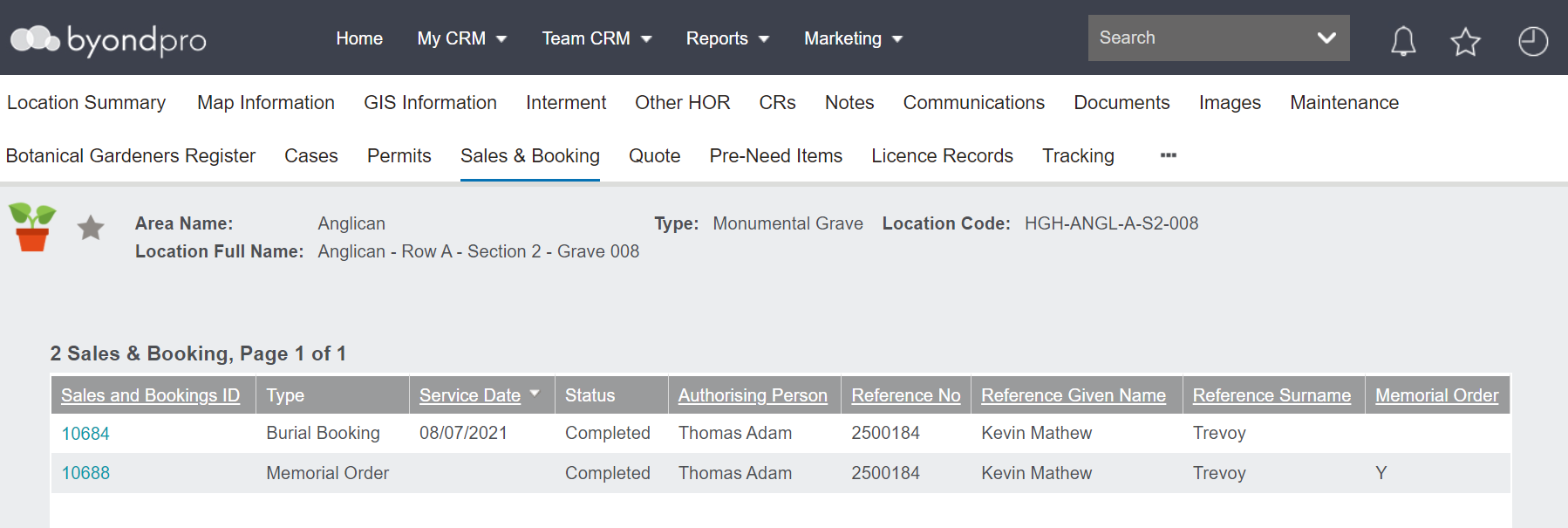
Sales & Booking
The Sales & Booking tab will be populated when the location is referenced in a Sales and Booking.
If a burial booking is then
marked as completed, the
Operational Status of the location record will be 'Interment.'
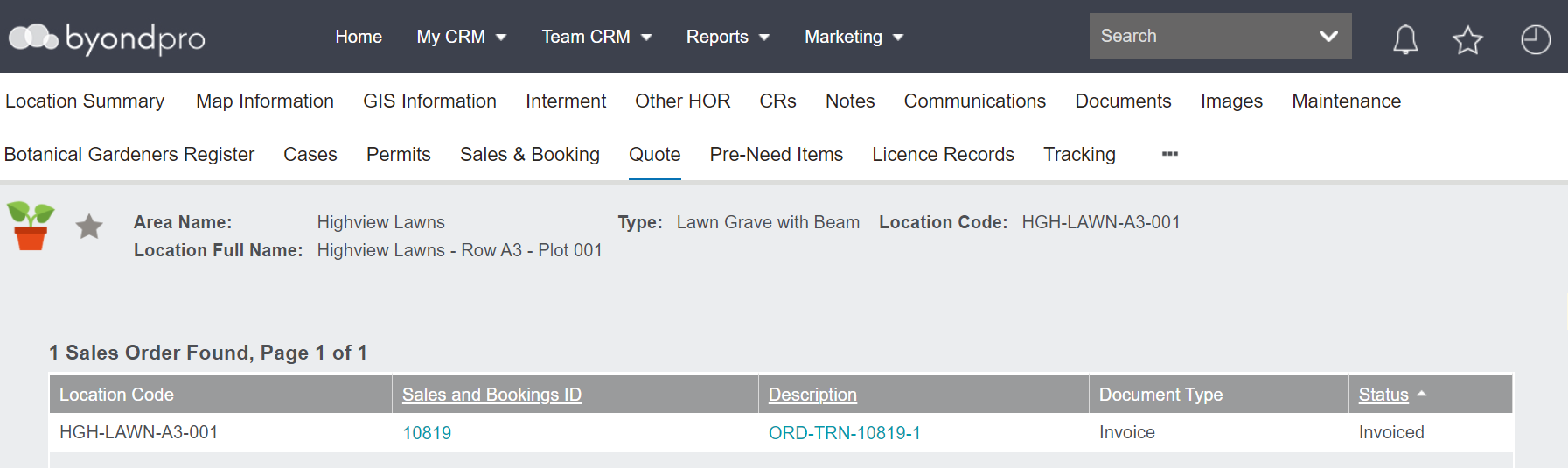
Quote Tab
The Quote tab will be populated if the location is included in a sales order and will have links to the sales order.
Once the quote is converted to a sale, this will then display as invoiced.
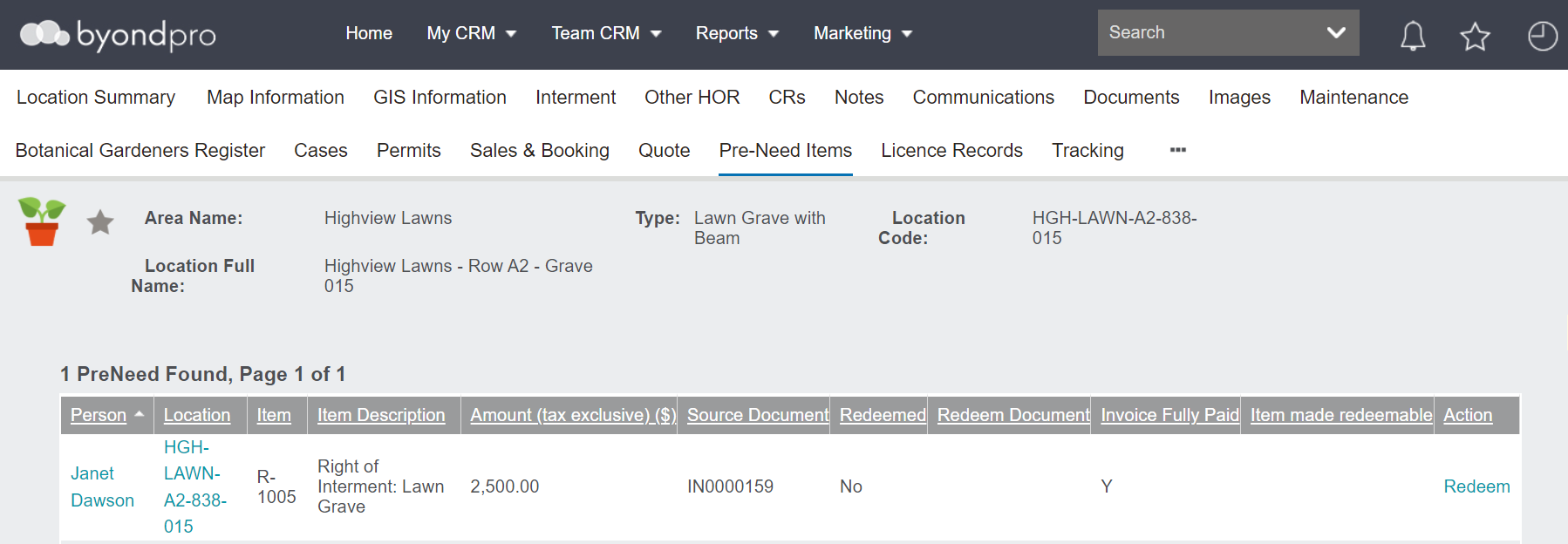
Pre-Need Tab
The Pre-Need tab will be populated only when the location was added to a sales order and chosen as a pre-need purchase.
If any other items, such as an interment service, were purchased at the same time, these items would also display here.
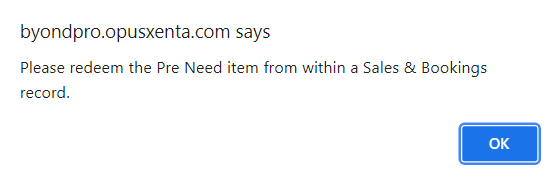
Users would not be able to
redeem the items here as this action would be required to take place in a sales and booking.
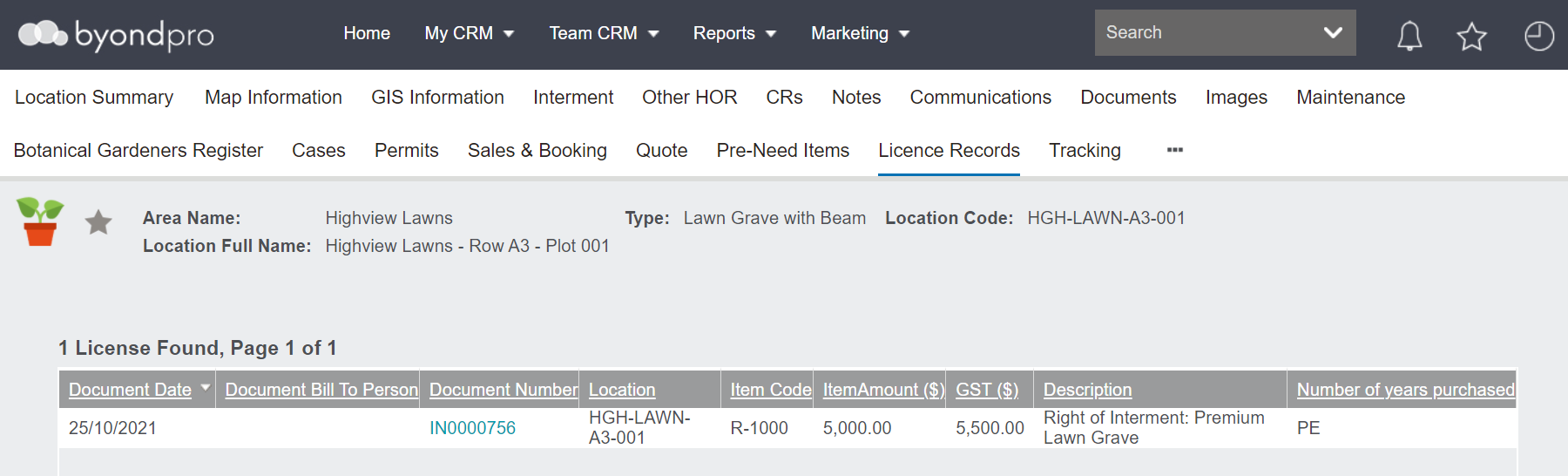
Licence Records Tab
The Licence Records tab relates to the tenure of the location.
The licence would appear with the following information:
-
-
The bill to person or company
-
-
-
-
-
-
The number of years purchased
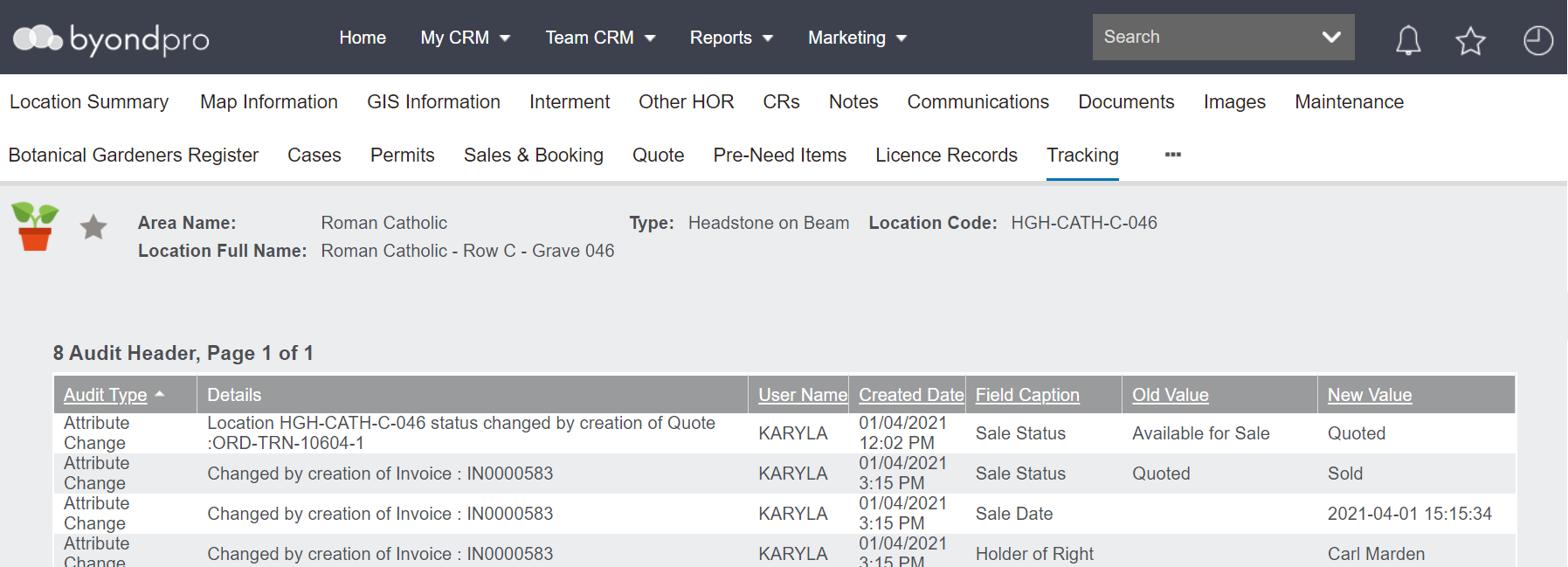
Tracking Tab
The Tracking tab will track significant changes to the location record.