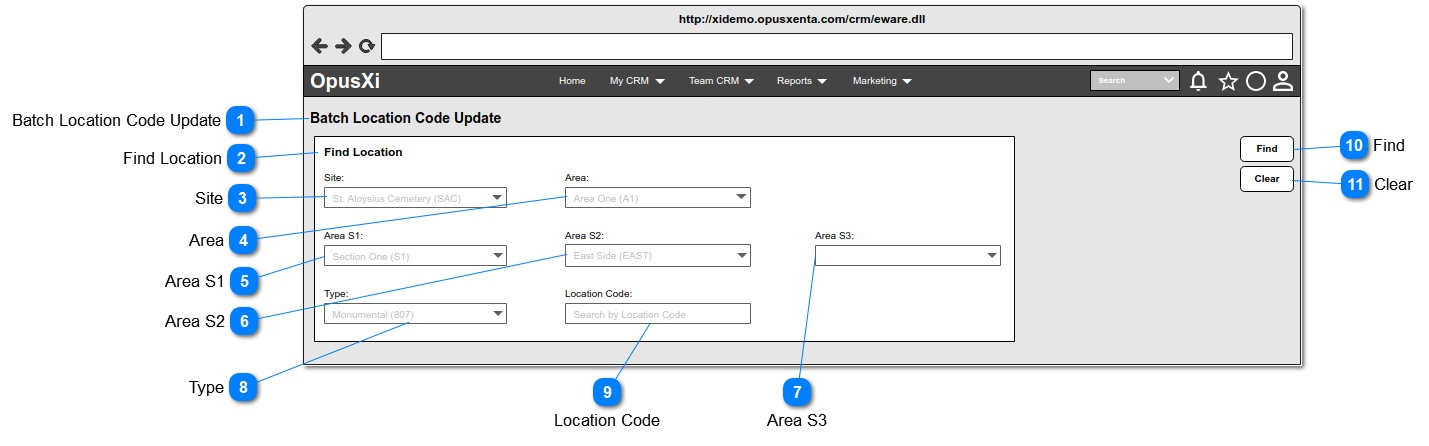
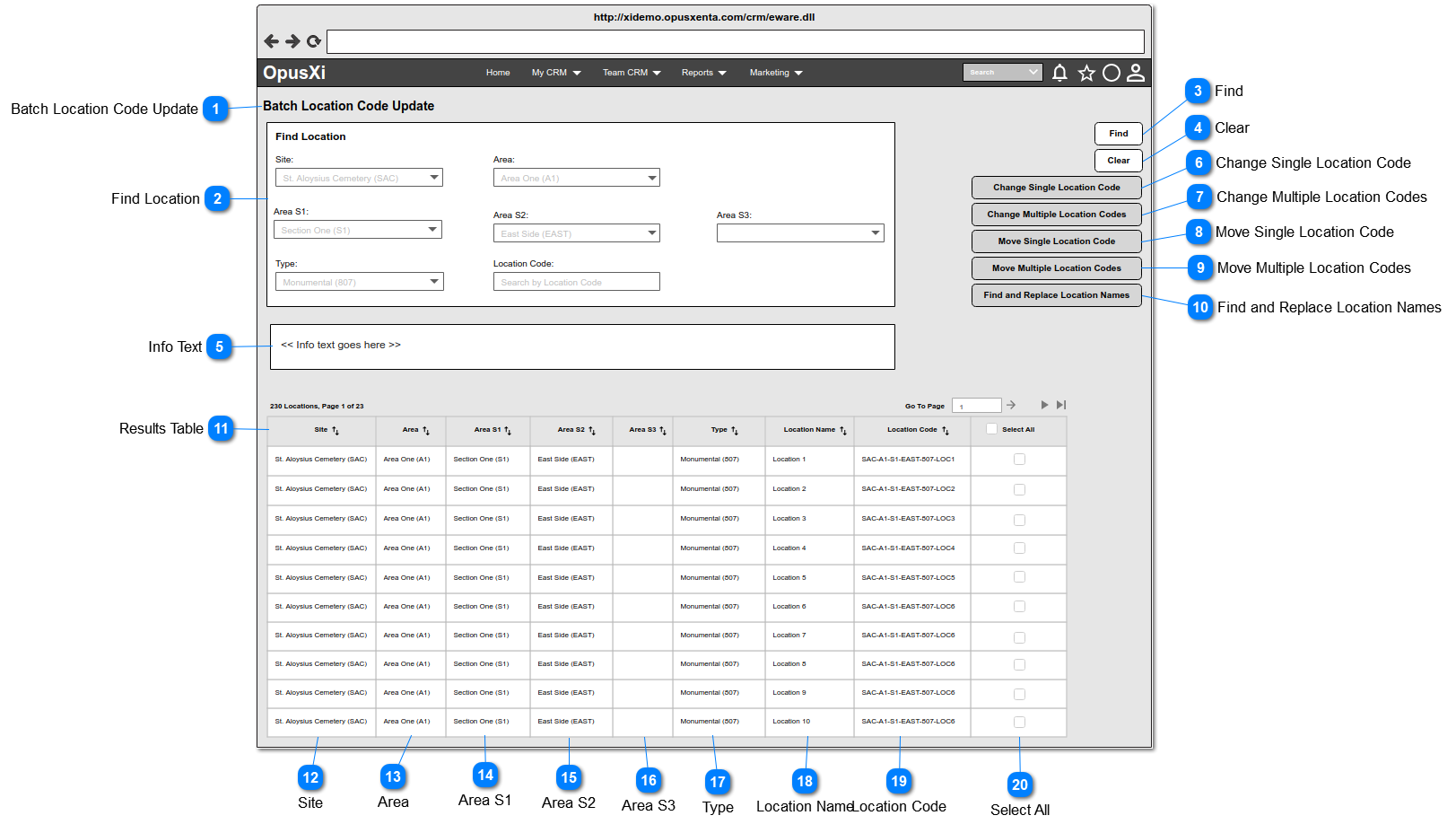
This tool is a mechanism for restructuring and moving the cemetery locations of a cemetery. The business requirement of this tool is to allow the OpusXi users to update the location codes and location names of the locations which have been created beneath a particular cemetery.
In order to use this tool the users should have been granted the permission called "Can use Location Change Tool" which will be placed in the user profile of a particular user (refer to CRM Administration / Users). It is required to have the "Can use Location Change Tool" permission be selected to show the access link underneath "My CRM" drop down and the name of the access link is "Batch Location Code Update". Once the user clicks on the access link, the system navigates the users to the "Batch Location Code Update" page which includes the following functionalities.
#
Functionality (Usecase)
Business Problem
User Story
1
Change Single Location Code
OpusXi does not allow the users to change/edit the finalized location codes of locations in a cemetery.
As an OpusXi user, I will be able to change the finalized location code, so then I could be able to use the updated location code for the further transactions.
2
Change Multiple Location Codes
3
Move Single Location Code
OpusXi does not allow the users to move/shift the location/s from one section to another, even if the targeted section is in another area.
As an OpusXi user, I will be able to move/shift location/s from one section to another section even if the targeted section is in another area, so then I could be able to place the location/s underneath another section.
4
Move Multiple Location Codes
5
Find and Replace Location Names
OpusXi does not allow the users to find the location name/s by a text and replace the location name/s with a new text.
As an OpusXi user, I will be able to find the location name/s by a text and replace the location names with a new text, so then I could be able to update one or more location name/s at once.
Initial Screens
Screen 1
Batch Location Code Update
This is the first page shown to the user when they access the tool. It allows the user to identify the location codes to be changed.
1. The format of the input value: <<Site Code>>-<<Area Code>>-<<Area S1 Code>>-<<Area S2 Code>>-<<Area S3 Code>>-<<Location Type Code>>-<<Location Code>>
This provides selection guidelines to select records from Results Table, in order to interact with the available functions.
Type
Notes
Rules
Compulsory
Placeholder
Format
Edit
Size
Default
Messages
Info Text
-
For more details, refer Info Text in Possible Scenarios section.
-
-
Text
-
-
-
-
Possible Scenarios
Selected values from search filters
Filtered records when clicks on the "Find" button
Info Text
Remarks
#
Site
Area
Area S1
Area S2
Area S3
Type
Location
1
SAC
-
-
-
-
-
-
All the locations belongs to SAC
Select ONLY one location to change its "Type" segment and "Location" segment.
If you select more than one location but less than all locations, you will not be able to change the "Site" segment of the location codes.
"Select All" locations in order to change ONLY the site segment of the location codes.
1a. When the user selects all the locations of the "Site", the system allows the user to change ONLY the "Site" segment of the location codes.
1b. When the user selects all the locations of a particular "Area" - refer 2a.
1c. When the user selects all the locations of a particular "Area S1", which the "Area S1" is in a same "Area" - refer 3a.
1d. When the user selects all the locations of a particular "Area S2", which the "Area S2" is in a same "Area S1" and a same "Area" - refer 4a.
1e. When the user selects all the locations of a particular "Area S3", which the "Area S3" is in a same "Area S2", a same "Area S1" and a same "Area" - refer 5a.
2
SAC
A1
-
-
-
-
-
The locations belongs to A1 of SAC
Select one location to change its "Type" segment and "Location" segment (Change Single location code).
"Select All" locations to change the "Area" segment.
Select a range of location codes to change "Location type" and/or renumber the locations (This info message should be changed).
2a. When the user selects all the locations of an "Area", the system allows the user to change ONLY the "Area" segment of the location codes.
3
SAC
A1
S1
-
-
-
-
The locations belongs to S1 which the S1 is in A1 of SAC
Select one location to change its "Type" segment and "Location" segment.
"Select All" locations to change the "Area S1" segment.
Select a range of location codes to change "Location type" and/or renumber the locations (This info message should be changed).
3a. When the user selects all the locations of an "Area S1", the system allows the user to change ONLY the "Area S1" segment of the location codes.
4
SAC
A1
S1
EAST
-
-
-
The locations belongs to EAST (Area S2) in S1 which the S1 is in A1 of SAC
Select one location to change its "Type" segment and "Location" segment.
"Select All" locations to change the "Area S2" segment.
Select a range of location codes to change "Location type" and/or renumber the locations (This info message should be changed).
4a. When the user selects all the locations of an "Area S2", the system allows the user to change ONLY the "Area S2" segment of the location codes.
5
SAC
A1
S1
EAST
LEFT
-
-
The locations belongs to LEFT (Area S3) in EAST (Area S2) of S1 which the S1 is in A1 of SAC
"Select one location to change its "Type" segment and "Location" segment.
"Select All" locations to change the "Area S3" segment.
Select a range of location codes to change "Location type" and/or renumber the locations (This info message should be changed).
5a. When the user selects all the locations of an "Area S3", the system allows the user to change ONLY the "Area S3" segment of the location codes.
6
SAC
A1
S1
EAST
LEFT
807
-
The "807" typed locations belongs to LEFT (Area S3) in EAST (Area S2) of S1 which the S1 is in A1 of SAC
"Select one location to change its "Type" segment and "Location" segment.
"Select All" locations to change the "Area S3" segment.
Select a range of location codes to change "Location type" and/or renumber the locations (This info message should be changed).
6a. When the user selects more than one location of a same "Type", the system allows the user to change ONLY the "Type" segment and the "Location" of the location codes.
7
Either these Filters are selected or not selected
SAC-A1-S1-EAST-LEFT-807-LOC1
Only the LOC1
Select one location to change its "Type" segment and "Location" segment.
7a. As this is a single location code change, the system allows the user to change ONLY the "Type" segment and the "Location" of the location code.
1. This button will be enabled/active, when the user selects ONLY one record from the Results Table
2. This button will be disabled/inactive, when the user selects less than one record or selects more than one record (i.e. including "Select All") from the Results Table.
This table includes the list of location records that meet the search criteria.
Type
Notes
Rules
Compulsory
Placeholder
Format
Edit
Size
Default
Messages
Table
-
1. This table allows the users to,
sort all the columns except "Select All" column by ASC or DESC.
move other pages by the navigator placed at the top right corner of the table.
2. If the system found records, show the text, placed at the top left corner of the table. The format of the text is <<search results count>> Locations, Page <<current page number>> of <<total pages count>>
3. If no results found, show the text "No Locations", placed at the top left corner of the table.
-
-
-
-
-
Sort the table by the column "Location Code" in ASC