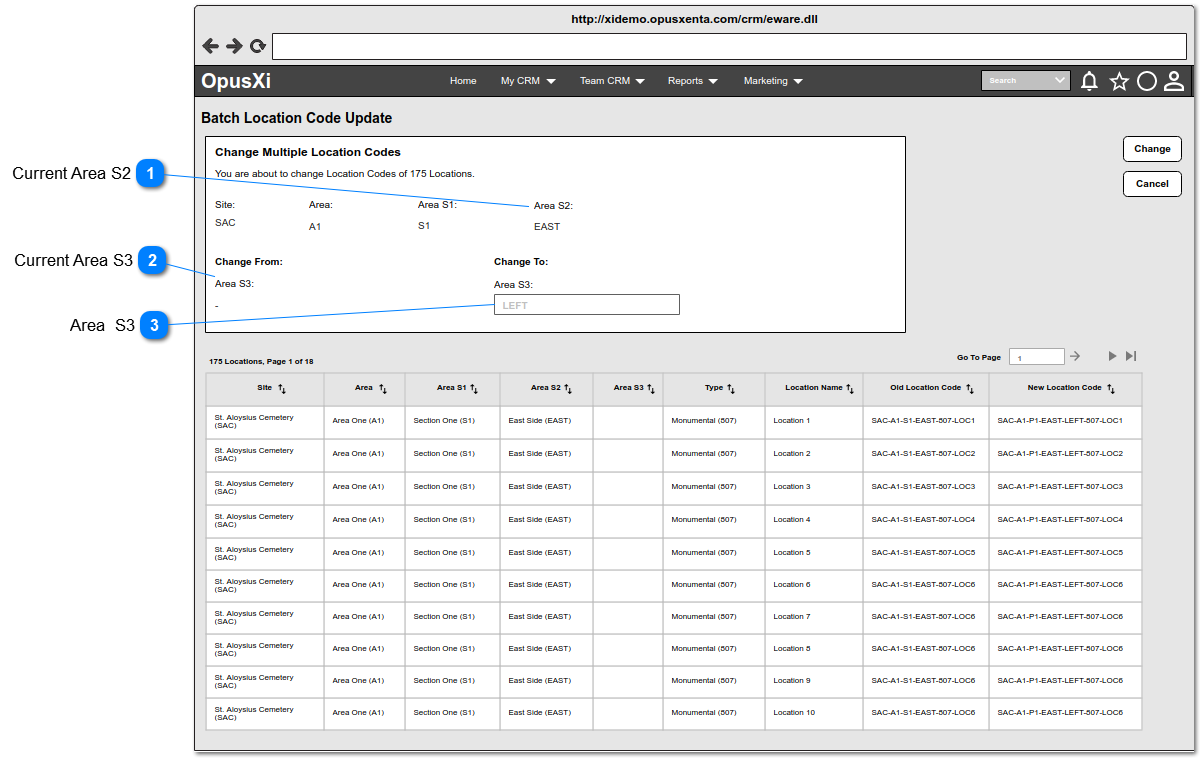
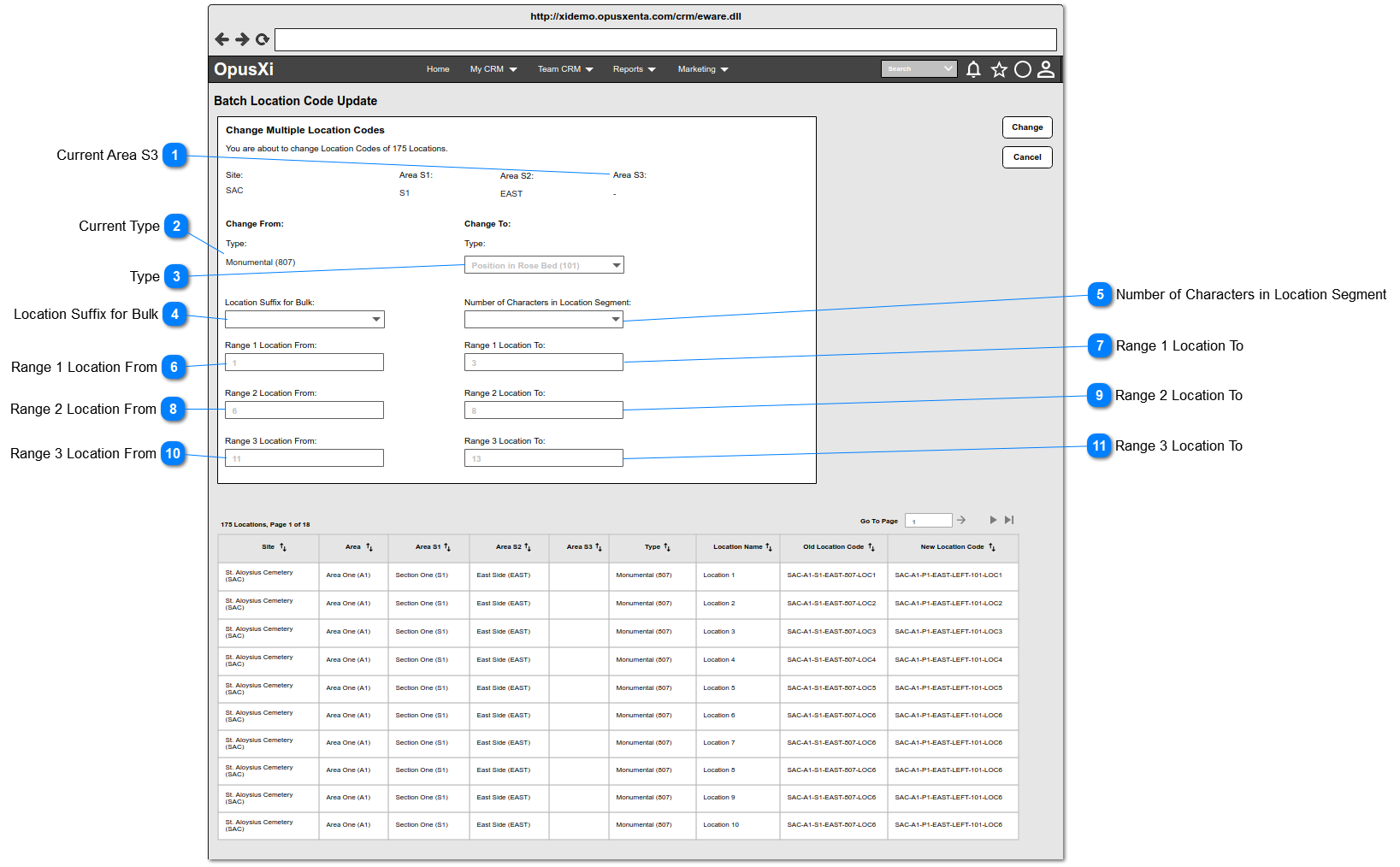
The system will navigate the user to this page, when the user selects more than one record (including "Select All") from the Results Table and clicks on the Change Multiple Location Codes button.
The functionalities of this page are as follows.
Selected values from search filters in Find Location section
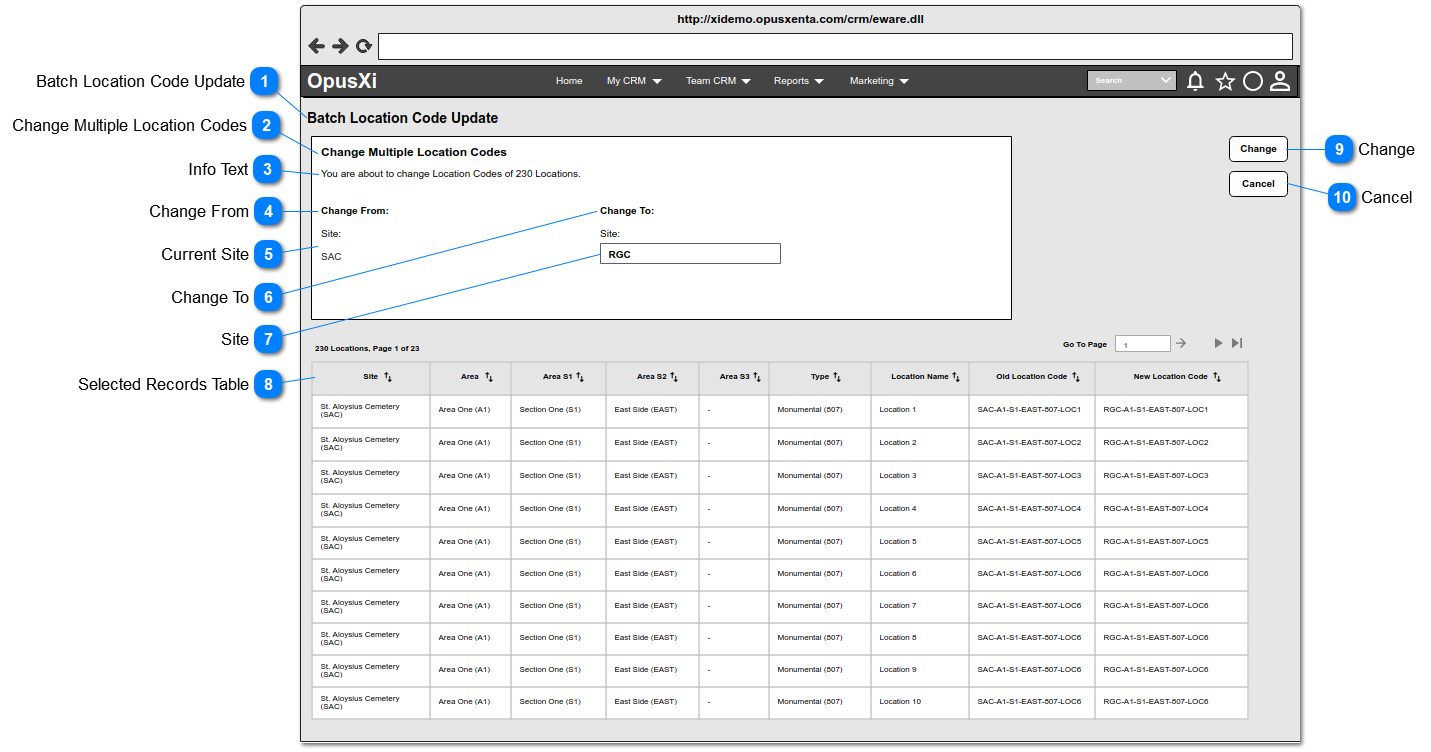
1a. When the user selects all the locations of the "Site", the system allows the user to change ONLY the "Site" segment of the location codes - see Screen 1a.
1b. When the user selects all the locations of a particular "Area" - refer 2a.
1c. When the user selects all the locations of a particular "Area S1", which the "Area S1" is in a same "Area" - refer 3a.
1d. When the user selects all the locations of a particular "Area S2", which the "Area S2" is in a same "Area S1" and a same "Area" - refer 4a.
1e. When the user selects all the locations of a particular "Area S3", which the "Area S3" is in a same "Area S2", a same "Area S1" and a same "Area" - refer 5a.
1f. When the user selects ONLY few locations (with same code segments or different code segments), the system allows the user to change ONLY the "Type" segment and the "Location" of the location codes - see Screen 6a
2
SAC
A1
-
-
-
-
-
The locations belongs to A1 of SAC
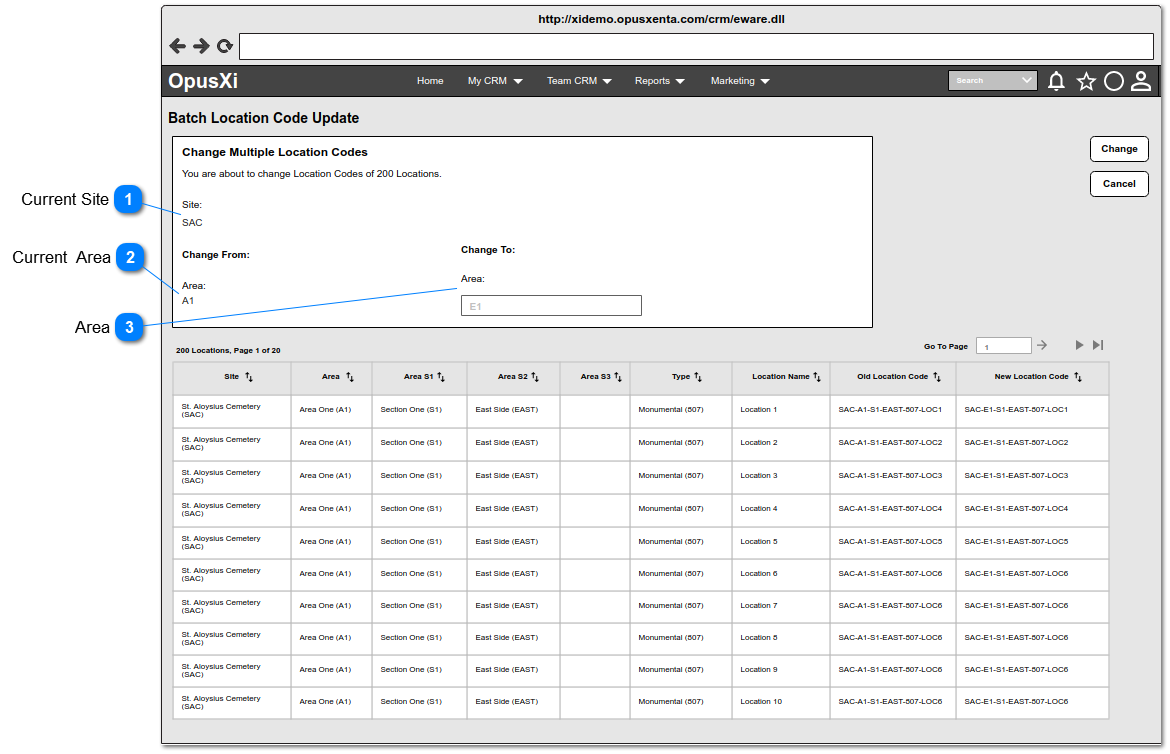
2a. When the user selects all the locations of an "Area", the system allows the user to change ONLY the "Area" segment of the location codes - see Screen 2a
2b. When the user selects all the locations of a particular "Area S1", which the "Area S1" is in a same "Area" - refer 3a.
2c. When the user selects all the locations of a particular "Area S2", which the "Area S2" is in a same "Area S1" and a same "Area" - refer 4a.
2d. When the user selects all the locations of a particular "Area S3", which the "Area S3" is in a same "Area S2", a same "Area S1" and a same "Area" - refer 5a.
2e. When the user selects ONLY few locations (with same code segments or different code segments), the system allows the user to change ONLY the "Type" segment and the "Location" of the location codes - see Screen 6a
3
SAC
A1
S1
-
-
-
-
The locations belongs to S1 which the S1 is in A1 of SAC
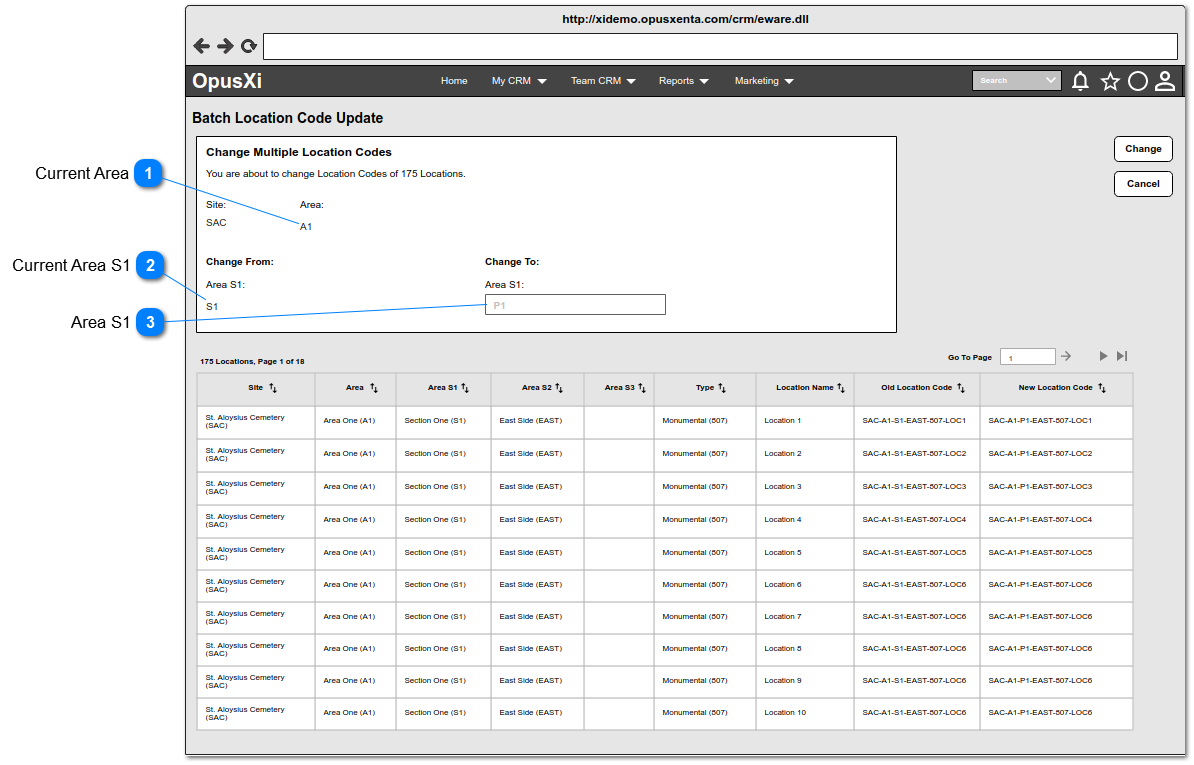
3a. When the user selects all the locations of an "Area S1", the system allows the user to change ONLY the "Area S1" segment of the location codes - see Screen 3a
3b. When the user selects all the locations of a particular "Area S2", which the "Area S2" is in a same "Area S1" and a same "Area" - refer 4a.
3c. When the user selects all the locations of a particular "Area S3", which the "Area S3" is in a same "Area S2", a same "Area S1" and a same "Area" - refer 5a.
3d When the user selects ONLY few locations (with same code segments or different code segments), the system allows the user to change ONLY the "Type" segment and the "Location" of the location codes - see Screen 6a
4
SAC
A1
S1
EAST
-
-
-
The locations belongs to EAST (Area S2) in S1 which the S1 is in A1 of SAC
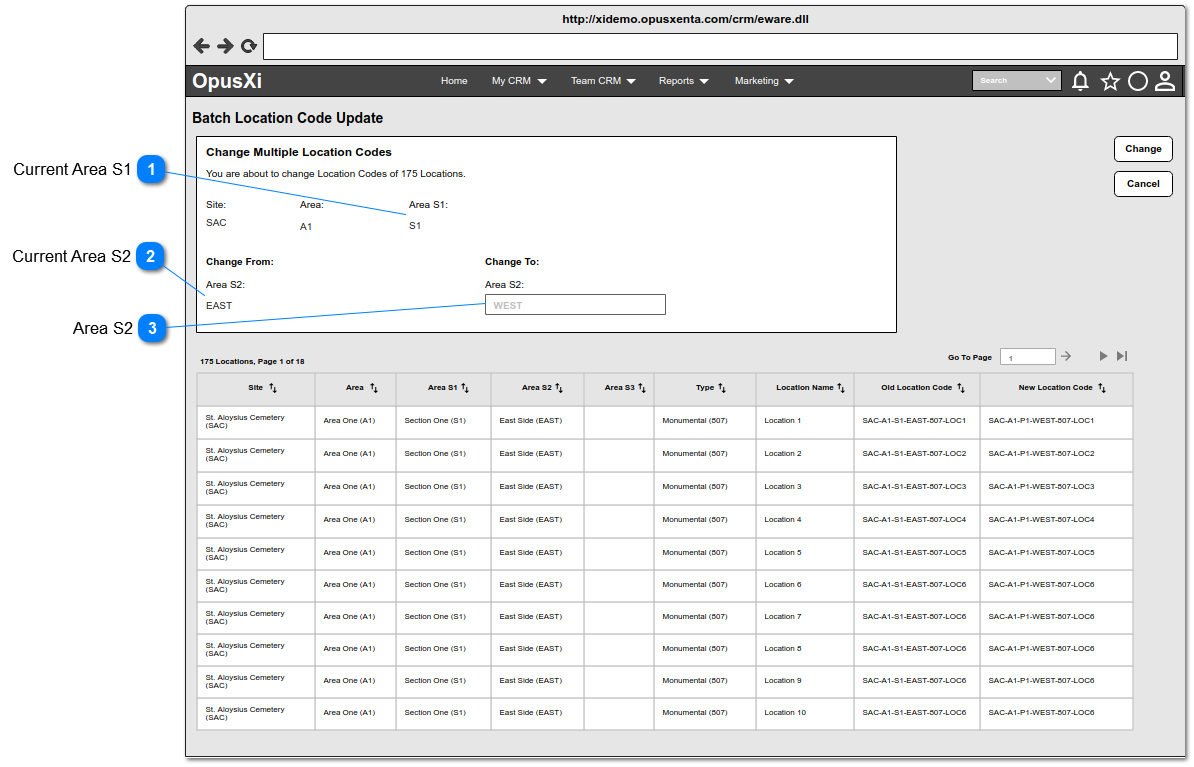
4a. When the user selects all the locations of an "Area S2", the system allows the user to change ONLY the "Area S2" segment of the location codes - see Screen 4a
4b. When the user selects all the locations of a particular "Area S3", which the "Area S3" is in a same "Area S2", a same "Area S1" and a same "Area" - refer 5a.
4c. When the user selects ONLY few locations (with same code segments or different code segments), the system allows the user to change ONLY the "Type" segment and the "Location" of the location codes - see Screen 6a
5
SAC
A1
S1
EAST
LEFT
-
-
The locations belongs to LEFT (Area S3) in EAST (Area S2) of S1 which the S1 is in A1 of SAC
5a. When the user selects all the locations of an "Area S3", the system allows the user to change ONLY the "Area S3" segment of the location codes - see Screen 5a
5b. When the user selects ONLY few locations (with same code segments or different code segments), the system allows the user to change ONLY the "Type" segment and the "Location" of the location codes - see Screen 6a
6
SAC
A1
S1
EAST
LEFT
807
-
The "807" typed locations belongs to LEFT (Area S3) in EAST (Area S2) of S1 which the S1 is in A1 of SAC
6a. When the user selects more than one location to all locations from a same "Type", the system allows the user to change ONLY the "Type" segment and the "Location" of the location codes - see Screen 6a
7
Either these Filters are selected or not selected
SAC-A1-S1-EAST-LEFT-807-LOC1
Only the LOC1
7a. As this is a single location code change, the system allows the user to change the "Type" segment and the "Location" segment of the location code - refer Change Single Location Code.
1. This allows to enter any three (3) characters including numbers, letters and special characters. So the text field should be limited to maximum of 3 characters.
2. If the user enters lower case letters, it will automatically convert to the letters to upper case.
This table includes all the selected records from the Results Table. Refer Selected Records Table for the functionalities of the table and refer the column details mentioned underneath it.
(LOCA_TYPE, LOCA_LOCATIONCODE) should be updated, when the user selects a .
5. The new location code will be displayed underneath the New Location Code column.
6. The track/log record/s should be added to the "Tracking" list.
1. This button will be enabled/active, when the user enters a value for the text field (For Screen 6a- this button will be enabled/active, when the user selects a value for "Type" or enters value/s for "Ranges").
2. This button will be disabled/inactive, when the user clears/resets text field (For Screen 6a- this button will be disabled/inactive, when the user clears/resets both the "Type" and the "Ranges" elements).
3. While the location codes change task is being processing, it will show a message box - see Message Box 1.
5. For a successfully completed task, It will show a message box - see Message Box 2.
6. For a not completed task, It will show a message box - see Message Box 3. (This might be shown when the server timeouts occured).
-
-
-
-
-
Inactive
Message Box 1 - Processing...
<<count of the remaining records goes here>> out of <<count of selected records goes here>> location codes remaining to be processed for location codes change task.
Message Box 2 -
Location code change task is completed.
<<count of location records goes here>> location codes are changed.
1. This allows to enter any four (4) characters including numbers, letters and special characters. So the text field should be limited to maximum of 4 characters.
2. When the user enters lower case letters, it will automatically convert the letters to uppercase.
1. This allows to enter any four (4) characters including numbers, letters and special characters. So the text field should be limited to maximum of 4 characters.
2. When the user enters lower case letters, it will automatically convert the letters to uppercase.
1. This allows to enter any six (6) characters including numbers, letters and special characters. So the text field should be limited to maximum of 6 characters.
2. When the user enters lower case letters, it will automatically convert the letters to uppercase.
1. This allows to enter any four(4) characters including numbers, letters and special characters. So the text field should be limited to maximum of 4 characters.
2. When the user enters lower case letters, it will automatically convert the letters to uppercase.
3. This allows to enter a number, which the digit count of the number should be limited to maximum of the selected number in Number of Characters in Location Segment drop down.
3. This allows to enter a number, which the digit count of the number should be limited to maximum of the selected number in Number of Characters in Location Segment drop down.
4. This should ONLY allow to enter a greater number than the value entered in Range 1 Location From.
3. This allows to enter a number, which the digit count of the number should be limited to maximum of the selected number in Number of Characters in Location Segment drop down.
3. This allows to enter a number, which the digit count of the number should be limited to maximum of the selected number in Number of Characters in Location Segment drop down.
4. This should ONLY allow to enter a greater number than the value entered in Range 2 Location From.
3. This allows to enter a number, which the digit count of the number should be limited to maximum of the selected number in Number of Characters in Location Segment drop down.
3. This allows to enter a number, which the digit count of the number should be limited to maximum of the selected number in Number of Characters in Location Segment drop down.
4. This should ONLY allow to enter a greater number than the value entered in Range 3 Location From.