To properly display this page you need a browser with JavaScript support.
Change Single Location Code
Batch Location Code Update
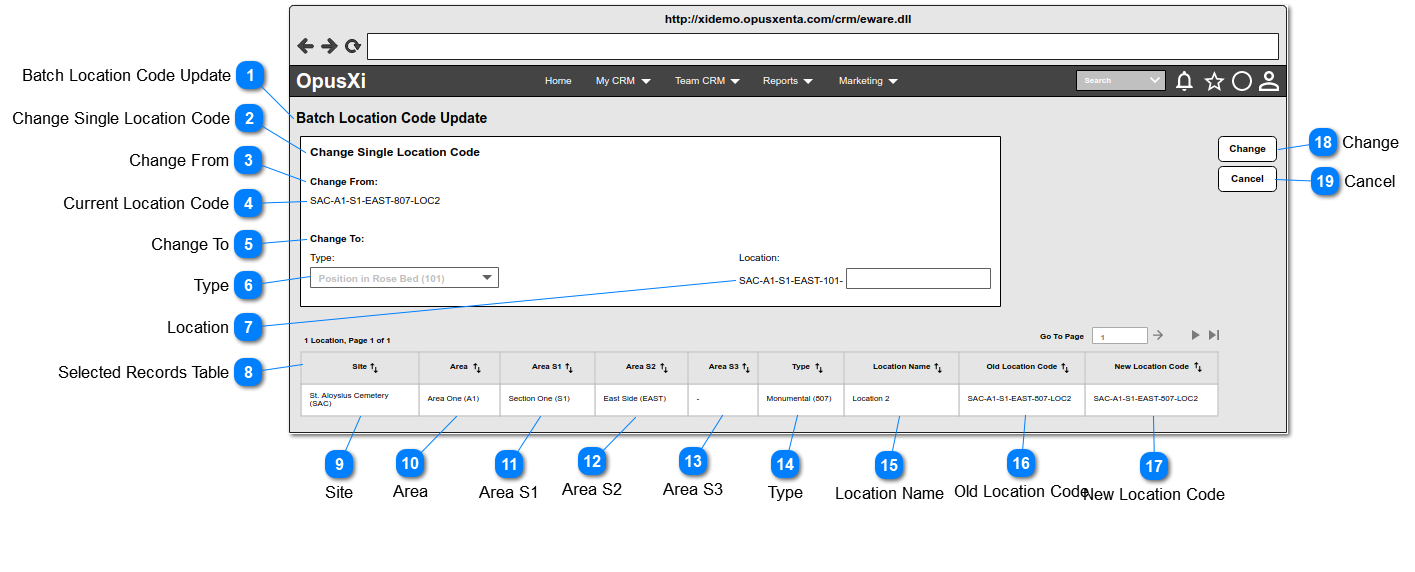
Change Single Location Code This is the main section of the page.
Type
Notes
Rules
Compulsory
Placeholder
Format
Edit
Size
Default
Messages
Section Header
-
-
-
-
Text
-
-
-
-
Change From This is a label to highlight the current location code.
Type
Notes
Rules
Compulsory
Placeholder
Format
Edit
Size
Default
Messages
Label
-
-
-
-
Text
-
-
-
-
Current Location Code This is the current location code (the location code of the selected location), which is expected to be changed.
Type
Notes
Rules
Compulsory
Placeholder
Format
Edit
Size
Default
Messages
Text
-
-
-
-
Text
-
-
-
-
Change To This is a label to highlight the section, which the section includes Type and Location Code form elements.
Type
Notes
Rules
Compulsory
Placeholder
Format
Edit
Size
Default
Messages
Label
-
-
-
-
Text
-
-
-
-
Type This contains the list of all the Location Types.
Type
Notes
Rules
Compulsory
Placeholder
Format
Edit
Size
Default
Messages
Combo Box
Pre-conditions:
Post-conditions:
1. The "Type" segment of the Location should be updated, when the user selects a "Type".
2. The field "Type" of the Location record (LOCA_TYPE) should be updated, when the user selects a "Type".
Optional
Select a Type
Text
-
-
Active
-
Location This allows to enter a location code.
Type
Notes
Rules
Compulsory
Placeholder
Format
Edit
Size
Default
Messages
Text Field
-
1. This allows to enter any six (6) characters including numbers, letters and special characters. So the text field should be limited to maximum of 6 characters.
2. The format of the read-only text (which is placed just before the text field) : <<Site Code>>-<<Area Code>>-<<Area S1 Code>>-<<Area S2 Code>>-<<Area S3 Code>>-<<Location Type Code>>-
Optional
Enter a Location Code
Text
-
-
Active
-
Selected Records Table
Site
Area
Area S1
Area S2
Area S3
Type
Location Name
Old Location Code Column in the table showing Old Location Code(i.e. the current location code) of the location.
Type
Notes
Rules
Compulsory
Placeholder
Format
Edit
Size
Default
Messages
Text
-
The format of the text: <<Site Code>>-<<Area Code>>-<<Area S1 Code>>-<<Area S2 Code>>-<<Area S3 Code>>-<<Location Type Code>>-<<Location Code>>
-
-
Text
-
-
-
-
New Location Code Column in the table showing New Location Code of the location.
Type
Notes
Rules
Compulsory
Placeholder
Format
Edit
Size
Default
Messages
Text
-
1. By default, this will be empty and for a successful code change it will show the new location code.
2. The format of the text: <<Site Code>>-<<Area Code>>-<<Area S1 Code>>-<<Area S2 Code>>-<<Area S3 Code>>-<<Location Type Code>>-<<Location Code>>
-
-
Text
-
-
-
-
Change This is a function of the change process.
Type
Notes
Rules
Compulsory
Placeholder
Format
Edit
Size
Default
Messages
Button
Post-conditions:
2. Clear values from the Type combo box and Location text field.
3. For a successful location code change, the current location code will be updated to the newest location code.
4. The track/log record/s should be added to the "Tracking" list.
1. This button will be enabled/active, when the user enters value for at least one input element(i.e. Type, Location or both).
2. This button will be disabled/inactive, when the user clears/resets both of the fields.
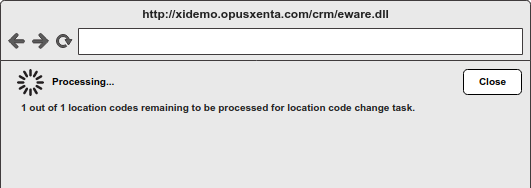
4. While the location code change task is being processing, it will show a message box - see Message Box 1 .Message Box 2 .
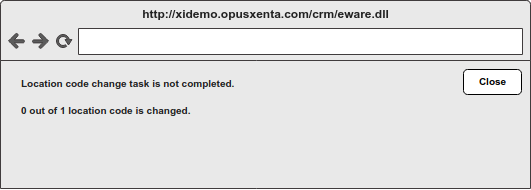
6. For a not completed task, It will show a message box - see Message Box 3 . (This might be shown when the server timeouts occured).
-
-
-
-
-
Inactive / disabled
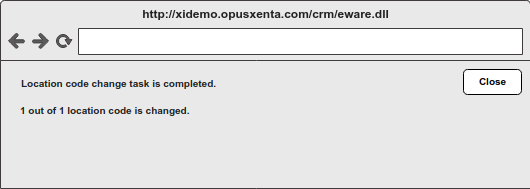
3a. The location code is already exists. Try with another Type, Location or both. Message Box 1 - Processing...1 out of 1 location codes remaining to be processed for location code change task. Message Box 2 - Location code change task is completed. Message Box 3 - Location code change task is not completed.
Message Box 1 Message Box 2 Message Box 3
Cancel This is a function of the cancel process.
Type
Notes
Rules
Compulsory
Placeholder
Format
Edit
Size
Default
Messages
Button
Post-conditions: Type combo box and Location text field.
-
-
-
-
-
-
Active/enabled
-
Possible Scenarios
Change Single Location code:
from
SAC-A1-S1-EAST-507- LOC2
input location:
01A
results in:
SAC-A1-S1-EAST-507- 01A
Or change Type
from
SAC-A1-S1-EAST- 507 - LOC2
input type:
Position in rose bed (101)
results in:
SAC-A1-S1-EAST- 101 - LOC2
Or change both Type & Location
from
SAC-A1-S1-EAST- 507 - LOC2
input type:
Position in rose bed (101)
input location:
01A
results in:
SAC-A1-S1-EAST- 101 - 01A