There may be times when an invoice has been created in byondpro which needs to be reversed.
Depending on the reasoning behind the need for the credit note being applied, the processes may vary.
As a result, the below outlines the initial process of creating a credit note sales order.
Once the credit note has been created, you will need to refer to the most appropriate process to guide you:
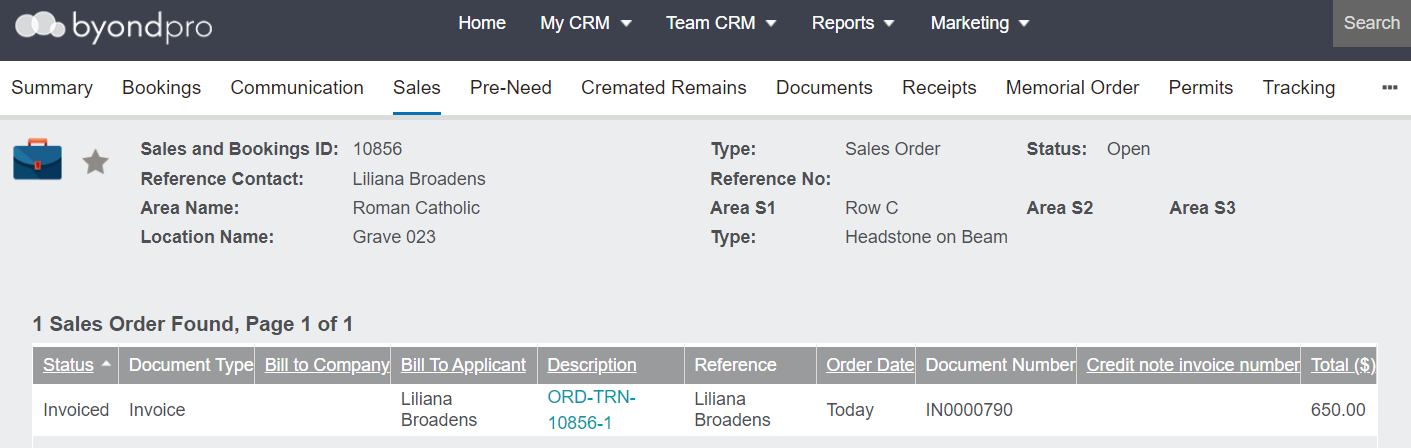
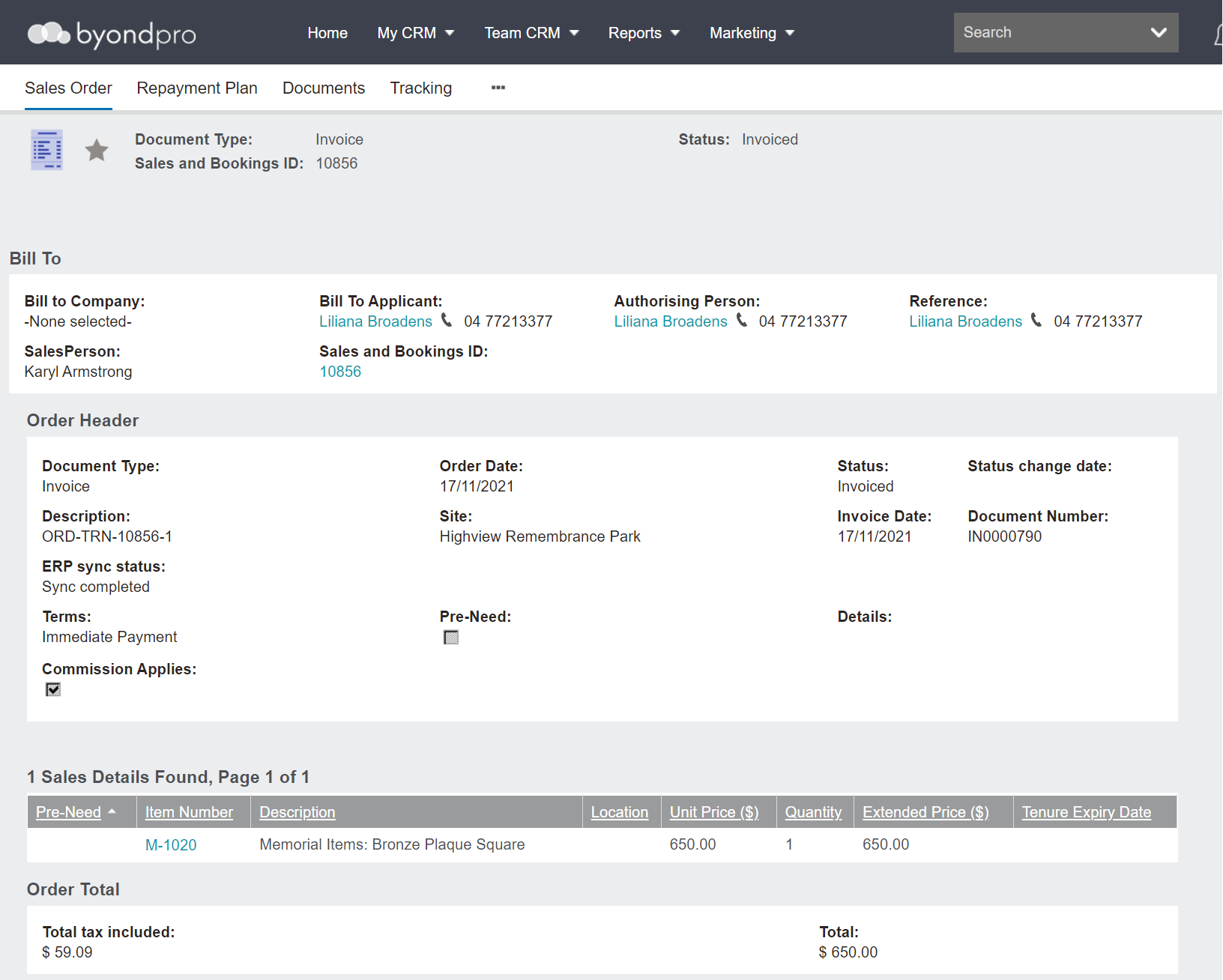
The original invoice transaction is shown below.
-
If the originating Sales & Booking is still open, you can initiate corrections from there.
-
If the original Sales & Booking is not open, create a new Sales & Booking.
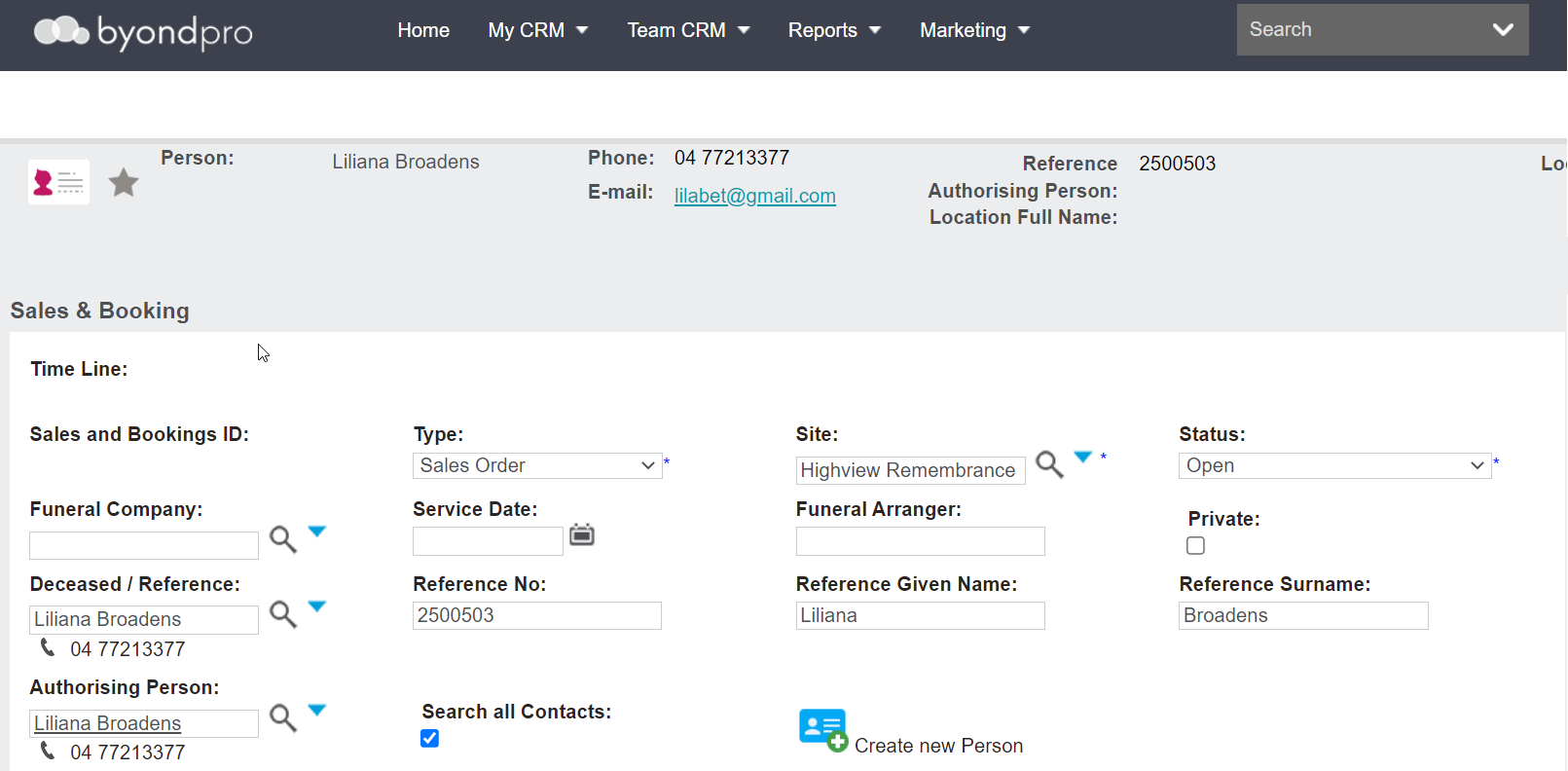
In the example below, we have started with a new Sales & Booking, with the type Sales Order.
Add the Authorising party, Deceased and Location references to the summary screen.
Create a new sales order from the original or new Sales & Booking, starting with pressing the New Sale button on the Sales tab of the Sales & Booking.
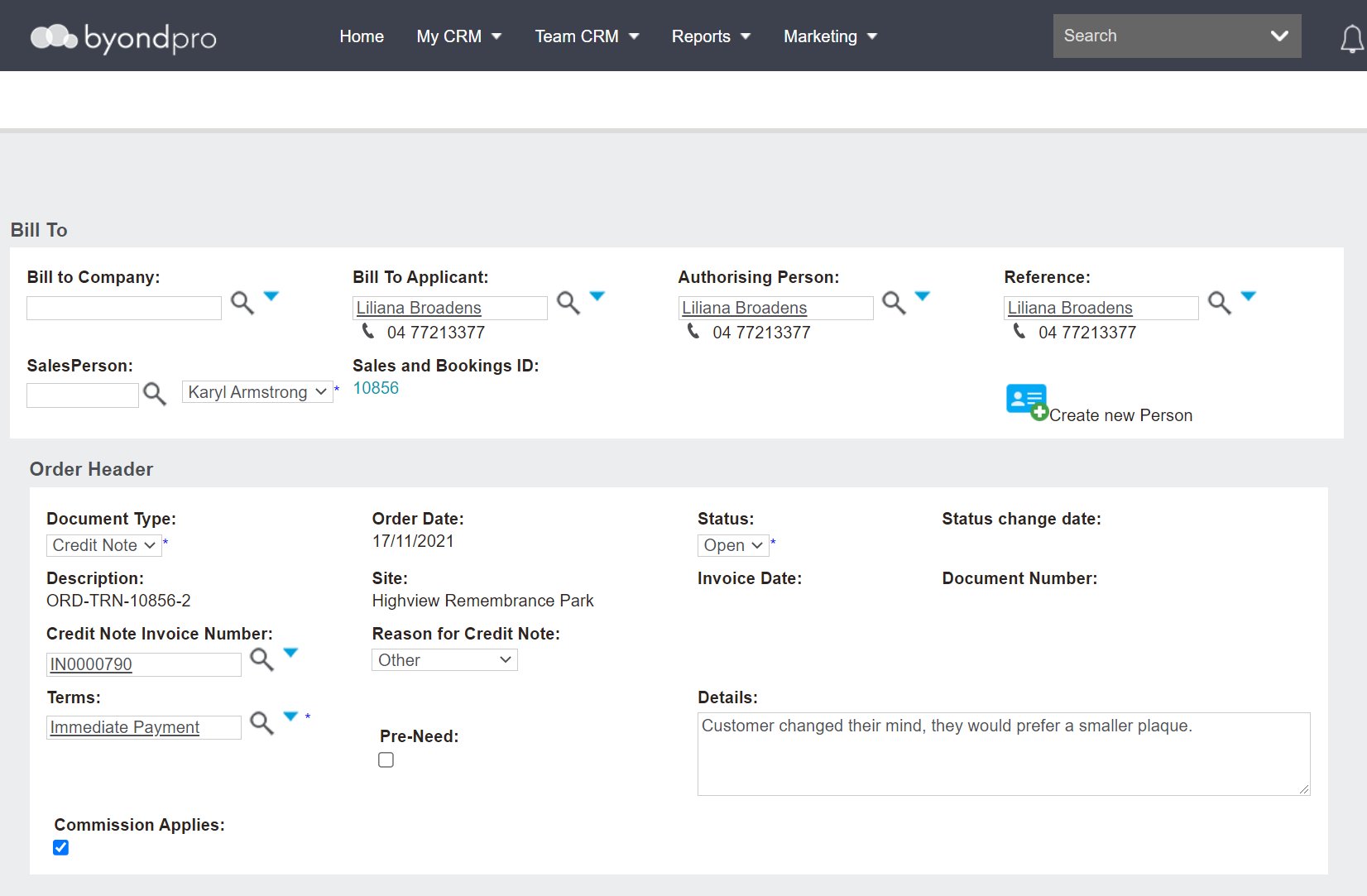
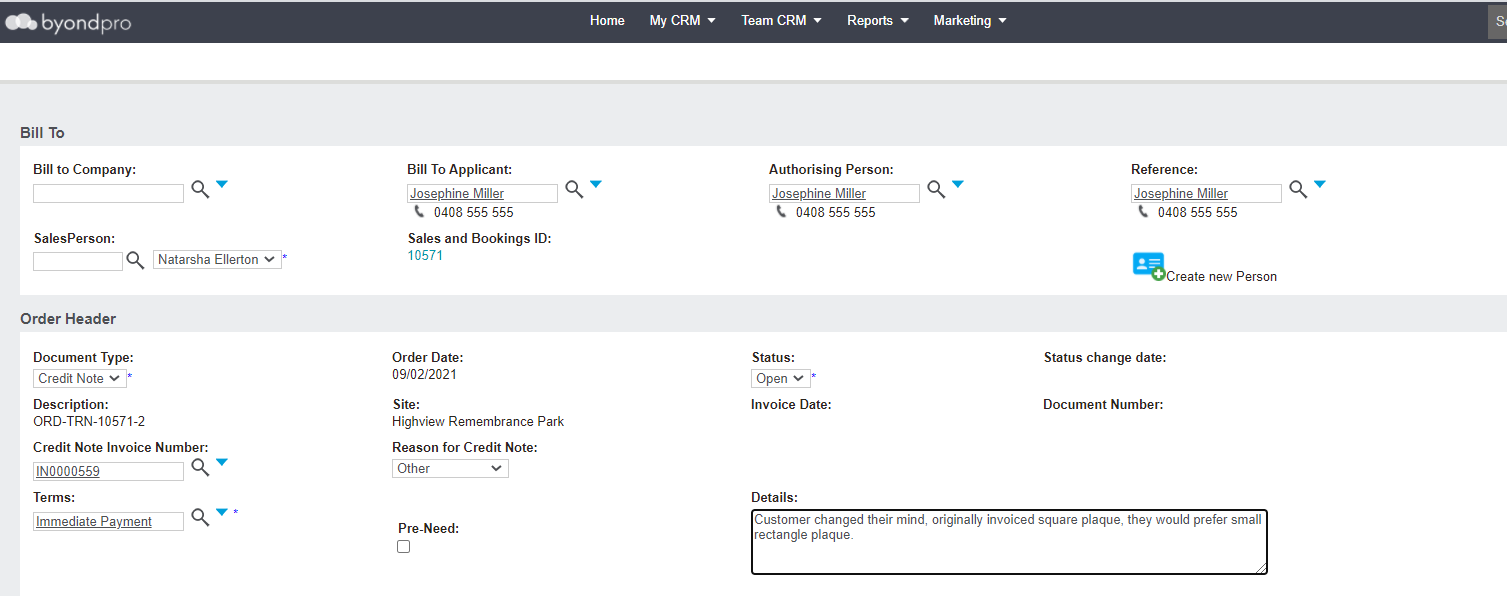
Add the Bill-To party as per the original invoice, whether it was person / company in the invoice.
Change the Type to Credit Note.
Add the invoice number to be credited in the Credit Note Invoice Number field.
-
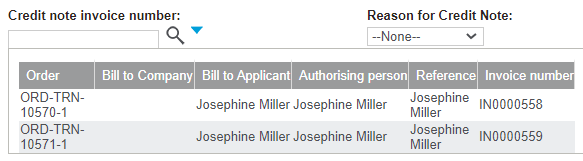
If multiple invoices are linked to the person record, you will need to choose the correct invoice from the drop-down list.
Select the reason for credit in the Reason for Credit Note field.
Where the reason provided is Other, it's recommended additional details are captured in the Details field to explain.
Press Save on the right-hand side of the page.
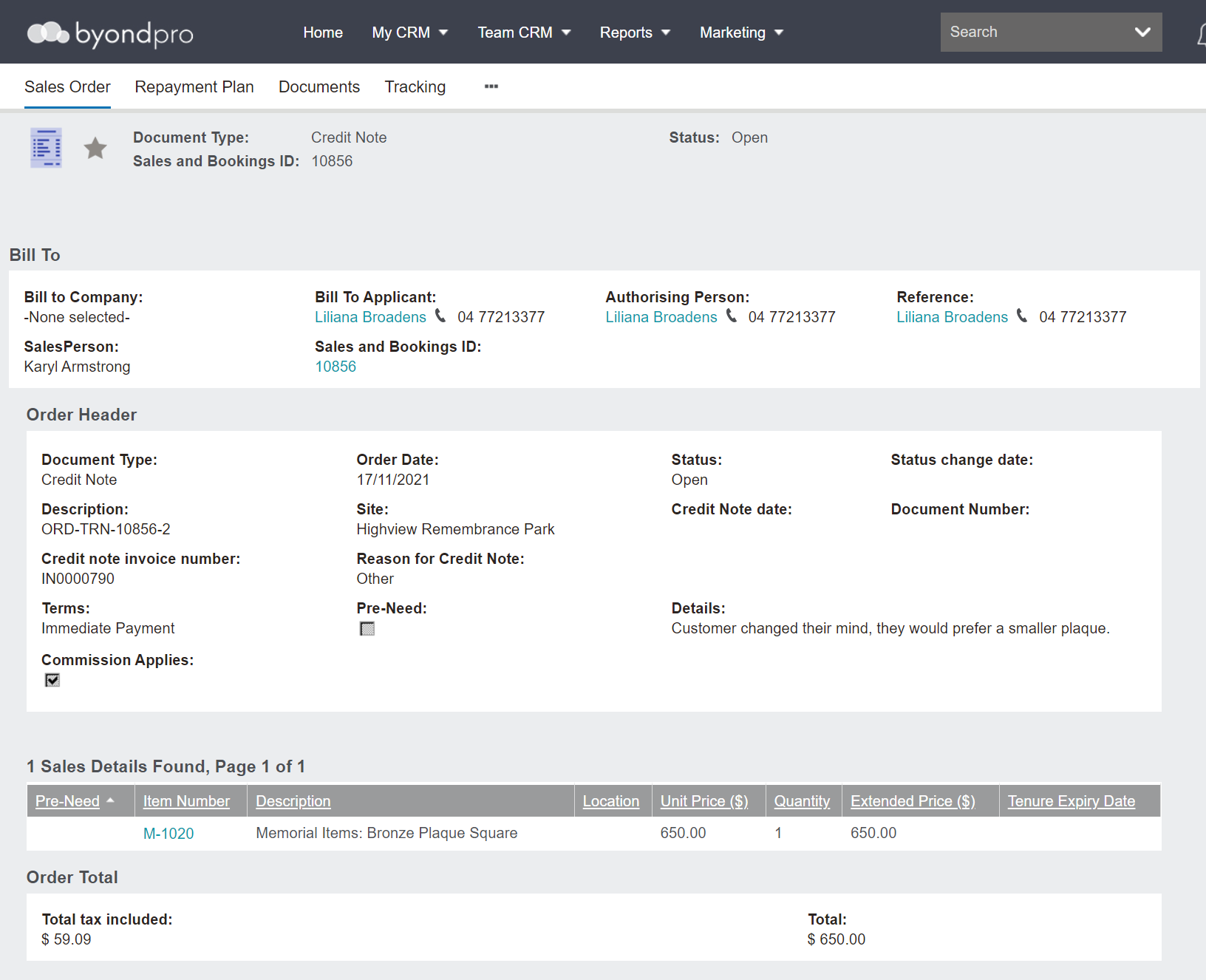
The line items from the originating invoice are inserted, showing original prices and quantities.
Now let us take a look at each of the scenarios that may lead to a credit note needing to be created.