A partial credit note may need to be prepared where an incorrect price has been charged on an Invoice in error.
The full invoice is not being credited, in this example.
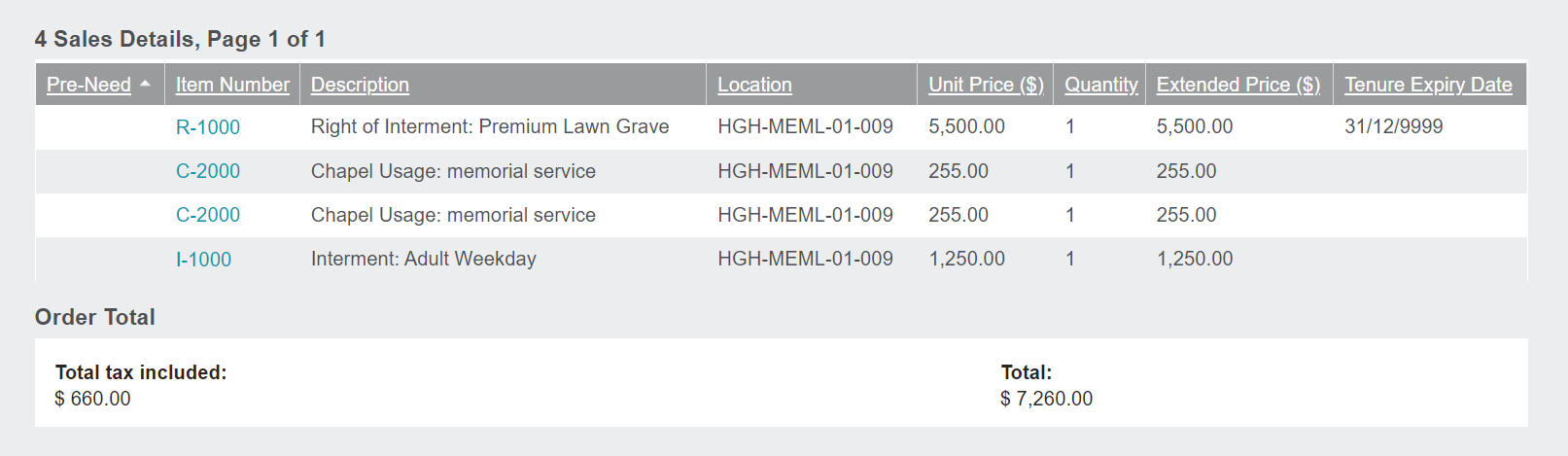
The line items from the originating invoice are inserted, showing original prices and quantities.
Remove the line items that are NOT to be credited, and / or adjust unit prices.
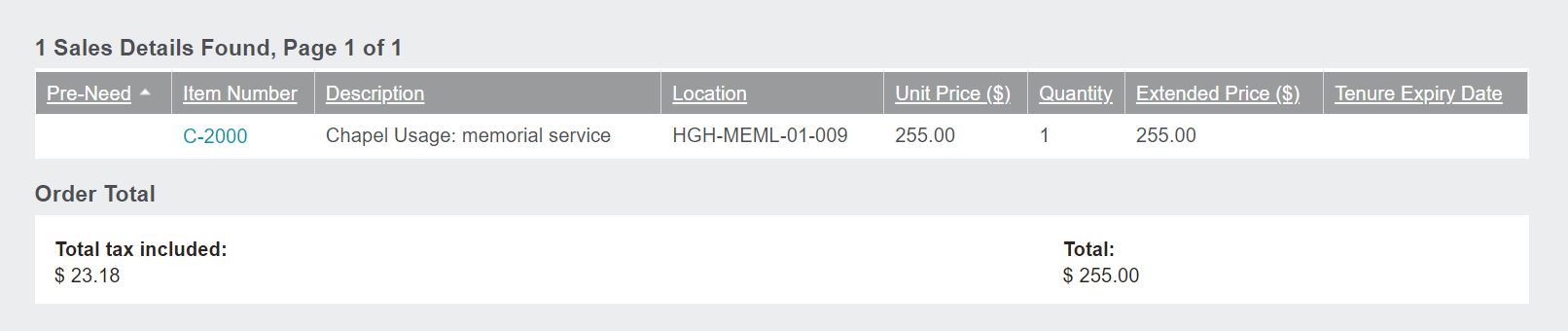
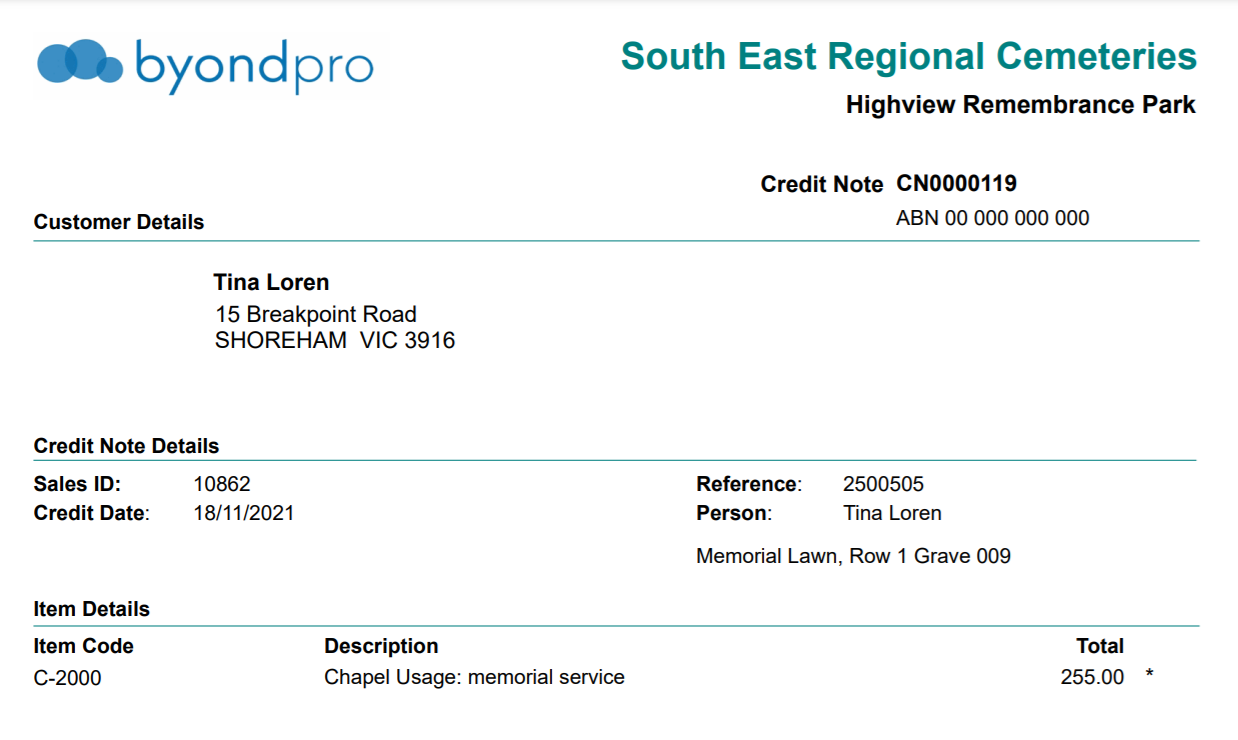
In our example, we are only crediting one Chapel Usage: memorial service item.
As a result, for all other items, click on the item number hyperlink to edit the item.
Press the Change button from the right-hand side of the page.
Press the Delete button on the right-hand side of the page.
The item will have been removed from the credit note.
Complete the process for every item to be removed.
In our example, we have left the one chapel item on the credit note.
Select Create Credit Note to commit the changes and issue the Credit Note number.
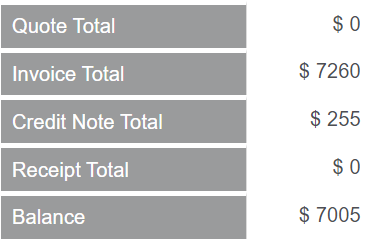
The credit note is created and offsets the portion of the original invoice.
From the sales order, press the Print Credit Note button.
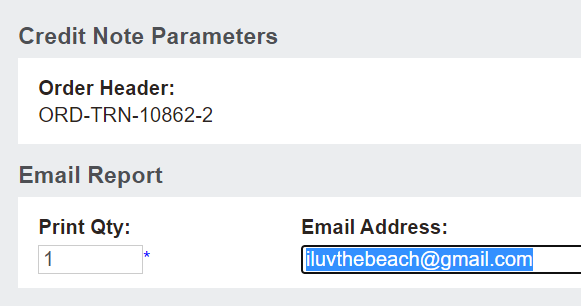
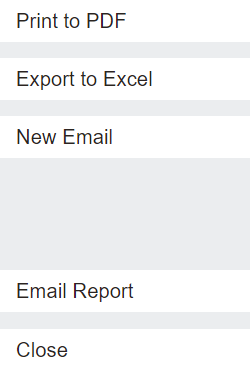
From the new window that appears, an option exists to email, export to excel or print the quote to PDF.
The email address can be updated before generating or emailing.
When ready, simply click on the action button of your choice.
The Print to PDF button, as chosen in our example, allows users to see a copy of the credit note and automatically saves it to the Documents tab of:
-
-
-
The Authorising Person record