From the Sales tab of the Sales & Booking, choose the New Sale button on the right-hand side.
Complete the fields as necessary.
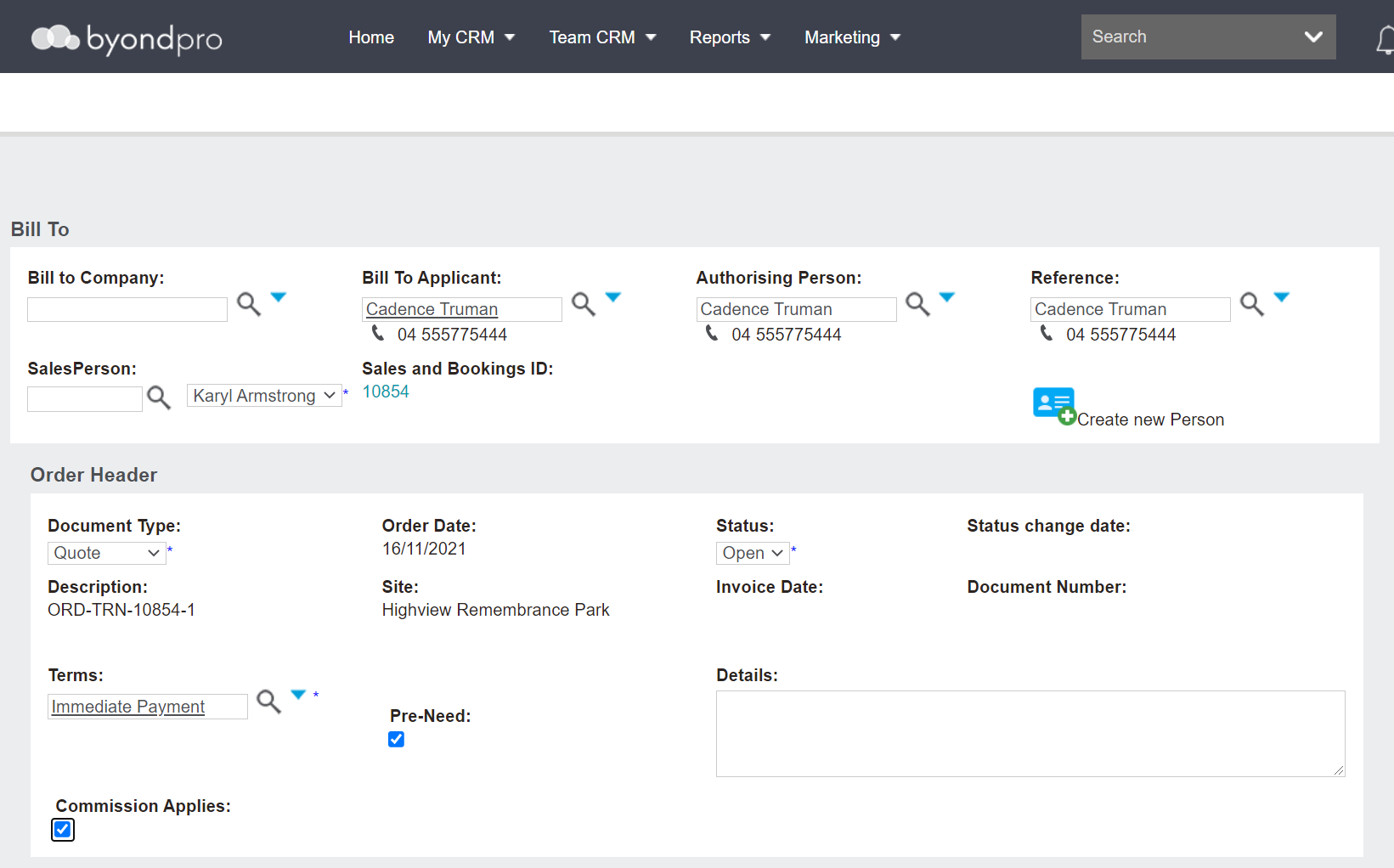
Users will need to choose where the invoice is to be billed to in the Bill to Company or Bill to Applicant fields.
If the funeral director is added to the Summary tab of the booking, this will populate in the bill to company field.
If the invoice needs to be billed to an applicant, locate the person record in the Bill to Applicant field and secure the record with a magnifying glass. This action will clear the Bill to Company field.
Authorising Person and Reference populate from the Summary tab if completed.
If the invoice includes a cemetery location right of interment, the Authorising Person becomes the holder of right of interment on the location record.
Should the Bill to Applicant, Authorising Person, or Reference record not be added into byondpro yet, users can create these records at this time and add them to the sales order.
Please note that the sales order cannot be saved without completing these fields with the exception of a 'Sundry Sale Sales & Booking' which only requires the 'Bill To' on the Sales Order header.
The Document Type will display as Quote. The other selection in this field is a Credit Note, intended for use as a reversal of a sales transaction.
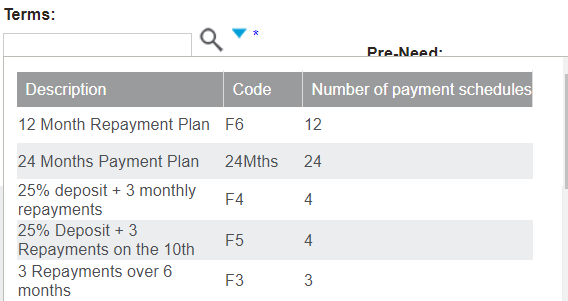
The Terms indicate by when the company or applicant will be paying. It will populate with the default term for the company or person record.
The selection can be changed by reviewing the selection list.
It is important to note that in a pre-need scenario, where all items are being purchased pre-need, the Pre-Need tick box must be ticked.
If one or more of the items is being purchased at-need, the individual item can have the pre-need mark removed when added to the sales order.
Once completed, press Save on the right-hand side of the page.