When ready to send an invoice to the Bill To entity, it can be as easy as clicking on a button.
However, if the sales order was set to Bill To Applicant, one more step needs to be followed.
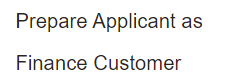
If the Bill To Applicant has not been added to the finance system as a customer, on the right-hand side of the sales order will display the Prepare Applicant as Finance Customer button.
This button creates the applicant in the finance system, allowing the cemetery to recognise the invoice and payment in the Accounts Receivable module, if integrated to Sage 300.
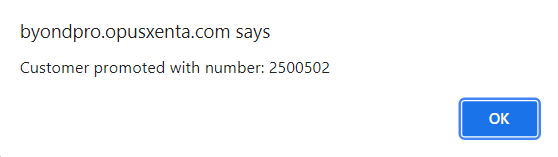
A message will display confirming the reference number.
Press OK to continue.
To create the invoice, choose the Create Invoice button on the sales order.
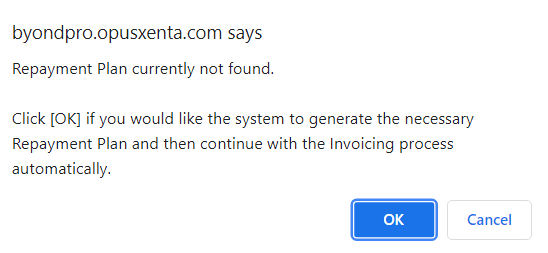
If no Repayment Plan has been created, a message will ask to confirm if a plan should be created. With the Version 6 Customer Release, this message has now been removed.
If using a previous version, press OK and a repayment plan will be created in line with the payment terms selected for the Bill To Company / Applicant.
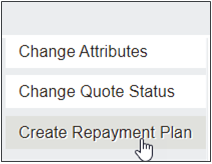
Users should remember to use the button on the right-hand side of the screen Create Payment Plan if they wish to create the payment plan for review prior to invoicing, otherwise the invoice process will take care of the creation of the repayment plan and there is no need to take this step.
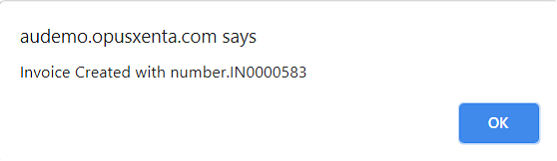
A message will appear stating that the invoice is created. Press OK.
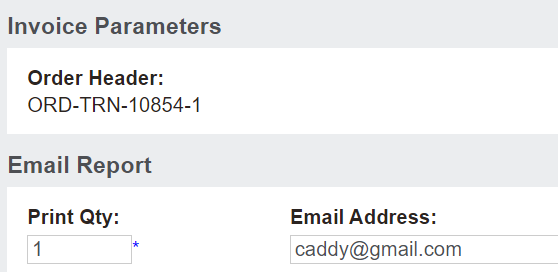
To view, print, or e-mail the invoice, choose to Print Invoice on the right-hand side of the Sales Order.
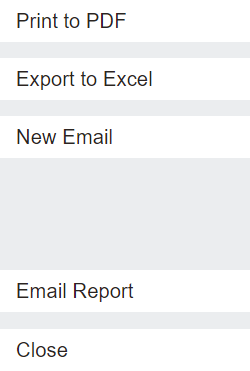
From the new window that appears, an option exists to email, export to excel or print the quote to PDF.
The email address can be updated before generating or emailing.
When ready, simply click on the action button of your choice.
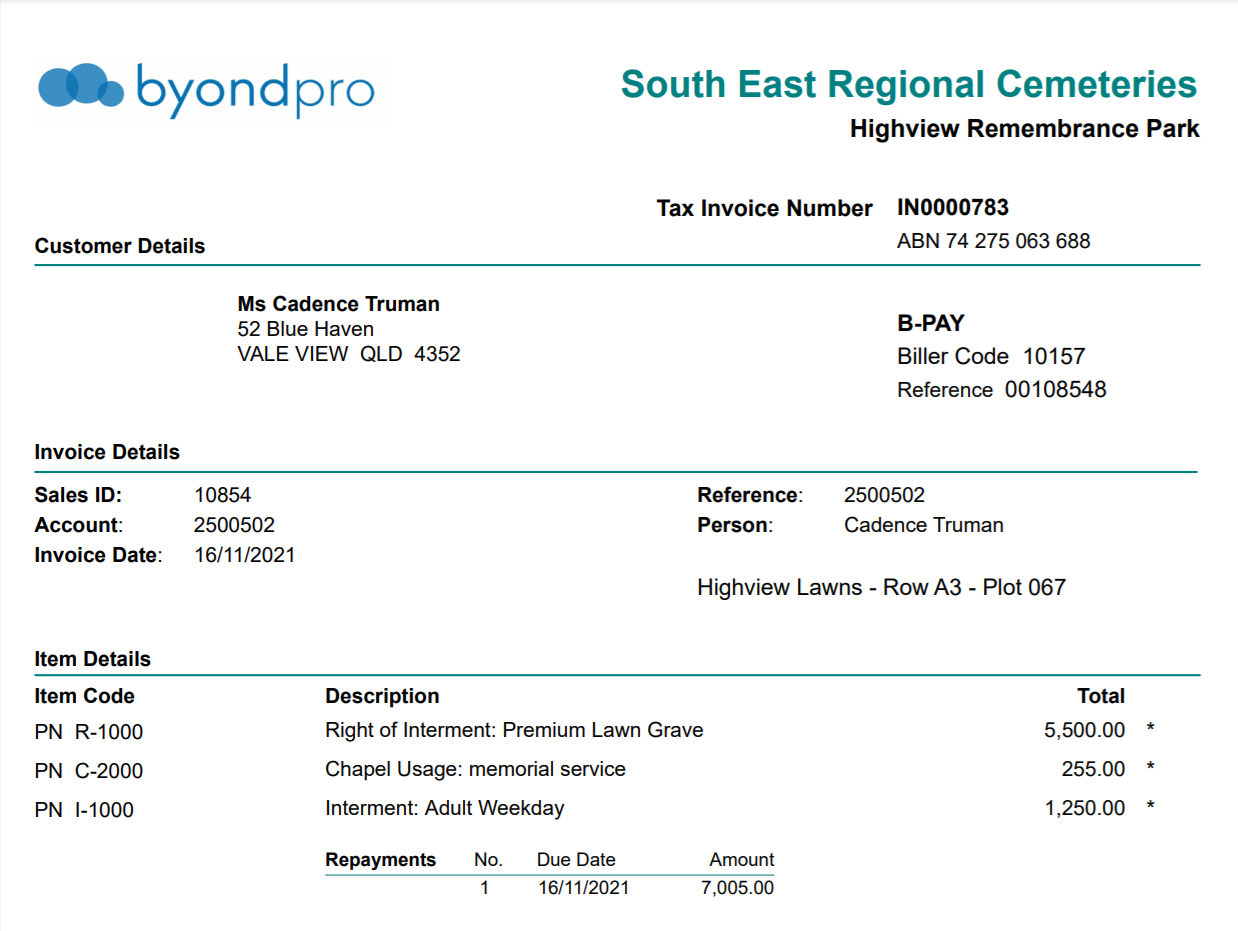
An invoice will appear. The invoice as with all documents in byondpro can be tailored for our cemetery customers.
The invoice now appears on the Documents tab of