To properly display this page you need a browser with JavaScript support.
Batch Location Update Tool
Batch Location Update Tool
Type
Notes
Rules
Compulsory
Placeholder
Format
Edit
Size
Default
Messages
Read Only - Text
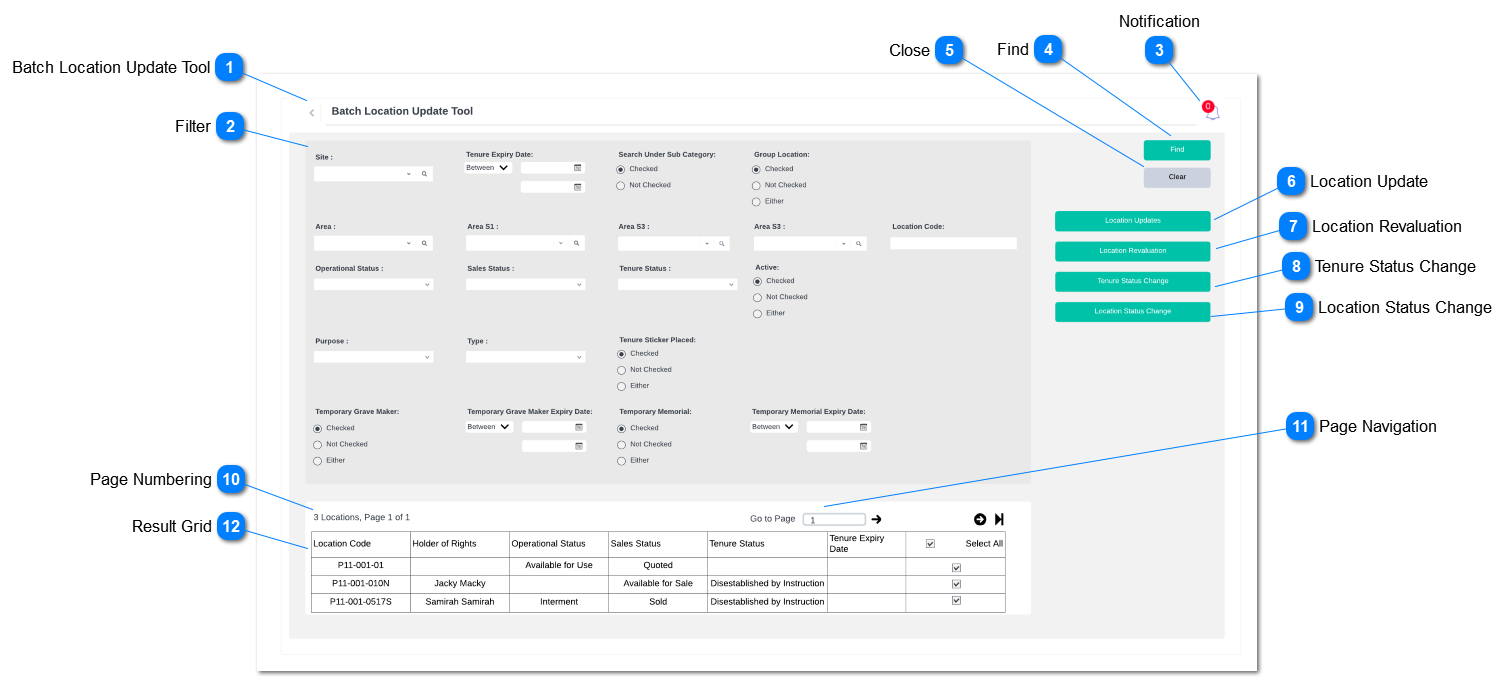
1. Show title field of the screen.
2. Clicking the back arrow symbol will return the user to byondpro home screen.
-
-
-
-
-
-
-
Filter
Type
Notes
Rules
Compulsory
Placeholder
Format
Edit
Size
Default
Messages
Filter
Filters may have following characteristics:
Float: floating point number
Integer: positive or negative number
Long Text: re-sizable multiple lines of text
Text: multiple lines text
1. Filtration fields are as bellow;
Site (Advance Search)
Tenure Expiry Date (Date Range)
Search Under Sub Category (Boolean)
Group Location (Boolean)
Area (Advance Search)
Area S1 (Advance Search)
Area S2 (Advance Search)
Area S3 (Advance Search)
Location Code (Text)
Operational Status (Dropdown)
Sales Status (Dropdown)
Tenure Status (Dropdown)
Active (Boolean)
Purpose (Dropdown)
Type (Dropdown)
Tenure Sticker Placed (Boolean)
Temporary Grave Maker (Boolean)
Temporary Grave Maker Expiry Date (Date Range)
Temporary Memorial (Boolean)
Temporary Memorial Expiry Date (Date Range)
2. Date fields should allow the user to filter between a range of dates (E.g. Temporary Memorial Expiry Date (Refer the User Interface designed)
3. Drop-Down Fields should include ability to search from the drop down list and also allow to tick or untick items from the list. Ticking adds to current filter and will allow the user to add search results to currently selected items in the drop-down
E.g. If the user search "Smith" from drop-down list and untick all smith from the list by ticking "Add to Current Filter" allow the user to add the deselected item from the total item list
-
-
-
-
-
-
-
Notification
Type
Notes
Rules
Compulsory
Placeholder
Format
Edit
Size
Default
Messages
This feature will notify the user status of batch location updates which are already processed.
-
-
-
-
-
-
-
Find
Type
Notes
Rules
Compulsory
Placeholder
Format
Edit
Size
Default
Messages
Action Button
Clicking the "Find" should generate result on the result grid as per filter criteria.
At-least one filter criteria should be selected for a selected entity to show result on the result grid.
-
-
-
-
-
-
Close
Type
Notes
Rules
Compulsory
Placeholder
Format
Edit
Size
Default
Messages
Action Button
Clicking the action button will return the user to byondpro home screen.
-
-
-
-
-
-
-
Location Update
Type
Notes
Rules
Compulsory
Placeholder
Format
Edit
Size
Default
Messages
Action Button
Clicking "Location Update" should direct the user to Location Update screen .
-
-
-
-
-
-
-
Location Revaluation
Type
Notes
Rules
Compulsory
Placeholder
Format
Edit
Size
Default
Messages
Action Button
-
-
-
-
-
-
-
Tenure Status Change
Type
Notes
Rules
Compulsory
Placeholder
Format
Edit
Size
Default
Messages
Action Button
-
-
-
-
-
-
-
Location Status Change
Type
Notes
Rules
Compulsory
Placeholder
Format
Edit
Size
Default
Messages
Action Button
-
-
-
-
-
-
-
Page Numbering
Type
Notes
Rules
Compulsory
Placeholder
Format
Edit
Size
Default
Messages
Read Only - Text
Number of results and page number out of total pages should be shown to the user.
-
-
-
-
-
-
-
Page Navigation
Type
Notes
Rules
Compulsory
Placeholder
Format
Edit
Size
Default
Messages
Text Search
System should allow user to navigate between result pages
-
-
-
-
-
-
-
Result Grid
Type
Notes
Rules
Compulsory
Placeholder
Format
Edit
Size
Default
Messages
Table
Result Grid will include fields such as;
Following fields will appear on the result grid based on filter criteria. Filed data will be fetched from location summary; (Location> Find> Location> Location Summary)
-
-
-
-
-
-
-