|
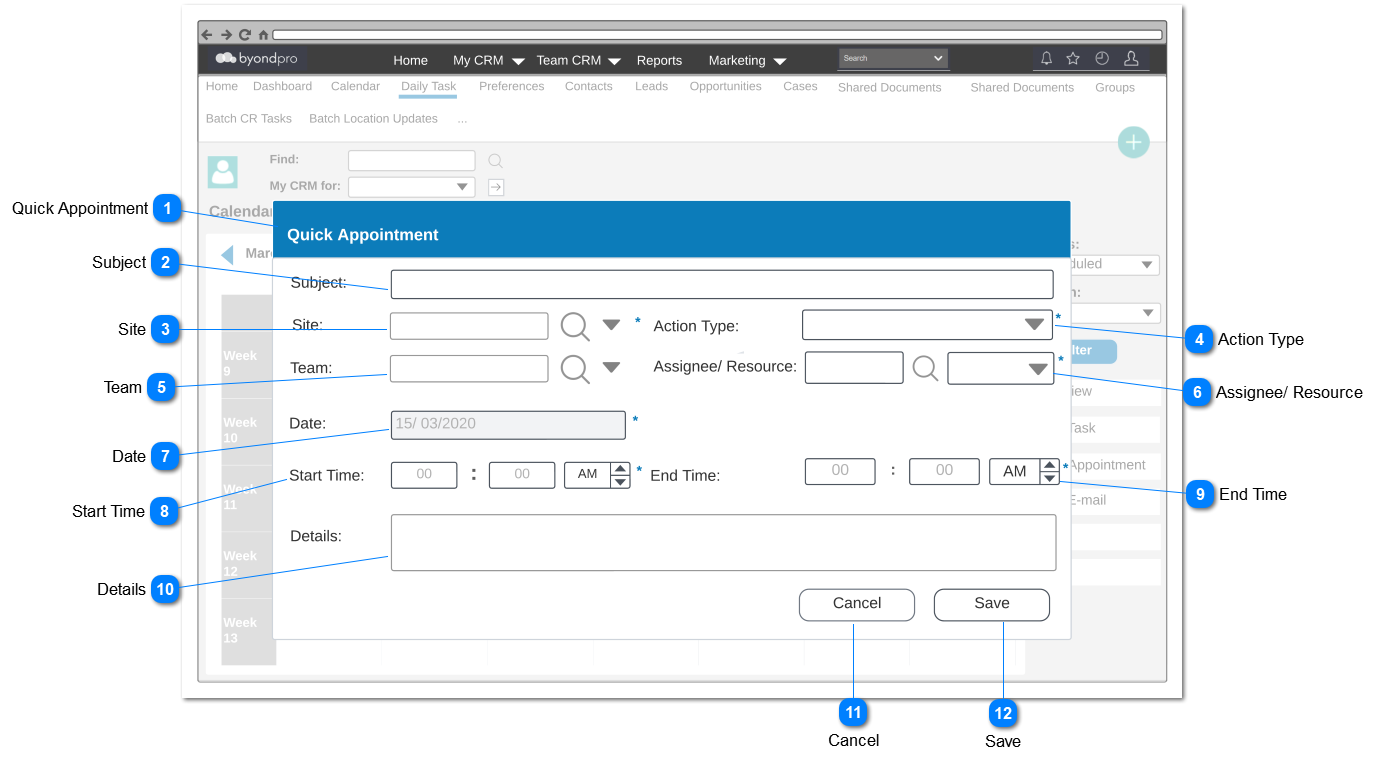
1.Upon clicking the Save button;
a. Confirmation Message will be popped up.
a1) Upon Clicking Yes of the confirmation message;
a 1.1) Appointment will be saved.
a 1.2) User will be navigated to the Sales and Booking screen to create a new S&B record.
a 1.3) Site and the Date entered in the Quick Booking will be reflected on the S&B screen as Site and the Service Date.
a 1.4) Upon saving the S&B record, the appointment will be shown in the timeline of the created S&B summary record.
a 1.5) Booking should be available in the respective Calendars (Assignee/ Resource Calendar and the respective team calendar defined as Primary Team, which the Assignee/ Resource is linked)
a2) Upon clicking No of the confirmation message;
a 2.1) Record will be saved.
a 2.2) Success message should be prompted.
a 2.4) Booking should be available in the respective Calendars (Assignee/ Resource Calendar and the respective team calendar defined as Primary Team, which the Assignee/ Resource is linked)
2. Once the record is saved,
a. Respective fields should be mapped with the New Appointment screen which the user can be accessed by double clicking the appointment in the Calendar View.
Refer the below table for field mapping.
b. Once the user navigates to the New Appointment screen by double clicking the booking in the calendar view, all the data which were entered in the quick booking, should be reflected in the New Appointment screen.
|
Success Message:
b. Booking has been created successfully.
Confirmation Message 1:
Do you want to create a Sales and Booking record for this appointment.
Options: Yes, No
Alert Message 1:
Your booking time is already taken. Please select another time slot to continue
Error Message 1:
The selected time slot is not defined as a Fixed Start time in the Calendar Rules setup.
|