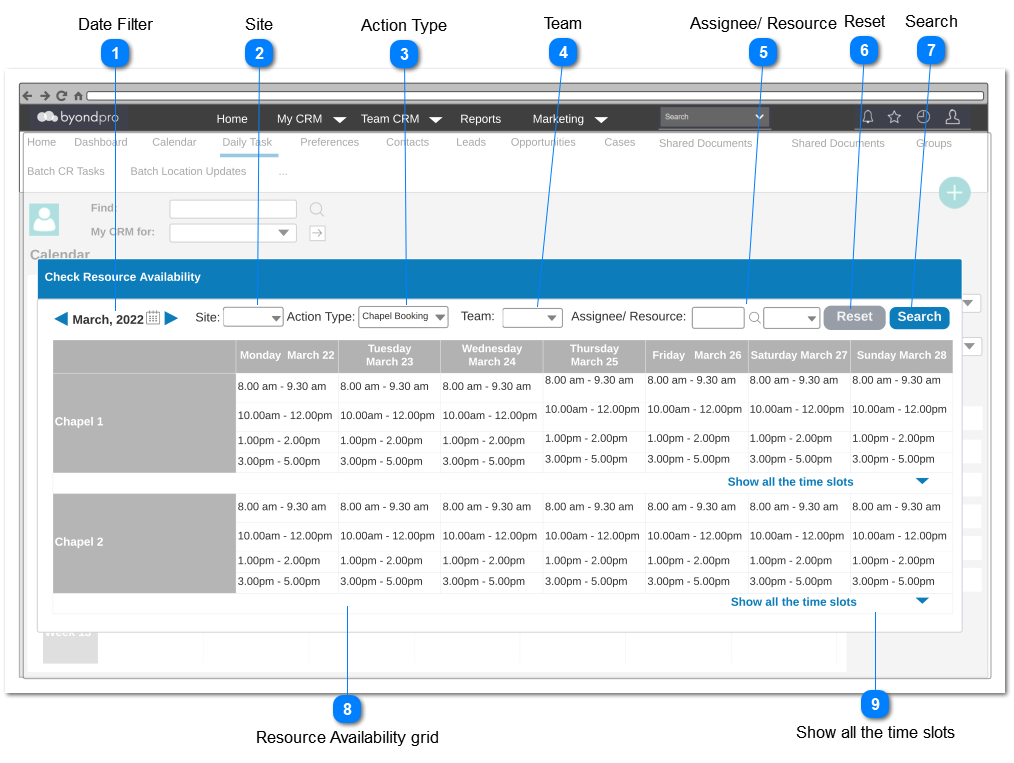
Date Filter
|
Type
|
Notes
|
Rules
|
Compulsory
|
Placeholder
|
Format
|
Edit
|
Size
|
Default
|
Messages
|
|
Date Filter
|
-
|
1. User should be able to navigate through the dates from right to left and vise versa
|
-
|
-
|
-
|
-
|
-
|
-
|
-
| |
|
 Site
|
Type
|
Notes
|
Rules
|
Compulsory
|
Placeholder
|
Format
|
Edit
|
Size
|
Default
|
Messages
|
|
Selection
|
-
|
1. If the user navigated through the My Calendar
then the sites attached to the Calendar Owner should be available for select
2. If the user navigated through the Team Calendar
then the sites attached to the members of the team should be available for select.
3. If the user navigated through All Teams
then all the sites should be available for select.
|
-
|
-
|
|
-
|
-
|
--None--
|
-
| |
|
 Action Type
|
Type
|
Notes
|
Rules
|
Compulsory
|
Placeholder
|
Format
|
Edit
|
Size
|
Default
|
Messages
|
|
Selection
|
-
|
1. Values specified in the Field Type = selection list of Field Caption = Action in Administration -> Customization -> Calendar Rules ->
should be listed out to select.
|
-
|
-
|
-
|
-
|
-
|
--None--
|
-
| |
|
 Team
|
Type
|
Notes
|
Rules
|
Compulsory
|
Placeholder
|
Format
|
Edit
|
Size
|
Default
|
Messages
|
|
Selection
|
-
|
1. Teams specified in the Display Team field and the Primary Team field in Administration ->User ->User Details, should be listed out to select.
|
-
|
-
|
-
|
-
|
-
|
--All--
|
-
| |
|
 Assignee/ Resource
|
Type
|
Notes
|
Rules
|
Compulsory
|
Placeholder
|
Format
|
Edit
|
Size
|
Default
|
Messages
|
|
User Select
|
-
|
1. If a Team has been selected
Then users defined for the selected team should be listed out to select.
Else
list out all the users related to all teams.
|
-
|
-
|
-
|
-
|
-
|
-
|
-
| |
|
 Reset
|
Type
|
Notes
|
Rules
|
Compulsory
|
Placeholder
|
Format
|
Edit
|
Size
|
Default
|
Messages
|
|
Button
|
-
|
1. Upon clicking the button, Resource Availability grid should be reset to empty.
|
-
|
-
|
-
|
-
|
-
|
-
|
-
| |
|
 Search
|
Type
|
Notes
|
Rules
|
Compulsory
|
Placeholder
|
Format
|
Edit
|
Size
|
Default
|
Messages
|
|
Button
|
-
|
1. Upon clicking the button, search results should be displayed in the Resource Availability grid based on the searching criteria selected.
|
-
|
-
|
-
|
-
|
-
|
-
|
-
| |
|
 Resource Availability grid
|
Type
|
Notes
|
Rules
|
Compulsory
|
Placeholder
|
Format
|
Edit
|
Size
|
Default
|
Messages
|
|
Search Results Grid
|
1. This grid will consist of the Resource/ Assignee and the available time slots against each Resource/ Assignee.
|
1. There should be seven columns to show the days.
2. Column header format for date column:
<day in words> <month> <day number>
eg: Monday March 24
|
-
|
-
|
-
|
-
|
-
|
Empty
|
-
| |
|
 Show all the time slots
|
Type
|
Notes
|
Rules
|
Compulsory
|
Placeholder
|
Format
|
Edit
|
Size
|
Default
|
Messages
|
|
Accordion Menu
|
|
|
-
|
-
|
-
|
-
|
-
|
-
|
-
| |
|