byondpro
Functional Specifications
×
Menu
Index

Location Revaluation

 
Location Revaluation
1

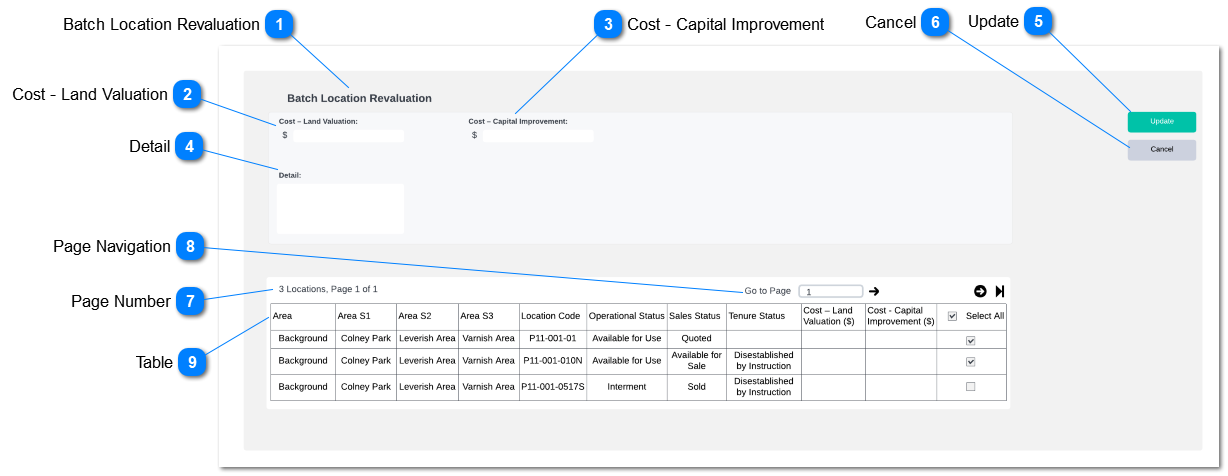
Batch Location Revaluation

 
Type
Notes
Rules
Compulsory
Placeholder
Format
Edit
Size
Default
Messages
Read Only - Text
Display title of the page
1. Show title field of the screen.
-
-
-
-
-
-
-
2

Cost - Land Valuation

 
Type
Notes
Rules
Compulsory
Placeholder
Format
Edit
Size
Default
Messages
Text Field
This field will add Cost - Land Valuation
  • The same batch location revaluation rules will be applied as per existing functionality. (MyCRM> Batch Location Revaluation)
-
-
Numeric
-
-
-
-
3

Cost - Capital Improvement

 
Type
Notes
Rules
Compulsory
Placeholder
Format
Edit
Size
Default
Messages
Text Field
This field will add Cost - Capital Improvement
  • The same batch location revaluation rules will be applied as per existing functionality. (MyCRM> Batch Location Revaluation)
-
-
Numeric
-
-
-
-
4

Detail

 
Type
Notes
Rules
Compulsory
Placeholder
Format
Edit
Size
Default
Messages
Text Field
This field will add notes to location
Note will be added to Location. (Location Module> Find Location> Location Record> Notes Tab> Note)
  • Note Type will be "General". (Location Module> Find Location> Location Record> Notes Tab> Type)
  • Date will be entry date (Location Module> Find Location> Location Record> Notes Tab> Date)
-
-
Text
-
-
-
-
5

Update

 
Type
Notes
Rules
Compulsory
Placeholder
Format
Edit
Size
Default
Messages
Action Button
Clicking the action button will update the location records as per the updated fields.
  • The same batch location revaluation rules will be applied as per existing functionality. (MyCRM> Batch Location Revaluation)
     
  • Confirmation message will pop-up with fields with changed values as per the standard location update confirmation screen. Clicking "update locations" will process the location update.
     
  • If a select field field validation will be applied if the user enter invalid value. listing the list of transactions which were not updated will appear on the pop-up if the user click on the update failure notification appear on the batch location update tool.
     
  • Only updated fields will be updated to the location record.
 
Pre-Codition:
At-least one field should be selected
-
-
-
-
-
-
-
6

Cancel

 
Type
Notes
Rules
Compulsory
Placeholder
Format
Edit
Size
Default
Messages
Action Button
 
Clicking the action button will return the user to byondpro Batch Location Update Tool screen.
-
-
-
-
-
-
-
7

Page Number

 
Type
Notes
Rules
Compulsory
Placeholder
Format
Edit
Size
Default
Messages
Read Only - Text
 
Number of results and page number out of total pages should be shown to the user.
-
-
-
-
-
-
-
8

Page Navigation

 
Type
Notes
Rules
Compulsory
Placeholder
Format
Edit
Size
Default
Messages
Text Search
 
System should allow user to navigate between result pages
-
-
-
-
-
-
-
9

Table

 
Type
Notes
Rules
Compulsory
Placeholder
Format
Edit
Size
Default
Messages
Table
Display list of results filtered from Batch Location Update Tool screen
Result Grid will include fields such as;
  • Area
  • Area S1/S2/S3
  • Location Code
  • Operation Status
  • Sales Status
  • Tenure Status
  • Cost - Land Valuation
  • Cost - Capital improvement
 
Following fields will appear on the result grid based on filter criteria. Filed data will be fetched from location summary; (Location> Find> Location> Location Summary)
 
In the Select All column, Ticking select all will select all the transaction and deselecting the tick box will deselect all transactions. User will be having option to select and deselect each transaction.
-
-
-
-
-
-
-
 
The online help was created with Dr.Explain