byondpro Configuration
& Processing Guide
×
Menu

Location Code Change Tool

 
The Location Code Change Tool can help to restructure and move cemetery location records of the cemetery.
 
Using the Location Code Change Tool, users will be able to update the location codes and location names of the locations which have been created in byondpro.
 
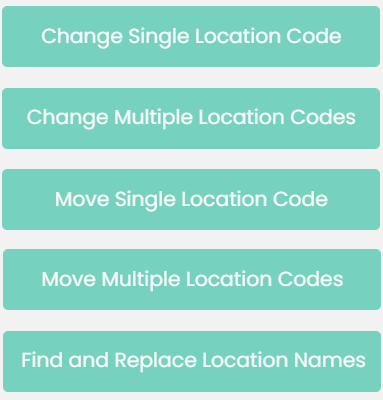
The Location Code Change Tool allows the following actions to be completed in byondpro:


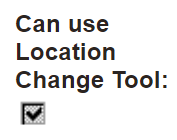
To use this tool, users will need the permission Can use Location Change Tool ticked on their user profile.
 
.
 
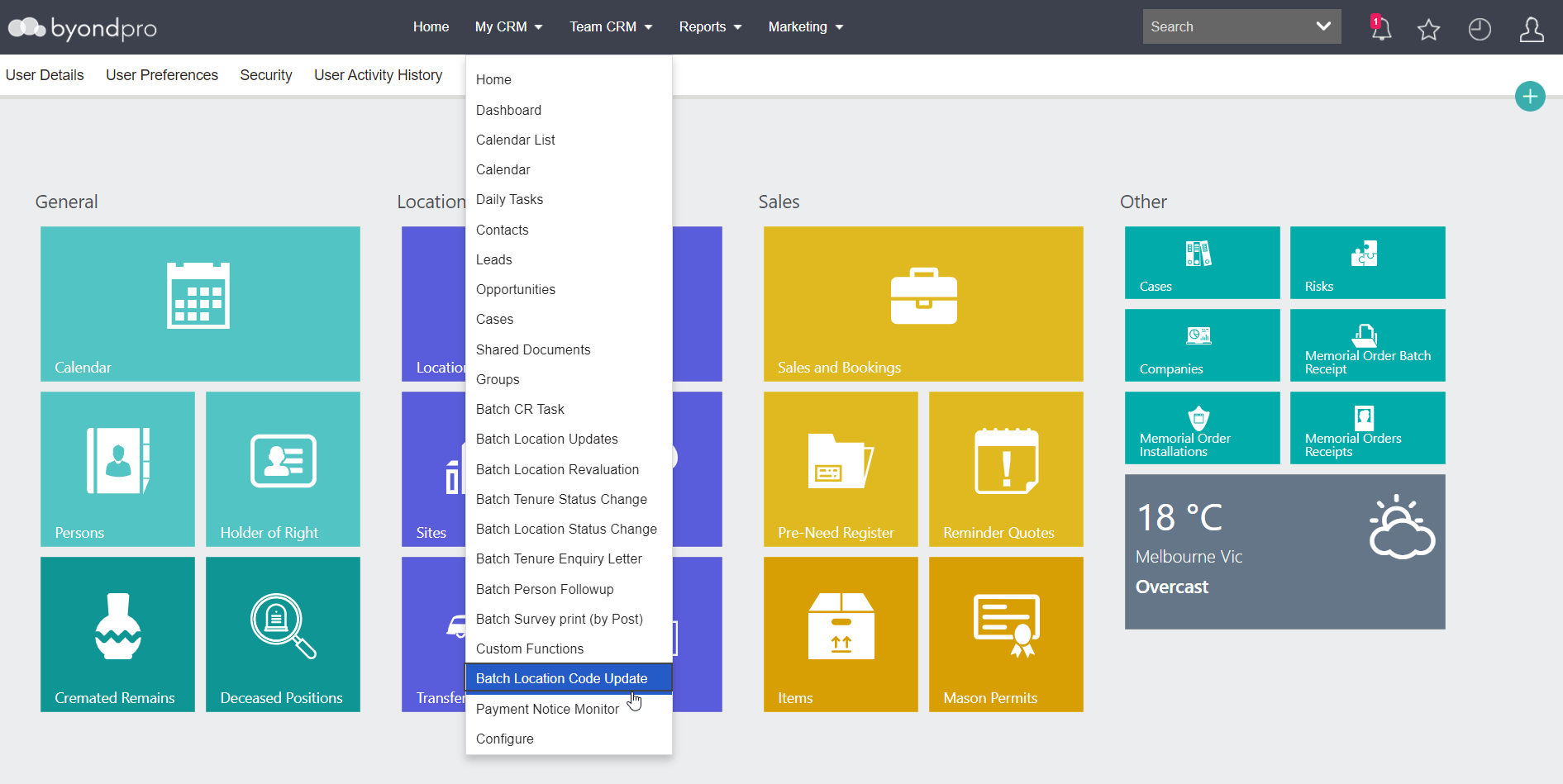
To access the Location Code Change Tool, choose the My CRM option from the toolbar.
 
Then select the Batch Location Code Update option from the selection list.
 
 
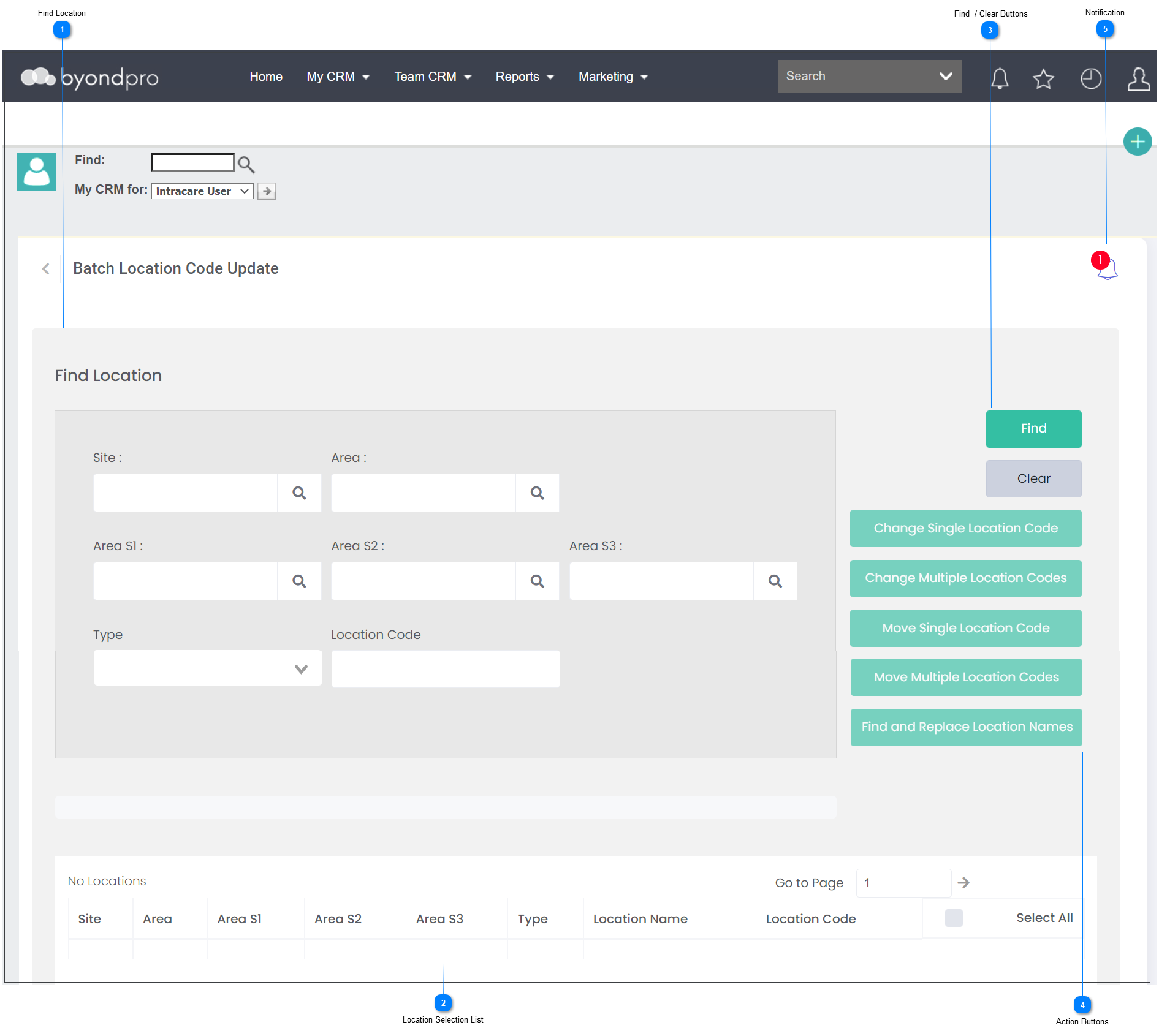
The Location Code Change Tool looks as below.
 
 
Location Code Change Tool
1

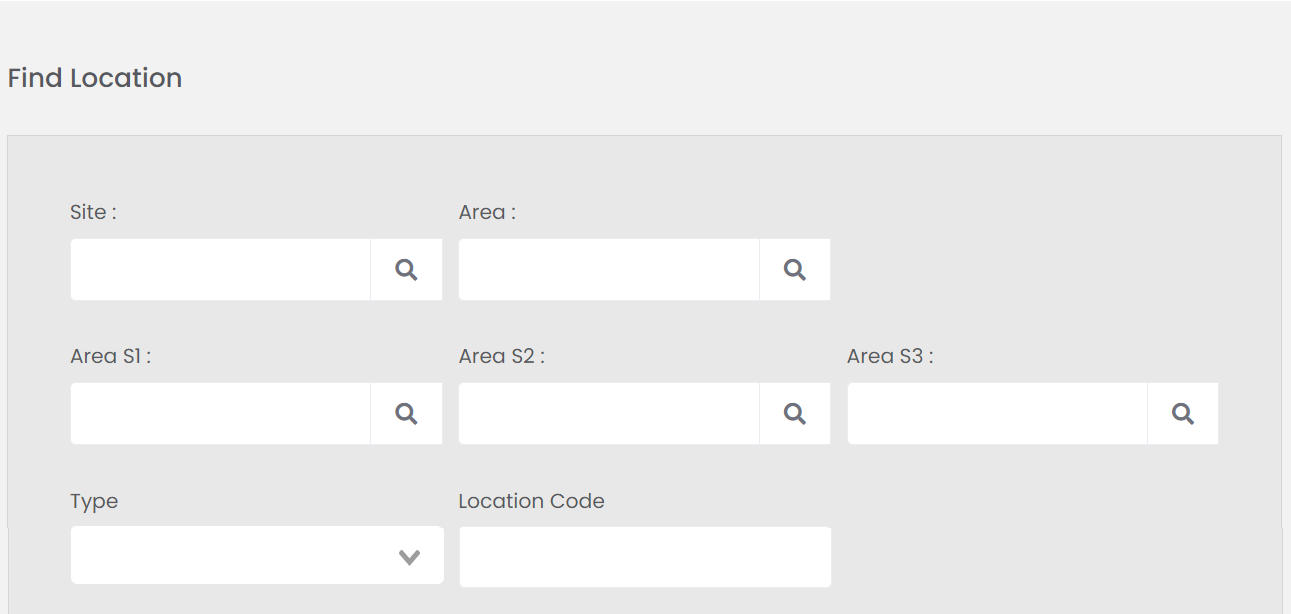
Find Location

 
Fields used to filter the locations within byondpro.
 
1. Find Location
2

Location Selection List

 
Once a search has been actioned, displays a list of locations which meet your criteria. Locations can be selected to be changed from the list.
 
2. Location Selection List
3

Find  / Clear Buttons

 
Pressing Find will filter the list of locations based on the criteria chosen in the Find Information fields.
 
Clear will reset the fields and location list to blank.
 
3.  Find  / Clear Buttons
4

Action Buttons

 
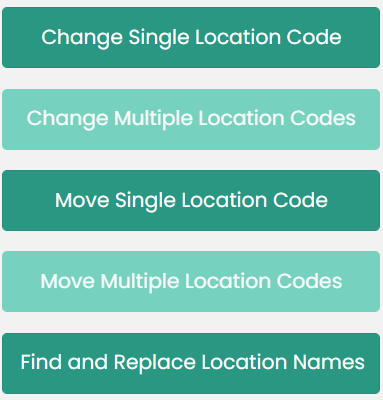
Once locations /s have been chosen, available action buttons will display as dark green, allowing the user to make a change to the selected location /s.
 
4. Action Buttons         
5

Notification

 
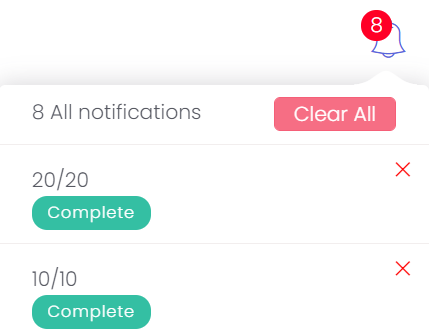
After a change has been made to location /s, the icon will notify that the process is complete.
 
The red notification number displays the number of changes which have been completed since cleared.
 
5. Notification
 
Users can clear a notification by clicking on the X next to the completed change.
 
Or clear all notifications by choosing the Clear All button.
 
The online help was created with Dr.Explain