Find and Replace Location Names
The Find and Replace Location Names option allows users to update the name of locations in bulk.
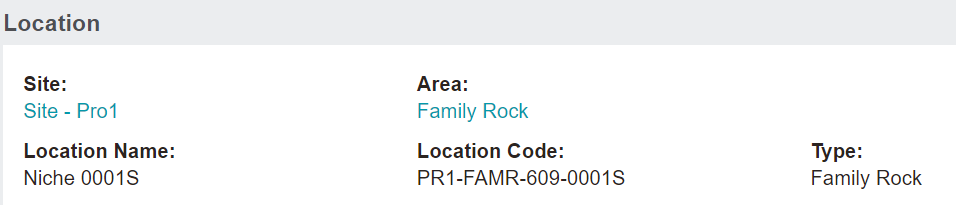
In our scenario, multiple location records in the Family Rock area in the Pro1 cemetery were named Niche instead of Family Rock.
This topic will show replacing the niche name with the Family Rock name on these location records.
Once you have selected at least one location from the selection list, you will be able to press the Find and Replace Location Names button on the right-hand side of the page.
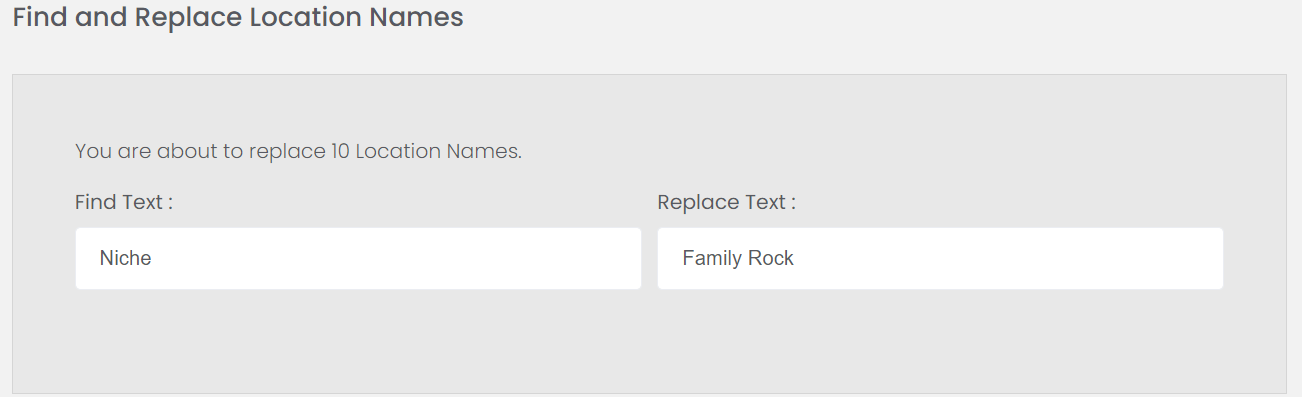
The screen will advise how many locations names are being changed.
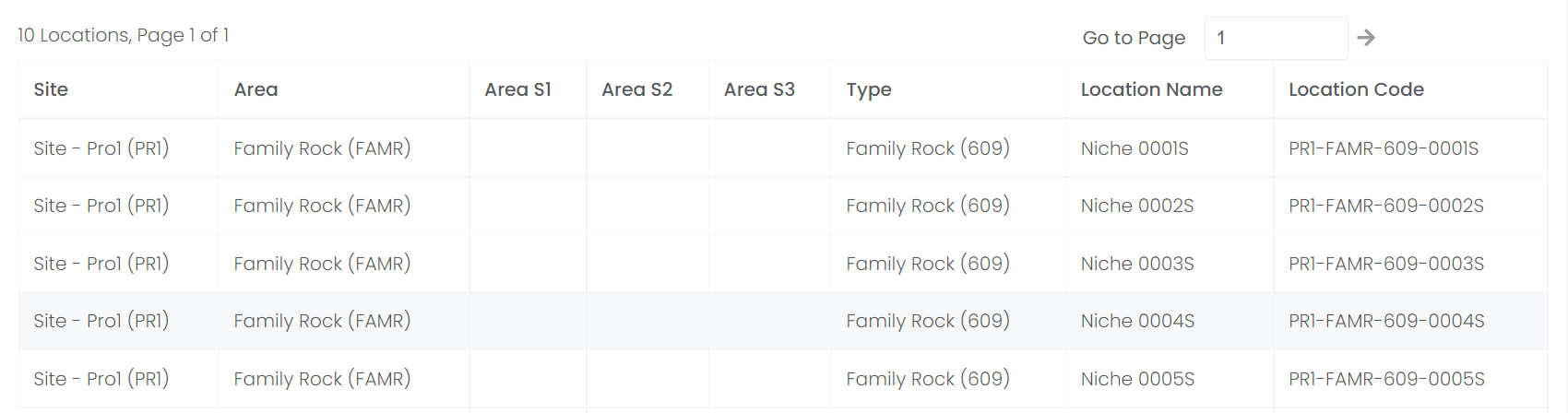
Selected locations will display below the Find and Replace Location Names area, for informational purposes.
At any stage, should you wish to cancel the process, press the Cancel button on the right-hand side of the page.
This action will bring you back to the original Location Code Change Tool screen.
Simply type in the text you would like byondpro to find amongst your selected locations in the Find Text field.
In the Replace Text field, type in the details for what the text will be replaced with.
In our example below, byondpro will locate the selected locations with the word 'Niche' in the Location Name and replace 'Niche' with 'Family Rock.'
A few things to note about the Find and Replace function:
-
It allows any character including spaces.
If the Replace Text field is intentionally left blank (with a space) the matching content of the location names will be removed.
-
It searches and replaces the exact match or partial content
For example, if 'Cat' was entered in the Find Text field and the Replace Text field was populated with '-', a location with a name of 'Location' would be replaced with 'Lo-ion.'
-
It does not consider upper and lower case when finding the matching records.
Please see below table for a few examples of how changes may look to location names.
|
Find Text
|
Replace Text
|
Old Name
|
New Name
|
|
Location / location
|
Grave
|
Location 001
|
Grave 001
|
|
loc
|
|
Location 001
|
Loc 001
|
|
|
-
|
Location 001
|
Location-001
|
|
001
|
002
|
Location 001
|
Location 002
|
|
-
|
->
|
Location-001
|
Location->001
|
Once your selections have been made press the Replace button on the right-hand side of the page.
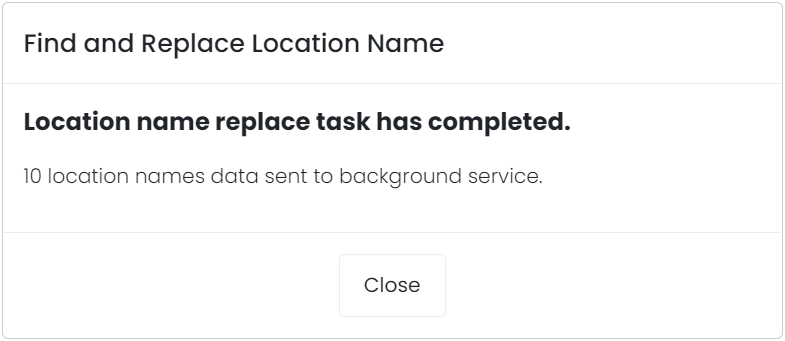
A message will display confirming the location names have been updated.
Press Close on the message.
Please note, should the message not display right away, you can return to the Location Code Change tool screen at a later time.
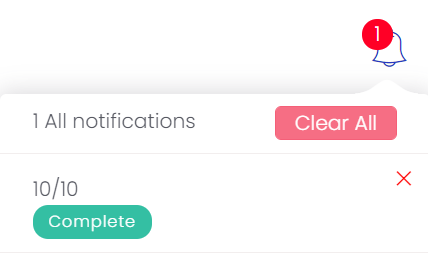
A notification will display when the process has been completed.
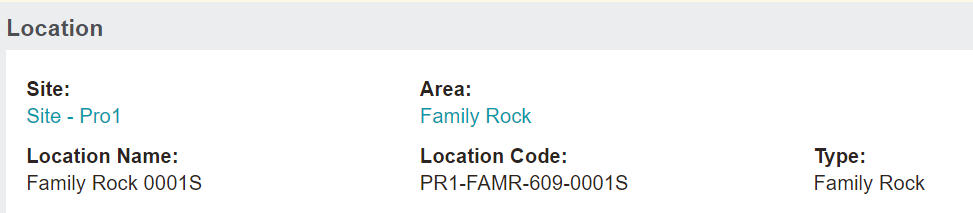
If you were to visit the Locations, the selected location names will have been updated.
Please note that this process does not update the location code or type.