Location Code Change Tool
The Location Code Change Tool can help to restructure and move cemetery location records of the cemetery.
Using the Location Code Change Tool, users will be able to update the location codes and location names of the locations which have been created in byondpro.
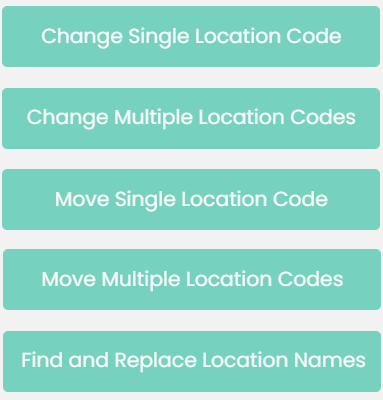
The Location Code Change Tool allows the following actions to be completed in byondpro:
-
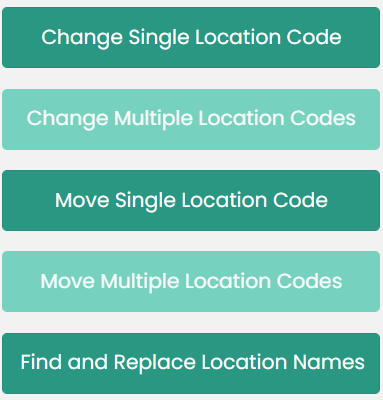
Change Single Location Code - Update the type and / or location segment of a singular location code.
-
Change Multiple Location Codes - Update the type, area segment and location segment of multiple location codes.
-
Move Single Location Code - Move one location record from one Area or Sub-area to another. Will update the relevant Area and Sub-area segment of the location code accordingly. Type can be updated at the same time.
-
Move Multiple Location Codes - Move multiple location records from one Area or Sub-area to another. Will update the relevant Area and Sub-area segment of the location codes accordingly. Type can be updated at the same time.
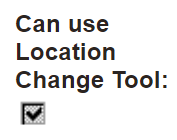
To use this tool, users will need the permission Can use Location Change Tool ticked on their user profile.
 .
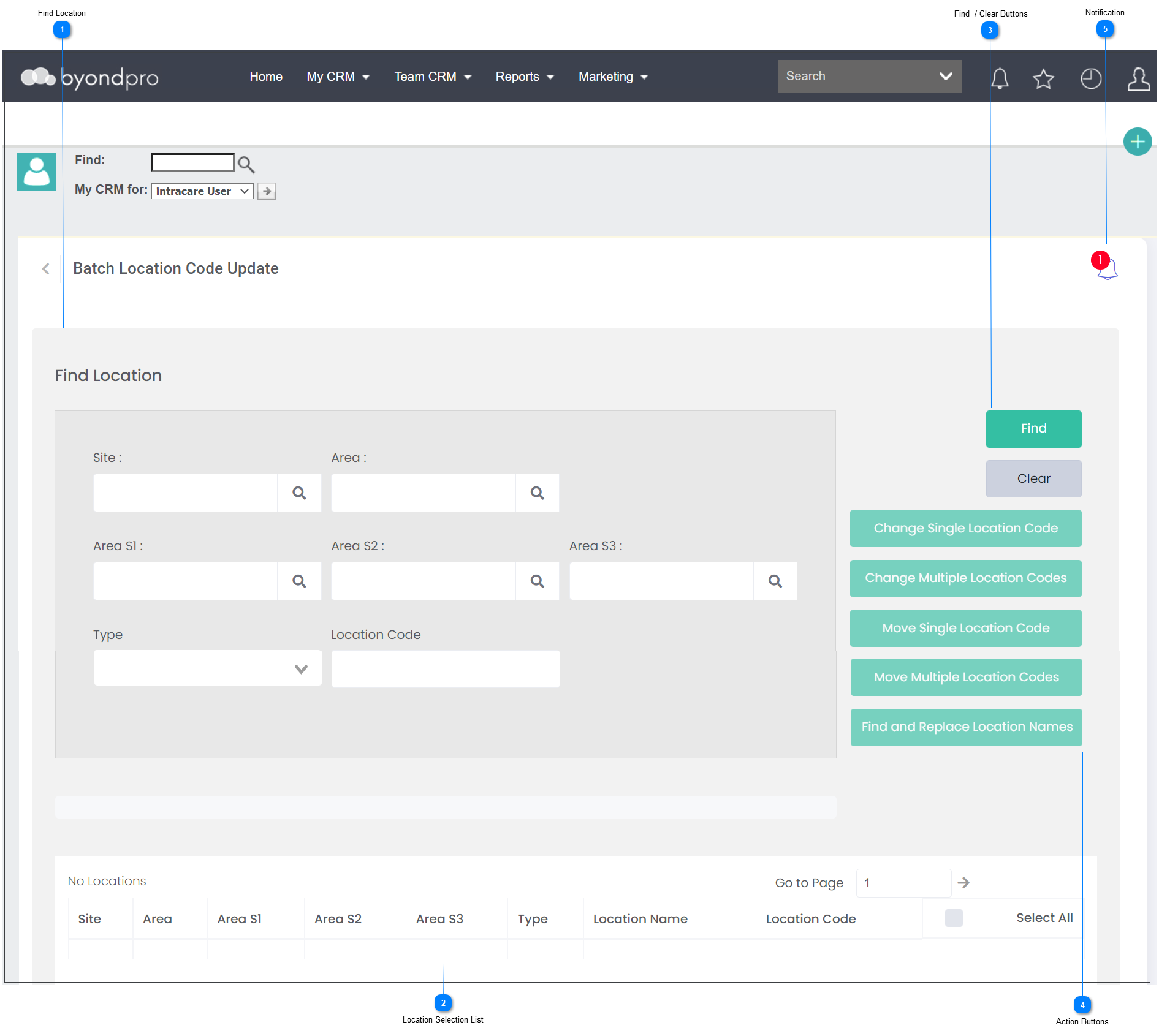
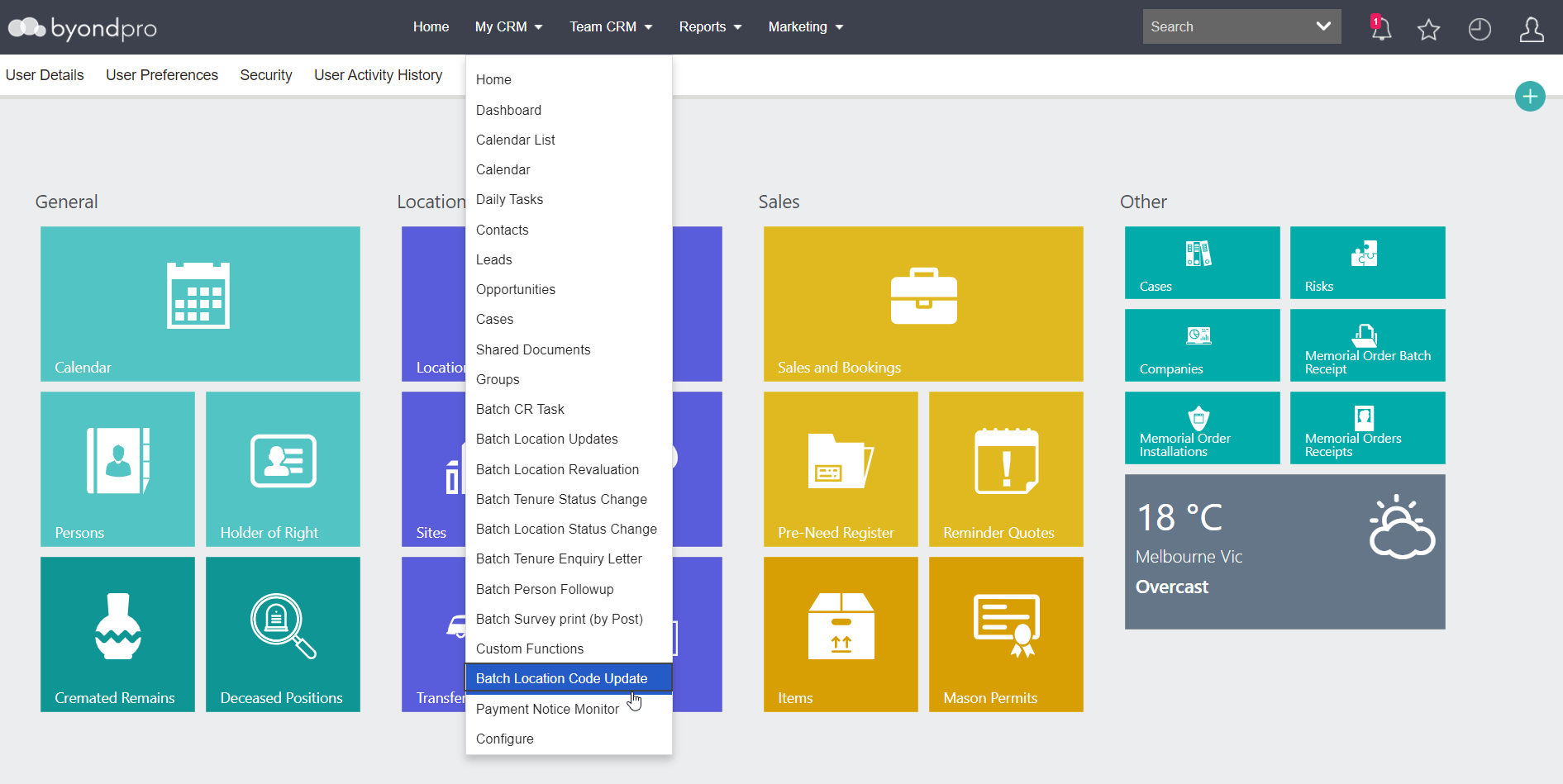
. To access the Location Code Change Tool, choose the My CRM option from the toolbar.
Then select the Batch Location Code Update option from the selection list.
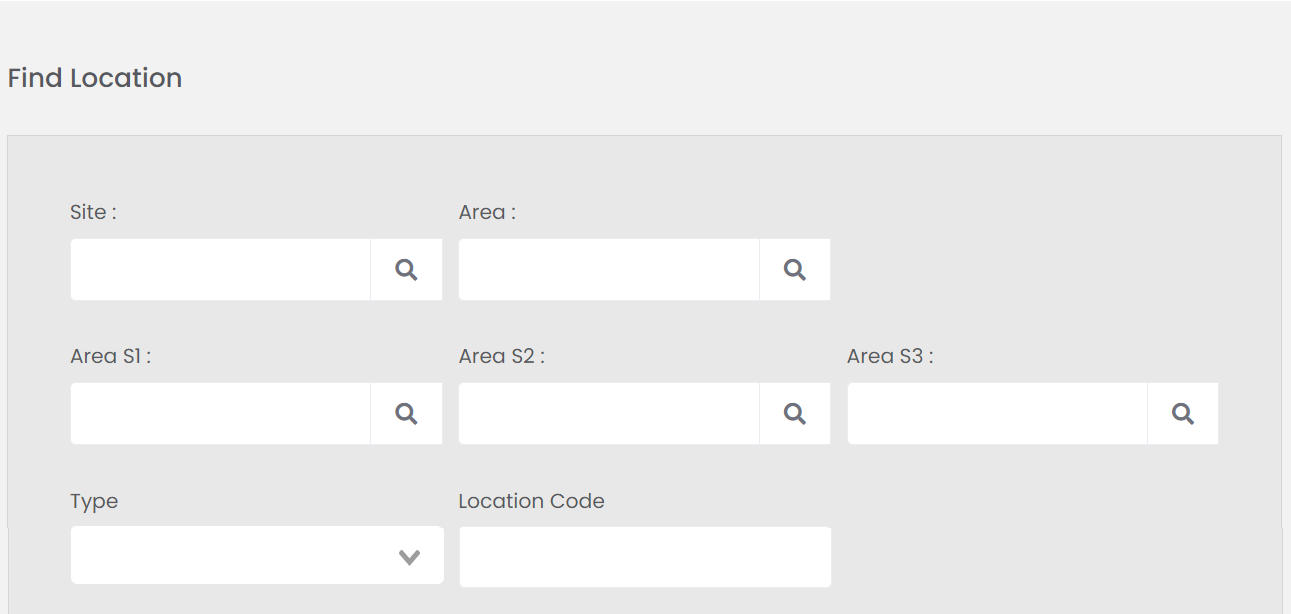
The Location Code Change Tool looks as below.