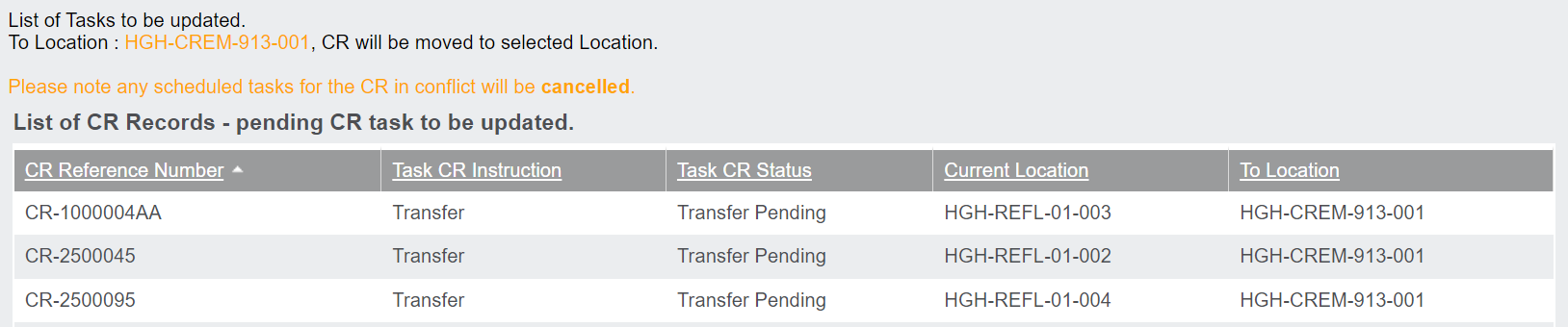
When tasks have been processed, you have the option of marking the tasks as complete using the Batch CR Task tool as well.
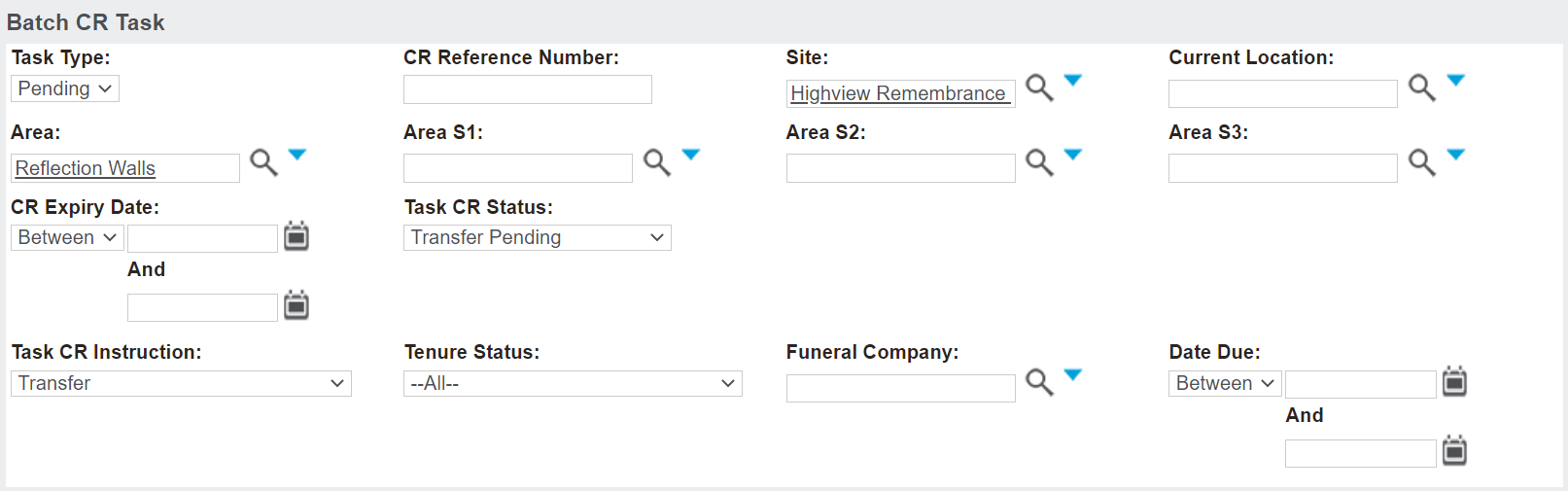
From the Batch CR Task screen, complete the fields to locate the cremated remains records with a pending task.
In the Task Type field, choose the selection of Pending.
For our example, we are locating all the records that we added a pending task to above, so we have added our selection criteria to look for cremated remains records
-
Currently at the Reflection Walls at Highview Remembrance Park
-
With a
Task CR Instruction of Transfer and a
Task CR Status of Transfer Pending.
Once your selection criteria has been selected, press the Find button on the right-hand side of the page.
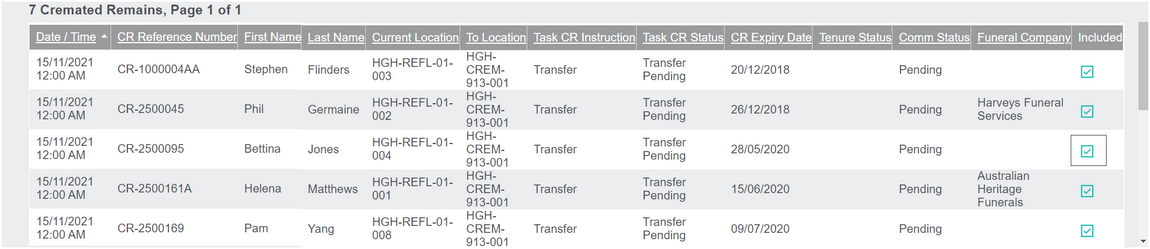
All cremated remains which meet your search criteria will display below.
Should the results provide the expected list of cremated remains, press the Confirm the Selection button on the right-hand side of the page.
Review the cremated remains records which appear on the list to determine which records will be included and excluded.
A tick under the Included header, in line with the cremated remains record indicates the cremated remains record will be included on your list.
To exclude records, simply, untick the record.
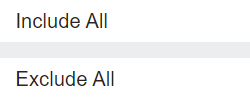
Alternatively, use the Include All or Exclude All buttons on the right-hand side of the page to tick or untick all the records in the list.
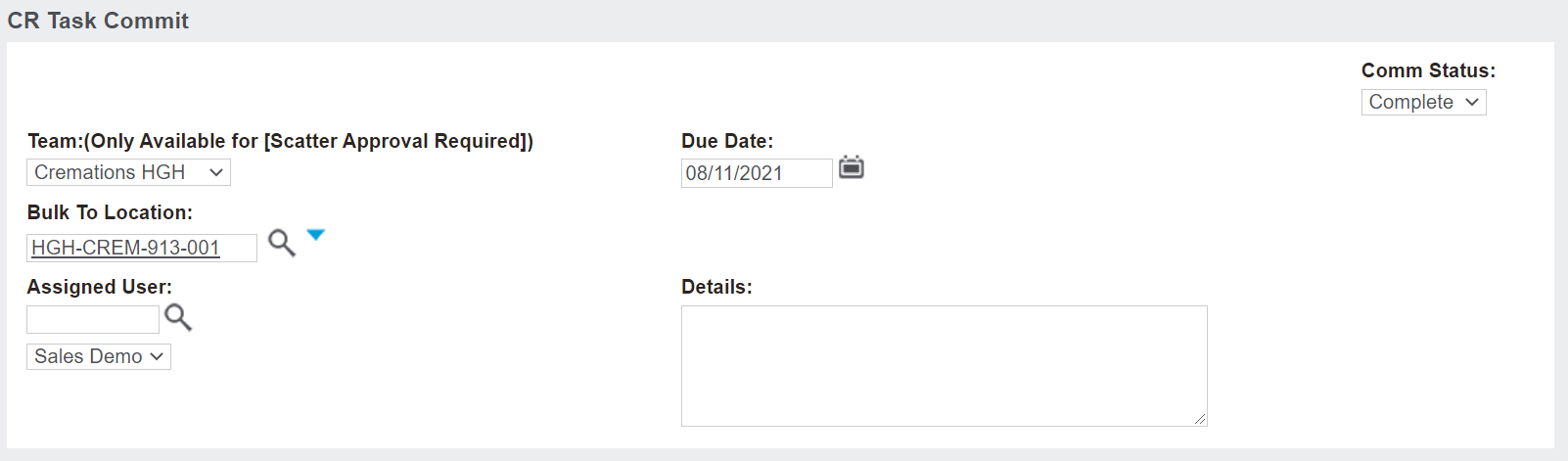
In the CR Task Commit section, complete the fields as necessary.
The Comm Status will fill as Complete, however, can be changed to cancelled, if necessary.
For a task with Approval Required and you are granting approval, determine the Team and update the Due Date for completing the task.
Remember, as shown in the
Task Actions section of this guide, tasks with an approval status will have 2 "completed' steps. The first time the task is completed grants approval. The second time marks the task as completed.
Once the records have been chosen and the task details have been completed, choose the Confirm Selection button on the right-hand side of the page.
A pop-up window will appear, which confirms the To Location and the cremated remains records you have chosen to include.
Press the Close button to close out the pop-up window.
Should the selections made be correct, press the Update CR Task button.
A pop-up window will display the cremated remains records and have an In Progress Task Status.
Once completed, the Task Status of each record will turn orange with a Task Status of Process Completed displaying.
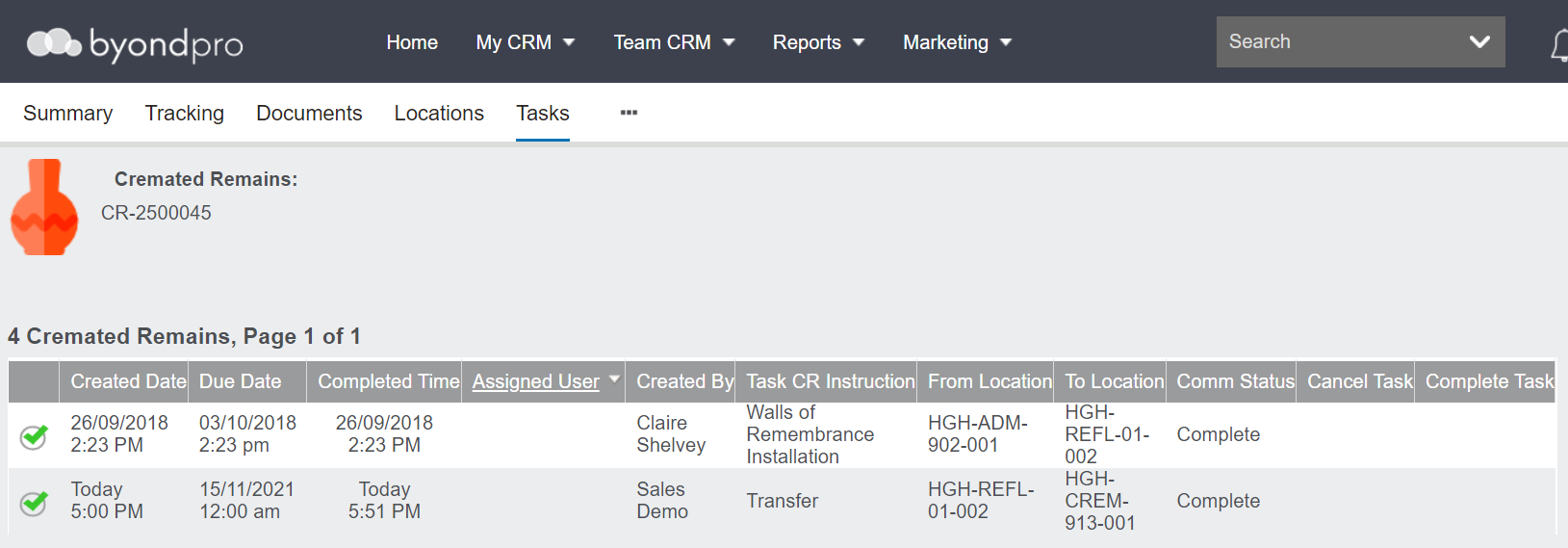
The task will now display as completed on the
Tasks tab of each of the
Cremated Remains records and subsequent records will be updated as per the
Changes to Records - Task Completion section of this guide.