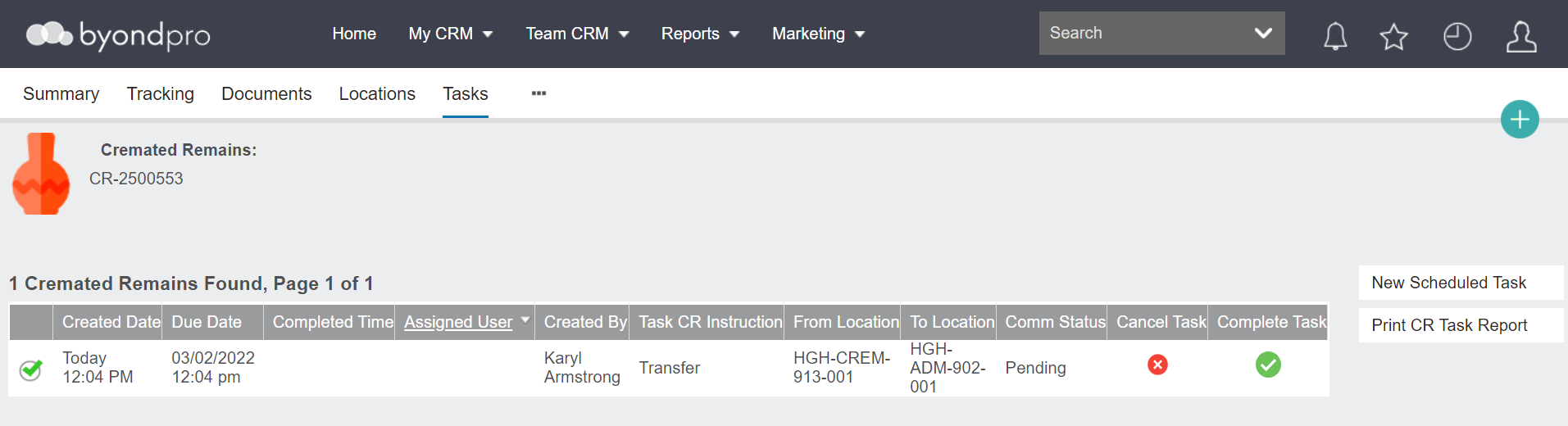
Tasks are used to track the movement of cremated remains around the cemetery on cremated remains records within byondpro.
They can be created directly from the cremated remains record or using the
Batch CR Task tool, which is explained further in this guide.
Return to the Cremated Remains record by completing a
search using the
Cremated Remains tile from the Home display.
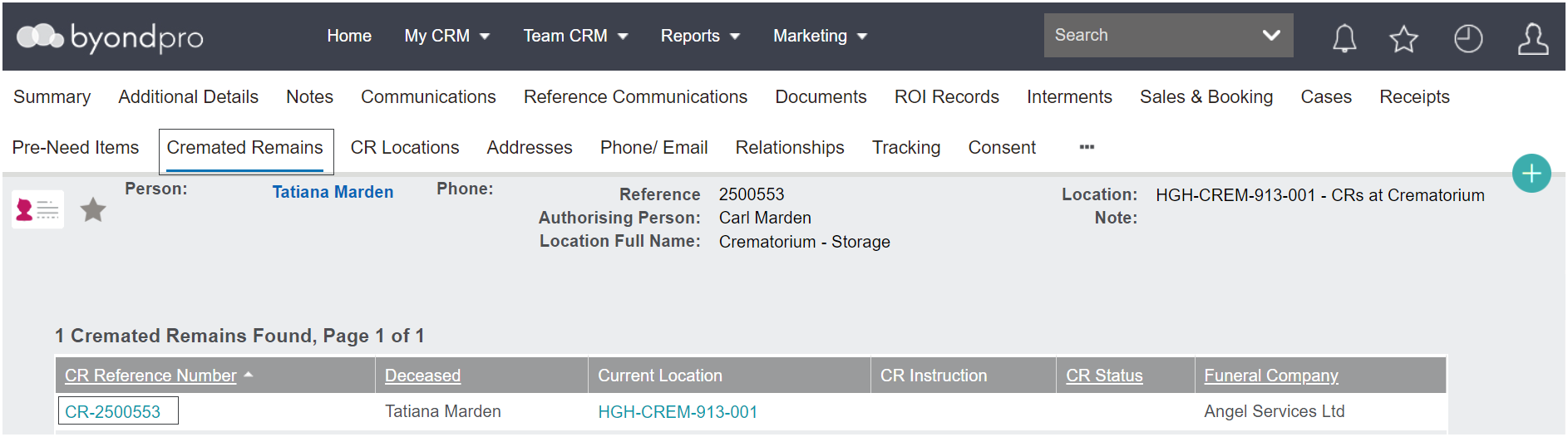
Alternatively from the Deceased Person Record, visit the Cremated Remains tab and click on the hypelink for the record.
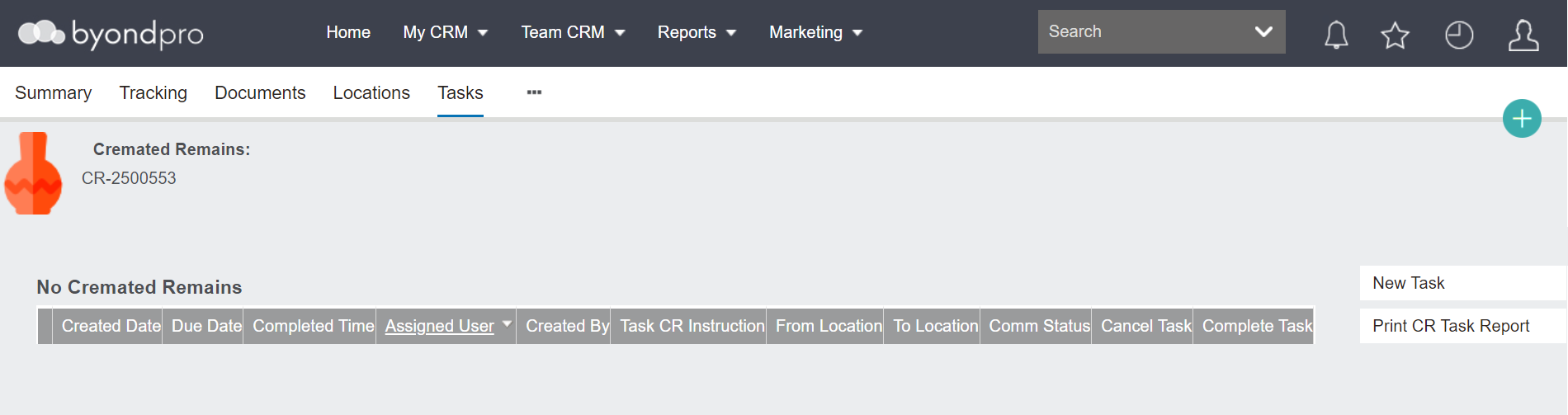
From the Tasks' tab of the Cremated Remains record, choose New Task on the right-hand side.
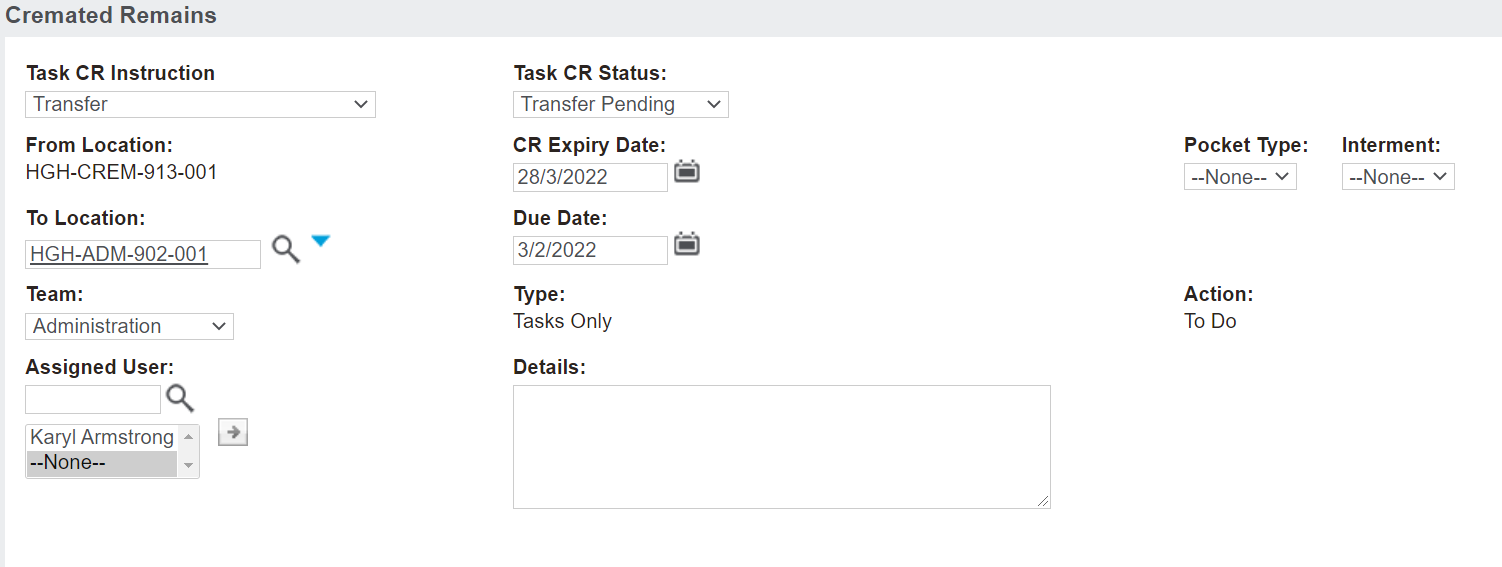
You will be presented with the following screen to complete.
The Task CR instruction field is where to specify the type of action required.
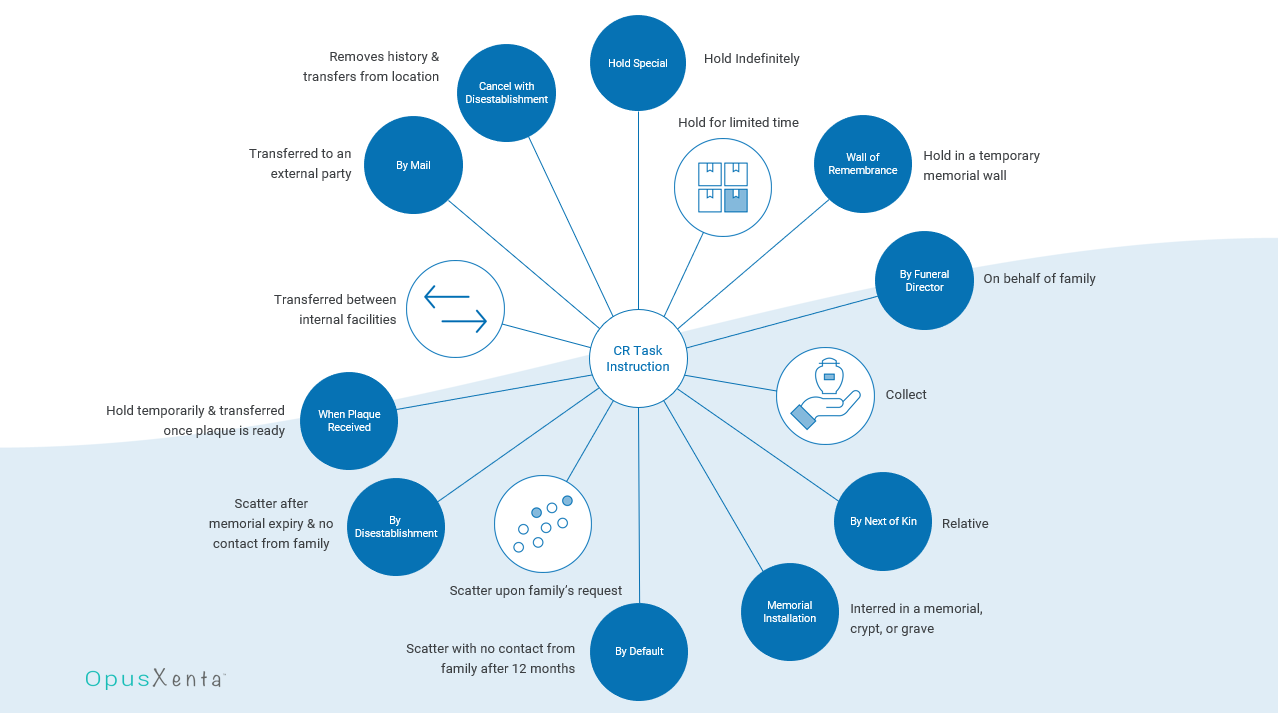
In this drop-down field there are a range of options, which may vary across our cemetery customers.
Below is a diagram of the Task Instructions located in an out-of-the-box byondpro.
An important CR Instruction to note is Memorial Installation. By selecting this option, byondpro will track these tasks in the
CR Analysis Report to record the percentage of cremations which have occurred on site against the cremated remains which have been memorialised on site.
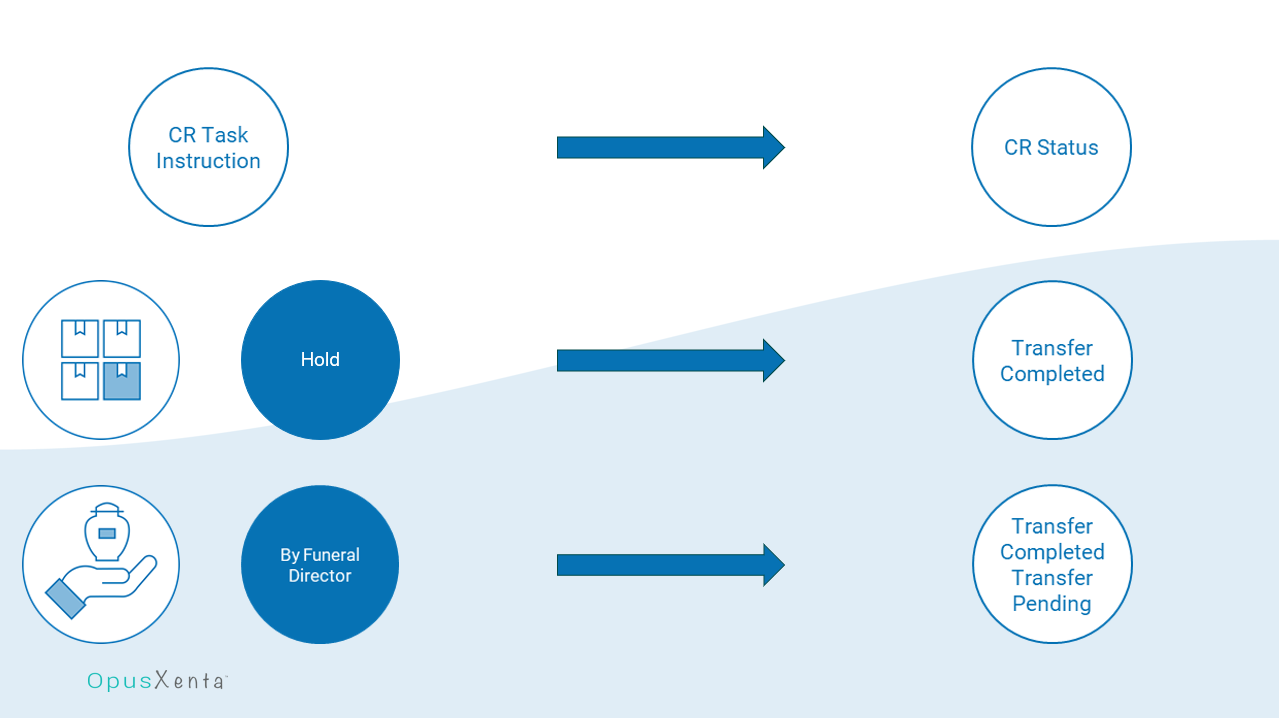
The CR instruction is linked to the CR status field.
For example, if you chose the CR instruction of hold, the only CR status available would be transfer completed.
A selection of collect by funeral director will have task CR statuses of transfer completed and transfer pending
For our example, the Task CR Instruction is Transfer and the Status is Transfer Pending.
The From Location field auto-populates with the current location.
In the instance of creating a
New Scheduled Task (where pending tasks have yet to be completed), this field will populate with the location the cremated remains record will be recorded in once the previous task is completed.
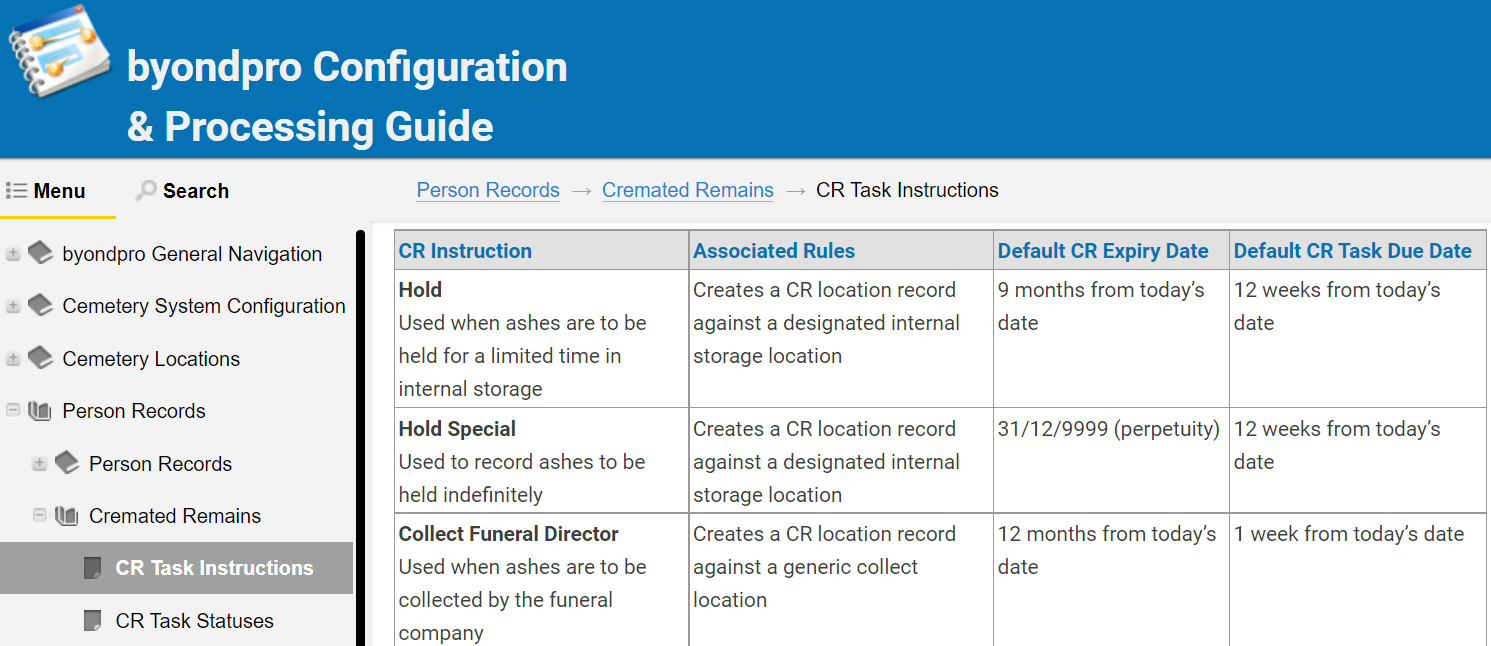
The CR Expiry Date field tracks the length of time the cremated remains are held, where the Due Date field tracks the time frame in which the task should be completed by the cemetery.
These fields auto-populate based on the programmed logic in your byondpro. The byondpro User Guide, accessible by the
Toolbar, details the out-of-the-box byondpro time frames.
However, the programmed dates can be overridden, should the need require it.
In the
To Location field, people can
use the search select field to find the location the cremated remains will be recorded at once the task is marked as complete.
When planning locations for your cemetery, it is important that location records are created for each location in the cemetery where cremated remains may need to be recorded, such as:
-
-
-
-
-
Collect location (to indicate CRs are collected by a Funeral Director or Next of Kin)
-
Individual graves and niches.
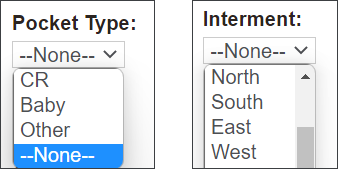
The Pocket Type and Interment fields refer to if the cremated remains are to be interred, such as placed in a pocket of a grave, for example.
The selection options in these fields will note where in the grave the cremated remains are.
For our example, the cremated remains are being transferred and therefore these fields have been left both as None.
The Team field is a selection list to designate which team is responsible for the movement of the cremated remains.
In our example, the Administration team will be responsible for transferring the cremated remains to the administration building.
The fields of Type and Action auto-populate.
The Assigned User field will populate with the current user’s name and can be edited, if necessary.
The Details field is to add any special instructions.
Once you have completed all required fields, choose Save on the right-hand side of the page.
The task you have created will now appear with:
-
-
-
-
-
The completed time, if applicable
-
Subject Line Description
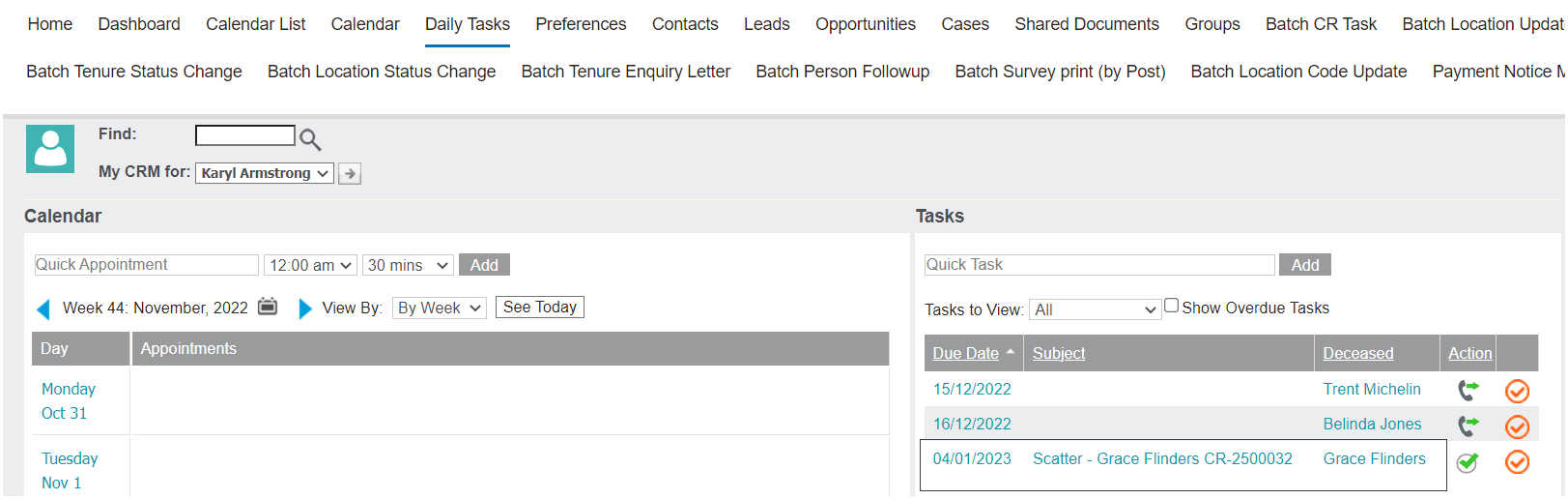
When a CR Task is created, users can view the details on their daily tasks.
The following will display as the subject:
-
-
-
Cremated remains reference number
In our example below, a memorial installation task on Grace Flinders’ record, displays on the assigned users’ daily tasks providing the details of the task and which record it relates to.
The deceased name acts as a hyperlink back to the person record.