Once task /s are created, several actions can occur on the task /s.
This section will show a few scenarios for the actions that can be completed on individual tasks. Should you need to take the same action on several tasks, such as complete several tasks at once, visit the
Batch CR Task section of this guide.
Task Completed Upon Creation
In the instance a task is marked as complete upon creation, no further actions can take place with the task.
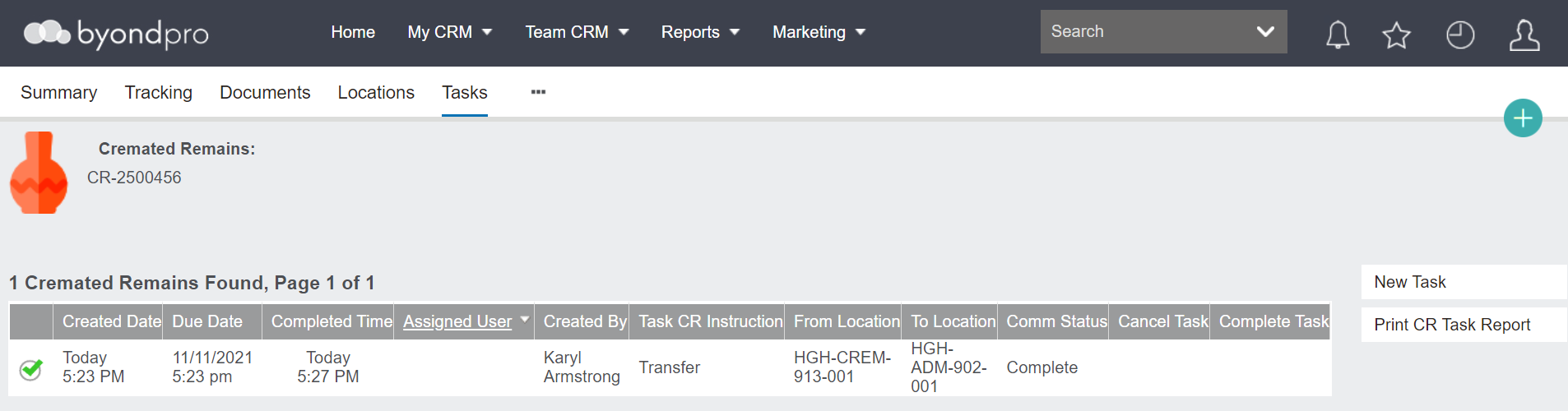
On the Tasks' tab of the Cremated Remains record, the Comm Status will be labelled as Complete.
On the Summary tab, the CR Status and CR Instruction fields will show the Instruction and Status of the completed task, if there are no other pending tasks created.
Or the Instruction and Status of the next task, if another pending task has been created.
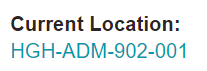
Additionally, the Current Location field will have been updated to reflect the new location indicated on the task.
Pending Task
In the instance a task is marked as pending upon creation, users can either cancel or complete the task from the Tasks' tab of the Cremated Remains record.
On the Summary tab, the CR Status and CR Instruction fields will show the Instruction and Status of the pending task.
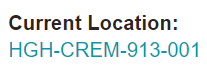
The Current Location will reflect the original location before the pending task had been created.
To cancel the task, click on the red X under the Cancel Task heading in line with the appropriate task.
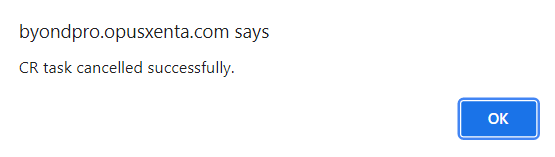
A message will populate which advises the CR task has been cancelled successfully.
Press the OK button and the task will be removed.
To complete the task, click on the green check mark under the Complete Task header, in line with the appropriate task.
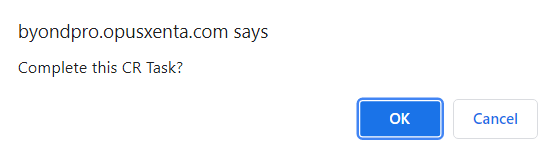
A message will ask you to confirm if you want to complete the task.
To proceed, press the OK button. To cancel, press the Cancel button.
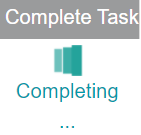
By pressing OK, byondpro will take a short time to update, indicated in the Complete Task section.
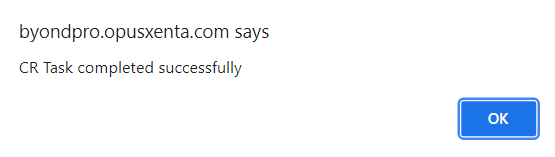
Once completed, the message will confirm the task has been completed successfully.
Press the OK button and the task, along with all relevant records, will be updated to reflect the movement.
Approval Task
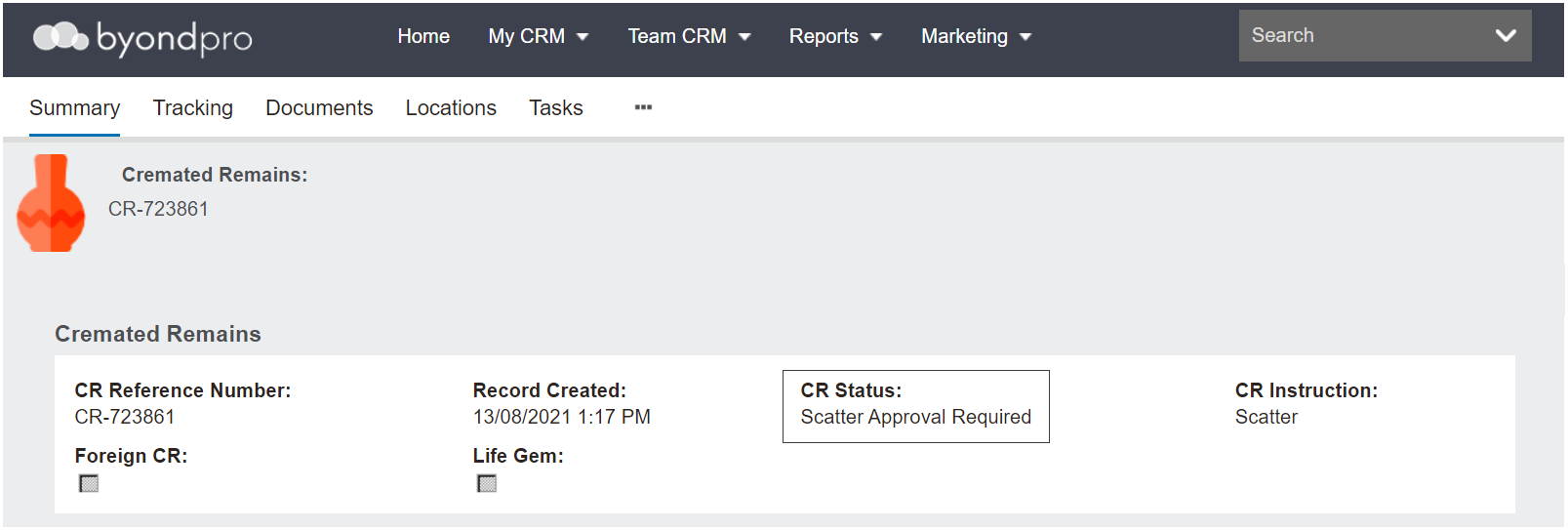
Some tasks, such as tasks with a CR Task Instruction of Scatter, will have an approval option in the CR Status field on the Summary tab of the Cremated Remains record.
This status is set to reflect an approval status that may be required before actioning a task.
In our example, approval may be required to scatter cremated remains amoung the cemetery's grounds.
A supervisor may need to
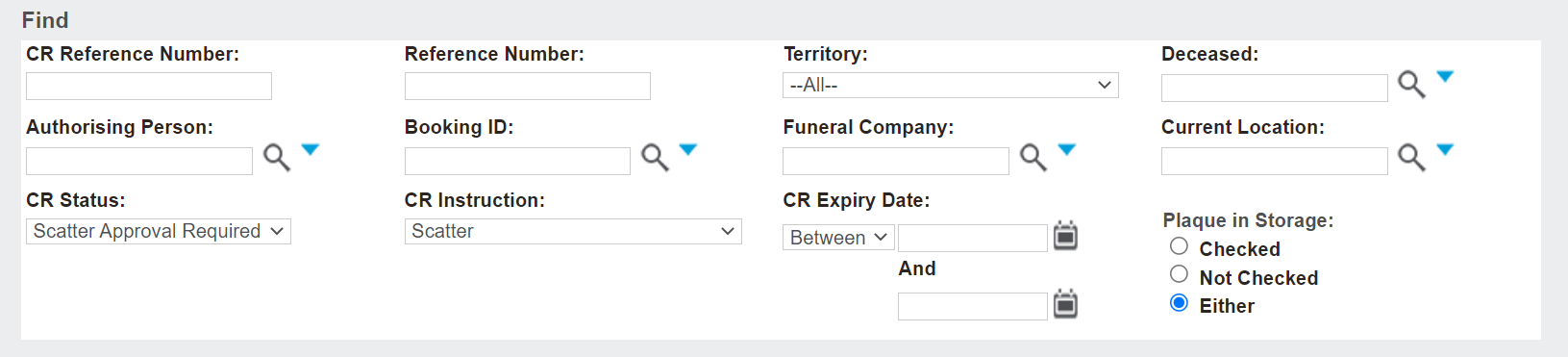
search for all cremated remains records with a CR Status of 'Scatter Approval Required,' from time-to time.
Should there be multiple cremated remains records that require approval to be scattered, the supervisor might choose to use the
Batch CR Task tool to action the approval in one action.
If approving individually, the supervisor would choose the green check mark under the Complete Task header in line with the appropriate task, from the Tasks tab of the Cremated Remains record.
A message will ask the supervisor to confirm if they want to complete the task.
To proceed, press the OK button. To cancel, press the Cancel button.
By pressing OK, byondpro will take a short time to update, indicated in the Complete Task section.
Once completed, the message will confirm the task has been completed successfully.
Press the OK button.
On the Summary tab of the Cremated Remains record, the CR Status will have been updated from Scatter Approval Required to Scatter Pending.
The task can now be completed from the Tasks tab, once the action has taken place.
Pending & Scheduled Tasks
It may be the preferred process of the cemetery staff to add all of the tasks required on a cremated remains record all at one time.
Should this be the process, please be aware that the Due Date for completing each task reflects the day the task was created.
If this is the preferred process, we recommend:
-
Considering this process when the due dates are configured in your byondpro on implementation.
-
Or users can choose to update the
Due Date field manually on all the
Scheduled tasks upon creation.
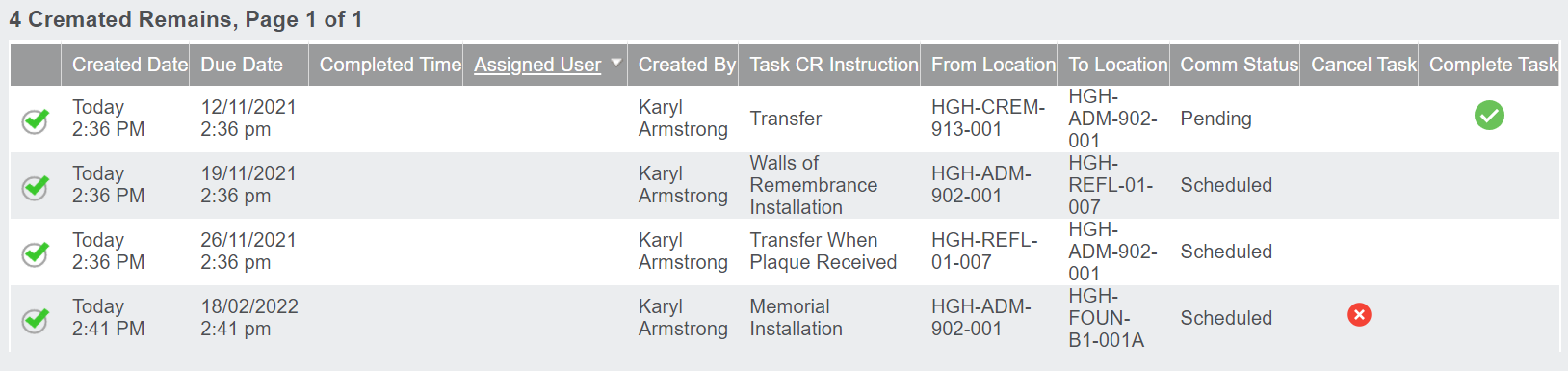
All tasks created will display on the Tasks tab of the Cremated Remains record, with the first task displaying as Pending and an option to complete only this task.
All remaining tasks will display as Scheduled.
If a scheduled task needs to be cancelled, you will notice, the final task created is the only task with the cancel task option.
The tasks need to be cancelled from the task that was entered last back in sequence to the first task. Once this task is cancelled, the task above can then be cancelled and so on.
When
creating tasks, it is important that users consider the sequence that tasks are created to ensure they are completed in a logical manner and once the final task is completed the cremated remains are recorded in their final position.