Action Buttons
Once the initial booking and first call details are recorded, additional actions can be taken using the Action buttons from the right-hand side of the Summary tab of the Sales & Booking.
Depending on your accessibility, some of the actions may not be available and will likely not be required.
Those required actions may be completed at different times throughout the funeral arrangement process.
Refer to the below for assistance on the purpose and how to complete each action.
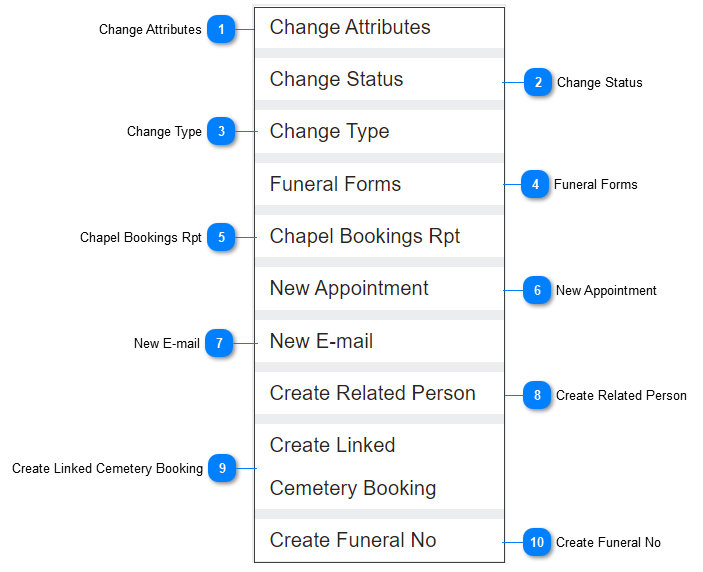
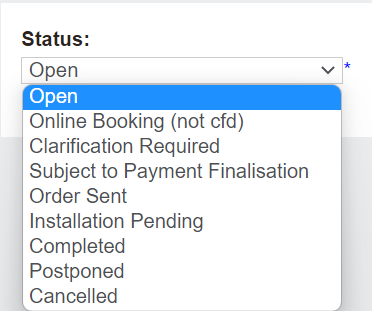
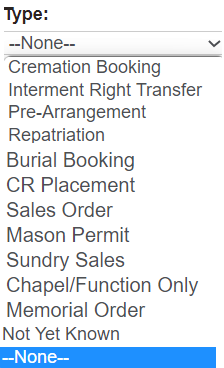
 Change AttributesThe Change Attributes button places the booking in edit mode.
 Users can make changes to the following fields:
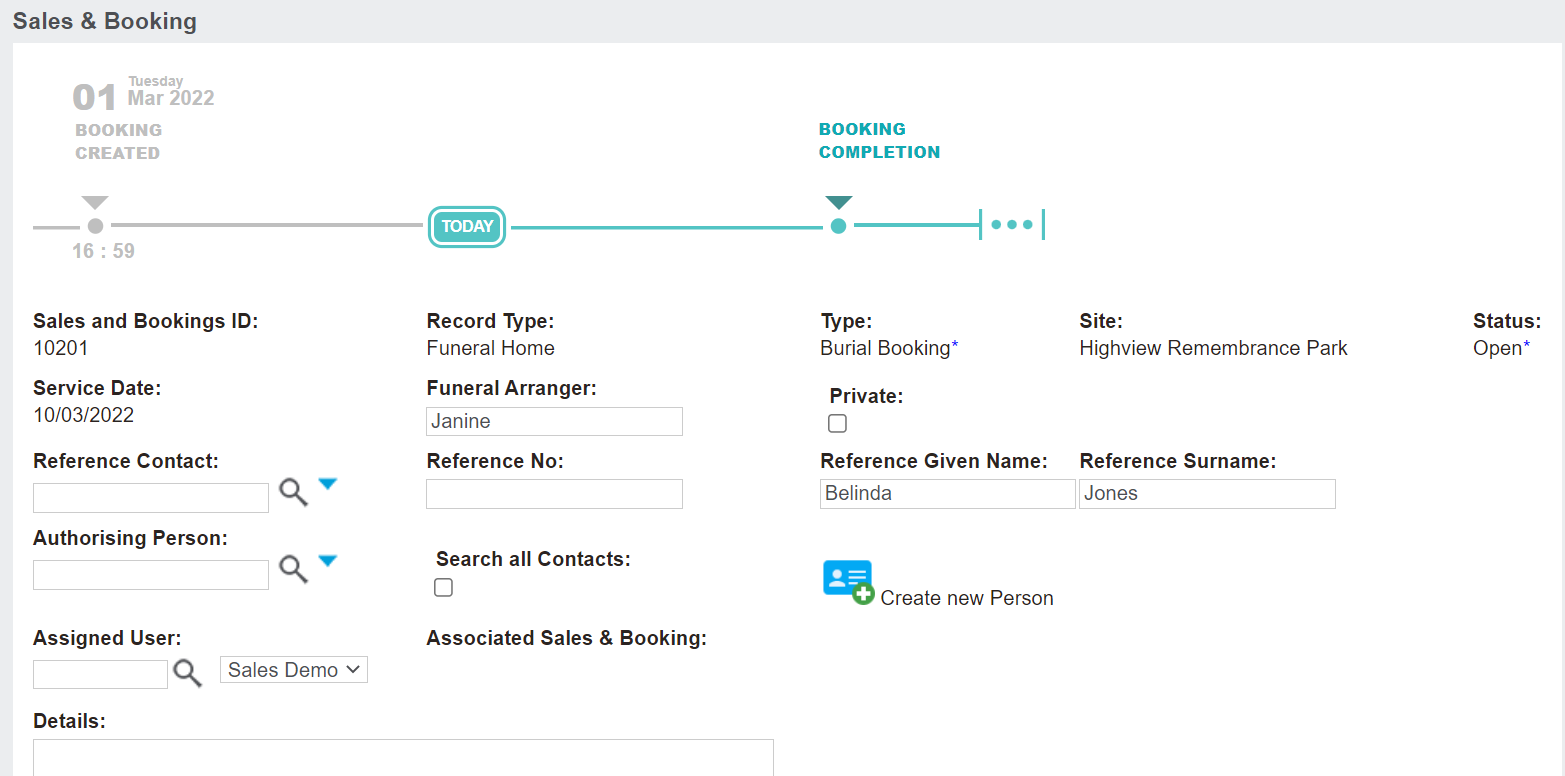 You may use this button when you have the paperwork and details for the Reference Contact & the Authorising Person and are ready to add these people as person records in the system starting with the Create new Person button.
 |





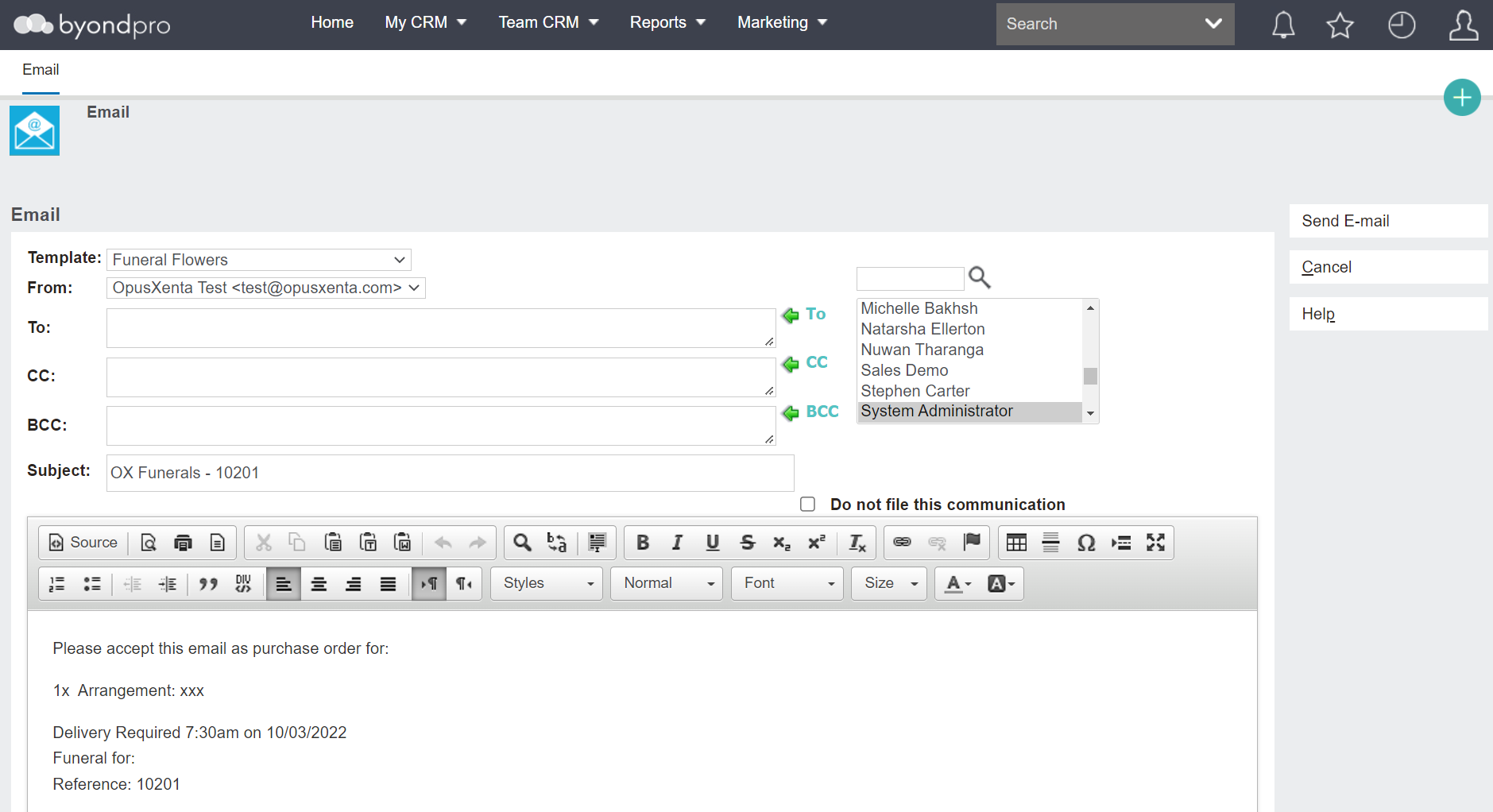
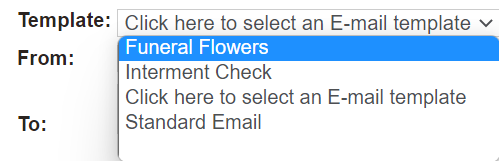
 Funeral FormsThe Funeral Forms button will allow you to generate customisable reports, such as the First Call sheet and the Personal Effects Summary.
 |
 Chapel Bookings RptThe Chapel Bookings Rpt button allows users to determine if the desired chapel is available at the requested time.
 |
 New AppointmentThe New Appointment button allows users to create new appointments to schedule resources and appointments applicable to any funeral arrangements.
 |



 Create Related PersonUse the Create Related Person button to generate the related person link which will display on the Related Persons' tab of the booking.
 |
 Create Linked Cemetery BookingUse the Create Linked Cemetery Booking button if you have byondpro Cemetery Management as well and need to create an associated Cemetery booking.
 |