To properly display this page you need a browser with JavaScript support.
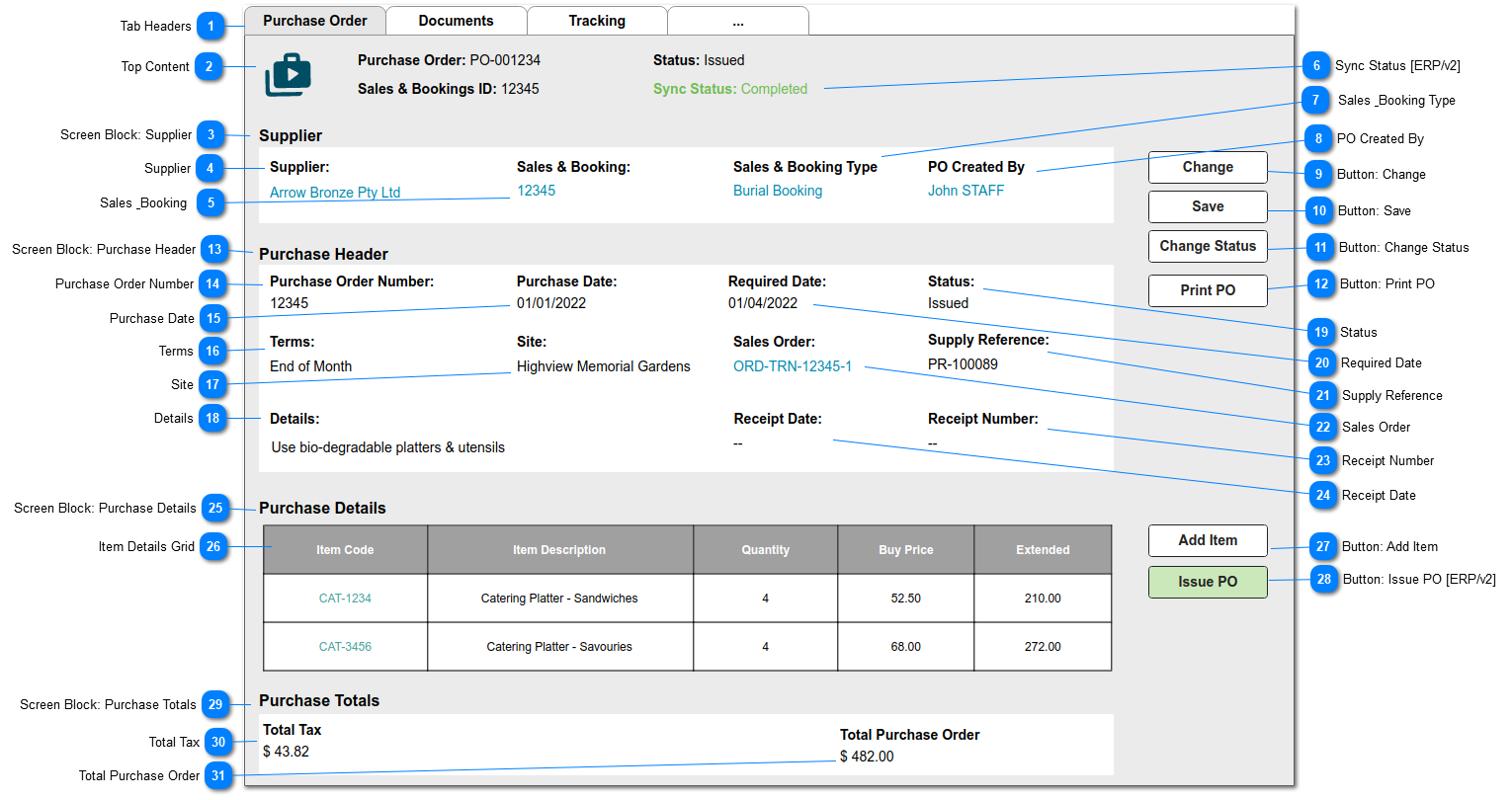
This is the Purchase Order creation/summary screen.
v2/OXGold release: will include ability to create POs independently and include integration requirements for Sage 300 [green button/status placeholder showing below]
Tab Headers
This represents the tab headers/links required for the Purchase Order entity: Documents + Tracking
DOCUMENTS: is the standard CRM document library.
TRACKING: to be activated for all fields showing on the Supplier block: 4,5,7,8 and the Purchase Header block: 14-24
Top Content
This is the top content for the Purchase Summary screen.
The top content is to show the following field values:
PURCHASE ORDER NUMBER
SYNC STATUS [v2/ERP integration]
Screen Block: Supplier
This is a screen section with title: Supplier
Supplier
This is the Company on whom the purchase order is being raised.
Type
Notes
Rules
Compulsory
Format
Edit
Size
Default
Error Message
Search Select
1. Lookup to Company records.
1a. Filter to Type = Vendor
2. When screen is in VIEW mode, hyperlink to Company summary screen
3. Allow edit when STATUS = Open
Y
Y per rule 3)
Sales & Booking
This is the Sales & Booking ID to which the purchase order is attached.
Type
Notes
Rules
Compulsory
Format
Edit
Size
Default
Error Message
string
1. Auto-populates from the originating Sales & Booking transaction.
2. When screen is in VIEW mode, hyperlink to Sales & Booking, Purchases list
Y
N
Sync Status [ERP/v2]
This is a placeholder for v2 functionality - will show ERP integration status
Sales & Booking Type
This shows the originating Sales & Booking transaction Type, e.g. Burial Booking, Sales Order, Memorial Order.
Type
Notes
Rules
Compulsory
Format
Edit
Size
Default
Error Message
Selection List
This field shares the Sales & Booking (tran_Type) selection list
1. Auto-populate with Sales & Booking TYPE
Y
N
PO Created By
This is the name of the staff member that generated/created the purchase order.
Type
Notes
Rules
Compulsory
Format
Edit
Size
Default
Error Message
Lookup
1. Auto-populate with name of user creating new purchase order.
Y
N
Button: Change
This is an action button to put an existing summary record into edit mode.
Type
Notes
Rules
Compulsory
Format
Edit
Size
Default
Error Message
Button
Subject to all standard CRM rules.
1.This Button is visible when the screen is in VIEW mode.
2. Selection places the screen into edit mode
3. This button is visible when the STATUS = Open, Issued
N
-
Button: Save
This is an action button to save the record.
Type
Notes
Rules
Compulsory
Format
Edit
Size
Default
Error Message
Button
Subject to all standard CRM rules.
1.This Button is visible when the screen is in NEW or EDIT mode.
1a. This button is hidden if Status = Completed
2. When selected:
2a. NEW entries are inserted to the database, and STATUS = Open.
2b. Edited entries are updated in the database.
-
Button: Change Status
This is an action button to change the status of the purchase order, and trigger associated functions.
Type
Notes
Rules
Compulsory
Format
Edit
Size
Default
Error Message
Button
1.This Button is visible when the screen is in VIEW mode.
1a. This Button is hidden when the STATUS = Completed
-
Button: Print PO
This is an action button to open a print screen and generate a purchase order.
Refer
here for forms design.
When PO form generates to PDF - auto-file in Documents library; referencing Purchase Number, Sales & Booking ID, Supplier (company)
Type
Notes
Rules
Compulsory
Format
Edit
Size
Default
Error Message
Button
1. This button is visible when the screen is in VIEW mode.
Screen Block: Purchase Header
This is a screen section with title: Purchase Header
Purchase Order Number
This is a system generated purchase order number.
Type
Notes
Rules
Compulsory
Format
Edit
Size
Default
Error Message
string
1. Auto-inserted when the record is created.
Y
N
Purchase Date
This is the date the purchase order was created.
Type
Notes
Rules
Compulsory
Format
Edit
Size
Default
Error Message
Date
1. Default to current date when screen is in NEW mode.
2. Allow editing when STATUS = Open
Y
Y per rule 2)
Terms
This shows the terms of purchase for the purchase order.
Type
Notes
Rules
Compulsory
Format
Edit
Size
Default
Error Message
Search Select
1. Lookup to the list of Terms
1a. Default to value on Supplier (company) record.
comp_TermID
1b. Display Term Description
2. Allow editing when STATUS = Open
Y
Y per rule 2)
Site
This is the Site (cemetery/funeral home) to which the originating Sales & Booking is attached
Type
Notes
Rules
Compulsory
Format
Edit
Size
Default
Error Message
Search Select
1. Lookup to the list of Sites
1b. Auto-populate with Site from originating Sales & Booking record.
1c. Display Site Description
Y
N
Details
This is a field for general notes and special requests.
Type
Notes
Rules
Compulsory
Format
Edit
Size
Default
Error Message
Multiline Text
1. This is a free-form text field.
2. Allow editing when STATUS = Open, Issued
N
Y per rule 2)
Status
This shows the current status / progression of the purchase order.
Type
Notes
Rules
Compulsory
Format
Edit
Size
Default
Error Message
Selection List
These statuses are designed to represent these stages of the order cycle:
OPEN: when order is being prepared
ISSUED: when PO has been sent to supplier (or integrated ERP)
CANCELLED: when PO is no longer required
COMPLETED: when PO has been receipted
1. Selection List values:
- Open
- Issued
- Cancelled
- Completed
2. Default value for NEW Purchase Orders: Open
2a. Edited only via Change Status button (11)
Y
N
Required Date
This is the date by when goods or services are to be provided by the Supplier.
Type
Notes
Rules
Compulsory
Format
Edit
Size
Default
Error Message
Date
1. Default to current date when screen is in NEW mode.
2. Allow editing when STATUS = Open, Issued
N
Y per rule 2)
Supply Reference
This is an information field to record a supplier's reference number for this order.
Type
Notes
Rules
Compulsory
Format
Edit
Size
Default
Error Message
string
1. This is a text entry field.
2. Allow editing when STATUS = Open, Issued
N
Y per rule 2)
100
Sales Order
This is the originating Sales Order transaction, auto-populated by the Create PO function.
Type
Notes
Rules
Compulsory
Format
Edit
Size
Default
Error Message
string
2. When screen is in view mode, hyperlink to Sales Order Header screen
N
N
Receipt Number
This is the system assigned number when status changes to completed, that is, goods/services are delivered.
[IVC integration will hold receipt number returned by Compass ERP]
Type
Notes
Rules
Compulsory
Format
Edit
Size
Default
Error Message
string
N
Receipt Date
This is the date the goods/services are delivered.
[IVC integration will hold receipt date returned by Compass ERP]
Type
Notes
Rules
Compulsory
Format
Edit
Size
Default
Error Message
Date
N
Screen Block: Purchase Details
This is a screen section with title: Purchase Details
Item Details Grid
This is the list of items required for this purchase order.
The list will show columns for:
Item Description
Quantity
Buy Price
Extended Price
Button: Add Item
This is an action button to open a New Purchase Details entry screen
Type
Notes
Rules
Compulsory
Format
Edit
Size
Default
Error Message
Button
1. When selected, opens the new Purchase Details entry screen.
2. Button is visible when STATUS = Open
Button: Issue PO [ERP/v2]
This is a placeholder for v2 functionality - will change PO status to Issued and trigger Sage 300 integration activities.
Screen Block: Purchase Totals
This is a screen section with title: Purchase Totals
Total Tax
This is the calculated amount of Tax for all purchase detail lines
Type
Notes
Rules
Compulsory
Format
Edit
Size
Default
Error Message
Numeric
1. This is a calculated field value, updated as each Purchase Detail line is added/saved.
2. Calculation: sum (Purchase Details: Extended Tax)
Y
Currency
N
0.00
Total Purchase Order
This is the calculated Total Amount for the purchase order.
Type
Notes
Rules
Compulsory
Format
Edit
Size
Default
Error Message
Numeric
1. This is a calculated field value, updated as each Purchase Detail line is added/saved.
2. Calculation: sum (Purchase Details: Extended Amount)
Y
Currency
N
0.00