To properly display this page you need a browser with JavaScript support.
Sales Orders: Create Purchase Order
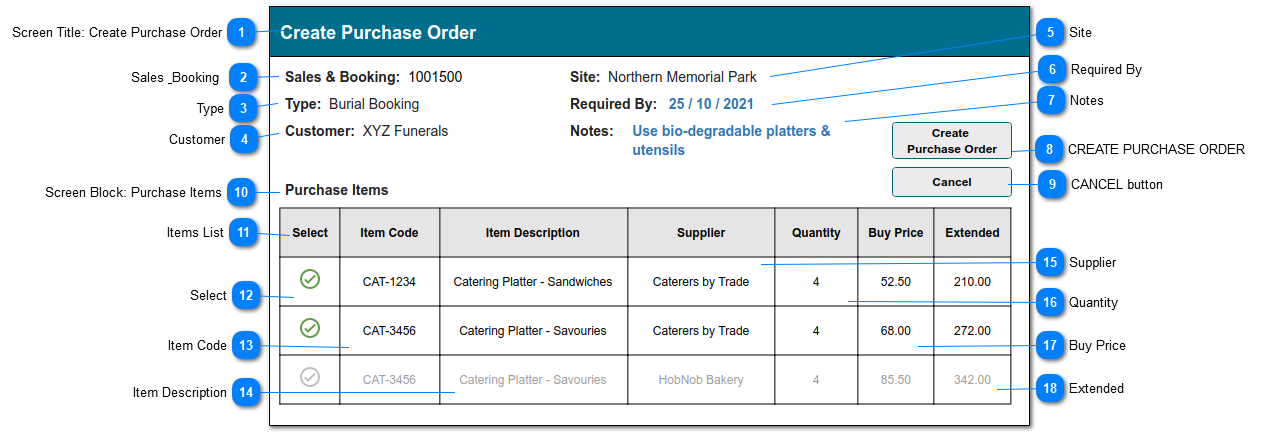
This screen will allow the user to create a Purchase Order using the Details entered on a Sales Order.
It opens from a button on the Sales Order summary screen: Create Purchase Order.
This function will scan all line items on the order, including package components, and return a list of the items that have a supplier record associated to them.
The user will be presented with a list of items showing:
- Item code and description sourced from the sales order
- Supplier/s associated with the product, filtered by the site (park)
- Quantity copied from the sales order
- Supplier buy price (editable)
- Extended purchase price (calculated)
The user will be able to:
- Select (tick) the required items
- Edit the quantity and buy price
- Enter a required by date for the whole order
- Enter Notes / commentary
Screen Title: Create Purchase Order
This is the screen title: Create Purchase Order
Type
Notes
Rules
Compulsory
Format
Edit
Size
Default
Error Message
Title
2. CUSTOMER: If the Bill-To is a Company = company Name.
3a. The purpose is that if an item from the sales order already exists on a purchase order, it should not be ordered for a second time.
1. This screen opens when the CREATE PURCHASE ORDER button on the Sales order summary screen is selected.
2. The following values are copied from the Sales Order Header:
- SALES & BOOKING (orhe_opssaleid)
- SITE (orhe_SiteID)
- CUSTOMER (Bill-To party name as text)
- TYPE (tran_type)
3. The Items list is populated per the rules described in Items List below.
3a. The items list validates against existing Purchase Orders with the same source Order Header ID (and where PO Status is not Cancelled), and filters out items that already exist as Purchase Details.
Sales & Booking
This is the originating Sales & Booking ID.
Type
Notes
Rules
Compulsory
Format
Edit
Size
Default
Error Message
Text
1. This is the Sales & Booking ID from the originating Sales Order.
2. This is auto-filled when the screen opens
Y
N
Type
This is the Sales & Booking transaction Type.
Type
Notes
Rules
Compulsory
Format
Edit
Size
Default
Error Message
Text
1. This is the Sales & Booking TYPE taken from the originating S&B record.
2. This is auto-filled when the screen opens
Y
N
Customer
This is the Customer name, taken from the sales order and shown for information purposes only (it does not pass to the purchase order record).
Type
Notes
Rules
Compulsory
Format
Edit
Size
Default
Error Message
Text
1. This is the Bill-to party name from the originating Sales Order.
1a. If the Bill-To is a Company = company Name.
2. This is auto-filled when the screen opens
Y
N
Site
This is the Site name, taken from the sales order.
Type
Notes
Rules
Compulsory
Format
Edit
Size
Default
Error Message
Text
1. This is the Site Name from the originating Sales Order
2. This is auto-filled when the screen opens
Y
N
Required By
This is the date by which the supplier should deliver the goods.
Type
Notes
Rules
Compulsory
Format
Edit
Size
Default
Error Message
Date
1. This field opens blank for user input.
N
Y
blank
Notes
This is a free-form text field for the user to enter general notes and information.
Type
Notes
Rules
Compulsory
Format
Edit
Size
Default
Error Message
Multi-line Text
1. This field opens blank for user input.
N
Y
CREATE PURCHASE ORDER
This is an action button that will create a
Purchase Order record from the data entered in this screen.
Type
Notes
Rules
Compulsory
Format
Edit
Size
Default
Error Message
Button
1. When selected, insert Purchase Order Header and Detail records with values per table below.
2. PURCHASE DETAILS: include only where SELECT = Y/active.
N
Create PO Screen
Purchase Order
Conditions
Purchase Order Header
Sales & Booking
Sales & Booking
pass Sales & Booking ID
Type
Booking Type
pass Booking Type: corresponding selection list value
Customer
--
Site
Site
pass Site ID
Required By
Required By
pass corresponding date
Notes
Details
pass corresponding text
--
Purchase Date
Current Date
--
Created By
Logged in user's ID
--
Status
Open
--
Terms
per purchase order rules; company Terms
--
Purchase Order Number
insert next PO reference number
Supplier
Supplier
Company ID
If selected lines includes more than 1 vendor, create separate purchase order/s with corresponding item details.
Purchase Details (multiple lines)
Item Code
Item Code
pass item ID
Item Description
Item Description
Include full text string as displayed in this screen
Quantity
Quantity
pass corresponding value
Buy Price
Unit Price
pass corresponding value
Extended
Extended Amount
recalculate per purchase detail rules
--
Extended Tax
recalculate per purchase detail rules
--
Extended Tax Exclusive
recalculate per purchase detail rules
--
Tax
enter per purchase detail rules
CANCEL button
This is an action button to return the user to the Sales Order Header screen, without committing any record changes to the database.
Type
Notes
Rules
Compulsory
Format
Edit
Size
Default
Error Message
Button
Subject to all standard CRM rules.
1. When selected, returns the user to the Sales Order summary screen.
N
-
Screen Block: Purchase Items
This is a screen section with title: Purchase Items
Items List
This list is auto-populated with items from the Sales Order that have a valid
Supplier Price entry.
A Supplier Price is valid if following conditions are met:1. Item has Supplier Price
2. Current date falls within range of Supplier Price Valid from/to dates.
3. Supplier Price Territory = Sales Order Site (Site_SecTerr) entry; or Supplier Price Territory = Parent Organisation (level 0) in territory hierarchy.
A single line item on the Sales Order might appear more than once in this list, if there are multiple Supplier Price entries.
This list contains the field values described in 12-19 below.
The following values will be editable - preference is for in-line edit capability:
- Quantity
- Unit Price
Select
This is an action switch (checkbox?) that the user marks to indicate that the item/row should be added to a Purchase Order.
Type
Notes
Rules
Compulsory
Format
Edit
Size
Default
Error Message
Toggle
2. Visual Indicator: example diagram shows toggle in a different colour (green) and active rows highlighted.
R&D to advise best technical resolution.
1. By default this is inactive (off).
2. When active, visual indicator to show row is selected.
N
Y
off
Item Code
This is the Item Code
Type
Notes
Rules
Compulsory
Format
Edit
Size
Default
Error Message
Text
1. Sales Order Detail: display Item Code
Y
N
Item Description
This is the Item Description, as entered in the Sales Order Details.
Type
Notes
Rules
Compulsory
Format
Edit
Size
Default
Error Message
Text
If Item Summary allows Description to be edited on Sales Order, need to copy exact wording used in Sales Detail to Purchase Detail lines.
1. Sales Order Detail: Item Description
1a. as entered in the Sales Detail line
Y
N
Supplier
This is the Name of the Supplier (company) from the Supplier Price entry.
Type
Notes
Rules
Compulsory
Format
Edit
Size
Default
Error Message
Text
1. Supplier Price: Supplier
1a. Display Supplier (company) Name.
Y
N
Quantity
This is the Quantity, as entered in the Sales Order Details.
Type
Notes
Rules
Compulsory
Format
Edit
Size
Default
Error Message
numeric
1. Sales Order Detail: Quantity
2. User can edit this value.
2a. Negative values are not permitted.
Y
Y
Buy Price
This is the Unit Price of the Item, from the valid Supplier Price.
Type
Notes
Rules
Compulsory
Format
Edit
Size
Default
Error Message
numeric
1. Supplier Price: Unit Price
2. Edit is allowed for all users if the control on Item Master: Can Edit Price = Y
Y
currency
Y per rule 2)
Extended
This is a calculated value: Quantity * Unit Price
Type
Notes
Rules
Compulsory
Format
Edit
Size
Default
Error Message
numeric
Tax rules are not required in this screen; to be applied when the purchase order is created.
1. Calculated value: Quantity * Unit Price
1a.If either Quantity or Buy Price changes, this value is recalculated.
Y
Currency
N