To properly display this page you need a browser with JavaScript support.
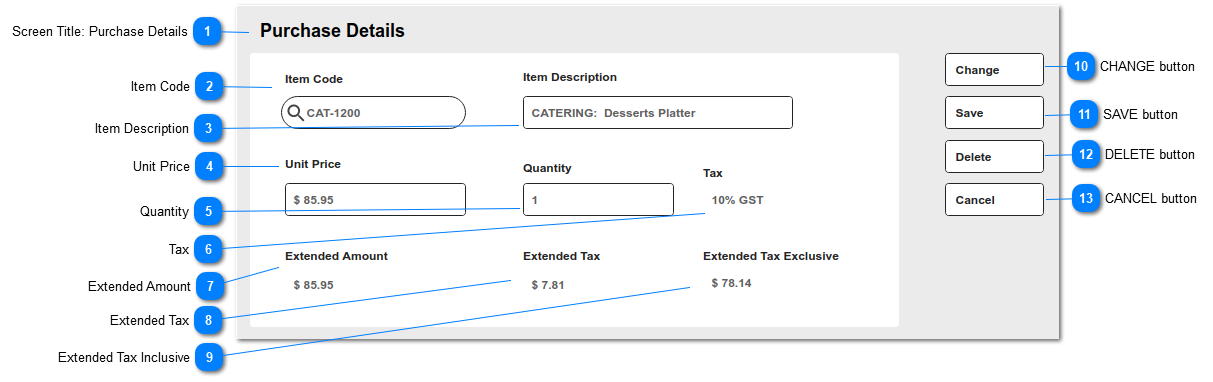
This is the Purchase Detail screen allowing users to add/edit/delete items from the Purchase Order.
It is accessed using the Add Item button on the Purchase Order Header - as a NEW/blank entry form.
It is accessed using the hyperlink on item code in the Purchase Details grid - and opens in view format.
Screen Title: Purchase Details
This is the screen title: Purchase Details
Item Code
This is the Item Code being ordered.
Type
Notes
Rules
Compulsory
Format
Edit
Size
Default
Error Message
Search Select
1. Lookup to Item records. Supplier Prices : 1c. Item has Supplier Price, where Supplier on Item = Supplier on Purchase Order Header.
1d. Current date falls within range of Supplier Price Valid from/to dates.
1e. Supplier Price Territory = Purchase Order Header Site (Site_SecTerr) entry; or
Supplier Price Territory = Parent Organisation (level 0) in territory hierarchy.
2. Allow item search using Item Code or Item Description
Y
Y
Item Description
This is the Description of the Item Code selected.
Type
Notes
Rules
Compulsory
Format
Edit
Size
Default
Error Message
Text
Field behaviour mirrors the rules applied to Item Description field in the Add Details screen in Sales Orders.
1. Auto-populated by Item Code selection.
1a. Field stays in sync with item code; i.e. if item code is changed, Description changes.
2. Edit is allowed only if the control on Item Master: Can Edit Description = Y.
Y
Y
subject to 2)
= Item_Description
Unit Price
Type
Notes
Rules
Compulsory
Format
Edit
Size
Default
Error Message
numeric
Field behaviour mirrors the rules applied to Unit Price field in the Add Details screen in Sales Orders.
1. Auto-populated by Item Code selection.
2. Retrieves Unit Price where the following conditions apply relating to Supplier Prices : 2a. Supplier on Item = Supplier on Purchase Order Header.
2b. Current date falls within range of Supplier Price Valid from/to dates.
2c. Supplier Price Territory = Purchase Order Header Site (Site_SecTerr) entry; or
Supplier Price Territory = Parent Organisation (level 0) in territory hierarchy.
3. Edit is allowed for all users if the control on Item Master: Can Edit Price = Y
Y
Currency
Y
subject to 3)
Quantity
This is the Description of the Item Code selected.
Type
Notes
Rules
Compulsory
Format
Edit
Size
Default
Error Message
numeric
1. Default value is 1
1a. Accepts negative values
Y
2 decimals
Y
1.00
Tax
This is the
Purchase Tax setting for the Item Code selected.
Type
Notes
Rules
Compulsory
Format
Edit
Size
Default
Error Message
Selection List
Field behaviour mirrors the rules applied to Tax Class field in the Add Details screen in Sales Orders.
1. Auto-populated by Item Code selection.
Y
N
Extended Amount
This is the calculated total value of the line item: Quantity * Unit Price, with all tax amounts applied.
Type
Notes
Rules
Compulsory
Format
Edit
Size
Default
Error Message
numeric
Field behaviour mirrors the rules applied to Extended Price field in the Add Details screen in Sales Orders.
Calculation Examples:
Extended Price: 199.00
Quantity: -1.50
Unit Price: 199.00
1. This is a calculated value based on Quantity * Unit Price
1a. Outcome can be negative
2. If Item/Category: Tax Inclusive = n/NULL
ADD Extended Tax
Quantity * Unit Price + Extended Tax
Y
Currency
N
Extended Tax
This is the calculated amount of Tax to apply for the line item: Extended Price * Tax % * Quantity
Type
Notes
Rules
Compulsory
Format
Edit
Size
Default
Error Message
Text
Field behaviour mirrors the rules applied to Extended Total Tax Included field in the Add Details screen in Sales Orders.
Calculation Examples:
Quantity: 2.00
85.95 / 11 = 7.8136
rounded = 7.81
Category: Tax Inclusive = N/null
Quantity: 2.00
85.95 * .1 = 8.595
rounded = 8.60
1. Calculations for tax follow same rules as applied in Sales Order Details.
1a. Item: Purchase Tax code > Tax: Rate
1b. Item: Category > Tax Inclusive
1c. Tax is calculated on the Unit Price and rounded to 2 decimals, then multiplied by Quantity
Y
Extended Tax Inclusive This is the calculated amount of the line item excluding all taxes.
Type
Notes
Rules
Compulsory
Format
Edit
Size
Default
Error Message
Text
Calculation Examples:
Quantity: 2.00
Extended Amount: 171.90
171.90 - 15.62 = 156.28Extended Tax Exclusive: $156.28
Category: Tax Inclusive = N/null
Quantity: 2.00Extended Tax: 17.20
171.90 + 17.20 = 189.10Extended Amount: $189.10 85.95 * 2
1. Calculations for tax follow same rules as applied in Sales Order Details.
1a. Item: Purchase Tax code > Tax: Rate
1b. Item: Category > Tax Inclusive
Y
CHANGE button
This is an action button to put an existing summary record into edit mode.
Type
Notes
Rules
Compulsory
Format
Edit
Size
Default
Error Message
Button
Subject to all standard CRM rules.
1.This Button is visible when the screen is in VIEW mode.
1a. This button is visible when the Purchase Order STATUS = Open.
2. Selection places the screen into edit mode
N
-
SAVE button
This is an action button to save the record.
Type
Notes
Rules
Compulsory
Format
Edit
Size
Default
Error Message
Button
Subject to all standard CRM rules.
1.This Button is visible when the screen is in NEW or EDIT mode.
2. When selected:
2a. New entries are inserted to the database.
2b. Edited entries are updated in the database.
N
-
DELETE button
This is an action button to delete the record.
Type
Notes
Rules
Compulsory
Format
Edit
Size
Default
Error Message
Button
Subject to all standard CRM rules.
1.This Button is visible when the screen is in EDIT mode.
2. When selected, the user is prompted with standard CRM warning, and options to proceed or cancel.
3. The record is soft-deleted in the database.
N
-
CANCEL button
This is an action button to return the user to the Purchase Order Header screen, without committing any record changes to the database.
Type
Notes
Rules
Compulsory
Format
Edit
Size
Default
Error Message
Button
Subject to all standard CRM rules.
1. This button is visible when the screen is in NEW/EDIT mode.
2. When selected, returns the user to the Purchase Order Header screen.
N
-