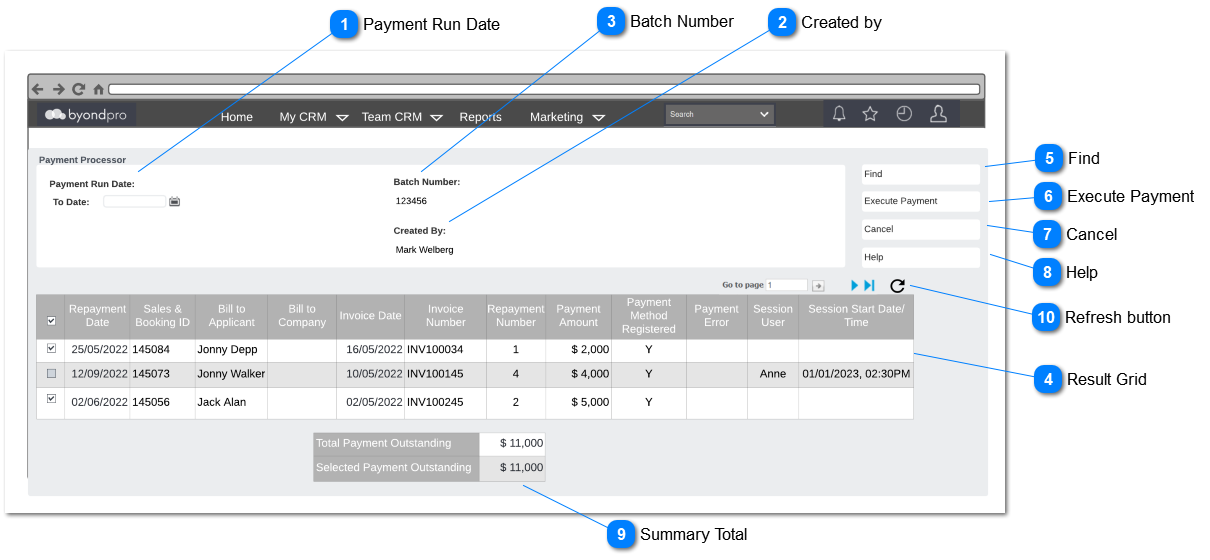
Purpose of this screen is to schedule due payment for a particular period. User will access screen from search drop down by clicking "Payment Processor".
Payment Run Date
Type
Notes
Rules
Compulsory
Placeholder
Format
Edit
Size
Default
Messages
Date Search
Search result for a specified "As at Date"
This field will allow the user to filter results based on Repayment date in Sales and Booking> Sales Tab> Sales Order> Repayment Plan.
Clicking "Find" should list the results based on the payment status. The order in which payments are listed are as follows;
Failed
Unpaid
Paid Partially
This will list all unprocessed ( unprocessed for payment) outstanding payments due up to and including the "To Date" (repayment date will be considered as the payment due date)
Example - If user select 12/02/2023 as To Date, transaction which has status such as unpaid and Failed Status will be listed from the beginning to 12/02/2023.
This function will list all unprocessed outstanding payments due upto the selected "To Date".
1. Clicking "Find" should list the results based on the payment status. The order in which payments are listed are as follows;
Failed
Unpaid
2. This will list all unprocessed ( unprocessed for payment) outstanding payments due up to the "To Date" (repayment date will be considered as the payment due date)
Example - If user select 12/02/2023 as To Date, transaction which has status such as unpaid and Failed Status will be listed from the beginning to 12/02/2023.
3. Payments with payment notice payment method will not be listed to execute payment.
4. If there are any errors in processing payment relevant notification mails will be sent to customer as per Payment Review Process
5. System will check if payment methods is registered from the URL sent to user. Payments without a registered payment method will not be processed via the system.
6. Upon completion of the execution payment process The user will return to home screen.
7. Process of Creating receipt payment details will be filed based on payment details and sales order. Payment type will be online payment, Amount paid will be Receipt Amount and byondpro auto generated receipt number will be used.
-
-
-
-
-
-
Success Message - "<batch number> has successfully processed."