To organise a new Works Request for CR Placement:
-
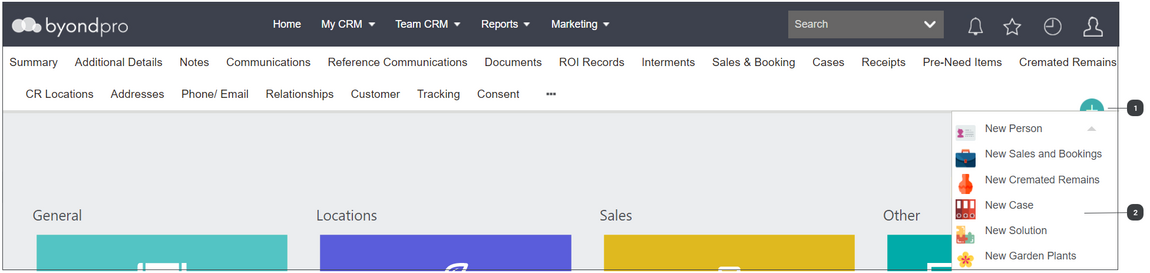
Click on the Plus symbol on the top right-hand side of the page.
-
Navigate to the Sales and Booking tab of the person record.
For the first option:
Click on the Plus symbol on the top right-hand side of the page.
Next, choose New Case from the drop-down list.
For the second option:
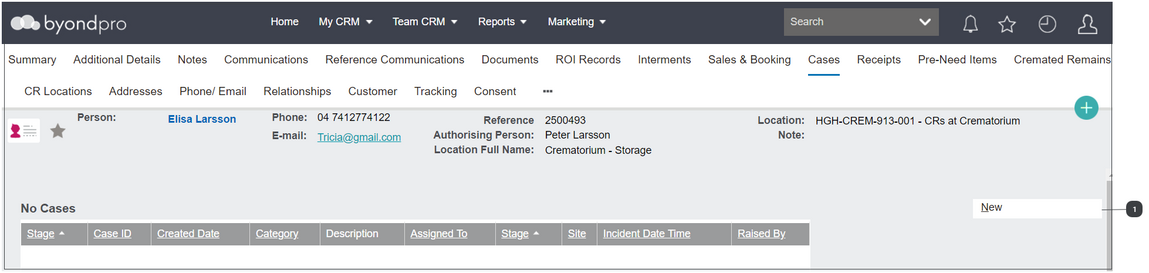
Choose the New button from the Cases tab of the Deceased record.
Complete the fields as necessary.
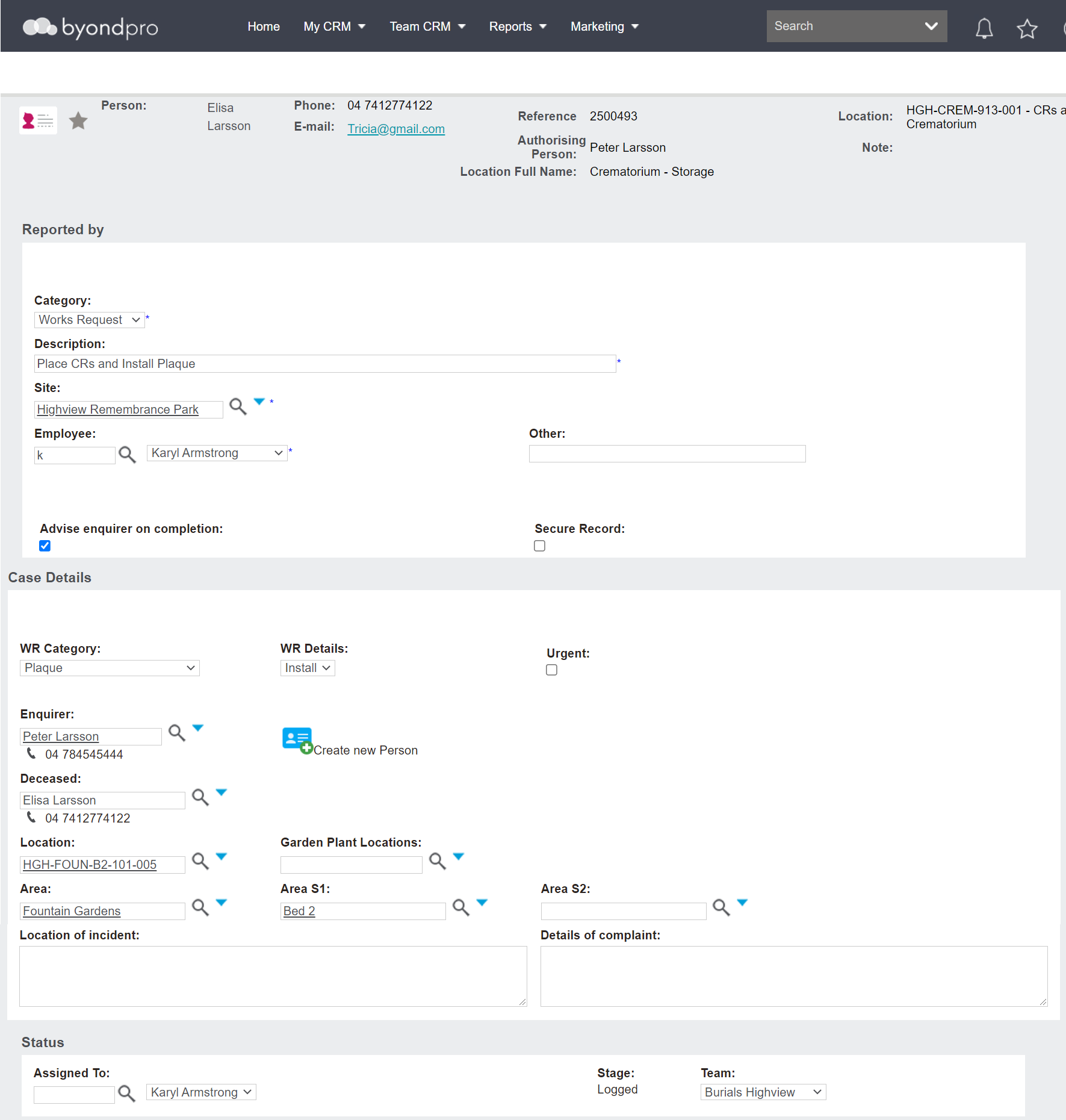
The Category will be Works Request.
Enter in a description in the Description field. In our example, the team will be placing the cremated remains and installing a plaque which was purchased.
If you chose to create the new case from the deceased record, the Site field will populate. Should there be no site, use the search select field to locate the site the CR placement is to occur at.
Provide the details of the person requesting the work to be done, likely the current user.
In our example, we have ticked for the enquirer to be informed when the work has been done in the Advise enquirer on completion tick box.
Leave the secure record tick box unticked. This is generic functionality associated to incident management.
Select the WR Category and WR Details from the selection lists, as per your cemetery's processes. In our example, we have chosen the WR Category as Plaque as a plaque is also being installed at the time of placement and Install in the WR Details field.
Tick the Urgent tick box if the request is to be completed as soon as possible.
Add in the person who has requested the works to be completed in the Enquirer field. In our example, the enquirer is the holder of right and authorising person.
The Deceased, Location, Area and Sub-Area fields will auto populate based on the deceased record, if the case was created directly from the deceased record.
In our example, the cremated remains task has not been marked as completed as of yet and will be done so after the works request is completed.
As a result, we cleared the fields related to the location and added the location the cremated remains are being placed in the Location field. The remaining fields, such as Area and Area S1 populated based on the location.
There is no need to enter details in the Location of incident / Details of complaint as these are generic fields associated to incident management.
In the Status information block, you may want to assign the case to a particular person in the Assigned To field. Alternatively, nominate the Team responsible and the supervisor / manager of the team will assign the case as per their processes.
Once all the fields are completed, press the Save button on the right-hand side of the page.
When the plaque has been received, the CR Placement and installation of the plaque is ready to be progressed with the appropriate team.
To progress the works request, press the Generate Work Request button from the Summary tab of the Works Request.
The team responsible will manage the workflow of the works request through to completion and either the team responsible for the Works Request or the Administration team will need to mark the task as completed on the cremated remains record according to your processes.