Preview, Edit, Change, & Delete
Preview
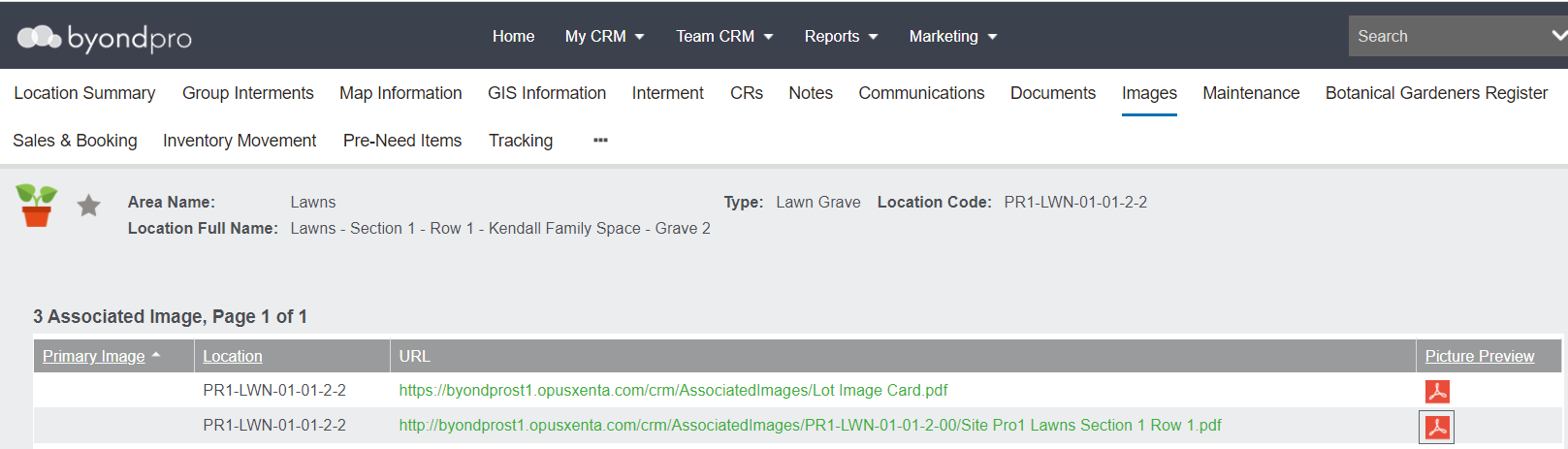
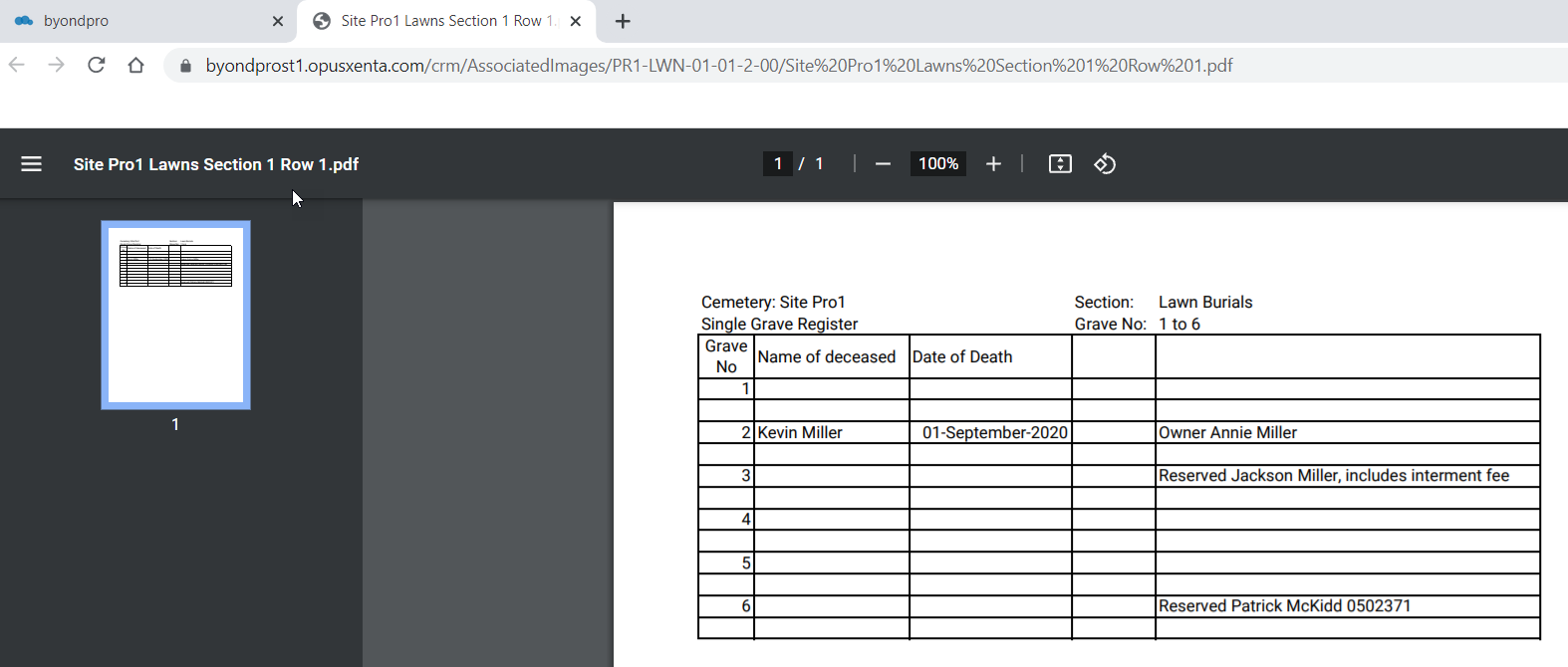
Click on the file preview option on the right to view the document/image.
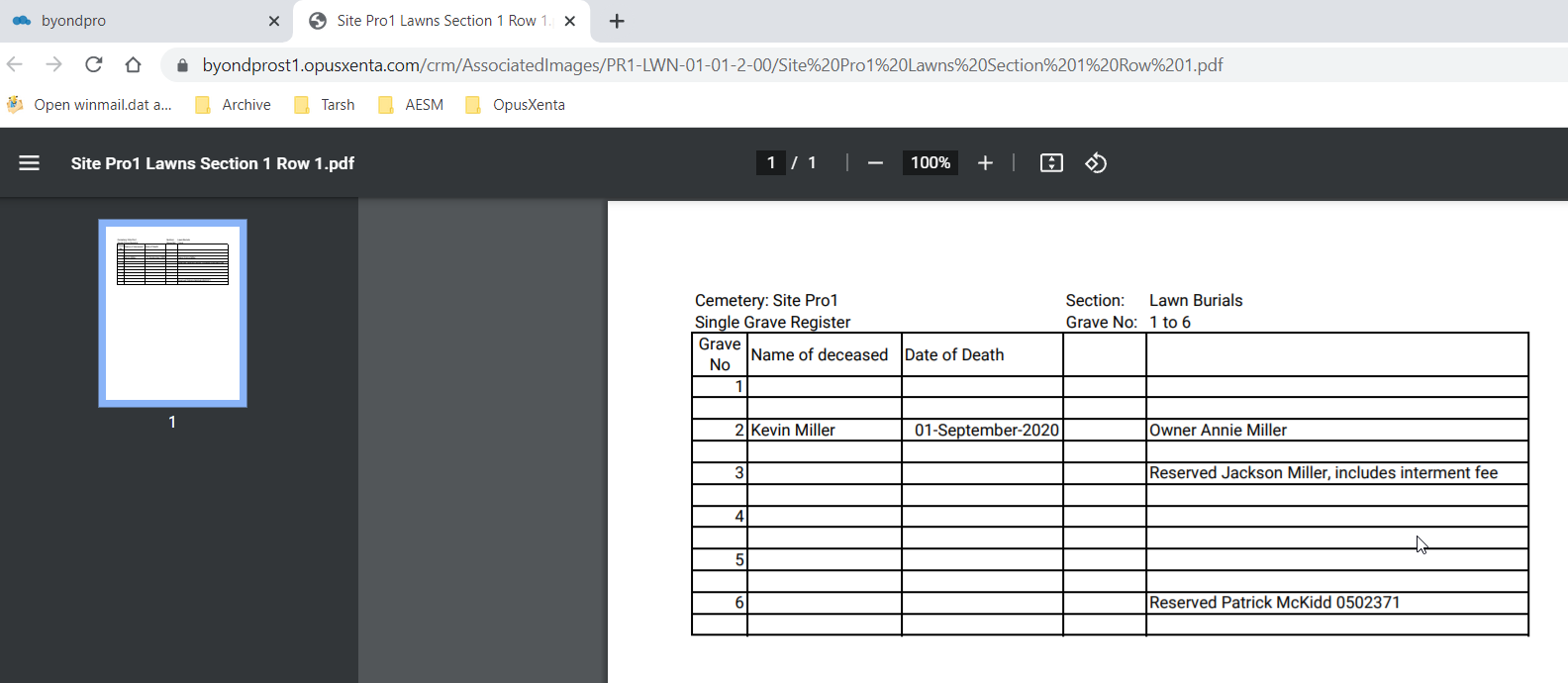
The image opens and displays in a separate tab
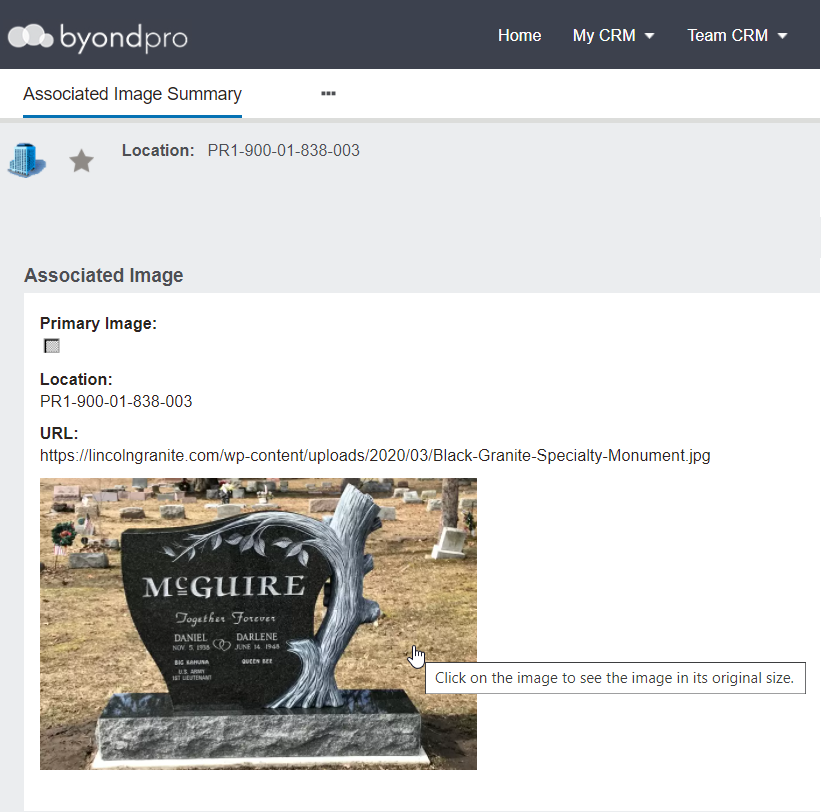
Or you can click on the hyperlink which will open the associated image summary screen.
A preview of the image will display on the summary.
You can click on the image to view the image in its original size. This feature is limited to graphic file types: png, jpg, bmp and not available for TIFF or PDFs.
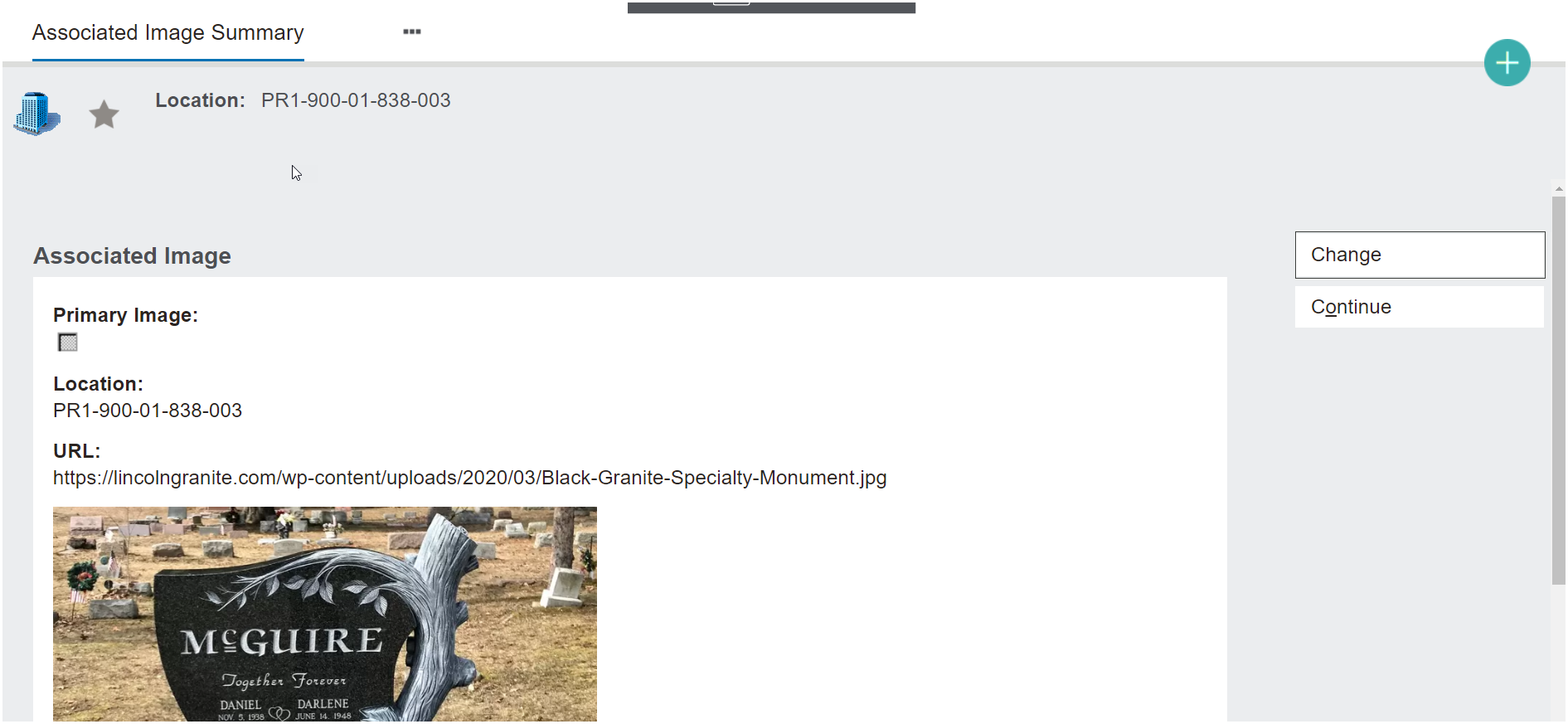
Change / Delete Document or Image
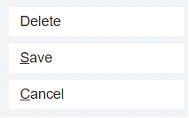
If you click on the Change button, the Delete, Save & Cancel buttons will be available. If you need to delete the document, you can do so here.
Edit Document or Image
To edit the document, download it to your local machine.
Make the necessary changes.
From the Images / Lot Images Tab, select Add New Image.
Click into the Upload Document field or click on browse.
Re upload the document or image to the system, overwriting the existing document.
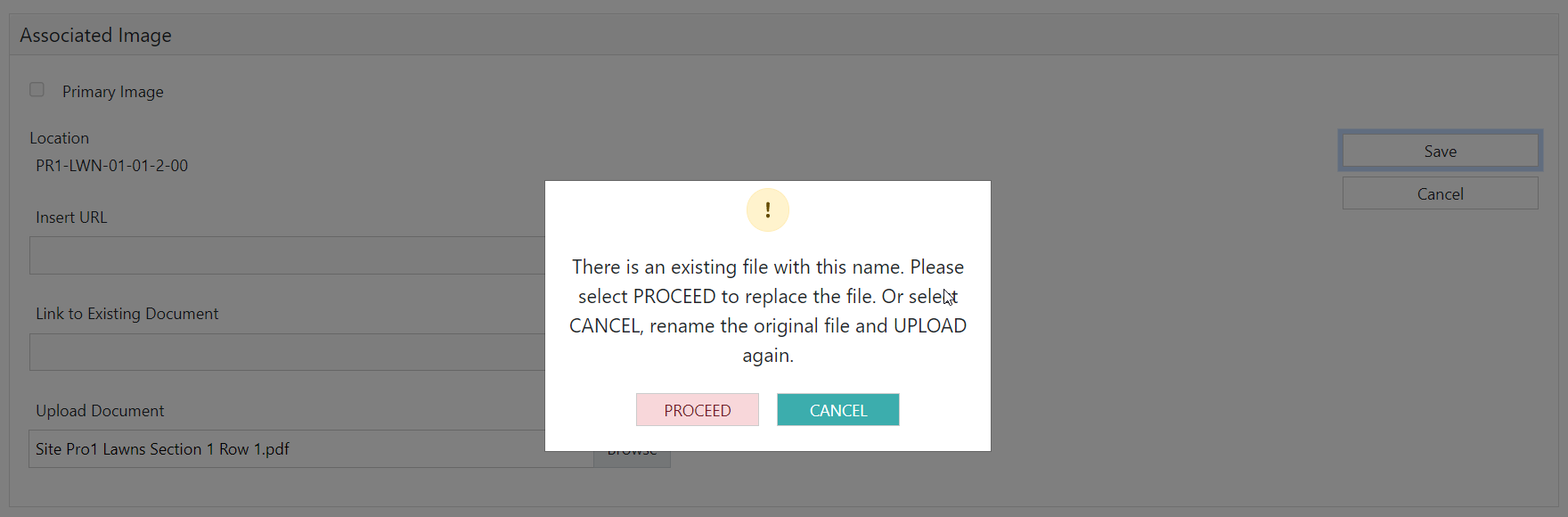
When you upload the document (with the same name as the original document) and select Save, you will be prompted with the option below.
At this point you can proceed and overwrite the document in the system with the new edited version. Or you cancel and rename the file and upload as a separate document with a different naming convention.
Important to note: When previewing the document, browser cache settings may hold the original document, simply press F5 or refresh the screen and the new updated document will display.