Link to Multiple Locations
Users are able to have one document linked to multiple locations.
When linking the same document to other location entries, you can either:
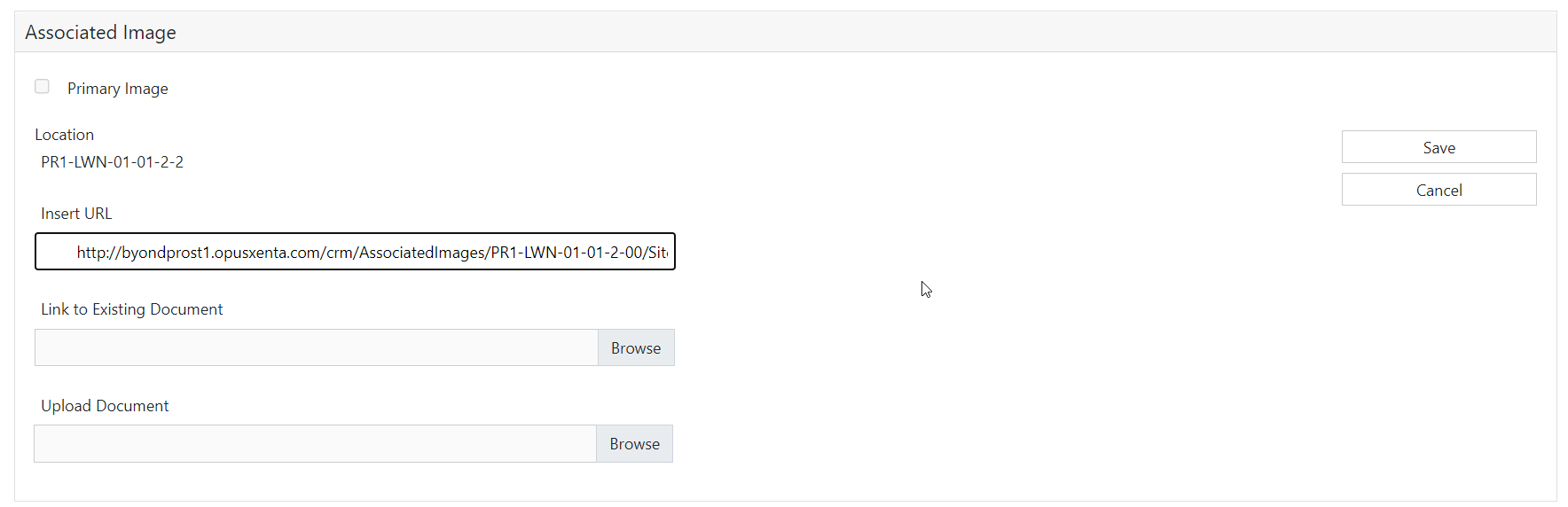
Insert URL
-
Copy the file path shown on the original record.
-
Then, go to the new location, choose the images tab.
-
Select the
Add New Image button on the right-hand side of the page.
-
Paste in the file path to the
Insert URL field and save.
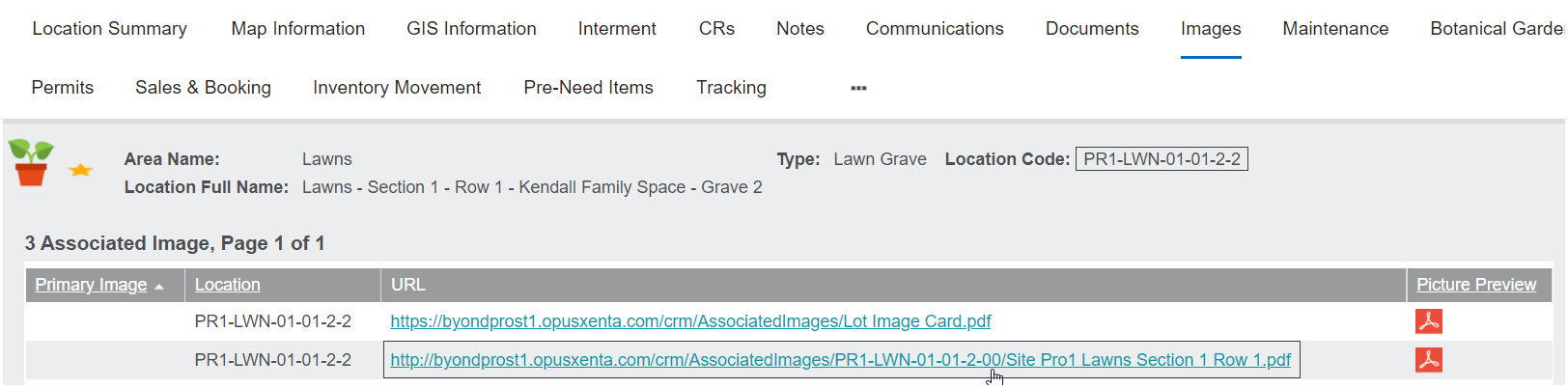
When saved, this results in a new entry – where the file path segment points to the original location / original document.
Link to existing document
Browse for the file.
From the new location, choose the Images tab.
Select the Add New Image button on the right-hand side of the page.
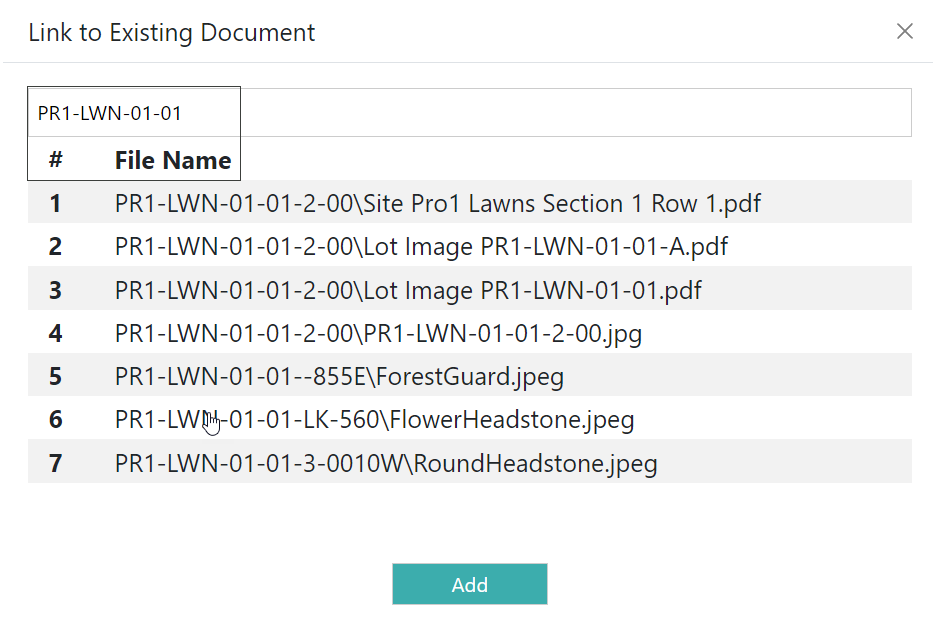
Choose Browse next to the link to existing document field
For example, enter the original location code, then click on the words File Name on screen
Be mindful of the backslashes (\) in your location codes to ensure you get the correct results
A list of matching documents will display.
Click on the file you want to add and choose the Add button.
The file will drop into the link to existing document field.
Select Save.
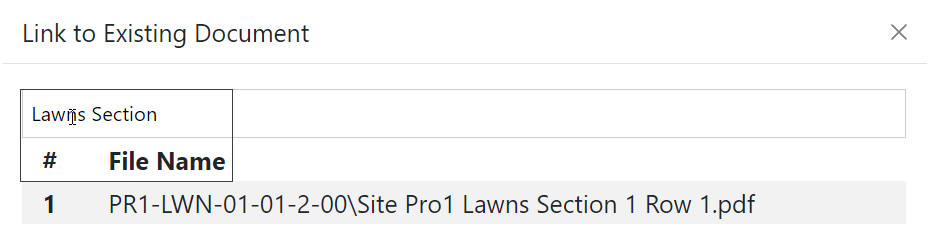
Alternatively for this search, you could also search by other elements of the file name, such as Lawns Section, or enter the file name xxx.pdf.
Click on File Name and a list of files meeting the criteria entered will display (note this is a case sensitive search)
When saved, this results in a new entry – where the file path segment points to the original location / original document.
If you open and edit this PDF and want to save the changed document back into byondpro:
Select Add New Image.
Upload the document, then scroll to where the document is stored on your PC, such as your downloads folder.
When saving, byondpro recognizes that a file with the same name (xxx.PDF) is linked to this location and over-writes the PDF in the original Location’s sub-folder, maintaining a single version of the document.
Note: if you somehow have 2 entries in this list, with the same file name but pointing to 2 different sub-folders, this will overwrite the FIRST entry it finds.