The Mail Merge option of byondpro uses the Sage CRM function of groups.
Users can build groups of contacts for different purposes, such as e-mail or write to groups of people.
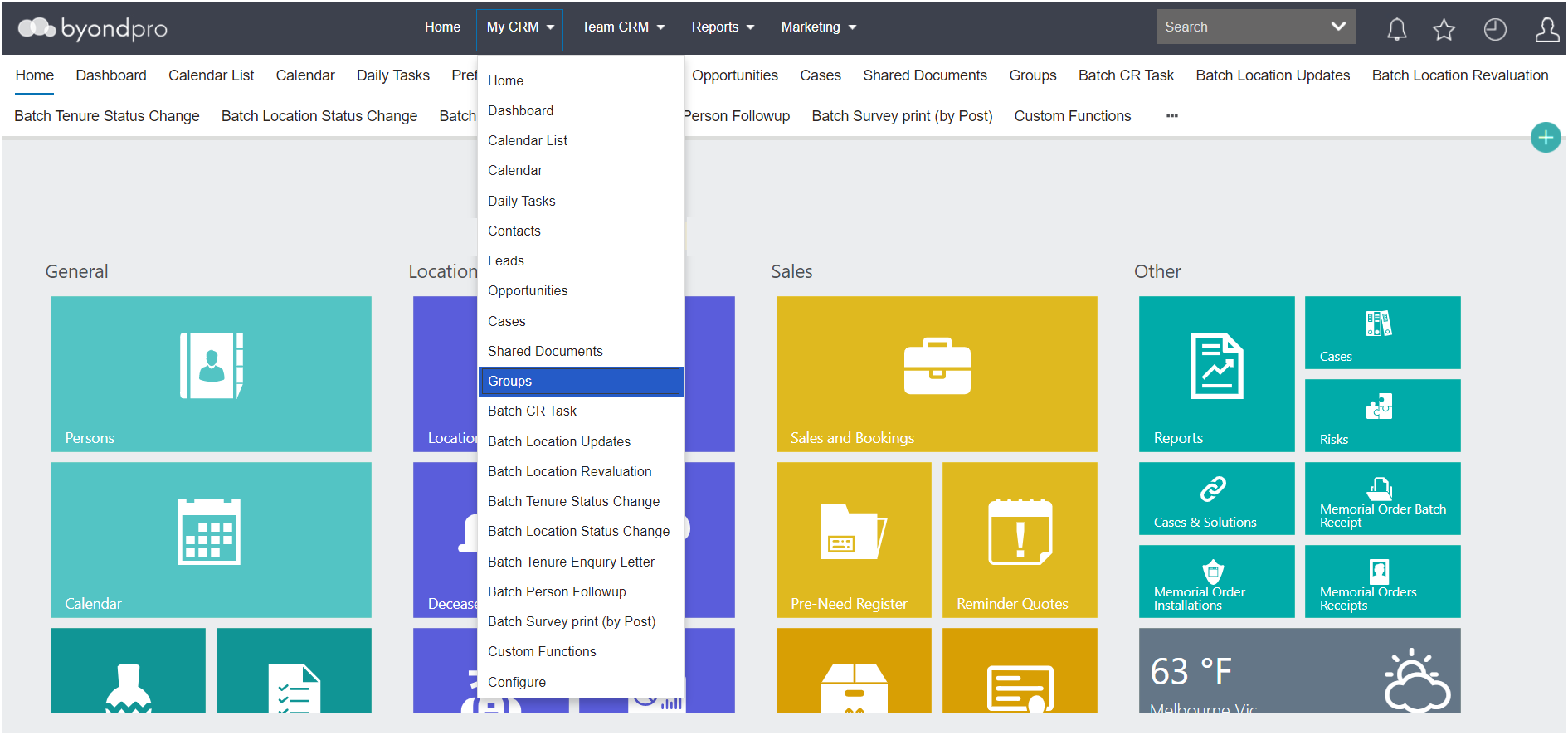
To access the
Groups feature, select My CRM from the
toolbar.
Then, select Groups from the selection list.
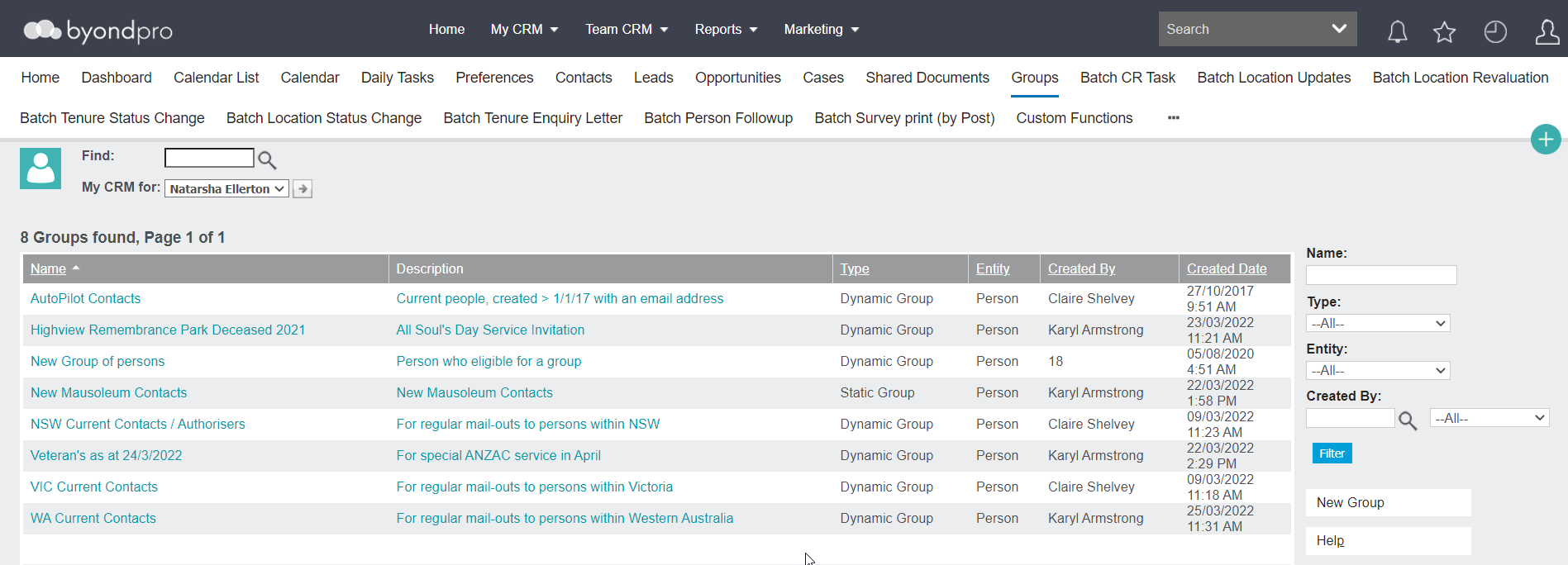
Access the group of your choice by clicking on the Name or Description hyperlink for the group.
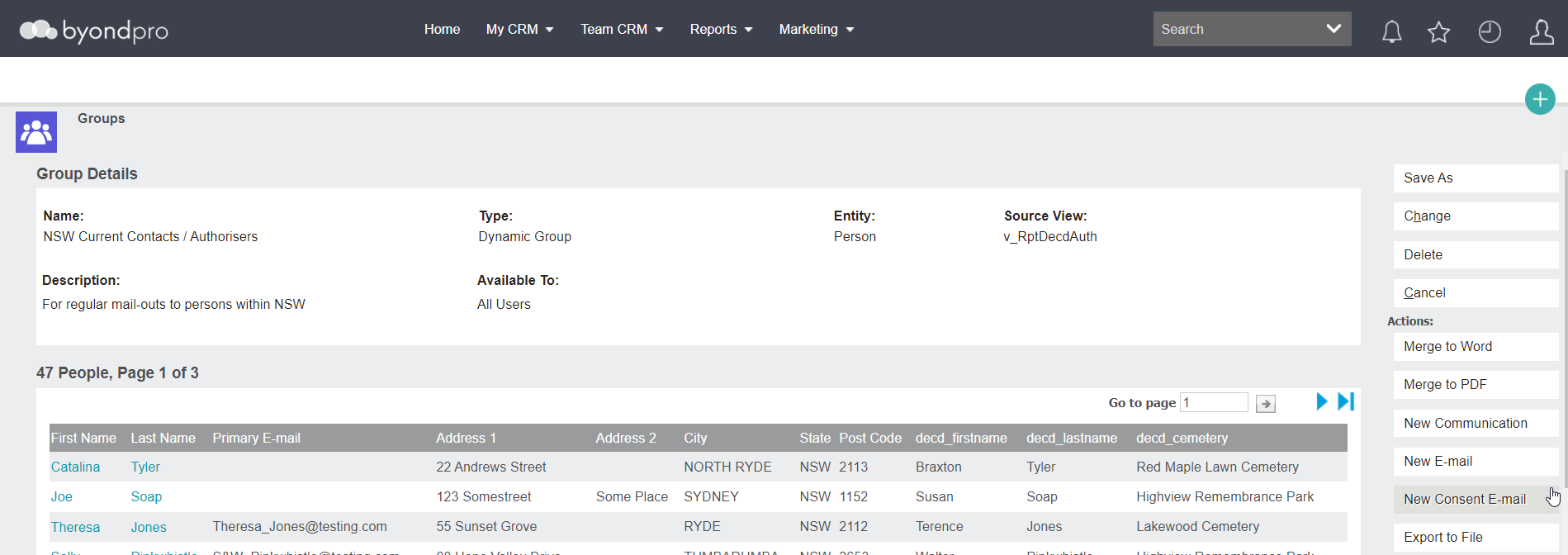
The Group Details or content used to create the group will display with the following information:
Below the group criteria are the contacts which meet the group criteria.
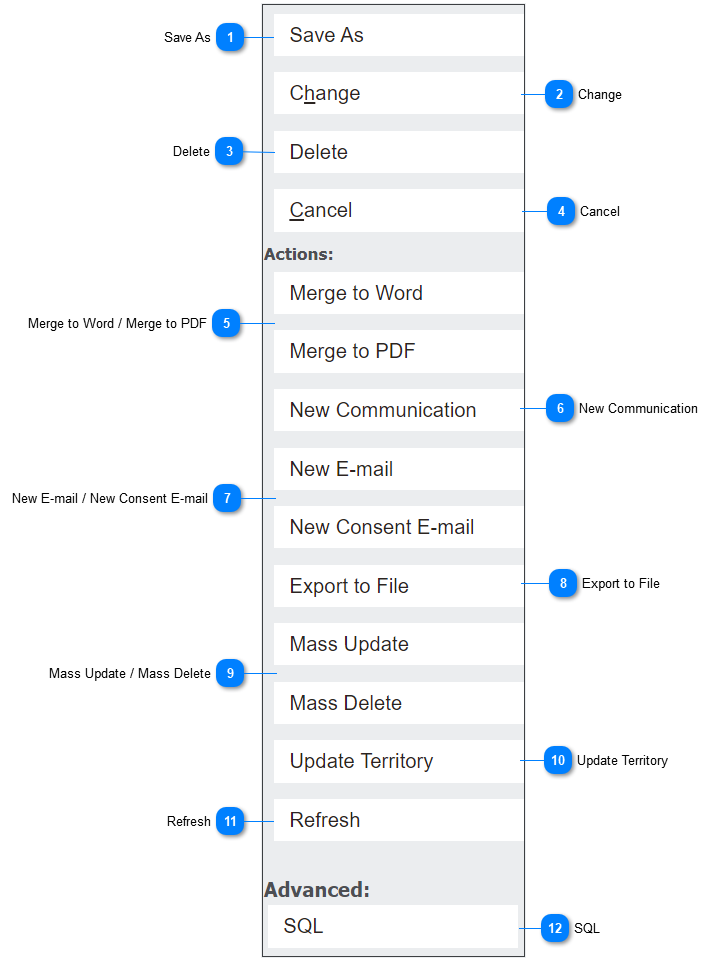
Action buttons display on the right-hand side of the page, allowing users to complete a range of actions using the group records.
 Save As
The Save As button allows users to create a second group or spin off group from the current group.
Press the button will open up a pop-up window, where you can name the group in the Name field.
Then, press the Save button.
Update the new group, by pressing the Change button on the right-hand side of the new group.
|
 Change
The Change button allows users to make any changes to the following elements of the group:
|
 Delete
The Delete button allows users to delete the current group.
A pop-up window will display requesting you to confirm the group which is being deleted.
To confirm, press the Confirm Delete button on the right-hand side of the page.
|
 Cancel
The Cancel button will cancel any changes made to the group which have not yet been saved.
It will bring the user back to the Groups page of byondpro.
|
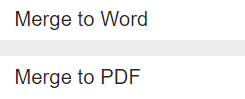
 Merge to Word / Merge to PDF
The Merge to Word and Merge to PDF buttons allows users to create and format documents using the group content.
|
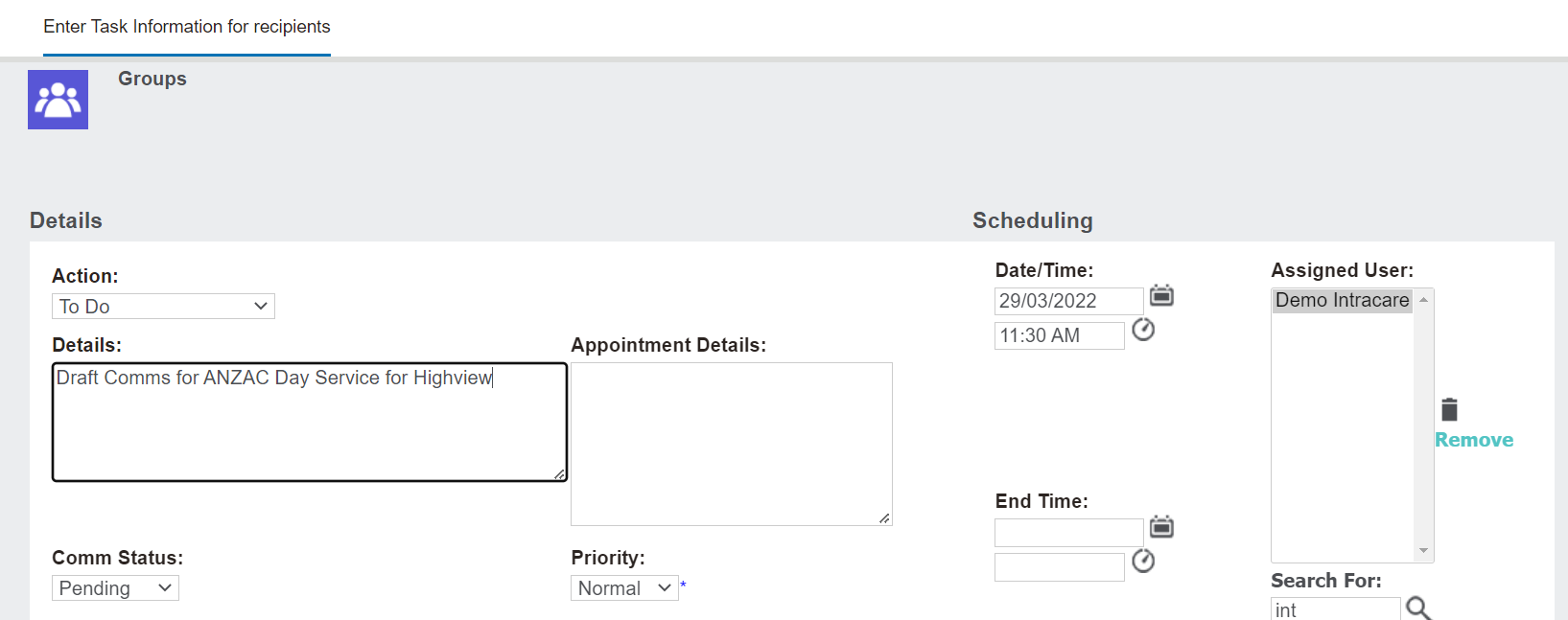
 New Communication
The New Communication button allows users to create a new communication or to do task with the group.
Complete the necessary fields on the communication.
Then press the Save button on the right-hand side of the page.
byondpro will display a message, asking you to confirm if you want to continue. Press OK to move forward with creating the task
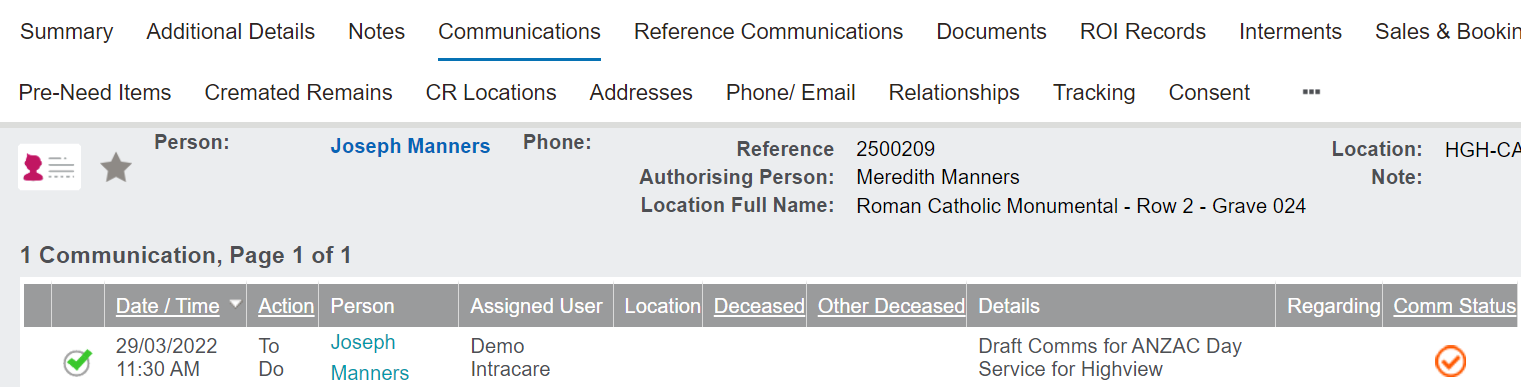
The communication or task will display on the Communications tab of the relevant records, and if not completed, will remind the user to action the task at the appropriate time.
|
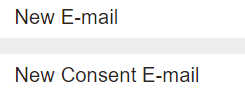
 New E-mail / New Consent E-mail
The New E-mail and New Consent E-mail buttons allows users to draft and send mail merged e-mails to the selected group of recipients.
The New Consent E-mail option will create an entry on the Consent tab of the selected records.
|
 Export to File
The Export to File button allows users to create an excel or text file from the group contents.
This file can be used to review and update data prior to drafting a communication to the group.
|
 Mass Update / Mass Delete
The Mass Update button allows users to perform complex batch updates on specific fields and the Mass Delete button may be useful for General Data Protection Regulation (GDPR) rulings, in which the company is required to remove records, if there's been no contact for a period of time or no consent.
These functions will be restricted from use in the out-of-the-box byondpro.
Should these functions be desired with your groups, please speak to your OpusXenta consultant about whether this function is right for your business.
|
 Update Territory
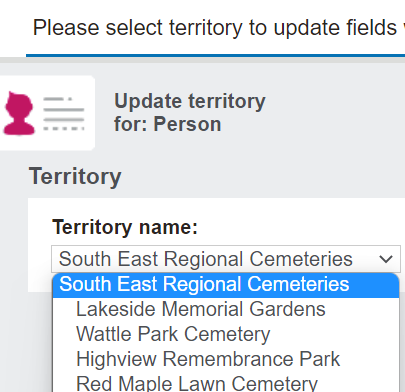
The Update Territory button allows users to update the territory on every record within the group.
By pressing the button, a pop-up window displays, where users can select the new territory for the records in the Territory Name field.
Then press the Save button on the right-hand side of the page to update.
|
 Refresh
Pressing the Refresh button will refresh the group with any changes that have been made to the group while on the record, such as a new record having been added to a static group by another user.
|
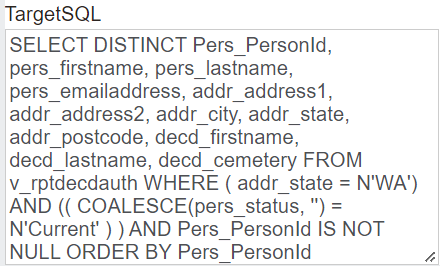
 SQL
The advanced SQL button will display a new pop-up window, which houses the Sequel statement for the group.
|