Once your group is created, you might want to review the groups of records to verify you have all the correct information to send an e-mail or create the the Word / PDF document and post it out to the selected recipients.
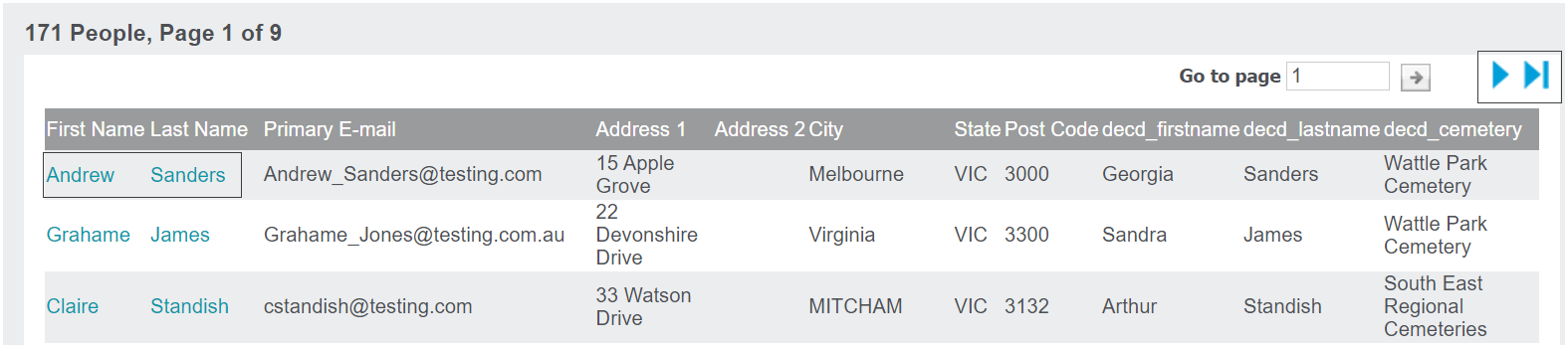
From the group, you will see the Group Content display for the records that meet the group criteria.
You can review the information from the list, using the back and forward arrows to visit separate pages if the list is extensive.
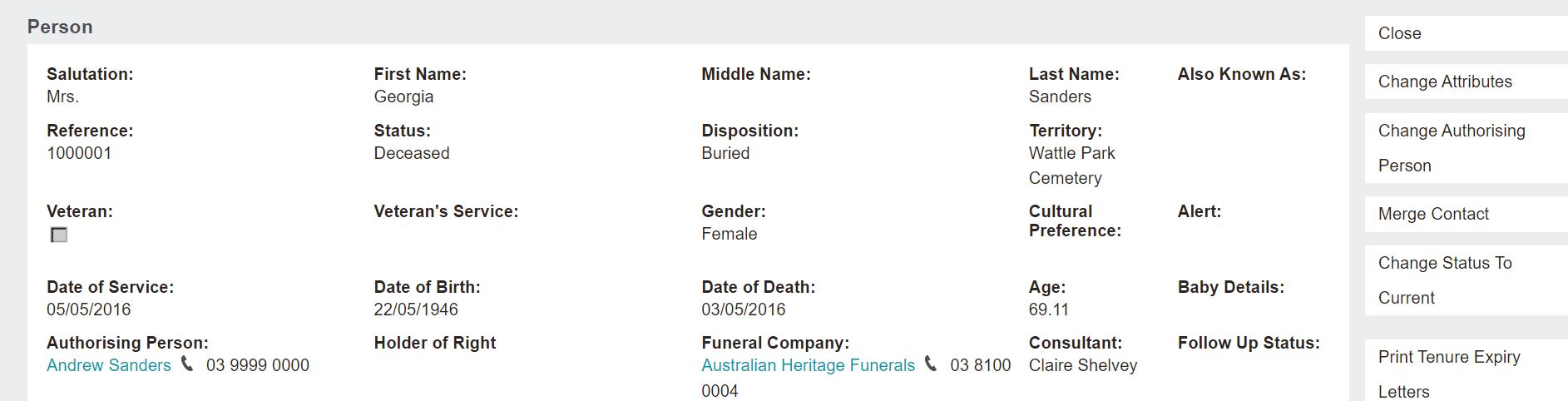
Click on the hyperlinks to access a record from the list and make any changes / update information on the record, if necessary.
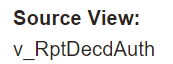
In our example above, we clicked on the Andrew Sanders hyperlink, who is the Authorising person for the record that formed part of the group, as the group uses the Deceased and Authorising person Source View.
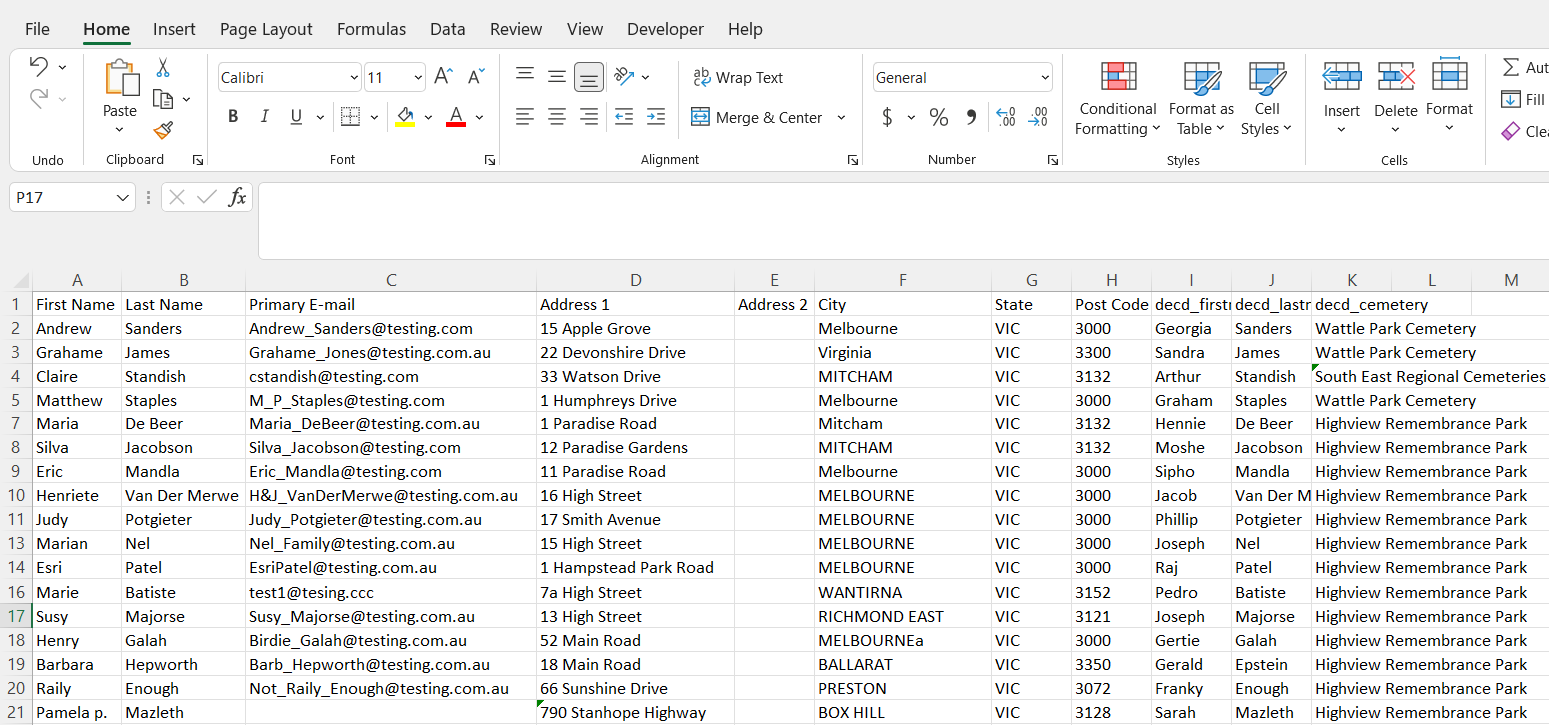
Alternatively, you may want to use the Export to File option from the right-hand side of the group page to review the data.
From the pop-up window, select the options for exporting the group data.
Type or update the name of the file in the Export File Name field.
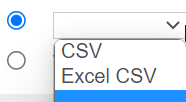
Select how you would like the group data to appear in the file. Options include:
Tick the box next to Create entry in shared documents to save the file as a shared file in byondpro.
Once your selections have been made, press the Save button on the right-hand side of the page.
Depending on the size of the group, it may take some time to export the document.
Once the document is exported, byondpro will confirm how many records have been processed.
The file will be added to your downloads on your device.
You can click on the file to open it, save it to a shared drive, and review the data.
In our example below, if we wanted to
send an e-mail to the chosen group, we would likely need to contact those without an e-mail and update the record before sending.
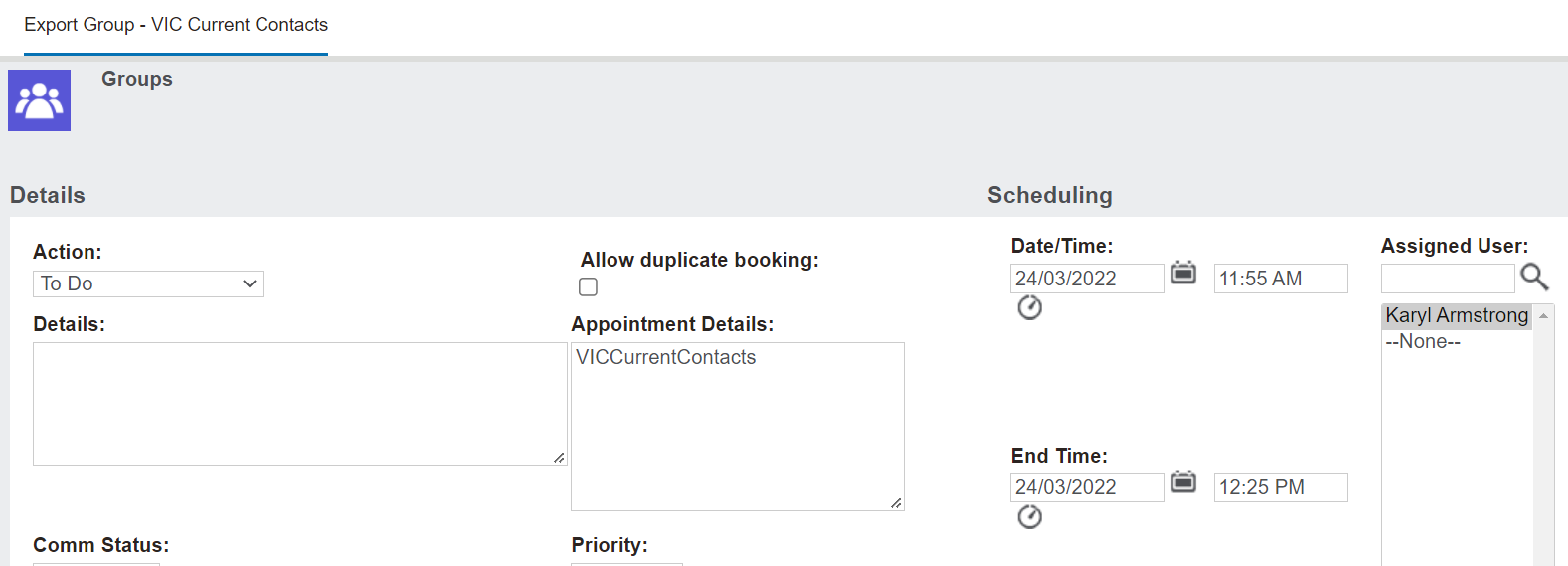
Returning to byondpro, you will be taken to a screen which allows you to create a 'To Do' task to review the list and then send out the communication when ready.