To draft and create a new Word or PDF document for the intended group, select the Merge to Word or Merge to PDF button respectively from the right-hand side of the group.
In our example, we will show you to use the Merge to PDF function, however, if using the Merge to Word function, it will work in a similar manner, creating a Word document rather than PDF.
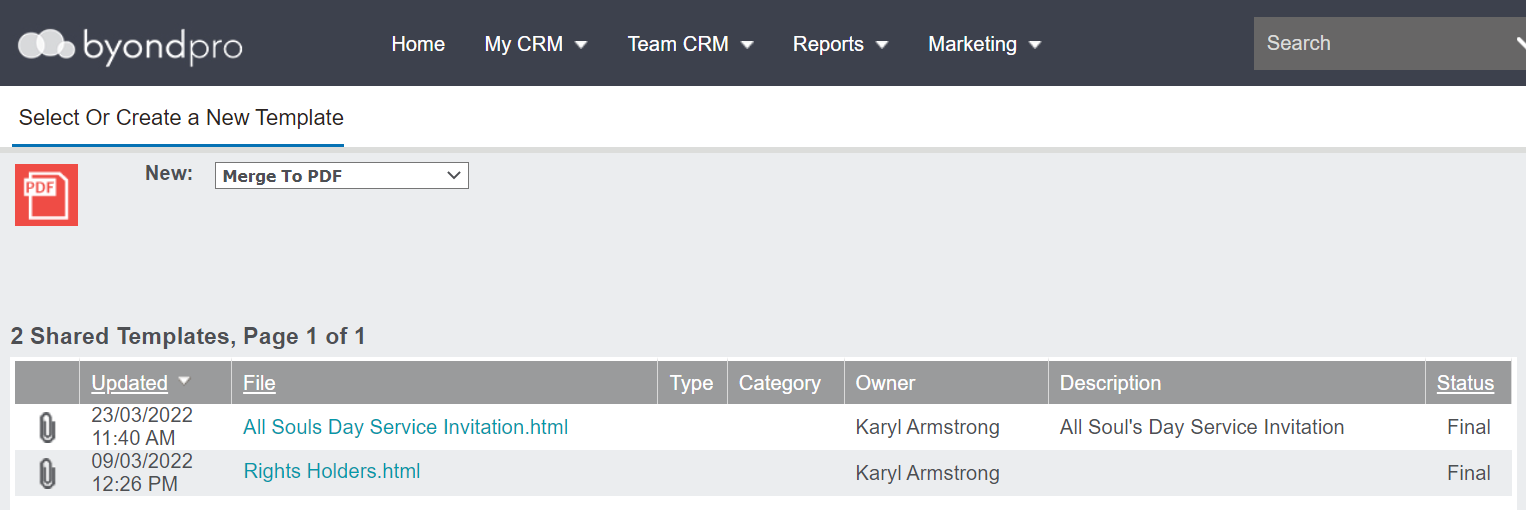
You are taken to a screen with a list of templates stored in the
Document Templates section of byondpro.
You have the following options for drafting the document:
-
-
-
Add a Local Template / Image
Use Shared Template
To use one of the shared templates, simply click on the hyperlink to the template.
You will be able to make edits to the template as necessary and then generate from here.
Add Local Template / Image
If you already have a template created, you can add the template and create the document from the records in the database.
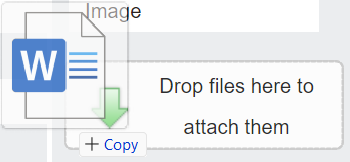
Simply drop the file into the drag and drop section of the Select or Create a New Template section.
Alternatively, press the Add Local Template / Image button on the right-hand side of the page, locate the file and press Open to add.
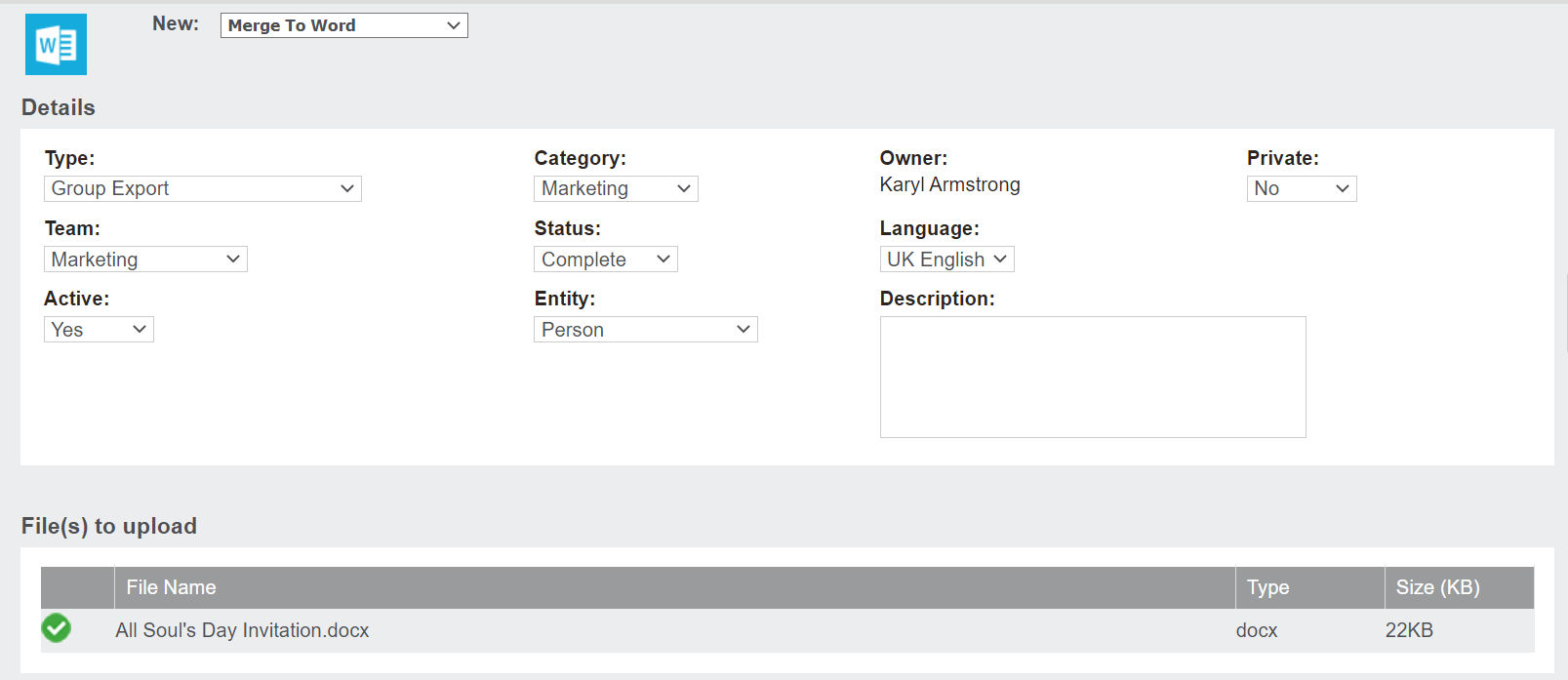
Complete the fields in the Details information block.
Once the fields are complete, press the Save button on the right-hand side of the page.
Create Template
To create a new template, press the Create Template button on the right-hand side of the page.
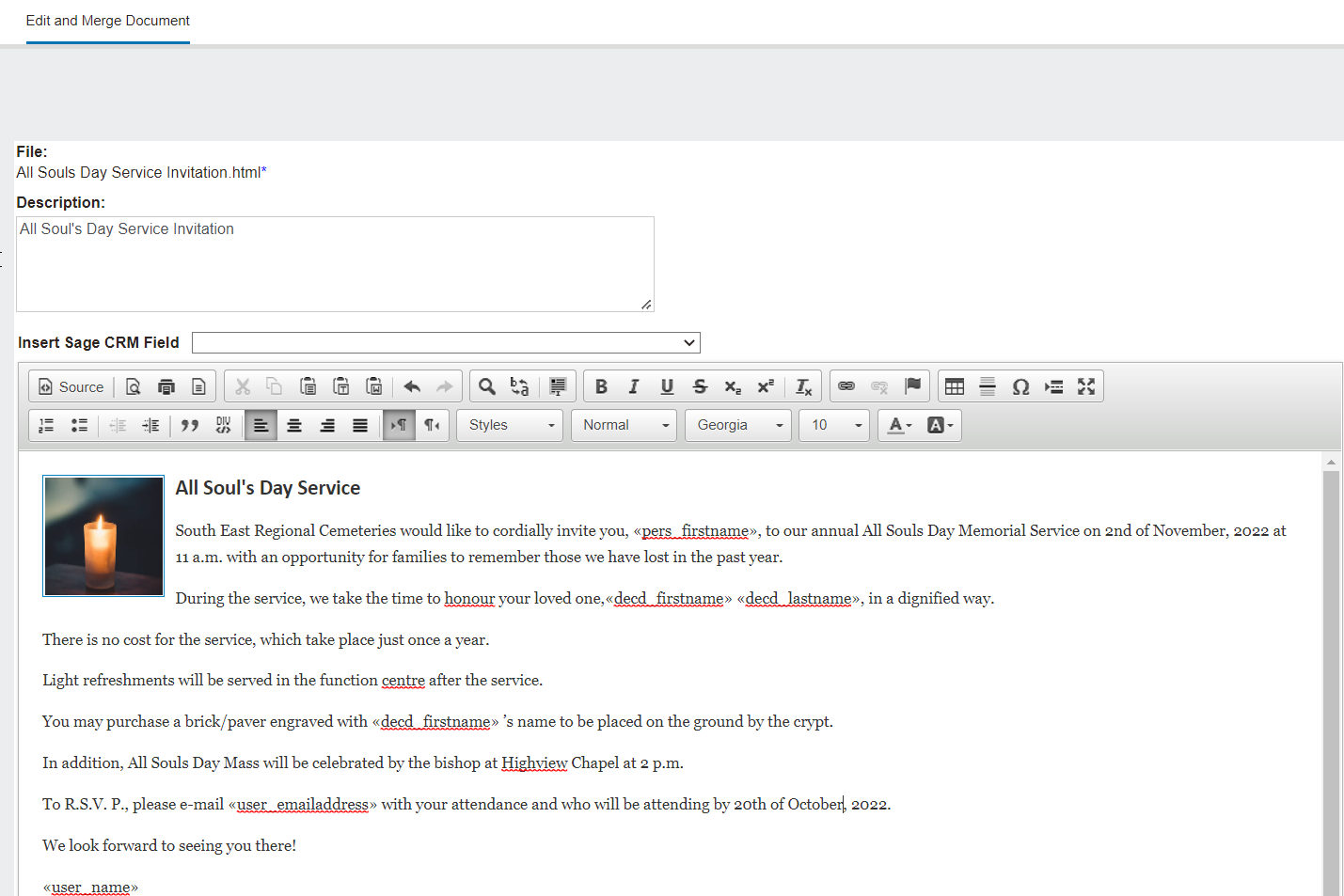
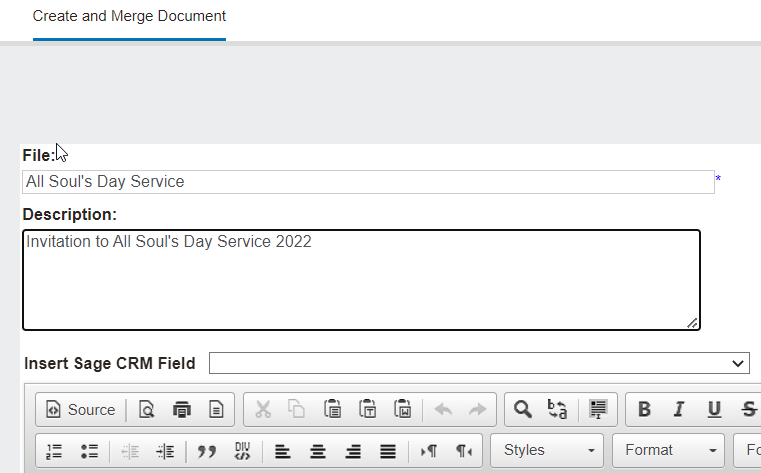
A screen follows where you can draft the templated document.
In the File field, enter in the name of the document.
In the Description field, provide more detail, possibly about the purpose of the document.
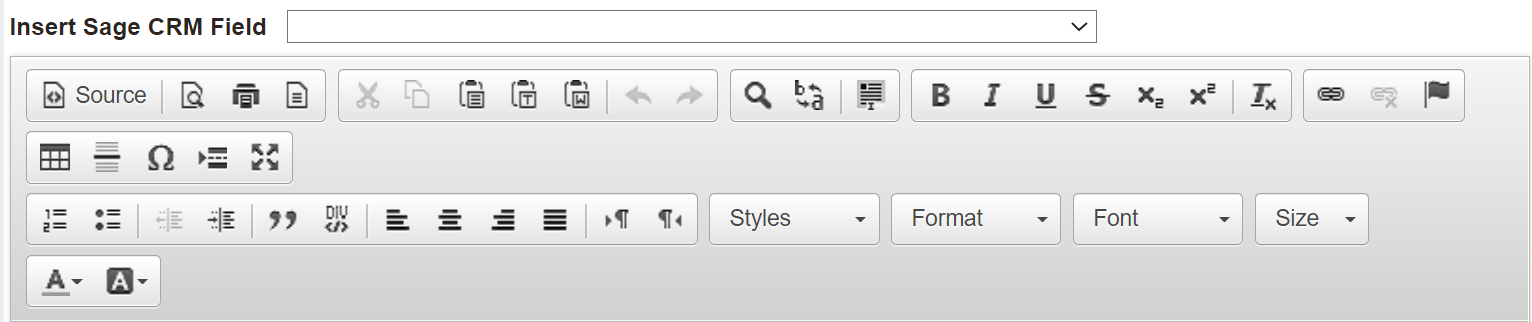
Draft and format the document in the space provided, including paste from Word documents and add images, links etc.
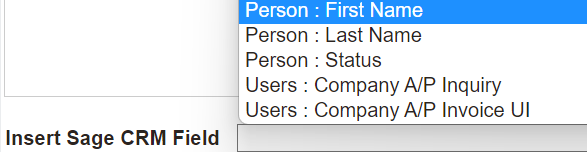
The Insert Sage CRM field will allow you to select fields from the entity to place in the document.
In our example below, Person : First Name was chosen added to the template.
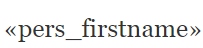
When the document is merged with the group records, the <<pers_firstname>> text is replaced with the data from the system, in this case, the person record's first name.
Merging the Template
Regardless of which way you chose to draft the document, press the Save Template button on the right-hand side of the page.
This selection will save any changes over a previously saved template or simply save the template for the first time to the database.
You can preview the first record details added into the document, by pressing the Preview Merge button on the right-hand side of the page.
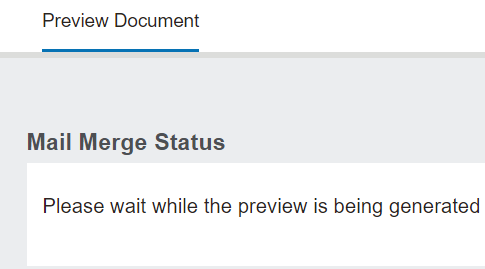
The database will provide a pop-up window requesting you to wait while the document is being generated.
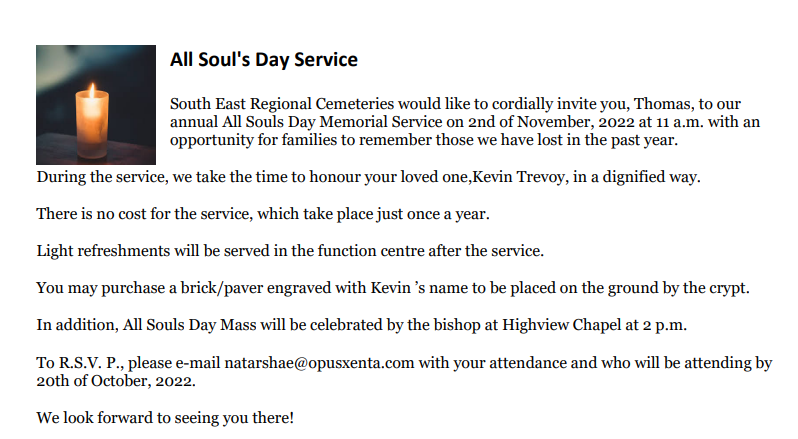
The Word or PDF document will display on your device once generated.
You can review the document and make any necessary changes within byondpro.
When you are satisfied with the document, press the Merge and Continue button on the right-hand side of the page.
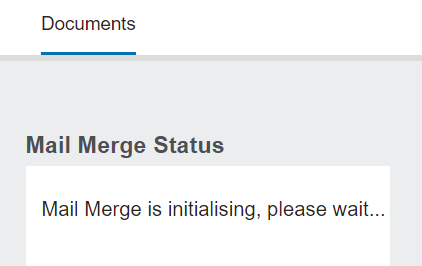
The databse will provide a pop-up window will display the progress of the mail merge.
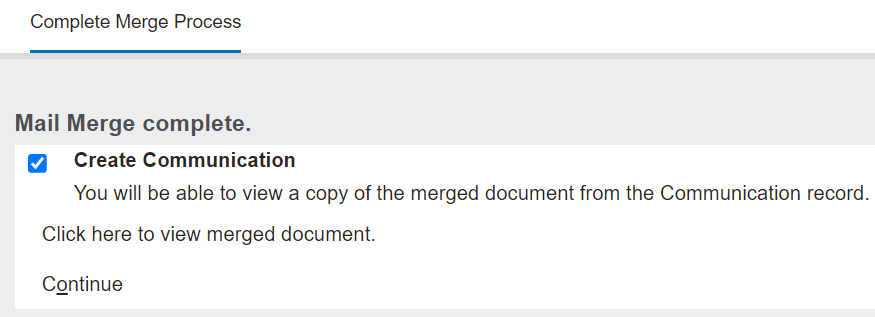
Once the merge is complete, the following window will display.
To view the document, press Click here to view merged document.
The document will display with your template merged with each one of the records in your group.
You can now print, save and share the document as necessary.
The pop-up window will also allow you to create a communication which displays on the
Communication tab of the record if you have the tick box labelled
Create Communication ticked.
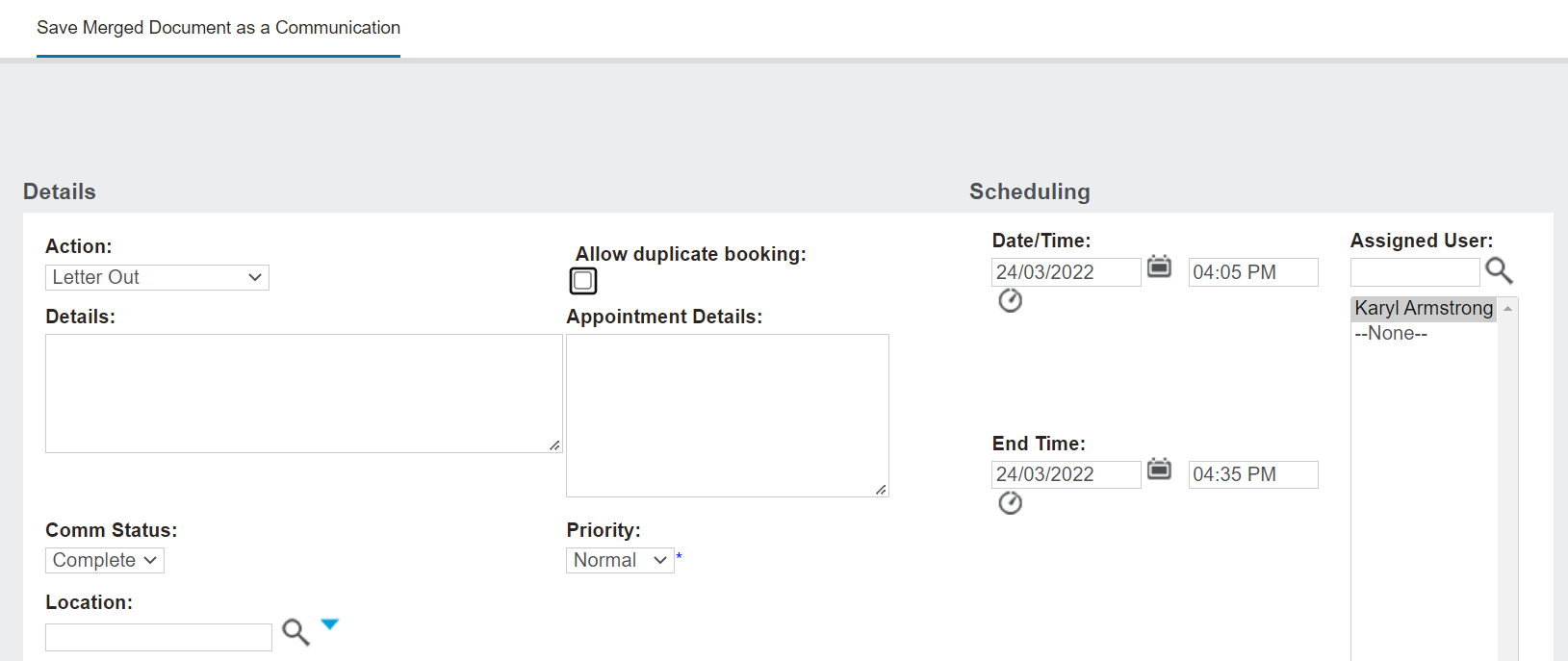
Simply press Continue on the pop-up window and complete the fields.
Once the fields are completed, press the Save button on the right-hand side of the page.
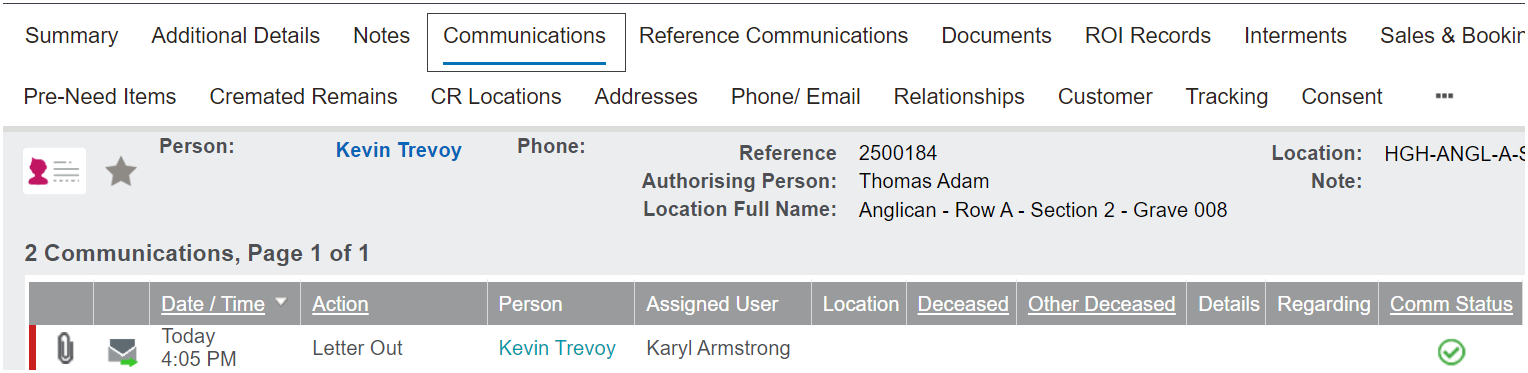
You can locate the document and the communication on the Communications tab of each record included in the group.