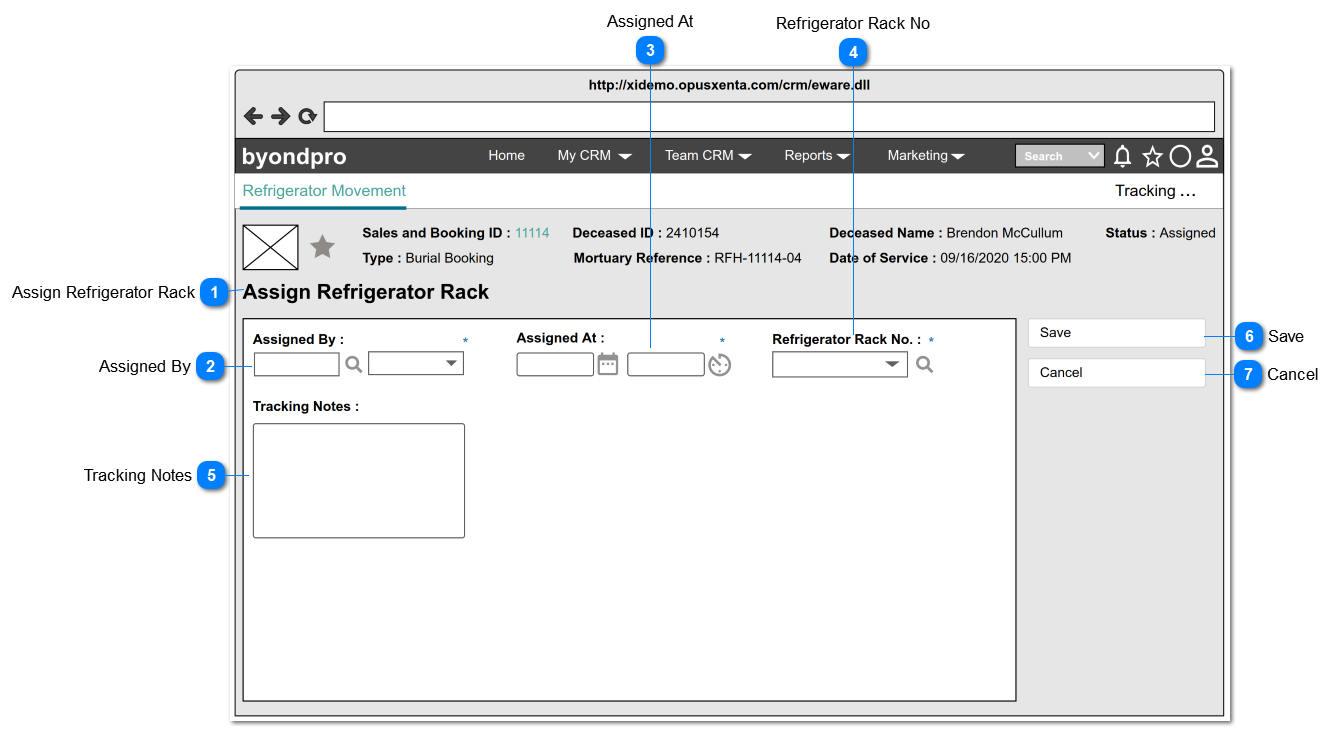
Refrigerator Movement screen can be accessed by clicking the workflow step "Refrigerator Movement" on the Summary screen.
When the user navigates to this screen, initially screen will be in view mode (summary mode). Upon clicking the "Change" button, screen will be changed to edit mode as follows.
Pre-conditions: 1. There should be at least one person (will be an employee of FH) created underneath the funeral home, in order to list down as the options.
1. By default, the logged in user's name will be set as the value of this field.
2. List the full names of the persons (will be employees of FH) created underneath the funeral home and order by ASC.
3. This element allows the user to search/ filter and select a value from the list.
4. This allows to enter any characters including numbers, letters and special characters.
1. By default, current date and time will be set as the value.
2. Once the user clicks on the calendar icon (placed next to the date text field), it will show a Date Picker and the user will be able to select a date from it.
(Consider
Profile Menu -> Preferences -> Date/Time Preferences
for the date format)
3. Once the user clicks on the clock icon (placed next to the time text field), it will show a Time Picker and the user will be able to select a time from it.
(Consider
Profile Menu -> Preferences -> Date/Time Preferences
Pre-conditions: 1. There should be at least one refrigerator rack record created underneath the funeral home/ mortuary.
Post Condition:
1. Upon saving the record, the Refrigerator Rack No value of the Summary screen should be replaced with the newly selected value.
1. List only the rack numbers which has the status as Available created underneath the CSC Version 3 -> Refrigerator Rack No and order by ASC.
2. This element allows the user to either input a value directly OR search and select a value from the list (When the user double-clicks on the searched value, it will show the details of the refrigerator / rack in a new browser window).
3. The columns displayed as the "View Fields" in the lookup will be,
Type
Refrigerator Rack No
4. This allows to enter any characters including numbers, letters and special characters.