To properly display this page you need a browser with JavaScript support.
Quick Booking (byondpro gold V6.1) - Default Booking Record
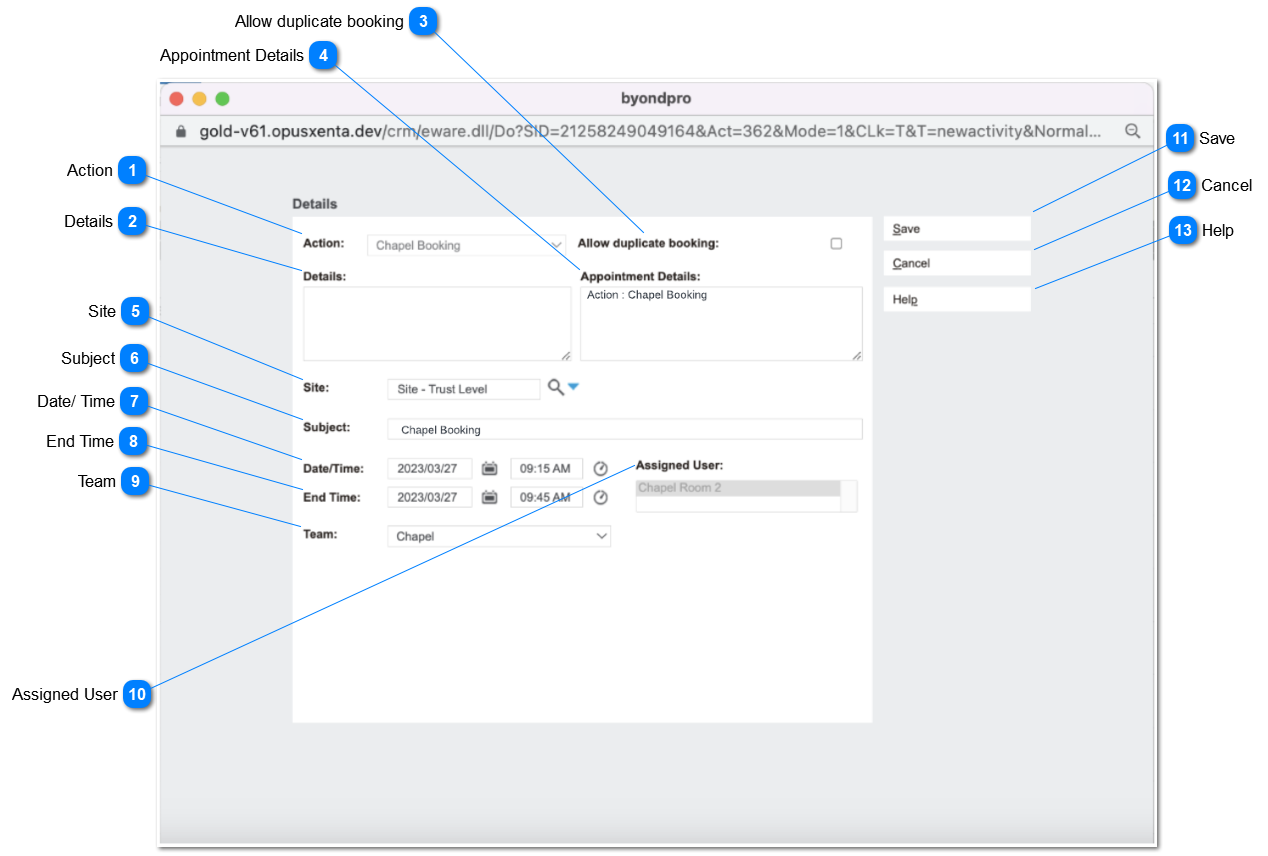
This functionality allow the user to create booking from default booking record set up in calendar rules and there will be a pop-up window allowing the user to add a booking with basic information. Quick booking can be created as Chapel Booking, Cremation Booking and Burial Booking. pop-up window will appear by clicking Chapel Booking button, Cremation Booking button and Burial Booking button on the calendar header.
Action
Type
Notes
Rules
Compulsory
Placeholder
Format
Edit
Size
Default
Messages
Read Only - Field
-
This field will display the booking type where the based on which appointment is created and added to communication
Action will be automatically selected by default based on quick booking button selected from the calendar header.
-
-
-
-
-
Burial Booking Button - Burial Booking
Cremation Booking Button - Cremation Booking
Chapel Booking Button - Chapel Booking
Details
Type
Notes
Rules
Compulsory
Placeholder
Format
Edit
Size
Default
Messages
Text Box
-
User will be able to enter any character to this field and make any notes
No
-
Text
Yes
-
-
-
Allow duplicate booking
Type
Notes
Rules
Compulsory
Placeholder
Format
Edit
Size
Default
Messages
Check Box
-
If the check box is ticked, upon clicking the save button quickbooking screen will pop-up after saving the appointment.
No
-
-
-
-
Appointment Details
Type
Notes
Rules
Compulsory
Placeholder
Format
Edit
Size
Default
Messages
Text Box
-
This field will be Pr-filled with default Action text
User will be able to enter any character to this field and make any notes
No
-
Text
Yes
-
-
-
Site
Type
Notes
Rules
Compulsory
Placeholder
Format
Edit
Size
Default
Messages
Advanced search select
-
The session user default site will be used (Session User > default Territory/Site)
Yes
-
-
Yes
-
-
-
Subject
Type
Notes
Rules
Compulsory
Placeholder
Format
Edit
Size
Default
Messages
Text Box
-
This field will be Pr-filled with default Action text
User will be able to enter any character to this field.
No
-
Text
Yes
-
-
-
Date/ Time
Type
Notes
Rules
Compulsory
Placeholder
Format
Edit
Size
Default
Messages
Time picker
-
Yes
-
-
Yes
-
-
-
End Time
Type
Notes
Rules
Compulsory
Placeholder
Format
Edit
Size
Default
Messages
Time picker
-
1. End time will be calculated from start time by applying the calendar rule set to the selected action.
Yes
-
-
Yes
-
-
-
Team
Type
Notes
Rules
Compulsory
Placeholder
Format
Edit
Size
Default
Messages
Dropdown
-
Team will be selected by default based on the site session user operate.
Yes
-
-
Yes
-
-
-
Assigned User
Type
Notes
Rules
Compulsory
Placeholder
Format
Edit
Size
Default
Messages
Selection
-
Assign User will be selected by default using Chapel or Appointment User on calendar rule setup.
Yes
-
-
Yes
-
-
-
Save
Type
Notes
Rules
Compulsory
Placeholder
Format
Edit
Size
Default
Messages
Action Button
-
If "allow duplicate booking" is ticked, user is returned to "quickbooking screen" and must check the ALLOW DUPLICATE BOOKING checkbox,
Following will also executed as per normal process.
CREATE: new comms/appointment
CREATE: new Sales & Booking
INSERT: new Sales & Booking to new comms
REDIRECT: user to new Sales & Booking summary screen
-
-
-
-
-
-
-
Cancel
Type
Notes
Rules
Compulsory
Placeholder
Format
Edit
Size
Default
Messages
Action Button
-
This will return the user to the calendar.
-
-
-
-
-
-
-
Help
Type
Notes
Rules
Compulsory
Placeholder
Format
Edit
Size
Default
Messages
Action Button
-
This will direct the user to the quick booking user guide.
-
-
-
-
-
-
-