byondpro
Functional Specifications
×
Menu
Index

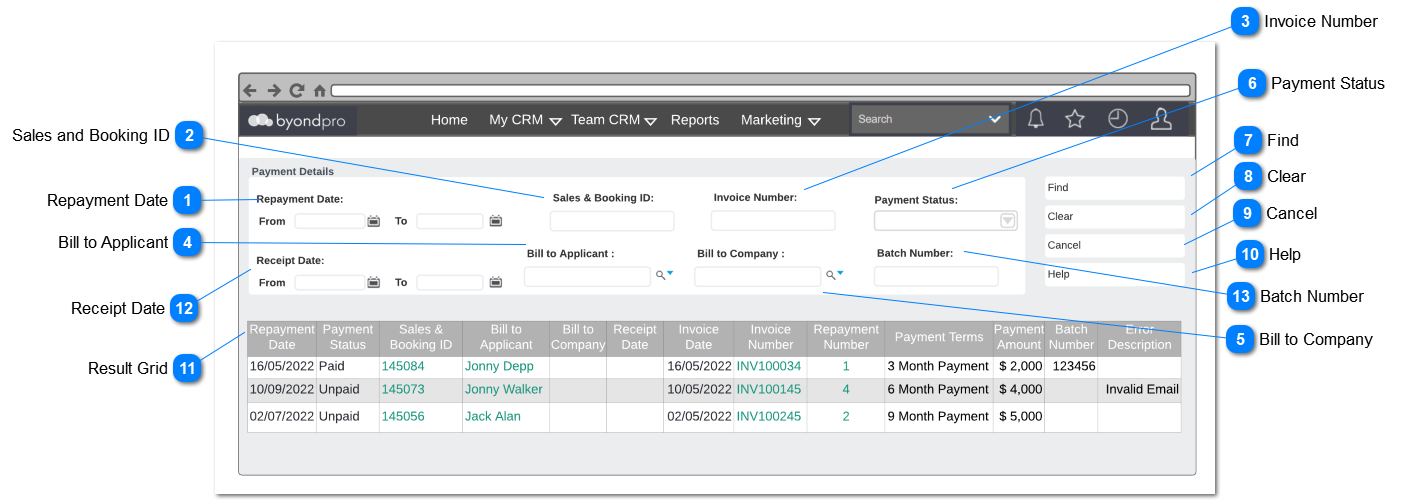
Payment inquiry Screen

 
Purpose of this screen is to inquire payment based on the filters used which will help the user to review payment details and status. User will access screen from search drop down by clicking "Payment ".
 
Payment inquiry Screen
1

Repayment Date

 
Type
Notes
Rules
Compulsory
Placeholder
Format
Edit
Size
Default
Messages
Date Search
Search result for a specified period by entering From date and To date
This field will allow the user to filter results based on Repayment date in Sales and Booking> Sales Tab> Sales Order> Repayment Plan.
-
-
Date
-
-
-
-
2

Sales and Booking ID

 
Type
Notes
Rules
Compulsory
Placeholder
Format
Edit
Size
Default
Messages
Text Search
Search Results by Sales and Booking ID
Field should be able to enter numbers, letters and symbols.
-
-
Text
-
-
-
-
3

Invoice Number

 
Type
Notes
Rules
Compulsory
Placeholder
Format
Edit
Size
Default
Messages
Text Field
Search Results by Invoice Number
Field should be able to enter numbers, letters and symbols.
-
-
Text
-
-
-
-
4

Bill to Applicant

 
Type
Notes
Rules
Compulsory
Placeholder
Format
Edit
Size
Default
Messages
Advanced
Search  Select
Pre-conditions:
1. There should be at least one Bill to Applicant selected in Payment Detail.
1. List the names of Persons

2. The columns displayed as the "View Fields" in the lookup will be,
  • Name (First Name, Last name, Middle Name)
  • Phone Number
  • Date of Birth
  • Reference
  • City
     
    3. This element conforms to standard CRM advanced search select field controls.
-
-
Text
-
-
-
-
5

Bill to Company

 
Type
Notes
Rules
Compulsory
Placeholder
Format
Edit
Size
Default
Messages
Advanced
Search  Select
Pre-conditions:
1. There should be at least one Bill to Company selected in Payment Detail.
1. List the names of companies.

2. The columns displayed as the "View Fields" in the lookup will be,
  • Company Name
  • ERP Customer Number
  • Group
  • Sage 300 Customer Number
  • City
     
    3. This element conforms to standard CRM advanced search select field controls.
-
-
Text
-
-
-
-
6

Payment Status

 
Type
Notes
Rules
Compulsory
Placeholder
Format
Edit
Size
Default
Messages
Selection
Pre-conditions:
1. There should be at least one status created by the user.
1. List the payment statuses as the options of the selection list. The options are as follows.
  • Failed
  • Unpaid
  • Paid
  • Notice sent
  • Credited
     
    2. The drop down should allow the user to select multiple payment statuses by ticking the tick-box.
     
-
-
Text
-
-
-
-
7

Find

 
Type
Notes
Rules
Compulsory
Placeholder
Format
Edit
Size
Default
Messages
Action Button
This button will allow the user list filter results
1. Clicking "Find" should list the results based on the payment status. The order in which payments are listed are as follows;
  • Failed
  • Unpaid
  • Paid
  • Notice sent
  • Credited
-
-
-
-
-
-
-
8

Clear

 
Type
Notes
Rules
Compulsory
Placeholder
Format
Edit
Size
Default
Messages
Action Button
Subject to all standard CRM rules.
Clicking clear button will reset all filters.
-
 
-
-
-
-
-
9

Cancel

 
Type
Notes
Rules
Compulsory
Placeholder
Format
Edit
Size
Default
Messages
Action Button
Subject to all standard CRM rules.
Clicking Cancel button returns the user to the home screen.
-
 
-
-
-
-
-
10

Help

 
Type
Notes
Rules
Compulsory
Placeholder
Format
Edit
Size
Default
Messages
Action Button
Subject to all standard CRM rules.
Clicking Help button will open the user guide for Payment inquiry in a separate tab
-
-
-
-
-
-
-
11

Result Grid

 
Type
Notes
Rules
Compulsory
Placeholder
Format
Edit
Size
Default
Messages
Column Header
Repayment Date
Display Repayment date in Repayment Plan screen (Sales and Booking> Sales Tab> Sales Order> Repayment Plan)


Column Header
Payment Status
Display payment status entered on the Repayment Plan screen
-
-
-
-
-
-
-
Column Header
Sale and Booking ID
Display Sales and Booking ID which is displaying on Sales and Booking> Summary Tab> Sales and Booking ID. Clicking the Sales and Booking ID hyperlink will direct user to Sales and Booking screen
-
-
-
-
-
-
 
Column Header
Bill to Applicant
Display Bill to Applicant selected on the view-payment detail screen. Clicking the hyperlink will direct to the user to persons profile on persons module
-
-
-
 
-
 
--
Column Header
Bill to Company
Display Bill to Company selected on the view-payment detail screen. Clicking the hyperlink will direct to the user to persons profile on persons module


Column Header
Receipt Date
Display the Receipt Date (Actual Payment Date) displayed on Receipt Screen (Sales and Booking> Receipt Tab> Receipt Date)
-
-
-
-
-
-
-
Column Header
Invoice Date
Display the Invoice Date viewed on the sales order screen (Sales and Booking> Sales> Sales Order> Invoice Date)
-
-
-
-
-
-
-
Column Header
Invoice Number
Display the Invoice Number viewed on the sales order screen (Sales and Booking> Sales> Sales Order> Document Number)
-
-
-
-
-
-
-
Column Header
Repayment Number
Display the Repayment Number displayed on Repayment Plan Screen
-
-
-
-
-
-
-
Column Header
Payment Term
Display the Payment Term selected in the Sales Order Screen (Sales and Booking> Sales> Sales Order> Terms)
-
-
-
-
-
-
-
Column Header
Payment Amount
Display the Payment Amount displayed on Receipt Screen  (Sales and Booking> Receipt> Amount)
-
-
-
-
-
-
-
Column Header
Batch Number
Display the Batch Number generated in Payment Processor Screen
-
-
-
-
-
-
-
Column Header
Error Description
Display error message as specified in opuspay error codes. It will also define error messages defined in View Error - Payment Details Screen
-
-
-
-
-
-
-
12

Receipt Date

 
Type
Notes
Rules
Compulsory
Placeholder
Format
Edit
Size
Default
Messages
Table Column
Display the Receipt Date where the actual date which payment was processed.
  • Field should display receipt date recorded in Repayment Plan Screen.
     
  • If the bill to applicant has not settled the payment field should be kept blank.
-
-
 
-
-
-
-
13

Batch Number

 
Type
Notes
Rules
Compulsory
Placeholder
Format
Edit
Size
Default
Messages
 
Search Results by Batch Number generated in Payment Processor Screen
Field should be able to enter numbers, letters and symbols.
-
-
Text
-
-
-
-
 
 
The online help was created with Dr.Explain