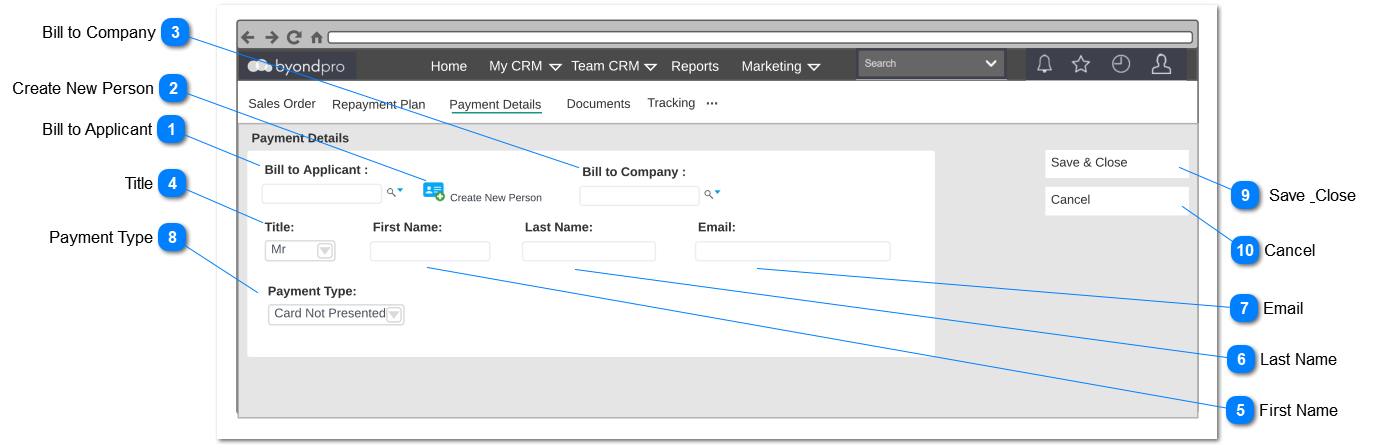
The purposes of this screen is to update payment details for recurring payments. This screen will be located on Sales and Booking> Sales Tab> Sales Order> Payment Details Tab. if the activate recurring payment is true selecting the Term setup will allow the user to enter payment detail, only if the user invoiced the sales order and create a repayment plan payment detail tab will be visible. Following field and notifications will be also apply for contracts.
Bill to Applicant
Type
Notes
Rules
Compulsory
Placeholder
Format
Edit
Size
Default
Messages
Advance Select Search
-
Bill to Applicant Selected on sales order screen (Sales and Booking> Sales Tab> New Sales) should be populated by default. Bill to Applicant should be editable by the user.
User will not be allowed to add bill to applicant if only a bill to company is selected in sales order.
Precondition:
There should be at least one person record added via persons module.
At least one item should be selected in the grid in order to enable this filed to select.
Y
-
-
Y
-
Bill to Applicant Selected in (Sales and Booking> Sales Tab> Sales Order> Bill to Applicant)
Instance only bill to company company selected user will be only allowed enter bill to applicant attached to bill to company. bill to applicant will search only person listed under bill to company.
User will not be allowed to add bill to company if only a bill to applicant is selected in sales order.
Precondition:
1. There should be at least one company record added via Company Records.
2. At least one item should be selected in the grid in order to enable this filed to select.
N
-
-
Y
-
Bill to Company Selected in (Sales and Booking> Sales Tab> Sales Order> Bill to Company)
The value comes from the person module as per the registered email address
This field is editable.
When the user clicks on 'Save and Close' button, the system will check whether there is a valid email address by checking if Email contain "@" and ".com".
Email will be an compulsory field if user select "Payment Notice" or "Payment Method Request" as the payment method.
Y
-
Text
Y
-
Registered Email. If Bill to Applicant is Selected.
Action button will save changes and additions to the payment details.
Clicking the Save and Close button will save the payment details, Based on the payment method selected following action will be triggered once the user select the save and close button;
Card Not Present - Selecting card not present will trigger a call to the gateway for payment screen. The user will be entering the card details to the opuspay payment screen. If initial payment is required payment will be charged at the point of submitting the payment details.
Payment Notice - Selecting the payment notice option will trigger a call via opuspay to generate a link to collect payment if initial payment required and generate payment notice.
2. Successfully completing the entering payment details will return to View - Payment Detail Screen.
3. Upon clicking the Save and Close button will identify mandatory field which were not filled and highlight the user fill the required fields.
-
-
-
-
-
-
Please complete required information for the selected payment method