byondpro
Functional Specifications
×
Menu
Index

Map Inquiry - Map View

 
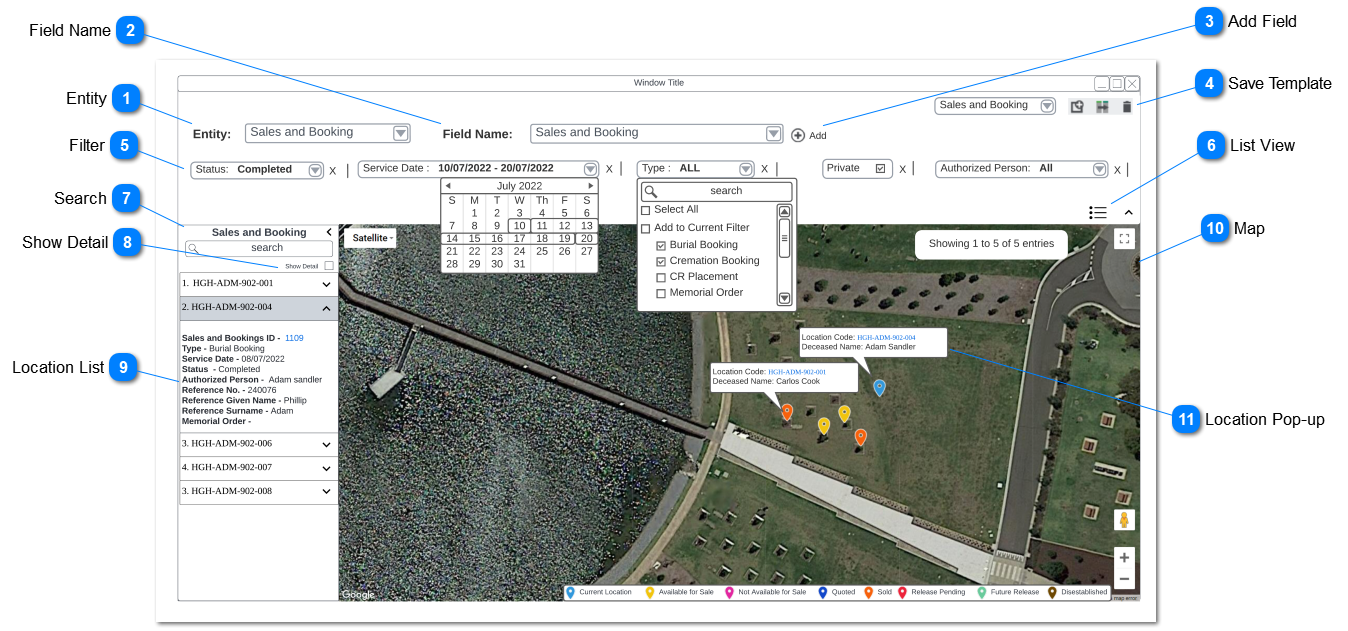
This screen allows the user to navigate in map view based on the filter criteria. This screen loads when the "View Map" button in Map Inquiry - Result Grid is selected.
 
Map Inquiry - Map View
1

Entity

 
Type
Notes
Rules
Compulsory
Placeholder
Format
Edit
Size
Default
Messages
Drop-Down
Drop Down show list of entity that the fields that can be added.
1. Drop Down should show following entities in the selection list;
  • Sales and Booking
  • Persons
  • Location
  • Cases
  • Mason Permit
     
-
-
 
-
-
-
-
2

Field Name

 
Type
Notes
Rules
Compulsory
Placeholder
Format
Edit
Size
Default
Messages
Drop-Down
Drop Down show list of fields linked to the selected entity
  • Drop Down should show fields that are applicable for selected entity,
     
  • Drop down should allow the user to search fields from typing the field name on text field above the drop down.
     
    E.g. Selecting persons will include files such as fist name, last name, title, job title, address, email, etc.
     
-
-
 
-
-
-
-
3

Add Field

 
Type
Notes
Rules
Compulsory
Placeholder
Format
Edit
Size
Default
Messages
Action Button
Clicking the "Add field" button will allow the user to add fields for filtration
Pre-condition:
Entity and field should be selected to add a filter.
-
-
 
-
-
-
-
4

Save Template

 
Type
Notes
Rules
Compulsory
Placeholder
Format
Edit
Size
Default
Messages
Action Button
  • System should allow the user to save templates, update templates, select between templates and delete templates. Functionality is similar to managing template in Advanced Find.
     
  • User should be allowed to save templates with selected fields and filter criteria.
Function will allow the user to add filters from multiple entries to single filter screen.
 
Pre-condition:
At-least 1 field should be selected from a selected entity to save a template.
 
-
-
 
-
-
-
-
5

Filter

 
Type
Notes
Rules
Compulsory
Placeholder
Format
Edit
Size
Default
Messages
Filter
Clicking the "add field" should add fields to filter area
  • Filters may have following characteristics:
  • Boolean: checkbox
  • Date: date
  • Float: floating point number
  • Integer: positive or negative number
  • List: drop down list
  • Long Text: resizeable multiple lines of text
  • Text: multiple lines text
     
    2. Date fields should allow the user to filter between a range of dates (E.g. Service Date (Refer the User Interface designed).
     
    3. Drop-Down Fields should include ability to search from the drown down list and also allow to tick or untick items from the list. Ticking add to current filter will allow the user to selections from search results from the drop-down.
     
    E.g. If the user search "Smith from drop-down list and untick all smith from the list by ticking "Add to Current Filter" allow the user to add the deselected item from the total item list.
     
    4. Change in filter results should refresh the map, and display the location pins based on filter results.
     
    5. Filter area should be able to be minimized by the user.
-
-
 
-
-
-
-
6

List View

 
Type
Notes
Rules
Compulsory
Placeholder
Format
Edit
Size
Default
Messages
Action Button
Clicking "List View" should direct the user to Map Inquiry - Result Grid screen


-
-
 
-
-
-
-
7

Search

 
Type
Notes
Rules
Compulsory
Placeholder
Format
Edit
Size
Default
Messages
Search
functionality is used to search location code.
1. Fields should allow to enter numeric, letters and symbols.
 
2. Clicking enter should refresh the location list and pins on the map and show searched location.
 
3. Search results should filtered only from the filtered result for defined filter criteria.
-
-
 
-
-
-
-
8

Show Detail

 
Type
Notes
Rules
Compulsory
Placeholder
Format
Edit
Size
Default
Messages
Checkbox
Checkbox allow the user to show the detail view which include more information of the location.
1. Ticking the show details checkbox will expand location list to show more information of location.
-
-
 
-
-
-
-
9

Location List

 
Type
Notes
Rules
Compulsory
Placeholder
Format
Edit
Size
Default
Messages
List
This is a list of location which show detail view of locations.
1. Location List only filtered locations that appears on the map.
 
2. If the show detail checkbox is ticked location will show expand view of all the locations in the location list.
 
3. Clicking location on location list will expand for detailed view of the location and it should highlight the location selected on the map. selected location should be highlighted separately from the list.
 
4. information on the detailed view may differ based on the selected entity. information needed to be displayed is as follows:
 
  • Sales and Booking - Sales and Booking ID, Type, Service Date, Status, Authorising Person, Reference Number, Reference Given Name, Reference Surname, Area Name
     
  • Persons - First Name, Middle Name, Last Name, Reference, Territory, Authorising Person, Date of Birth, Date of Death, Date of Service, Disposition
     
  • Location - Location Code, Location Name, Type, Operational Status, Sales Status, Total Position Available, Holder of
    Right (name)
     
  • Cases - Stage, Case ID, Created Date, Category, Description, Description, Assigned To, Incident Date Time, Raised By, Area Name
     
  • Mason Permit - Status, Mason Permit ID, Permit Type, Mason, Location, Area Name, Date of Issue, Date Work Completed
     
    5. Functionality will allow following hyperlinks based on entity where it lead to relevant record where the path defined in brackets.
  • Sales and Booking - Sales and Booking ID (Sales and Booking> Summary Tab)
     
  • Persons - First Name (Persons> Summary Tab)
     
  • Location - Location Code (.Location > Location Summary Tab)
     
  • Cases - Case ID (Cases> Summary Tab)
     
  • Mason Permit - Mason Permit ID (Mason Permit> Permit Summary)
     
    5. As the user navigates on the map, location pins appear on the map is updated to the location list.
     
    6. Location List panel should be able to minimized by user by clicking a button.
-
-
 
-
-
-
-
10

Map

 
Type
Notes
Rules
Compulsory
Placeholder
Format
Edit
Size
Default
Messages
Map
 
1. Location pins matching the filter criteria will be shown on the map.
 
2. If the area on the map has multiple locations, when zoom out, the area should have one pin. When the user zooms in, location pins can be populated to respective location. Single click on the single pin with multiple location will show list of locations
 
3. Map should show the number of results pinned on the map from the total result filtered from the entity. Number of result will be updated when the user navigate across the map/ Zoom in/ Zoom out.
 
4. Click on location pin will highlight location on the location list and expand the location to a detailed view.
 
5. Map should have the existing functionality in mapmakr such as change map layers, zoom in/ zoom out and full screen mode. Also it will Display deceased names on zoom in aerial imagery.
 
6. Legend will be shown on the screen defining what different colours represent from the location pin based on the legend used on current map tab used in Site, Area and Location.
 
7. Leaflet map will be used for map inquiry functionality.
 
8. Location polygon will appear on the map where clicking the polygon should appear the location pop-up.
 
9. Location pins will be colour coded based on location status. statuses maintained will be as follows;
  • Current Location
  • Available for Sales
  • Not Available for Sales
  • Quoted
  • Sold
  • Release Pending
  • Future Release
  • Disestablished
     
    10. Map will include following overlay;
  • aerial imagery
  • flat images
  • Satellite
  • Styled Map
-
-
 
-
-
-
-
11

Location Pop-up

 
Type
Notes
Rules
Compulsory
Placeholder
Format
Edit
Size
Default
Messages
Pop-up
 
1. Single click on the single location location pin will show location code and deceased name/s (based on interment records).
 
2. Zooming in to a location will show pop-up on the location pin.
 
3. Clicking on the location hyperlink will direct the user to location record (.Location > Location Summary Tab)
 
4. Location Pop-up will appear if the user click on the location polygon.
-
-
 
-
-
-
-
 
The online help was created with Dr.Explain