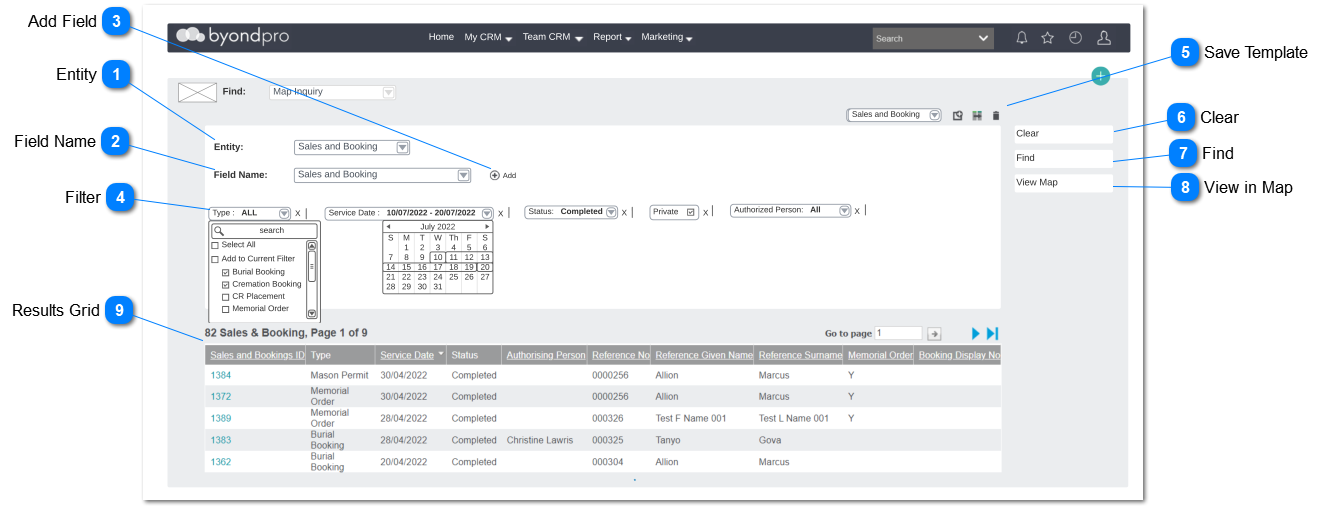
Map Inquiry screen is used to filter results in a table view before it's viewed on the map. The user may navigate to Map Inquiry screen from the search function.
Entity
Type
Notes
Rules
Compulsory
Placeholder
Format
Edit
Size
Default
Messages
Drop-Down
Drop Down shows list of entities with searchable fields for the inquiry screen.
1. Drop Down should show following entities in the selection list:
Clicking the "add field" should add fields to filter area
Filters may have following characteristics:
Checkbox: checkbox
Date: date
Numerics: Number Only
Dropdown: drop down list
Advance Search: Dynamically search records
Text: multiple lines text
2. Date fields should allow the user to filter between a range of dates (E.g. Service Date (Refer the User Interface designed)
3. Drop-Down Fields should include ability to search from the drop down list and also allow to tick or untick items from the list. Ticking adds to current filter and will allow the user to add search results to currently selected items in the drop-down
E.g. If the user search "Smith" from drop-down list and untick all smith from the list by ticking "Add to Current Filter" allow the user to add the deselected item from the total item list
System should allow the user to save templates, update templates, select between templates and delete templates. Functionality is similar to managing template in advanced find.
User should be allowed to save templates with selected fields and filter criteria.
Based on selected entity from the drop down result grid will show column that needed to be displayed entity wise.
Pre-condition:
At-least 1 field should be selected from a selected entity to save a template.
Results grid shows the results based on the filter criteria.
Columns on the result grid may vary based on the entity selected in save template by the user. Columns would be as follows:
Sales and Booking - Sales and Booking ID, Type, Service Date, Status, Authorising Person, Reference Number, Reference Given Name, Reference Surname, Location Code, Area Name.
Persons - First Name, Middle Name, Last Name, Reference, Territory, Authorising Person, Date of Birth, Date of Death, Date of Service, Disposition
Location - Location Code, Location Name, Type, Operational Status, Sales Status, Total Position Available, Holder of Right.
Cases - Stage, Case ID, Created Date, Category, Description, Description, Assigned To, Area Name, Incident Date Time, Raised By.
Mason Permit - Status, Mason Permit ID, Permit Type, Mason, Location, Area Name, Date of Issue, Date Work Completed
2. Number of results and page number out of total pages should be shown to the user.
3. System should allow user to navigate between result pages