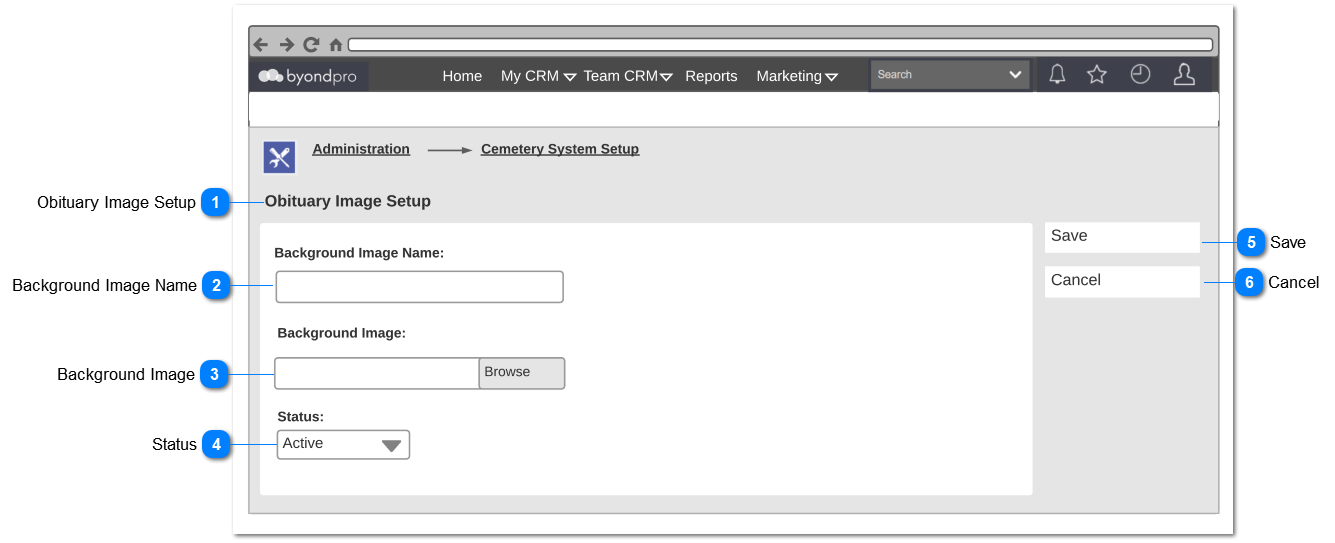
Obituary Image Setup
|
Type
|
Notes
|
Rules
|
Compulsory
|
Placeholder
|
Format
|
Edit
|
Size
|
Default
|
Messages
|
|
Page Title
|
-
|
-
|
-
|
-
|
-
|
-
|
-
|
-
|
-
| |
|
 Background Image Name
|
Type
|
Notes
|
Rules
|
Compulsory
|
Placeholder
|
Format
|
Edit
|
Size
|
Default
|
Messages
|
|
Text Field
|
-
|
-
|
Yes
|
-
|
-
|
-
|
-
|
-
|
-
| |
|
 Background Image
|
Type
|
Notes
|
Rules
|
Compulsory
|
Placeholder
|
Format
|
Edit
|
Size
|
Default
|
Messages
|
|
Image Upload
|
1. Suitable size to be decided by the Dev Team
2. All images loaded must be subject to virus checking.
3. Include controls to restrict file size.
|
1. Upon clicking the Browse button, PC's default image upload screen will be popped up to select and upload the image.
2. On selection, insert the image URL
|
Yes
|
-
|
-
|
-
|
-
|
-
|
-
| |
|
 Status
|
Type
|
Notes
|
Rules
|
Compulsory
|
Placeholder
|
Format
|
Edit
|
Size
|
Default
|
Messages
|
|
Selection
|
1. Dropdown Values: Active, Inactive
|
-
|
Yes
|
-
|
-
|
-
|
-
|
Active
|
-
| |
|
 Save
|
Type
|
Notes
|
Rules
|
Compulsory
|
Placeholder
|
Format
|
Edit
|
Size
|
Default
|
Messages
|
|
Button
|
-
|
Upon clicking;
1. Check Background Image Name value is existing
Then
Show a duplicate error message
2. If all the mandatory fields are filled
Then
2 a. Upload the image to the Obituary Image folder of the client.
2 b. Save the background image record in SAGE CRM with the stored image URL
2 c. Create a document entry within the Sales and Bookings record with the following values.
2 d. . Success message should be shown.
3. Else
Error message should be shown.
|
|
-
|
-
|
-
|
-
|
-
|
Success Message:
2 d. Image has been uploaded successfully.
Error Message:
1. Image Name already exists.
3. Default SAGE CRM error message for mandatory fields.
| |
|
 Cancel
|
Type
|
Notes
|
Rules
|
Compulsory
|
Placeholder
|
Format
|
Edit
|
Size
|
Default
|
Messages
|
|
Button
|
-
|
1. Upon clicking, user will be navigated back to the Cemetery System Setup page
|
-
|
-
|
-
|
-
|
-
|
-
|
-
| |
|