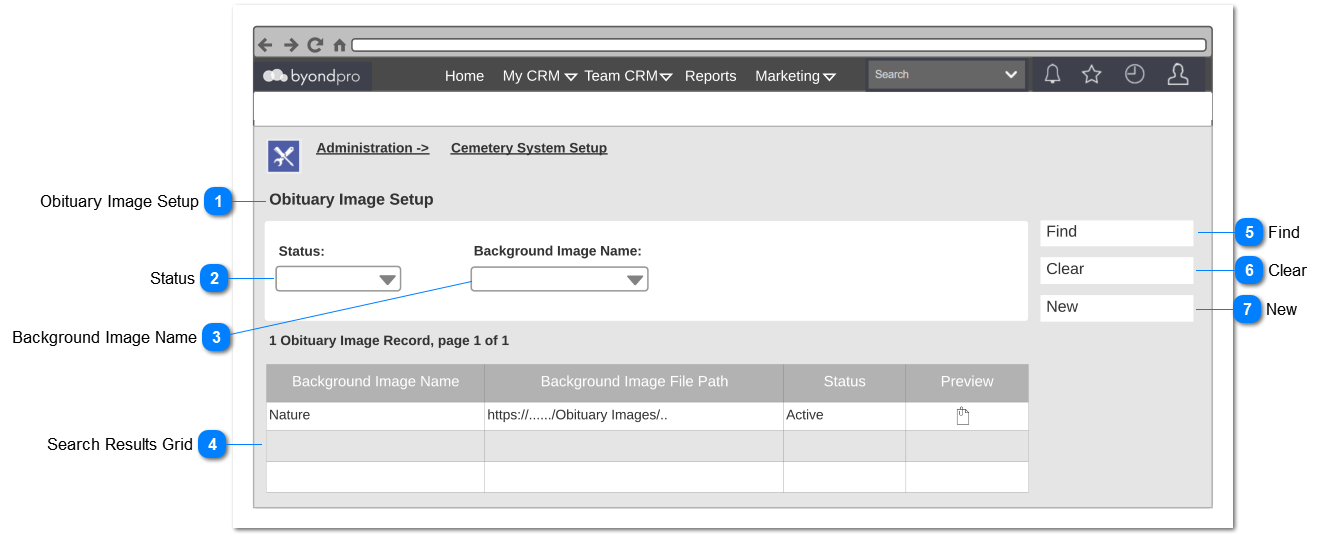
Obituary Image Setup
|
Type
|
Notes
|
Rules
|
Compulsory
|
Placeholder
|
Format
|
Edit
|
Size
|
Default
|
Messages
|
|
Page Title
|
-
|
-
|
-
|
-
|
-
|
-
|
-
|
-
|
-
| |
|
 Status
|
Type
|
Notes
|
Rules
|
Compulsory
|
Placeholder
|
Format
|
Edit
|
Size
|
Default
|
Messages
|
|
Selection
|
1. Following values should be listed down for selection.
|
-
|
-
|
-
|
-
|
-
|
-
|
Blank
|
-
| |
|
 Background Image Name
|
Type
|
Notes
|
Rules
|
Compulsory
|
Placeholder
|
Format
|
Edit
|
Size
|
Default
|
Messages
|
|
Selection
|
1. Background images that have been uploaded should be listed out for selection
|
-
|
-
|
-
|
-
|
-
|
-
|
Blank
|
-
| |
|
 Search Results Grid
Search results grid will consist of following columns
|
Type
|
Notes
|
Rules
|
Compulsory
|
Placeholder
|
Format
|
Edit
|
Size
|
Default
|
Messages
|
|
Column
|
Background Image Name
|
Name of the uploaded image should be shown
|
-
|
-
|
-
|
-
|
-
|
-
|
-
|
|
Column
|
Background Image File Path
|
Stored URL of the image should be shown
|
|
|
|
|
|
|
|
|
Column
|
Status
|
Status of the image should be shown
|
|
|
|
|
|
|
|
|
Column
|
Preview
|
1. Should consist of preview icon.
2. Upon clicking the preview icon, user shall be able to see the uploaded image in a new browser tab.
|
|
|
|
|
|
|
| |
|
 Find
|
Type
|
Notes
|
Rules
|
Compulsory
|
Placeholder
|
Format
|
Edit
|
Size
|
Default
|
Messages
|
|
Button
|
-
|
1. Upon clicking, image records should be retrieved and listed down in the search results grid based on the searching criteria.
2. If no searching criteria is selected, all the image records should be shown.
|
-
|
-
|
-
|
-
|
-
|
-
|
-
| |
|
 Clear
|
Type
|
Notes
|
Rules
|
Compulsory
|
Placeholder
|
Format
|
Edit
|
Size
|
Default
|
Messages
|
|
Button
|
-
|
1. Upon clicking, search fields will be reset to default.
2. All the image records should be shown in the results grid.
|
-
|
-
|
-
|
-
|
-
|
-
|
-
| |
|
 New
|
Type
|
Notes
|
Rules
|
Compulsory
|
Placeholder
|
Format
|
Edit
|
Size
|
Default
|
Messages
|
|
Button
|
-
|
|
-
|
-
|
-
|
-
|
-
|
-
|
-
| |
|