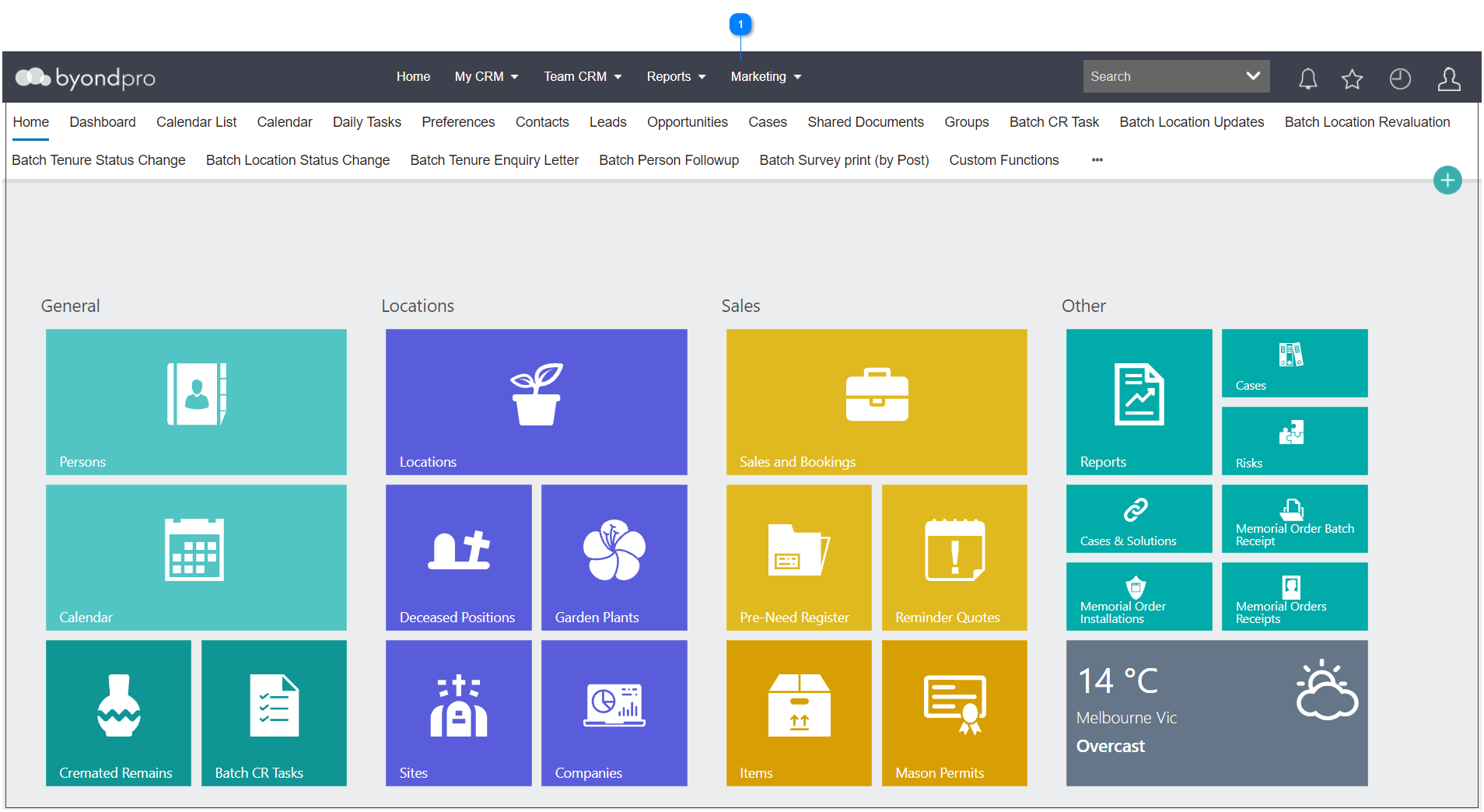
On the top of every screen in byondpro is a toolbar, which will allow you to access key areas, such as your calendar, search screens, and reports.
Home
Clicking on Home from the toolbar will navigate the user back to the original home screen from any window or screen within byondpro.
My CRM
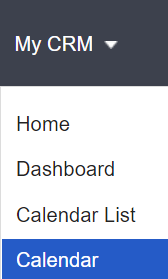
Clicking on My CRM provides a drop-down menu with access to views relating specifically to the logged in user, such as:
-
-
-
-
byondpro batch processing tasks.
Team CRM
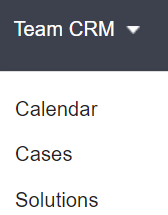
Clicking on Team CRM provides a drop-down menu providing links according to teams, such as:
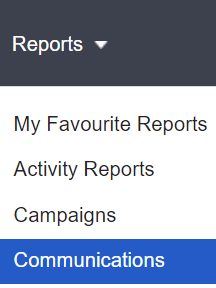
Clicking on Reports provides a drop-down menu with links to reports, separated out by categories, such as :
The reports will vary for each cemetery and the individual user depending on the configuration.
Marketing
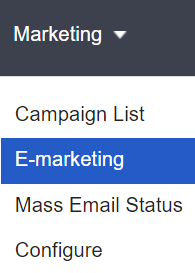
Clicking on Marketing provides a drop-down menu with links to:
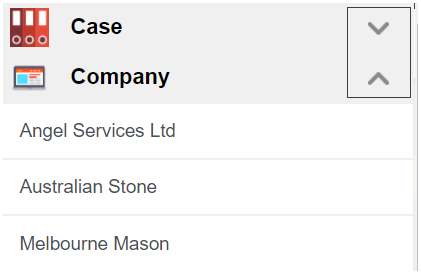
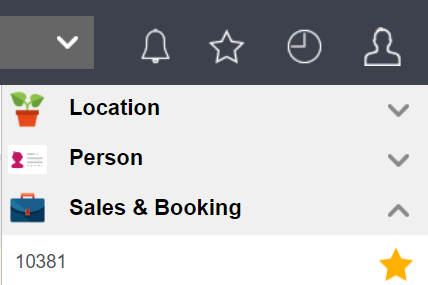
The Recents list stores a list of recently accessed records, grouped by type.
Select the category header to open the corresponding search screen.
Use the up and down arrows on the right to expand or close the group.
Use the Clear option at the bottom of the list to clear the recent navigation history.
Favourites
The Favourites icon stores a list of records flagged as "favourites" for quick reference, grouped by type.
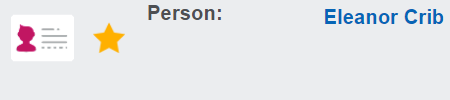
Look for the corresponding star top left on any record summary screen to flag or unflag the record as a favourite.
Notifications / Reminders
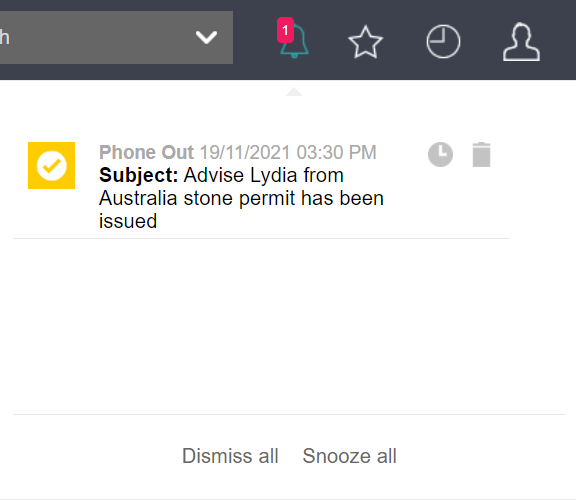
The Notifications/ Reminders icon stores system generated reminders and alerts set in appointments and tasks.
Should there be upcoming reminders, a small red counter will display with the number of messages pending review.
Click on the reminder to access the appointment details.
Use the Dismiss all and Snooze all options, much like an alarm clock.
Search Bar
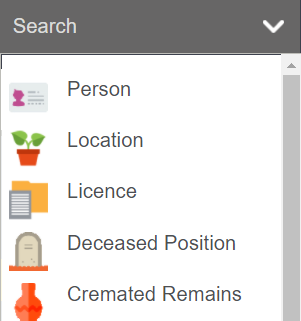
Clicking on the Search Bar provides a drop-down menu of every searchable data table in the byondpro system.
Click on the category to open the related Search screen.
Profile Menu
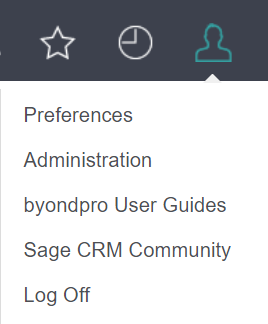
Clicking on the Profile Menu icon provides a drop-down menu to access:
-
User Preferences including time zones and grid sizes
-
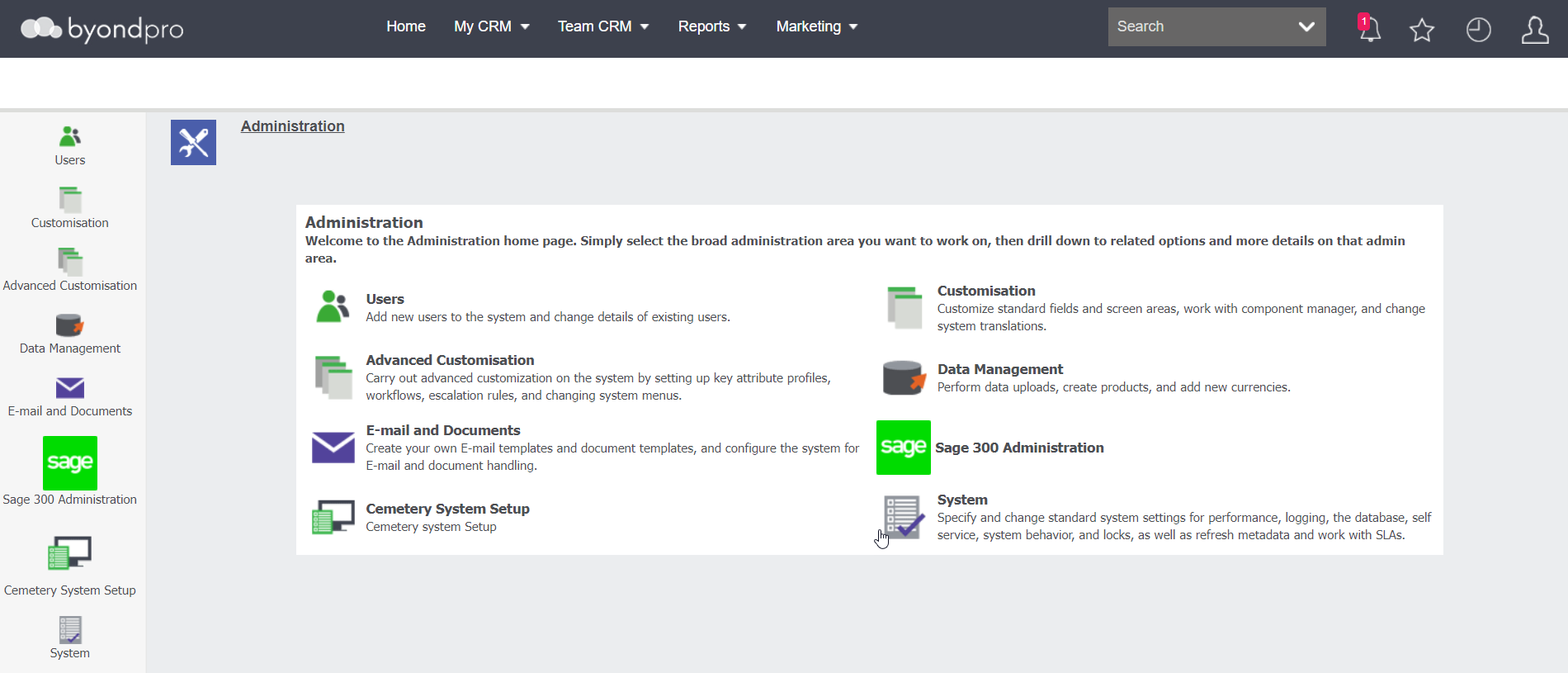
Administration menu for system configuration
-
Users - where profiles can be added or found.
-
Customisation - where standard fields and screens can be altered to meet the cemetery’s needs.
-
Advanced Customisation - allows the system administrator to alter the standard byondpro features to meet the customer’s needs including creating workflows for cases, locations and changing the outputs of button groups.
-
Data Management - allows the user to create products, add currencies and perform data uploads.
-
Email and Documents -allows the user to create email and document templates.
-
Sage 300 Administration - lists the administration functions associated with the integration of Sage CRM and Sage 300 data.
-
Cemetery System Setup - where the configuration requirements for sales orders and invoices, calendar rules, etc. are created.
-
System - where changes can be made to standard settings for performance, logging in, etc.
-
byondpro User Guides provides information about the individual screens, their functions and how they interact with each other.
-
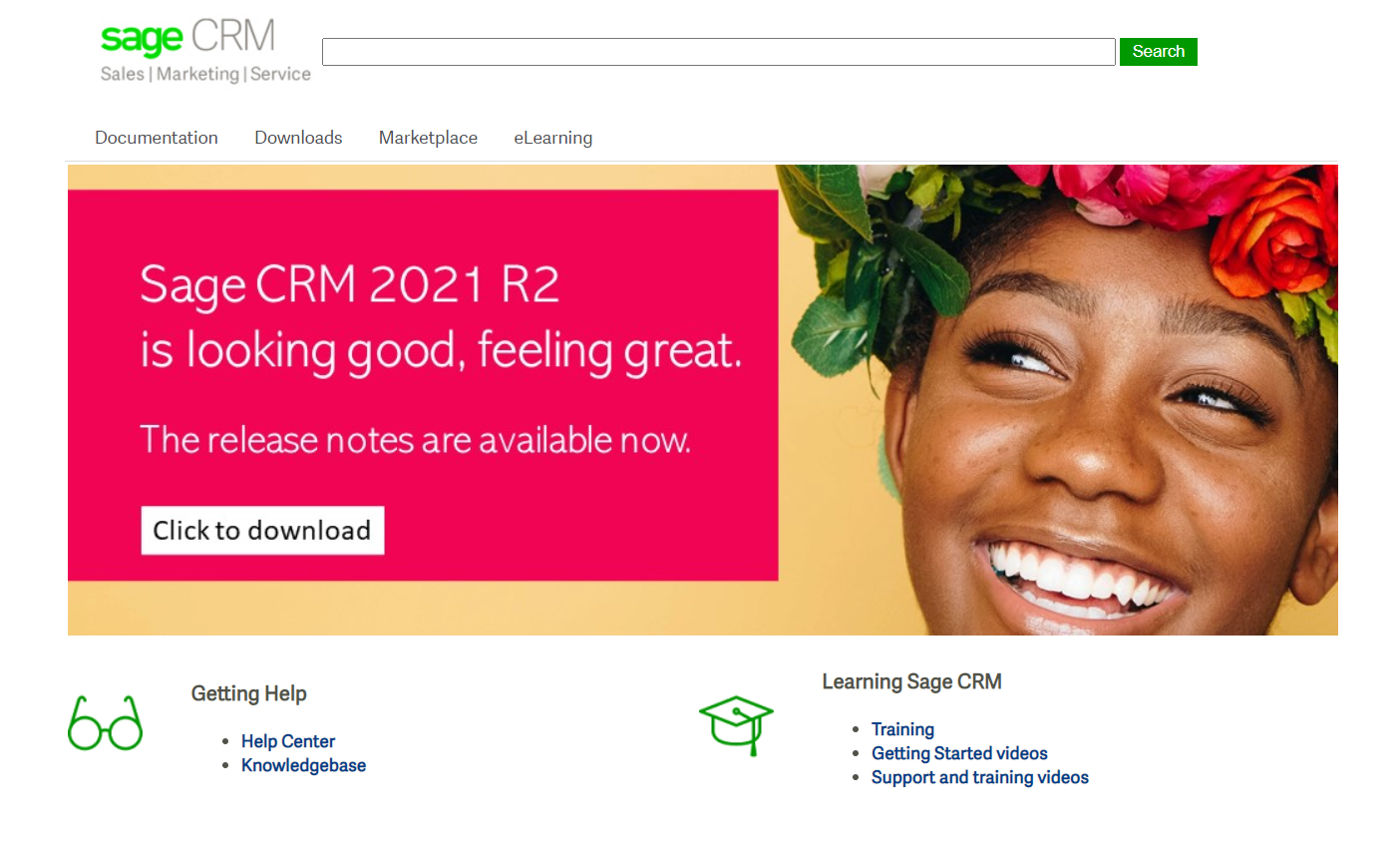
Sage CRM Community directs the user to the Sage company knowledge guide, which has training material for the generic sage CRM product.
-
Log off to end the session.