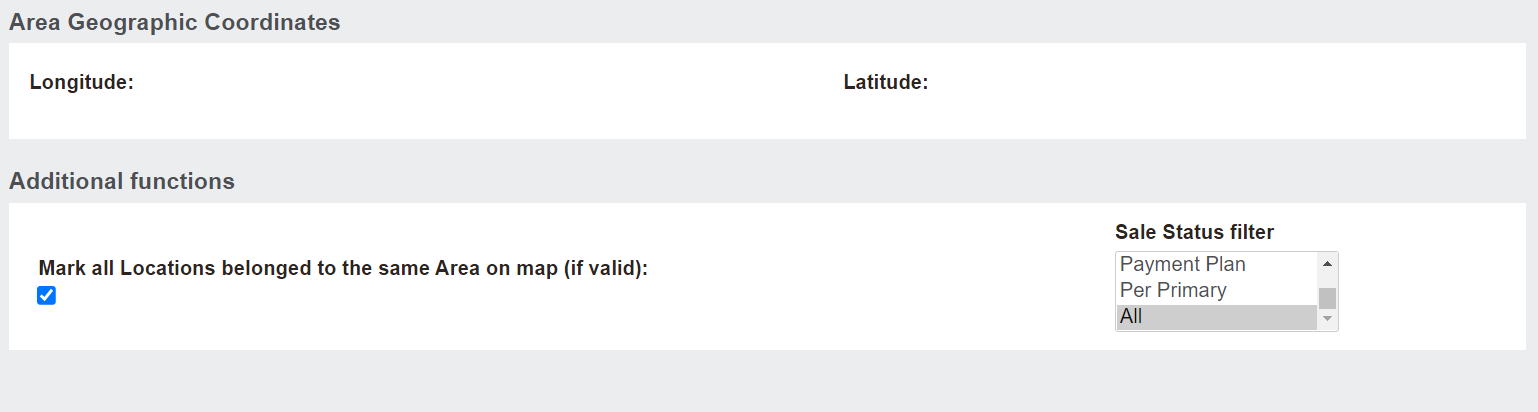
If no mapping has been applied to the record and no latitude and longitude has been applied, no map will display.
If mapping has been applied on a Site, Area, Sub-Area, or Location record, locations in that site, area or sub-area will display in map format.
On the Site record the Map Tile Details tab and on the Location record the GIS Information tab work in conjunction with the mapping tab to add overlays on the mapping feature to help pinpoint the exact spot of the location on a map.
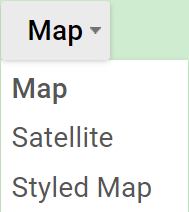
The standard Google map will allow the map to be displayed in the following styles:
-
-
-
OpusXenta also offers drone imagery and byondcloud Mapmakr, which are designed to enhance the map quality available in your byondpro.
By clicking on View Map in Full Screen, a pop-up window will display with a larger map.
On the Location record, a printout can be provided, by pressing the Print Map (printer friendly version) button to assist families in finding the grave, crypt or cremation memorial within the grounds.
The location co-ordinates and Google map images can be passed to an integrated website or kiosk for deceased search functions.
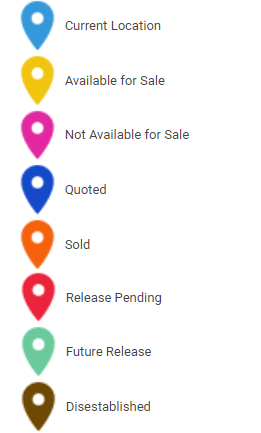
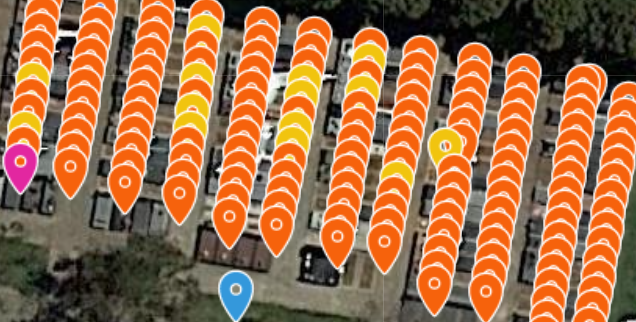
By switching on the Legends mapping, a key explaining the meaning behind the colours of the markers displays on the right side of the page.
The colours relate to the sale status of the locations in the site / area.
|
A location marker in the following colour:
|
Represents:
|
|
Light blue
|
Current Location
|
|
Yellow
|
Available for Sale Location
|
|
Pink
|
Not Available for Sale Location
|
|
Dark blue
|
Quoted location
|
|
Orange
|
Sold Location
|
|
Red
|
Release Pending Location
|
|
Light green
|
Future Release Location
|
|
Brown
|
Disestablished Location
|
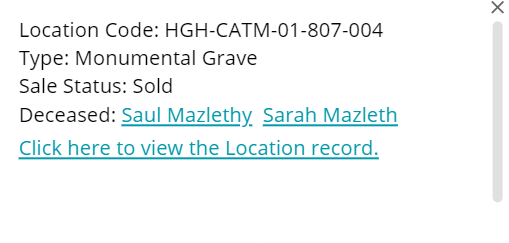
By clicking on a pinned location, a bubble appears with the information about the location, including :
-
-
-
A hyperlink to the location record
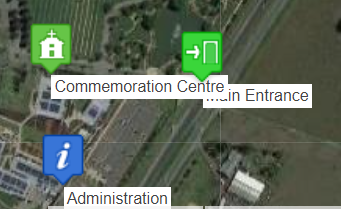
By switching on Mapping Markers, significant locations in the cemetery, such as the Main Entrance, the Administration building, etc. will display.
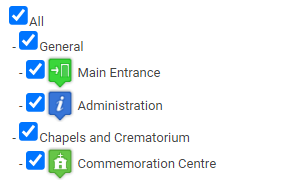
You can choose which markers display on the map by ticking the box next to the map marker in the key on the right-hand side of the page.
By ticking All, all significant locations in the list will be labelled on the map.
Should you wish to hide the key, select the Hide Menu option.