Locations can be important to view within byondpro.
They can be particularly important in regards to a Burial Booking scenario. A location will need to be added to the Summary tab of the Sales & Booking record. Once the booking is completed, the deceased record will be recorded as interred in this location.
Additionally, if the rights to the location have not been purchased, the location needs to be added to the Sales Order.
In terms of creating a Burial Booking, users may want to find a location before creating the booking and have it open on another tab in their browser to refer to throughout the booking process.
Alternatively, users can use the Search Select Locationfields when creating a booking, editing a booking, or adding the rights to the location in a sales order.
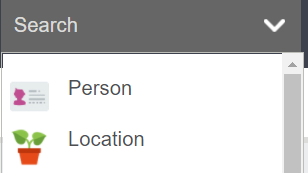
To find an available location to sell, choose one of the following options to access the search screen.
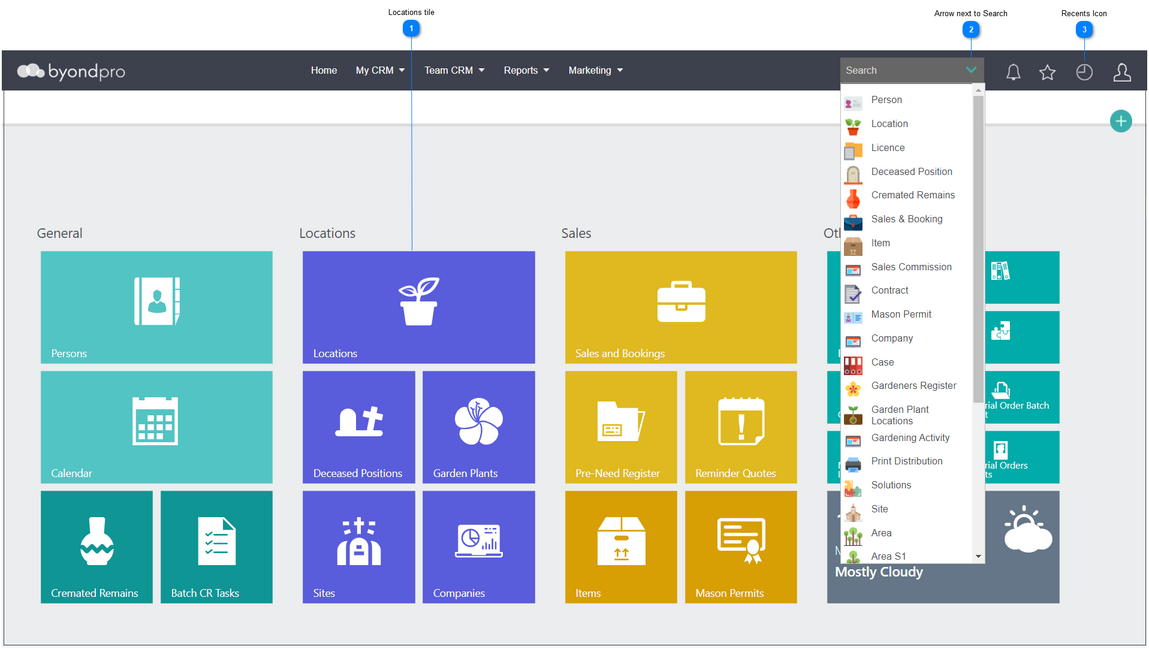
Locations tile
Click on the Locations tile from the home display.
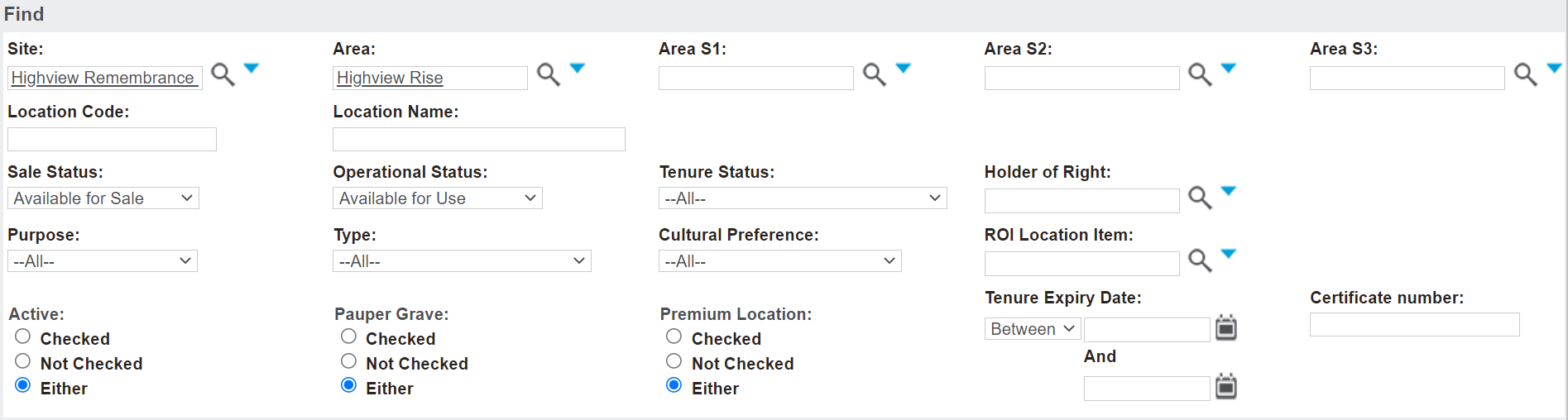
In the scenario of a sales & booking where a location is being sold, a user would use the:
Site field as the site the customer wants to purchase the rights to,
Area field for the area of the cemetery the customer is interested in,
Sale Status field of ‘Available for Sale,’ and
Operational Status of 'Available for Use.’
However, the fields and the individual search options available may vary from customer to customer.
Once the search criteria has been entered on the main location search screen, press Find on the right-hand side of the page.
To re-start the search and clear any criteriaentered in fields, choose the Clear button.
After pressing find, Location Codes will display below with the:
Location Name
Operational Status
Sale Status
Number of Burial Interment positions for that location
Holder of Right, if applicable.
It is recommended to pay particular attention to the Number of Positions when choosing a location for a burial, as this field alerts the user to the number of positions the location has capacity for.
To find out how many of these positions are available for interment, the user would need to look into the individual location.
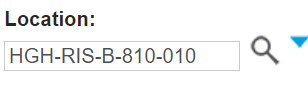
Click on the hyperlink with the location code to open the location record of choice.
If completing a search for a location using a search select field on the Summary of a Sales & Booking, for example, click on the hyperlink and the field will populate with the chosen record.