Edit Person Record
Edit Summary tab
To make changes to the record, click on the Change Attributes section on the right side of the page.

Users can change the Territory on a person record as well as the reference number and the CR record.
Edit Contact Details
To update any contact details on a person record, users will need to visit the relevant tab on the record.
Users can update the addresses, phone numbers, and emails attached to the record.
Click on the pink arrow in line with the contact detail that you want to update.

Or use the tabs at the top of the record to visit the correct tab.
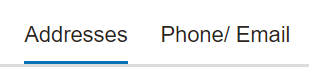
Address
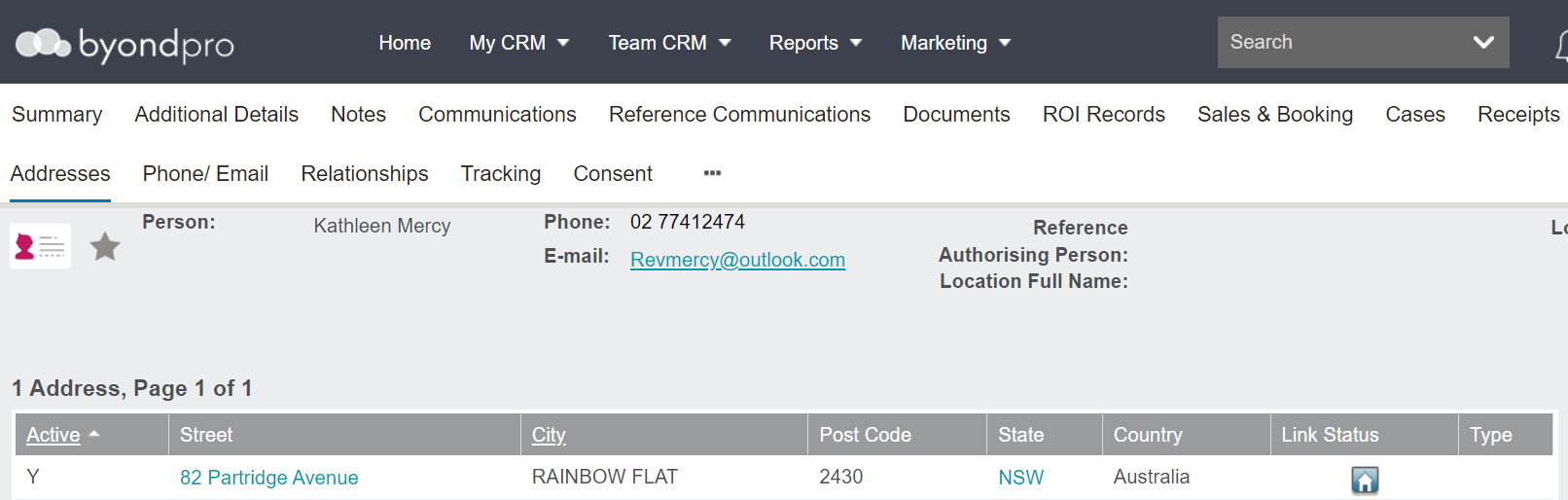
To add a new address, choose New Address on the right-hand side of the Addresses tab.

Complete the relevant fields.
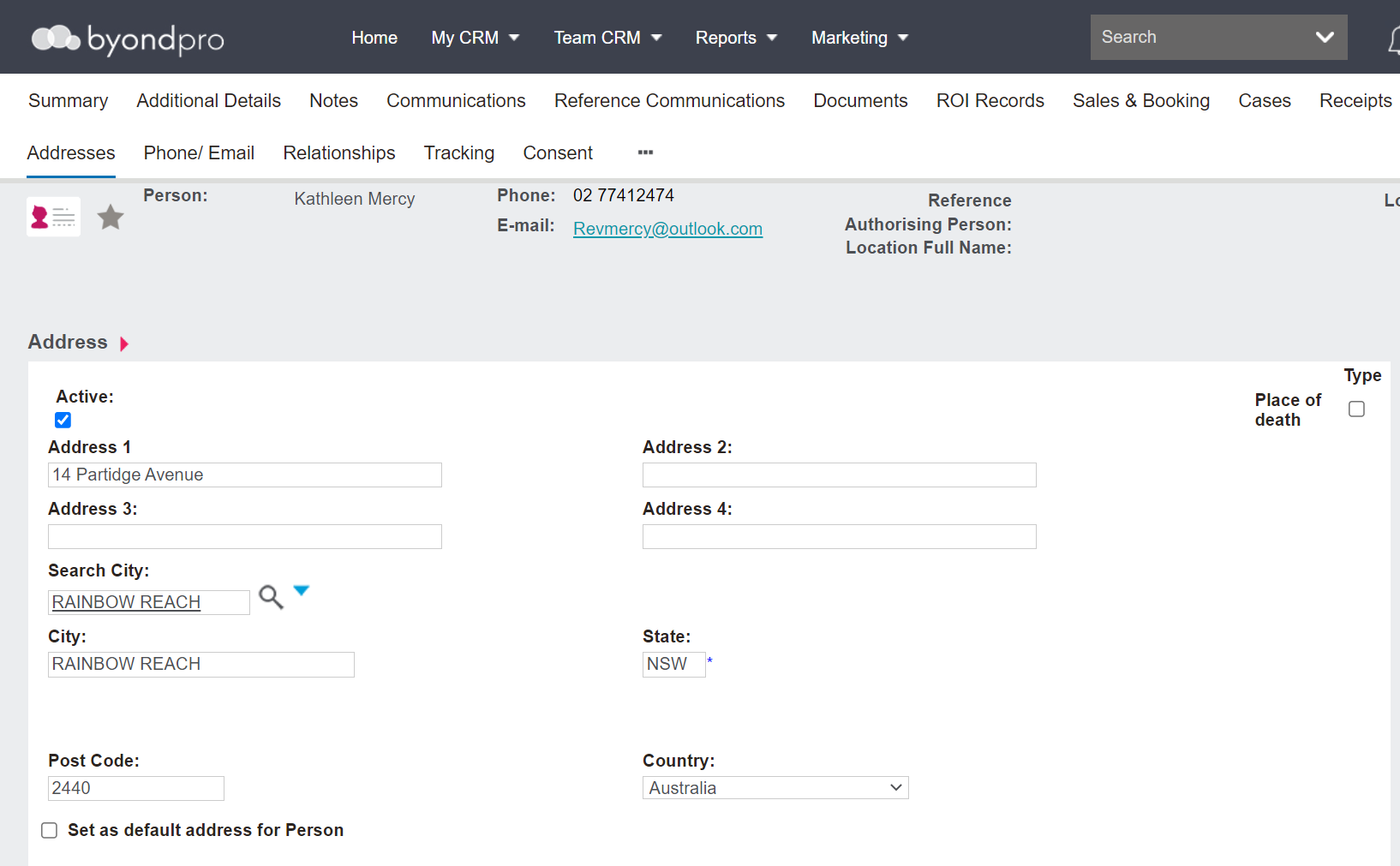
Please note that when a record is marked as deceased, the address should not be ticked as active to avoid sending mail to deceased addresses.
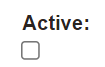
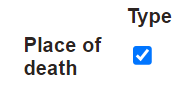
Additionally, Place of Death on the right-hand side of the page can be ticked if the address is a deceased record’s place of death.
This tool might be useful in searching for a person with a common name. The more information available to search from allows the users to locate a certain record easier.
Once all fields have been completed, choose Save on the right-hand side of the page.

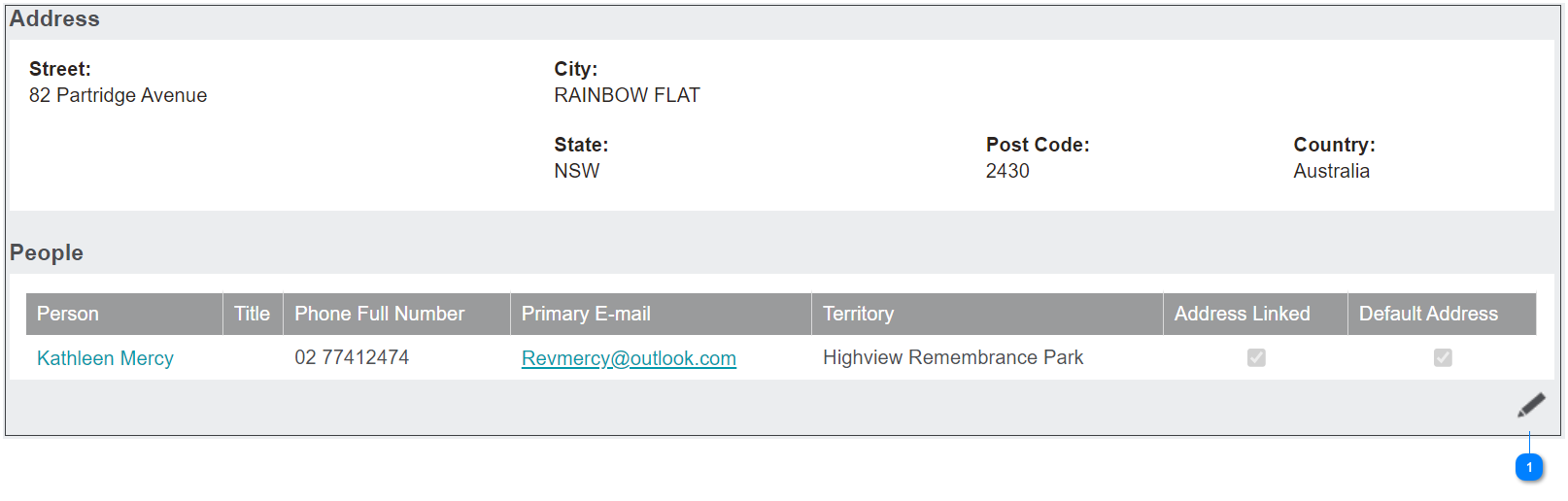
To edit an entry, click on the house icon.

It will bring you to the page detailing the address.


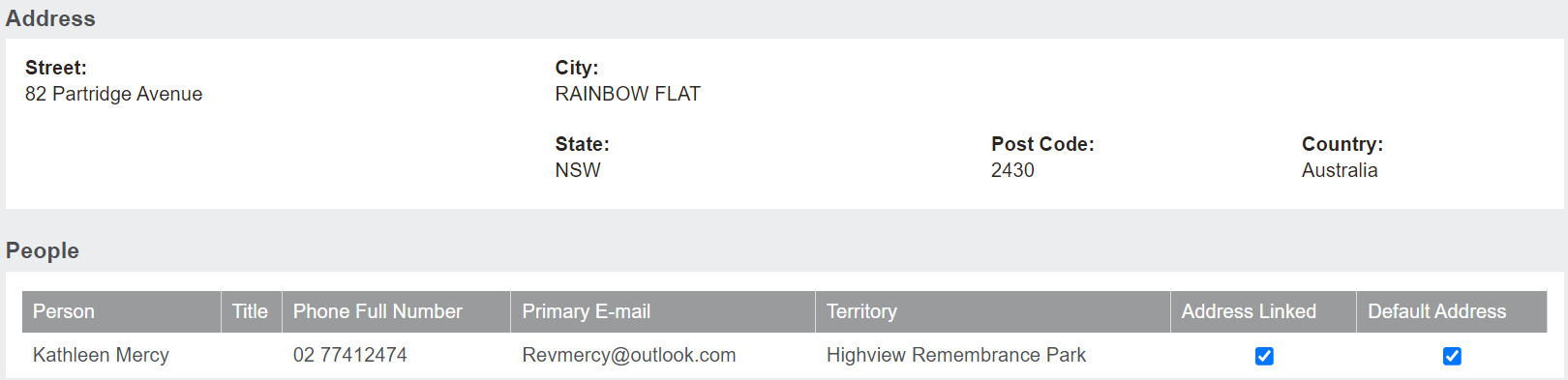
Once you have made your changes, click on Save.

Choose Continue to see the changes made.

Phone/Email Tab
This tab allows the user to view and update the phone and email for the person record.
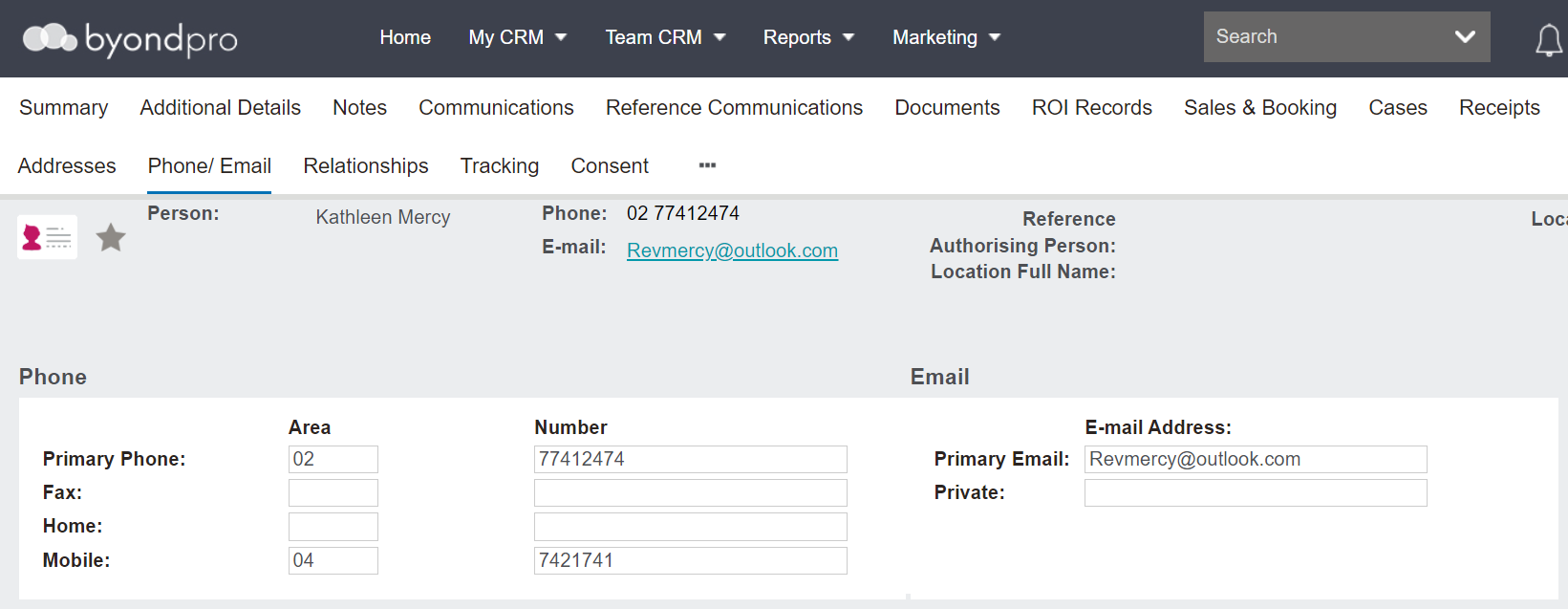
To edit any fields, simply type in the corresponding text field.
Once completed, choose Save on the right-hand side of the page.