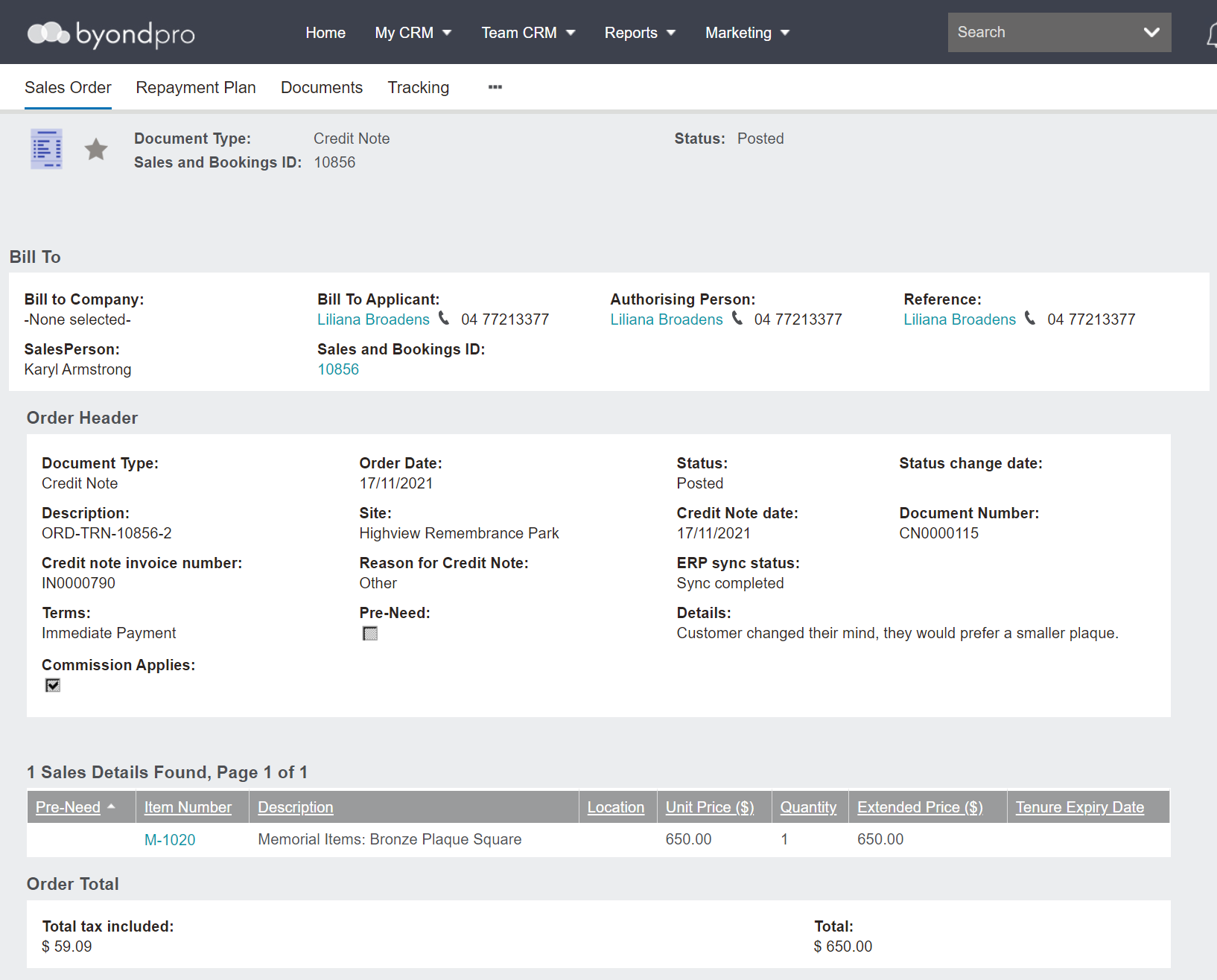
Crediting the Full Invoice
In the following scenario, the family purchased a bronze square plaque directly from the cemetery and the invoice was processed for the family.
However, the family changed their mind and instead would like to purchase a bronze rectangle small plaque.
The cemetery staff will need to raise a credit note for the bronze square plaque and then invoice the bronze rectangle small plaque.
The full invoice is being credited in this example.
From your credit note as shown in the previous topic, select the Create Credit Note button on the right.

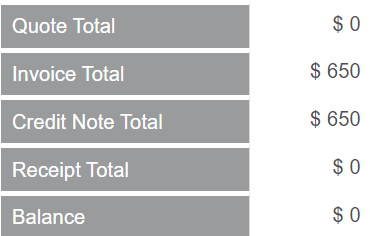
The credit note is created and offsets the original invoice.
This can be seen from the Finance information block on the Summary of the Sales & Booking.
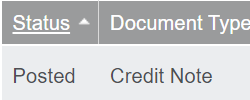
Additionally, the Status of the Credit Note on the Sales tab will display as Posted.
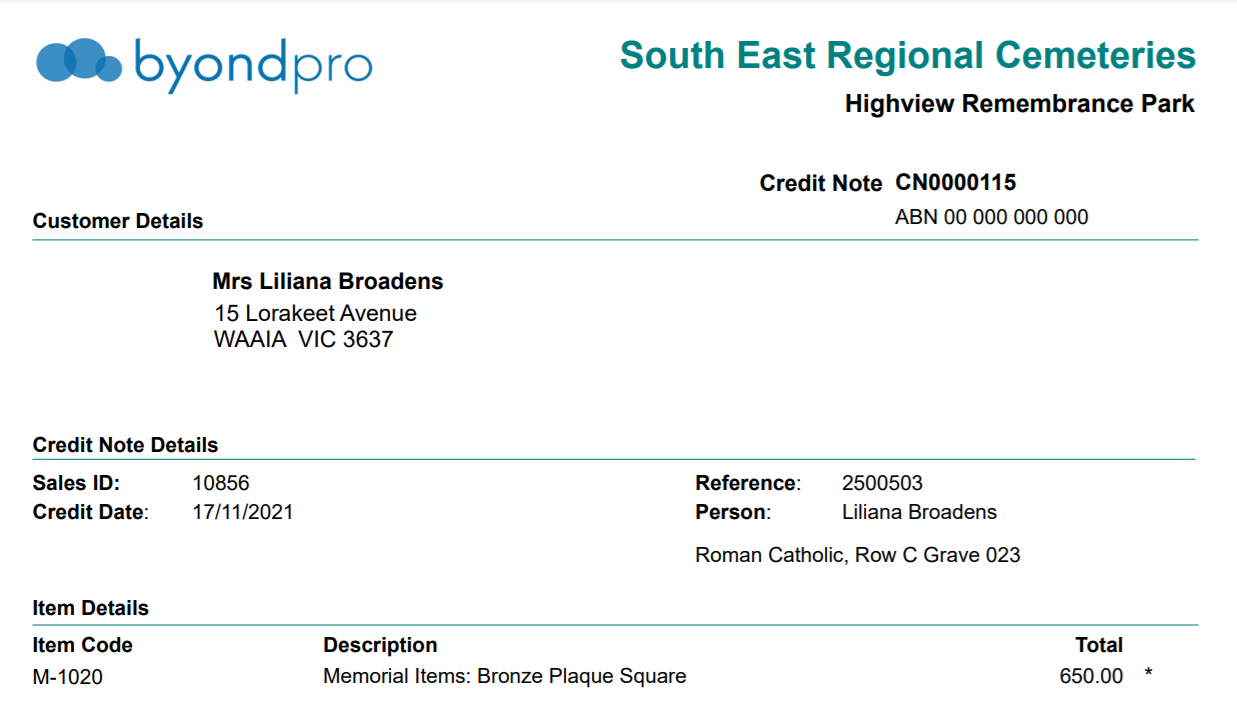
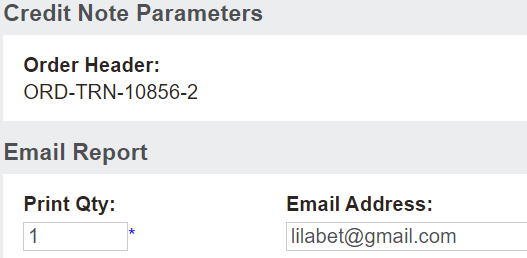
From the sales order, press the Print Credit Note button.

From the new window that appears, an option exists to email, export to excel or print the quote to PDF.
The email address can be updated before generating or emailing.
When ready, simply click on the action button of your choice.
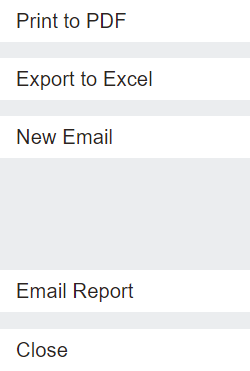
The Print to PDF button, as chosen in our example, allows users to see a copy of the credit note and automatically saves it to the Documents tab of:
-
The Sales Order
-
The Sales & Booking
-
The Authorising Person record