Creating Person Records
This section will show you how to create a person record and review how to make some changes to a person record.
Creating the Record
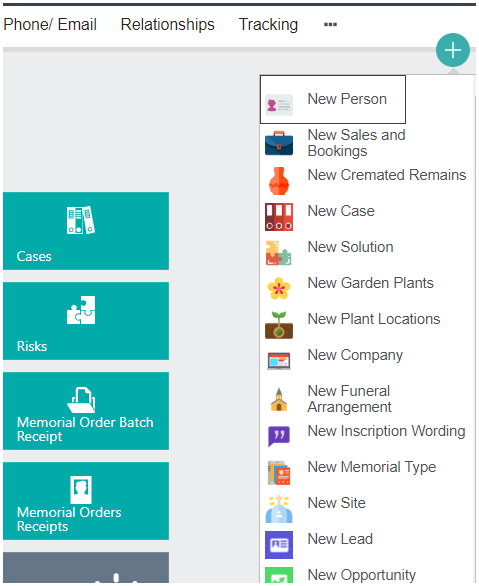
To create a Person record, click on the Plus symbol from the top of the page.
Choose the New Person option from the drop-down which appears.
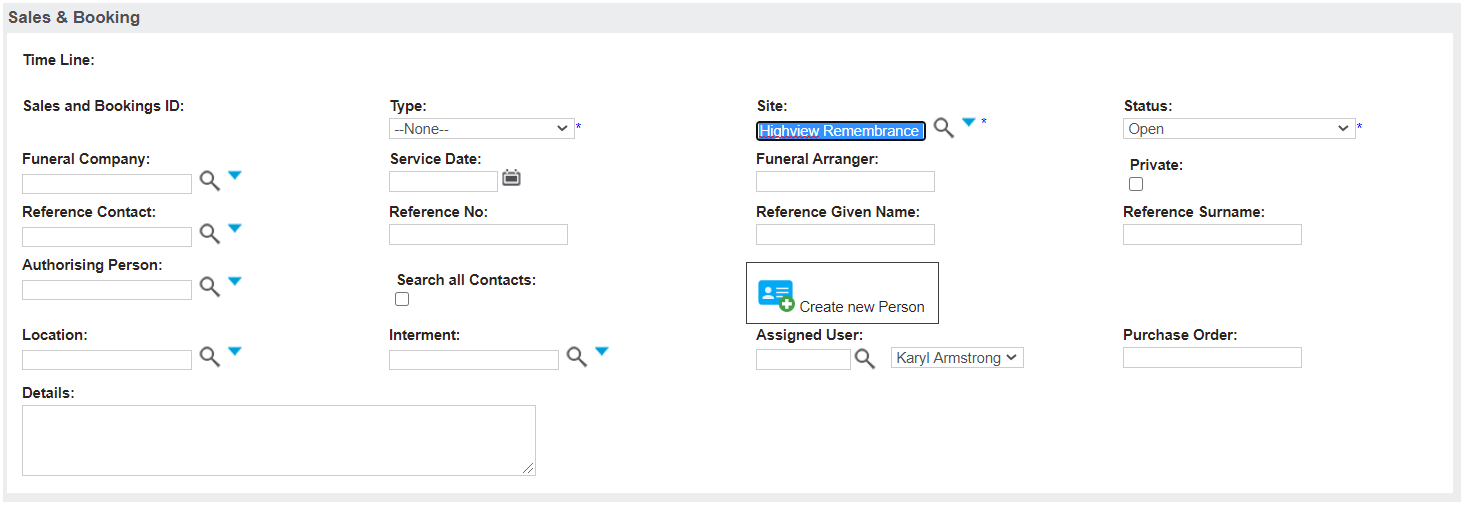
Alternatively, if you are already in a booking, you can choose the Create New Person option on the Sales & Booking screen.
Type the First Name and the Last Name of the new person.
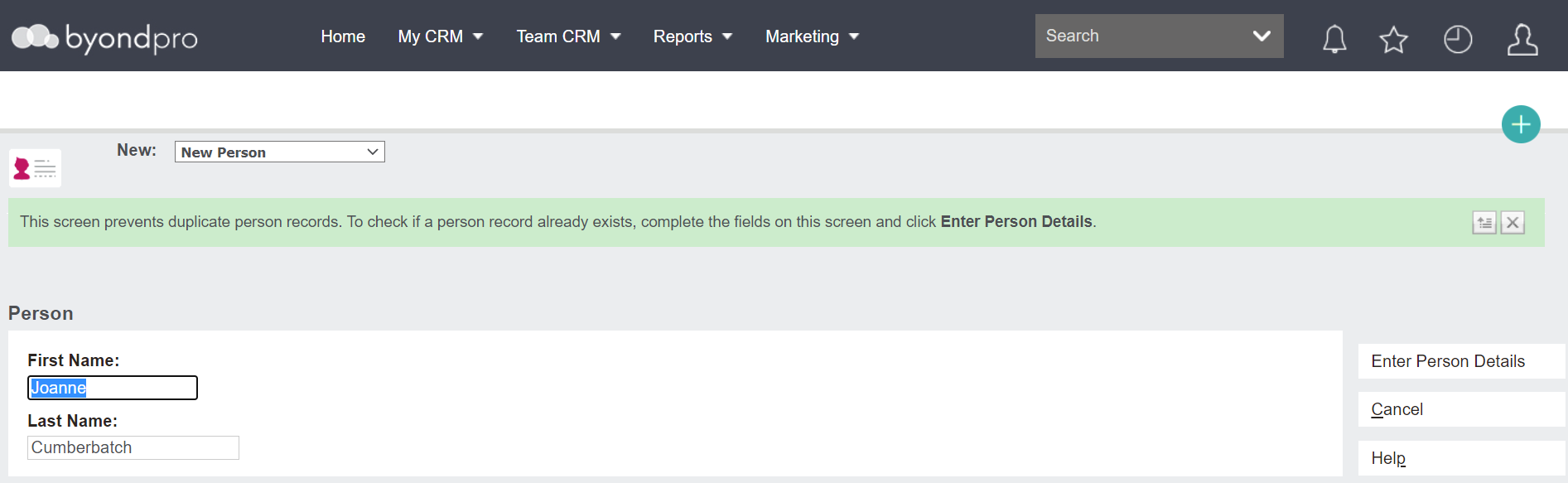
Then, click the Enter Person Details button.

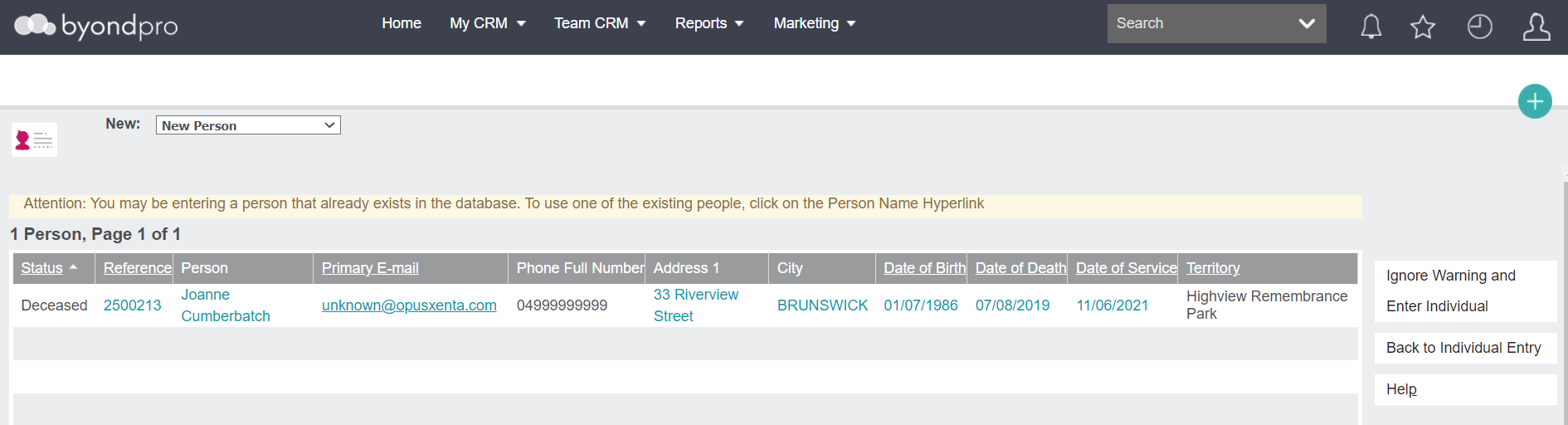
If you encounter a potential duplicate account, the following screen will be displayed.
You can view the potential matches by clicking on any of the blue hyperlinks displayed.
-
If it is a duplicate, choose the Back to Individual Entry button. This will take you back to the previous screen.
-
If it is not a duplicate, choose the Ignore Warning and Enter Individual button. This will allow you to continue completing the record.
The following incomplete person record will display if there is no duplicate.
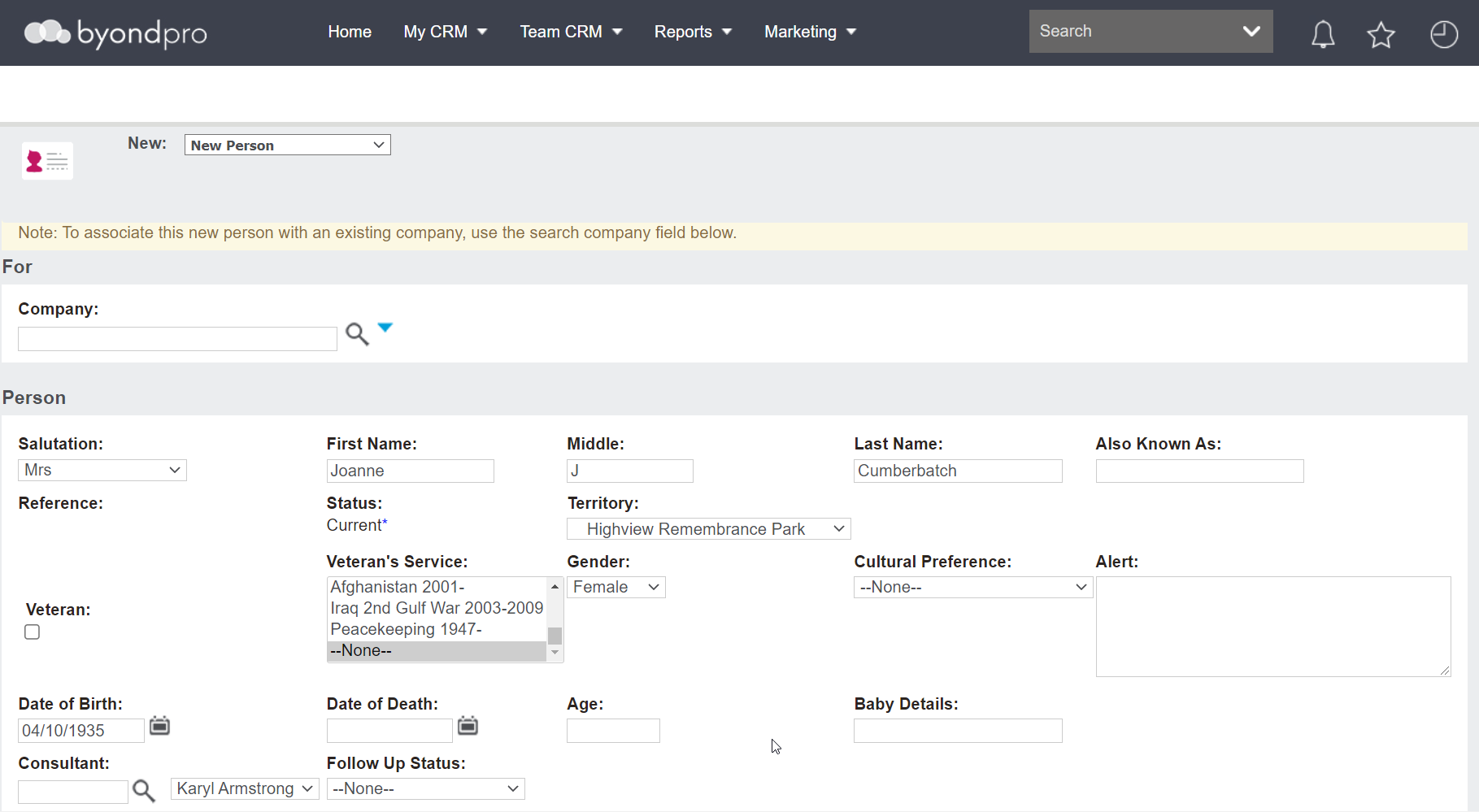
Fill in the fields based off the information that is available.
We recommend having the following completed as a minimum, however, all customers will have their own preferences.
-
First Name
-
Last Name
-
Territory
-
Date of birthAs a reminder, many of these fields can be customised to fit each customer’s needs.
Date of Birth and Date of Death may be added here at this stage, however may also be added at the time the record is marked as deceased.
If the age is less than 0 months, a field opens and displays label as Age Days < 1 month and displays the age in days.
If the age is less than one day, a drop-down selection is available if it has been configured. If configured, the field would swap out the Baby Details field and replace with Age of Baby field, with a selection list option.

The Funeral Company field is updated when a booking that includes a Funeral Director is completed.
The Veteran and Veteran's Service fields may be beneficial to assist with identifying War Graves etc.
The Authorising Person field (not seen) is completed in it’s own processing step allowing for paperwork and verification of this person to occur.
The Holder of Right field (not seen) will be populated as part of the booking / sale process where the person is included, or, as the person is added as an additional HOR on the location record.
Scroll down and complete the Address, Phone, and Email sections.
The Search City field allows users to use the search select option to locate the city and then populate the City, State, & Postcode fields
It is recommended to add the best contact number in the Primary Phone field, as this appears in many sections of byondpro and provides easy accessibility for users to make contact with the person. .
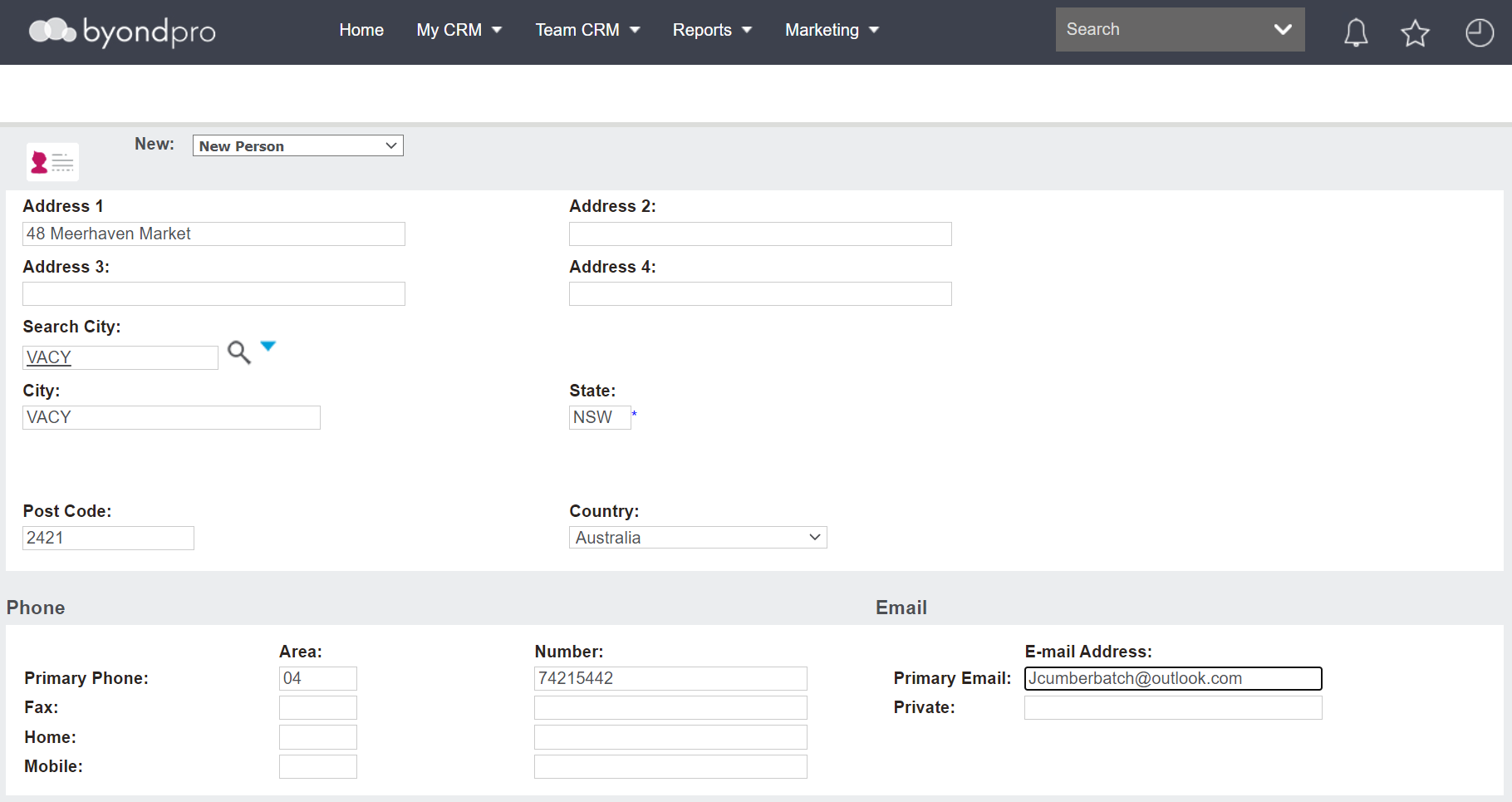
Once completed, scroll back up and choose Save:

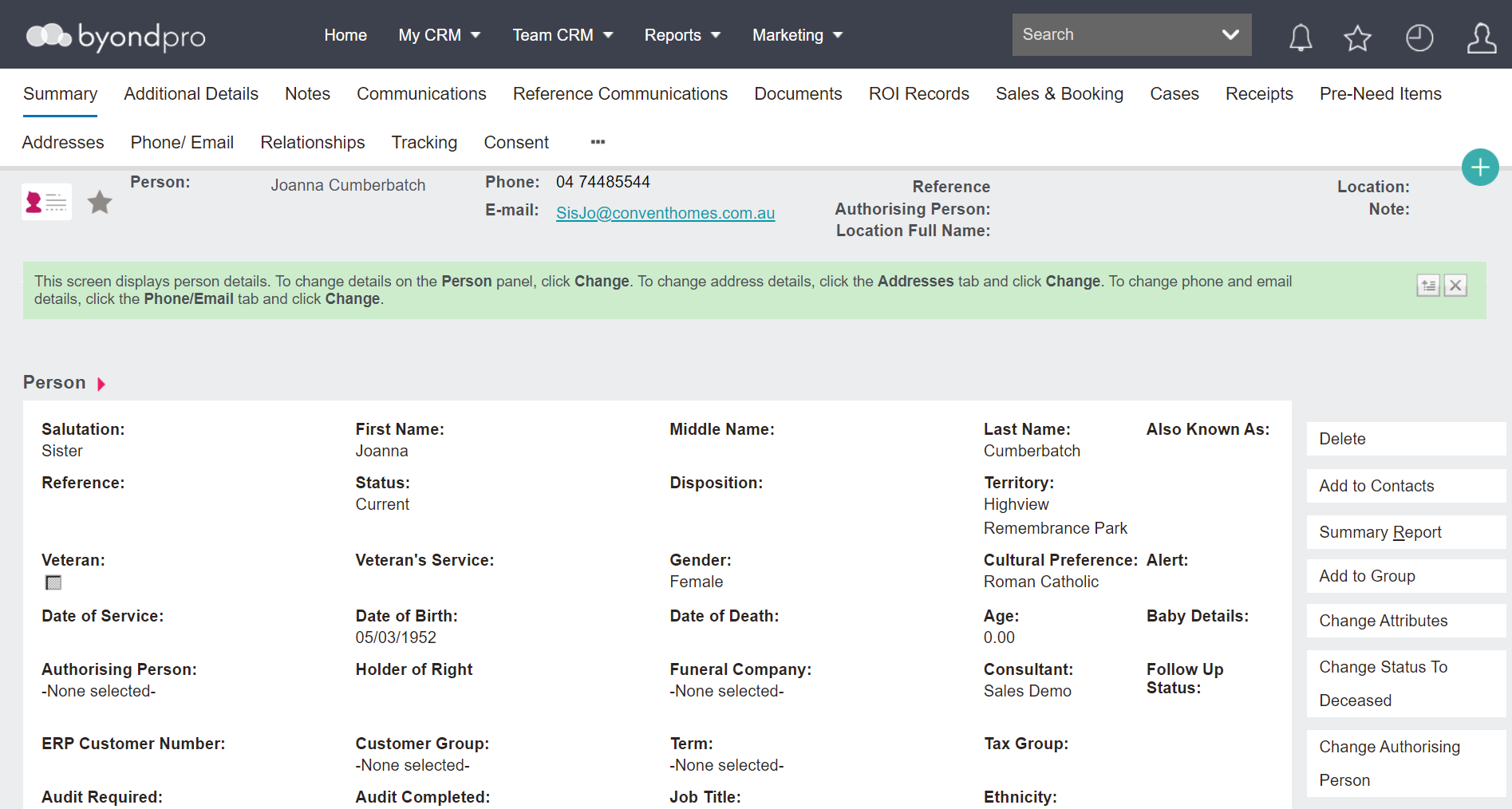
The record should look similar to the below image.