Create OH&S Risk
From the New Solution screen, click Type and select OH&S Risk.
The screen alters including required Details fields.
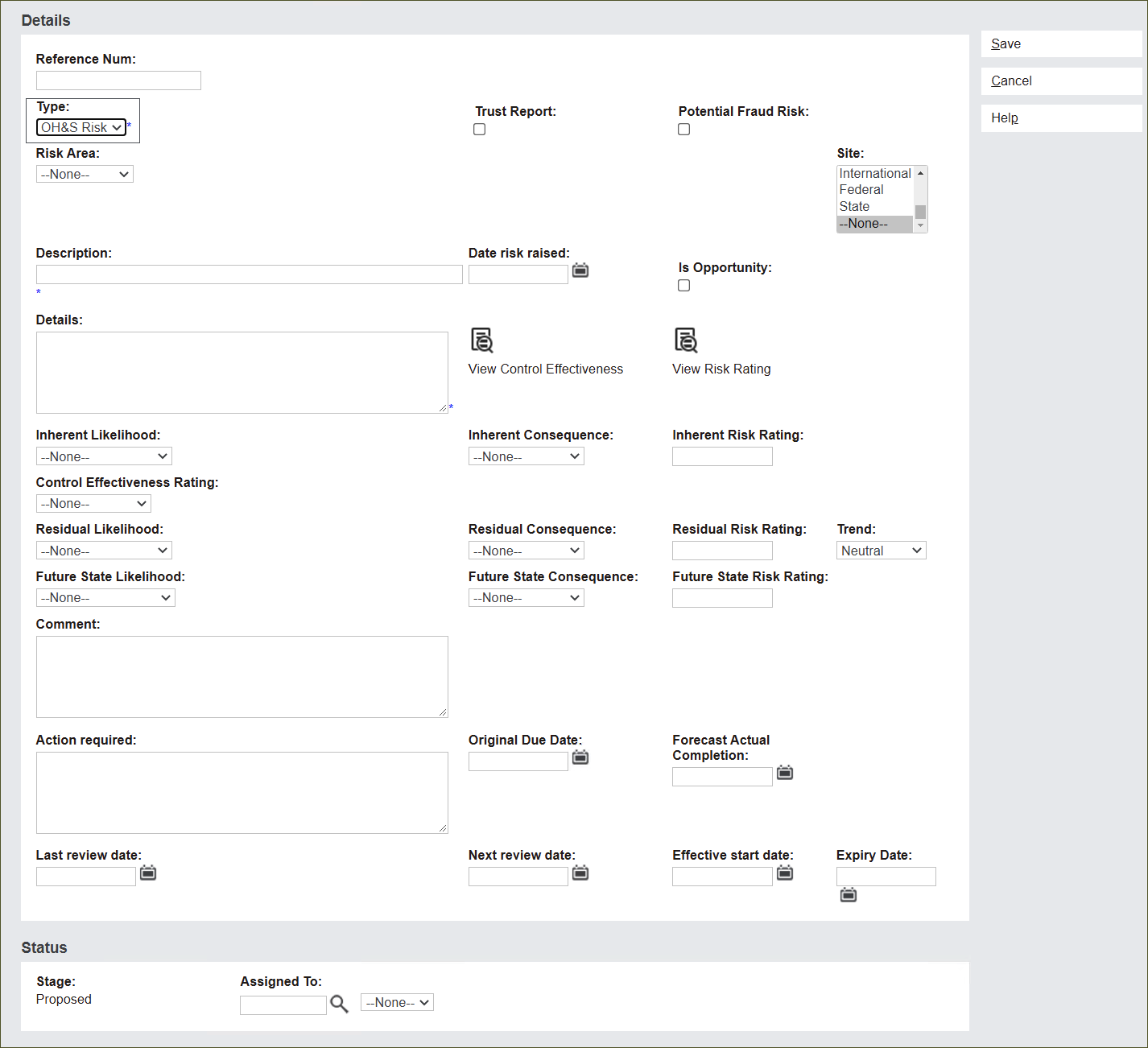
Note: The OH&S Risk record follows the same pattern as the Risk record to capture information. View the Create Risk section of the guide for a detailed approach to populating available fields.
Fill in the information describing the OH&S Risk.
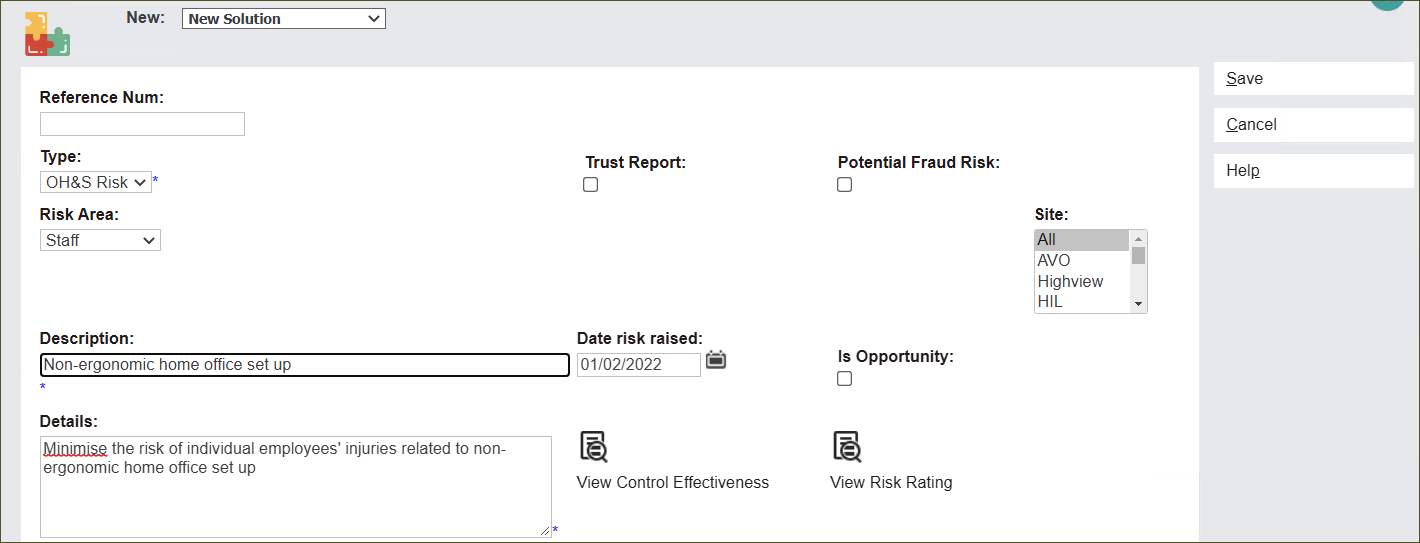
Click on the Risk Area field and select influenced business area.
In the Description field type in a brief description of the OH&S Risk.
In the Details field type in more information.
Navigate to the top right section of the above screen.
Tick the boxes Trust Report and Potential Fraud Risk, if the record falls under these categories.
From the Site menu select the name of the site affected by the Risk. You can nominate All, multiple sites or only one site.
In the Date risk raised field type in the date or click the calendar icon to select the date.
The Is Opportunity tick box flags the Risk as a potential opportunity for a cemetery site.
Use the Effectiveness Control rating and the Risk Rating matrix to assess the OH&S Risk by populating the fields below.
Press the fields Inherent Likelihood and then Inherent Consequences to select from available options.
The system automatically calculates the Inherent Risk Rating.

Click on the Residual Likelihood and then the Residual Consequence to select from available options assessing the risk after implementing controls.
The system automatically calculates the Residual Risk Rating.

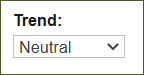
Click on the Trend field and select from the available options: Increasing, Neutral, Decreasing.
Click on Future State Likelihood and Future State Consequence fields and select from the options to set a future target for mitigating the risk.
The system automatically calculates the Future State Risk Rating.

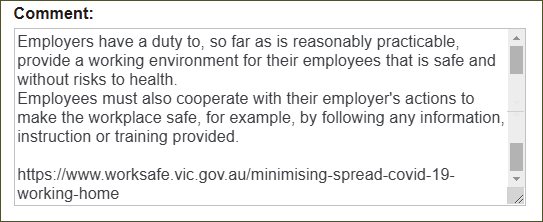
In the Comment text box type in any additional information.
In the Action Required text box type any further recommended tasks that support risk mitigation.
In the fields Original Due Date and Forecast Actual Completion set time frames for tasks listed in the Action Required field.
Type in the chosen date or click the calendar icon to select the date.

Type in review dates in Last Review Date and Next Review Date fields or click the calendar icon to select the date.
Type in a date in the Effective Start Date field or click the calendar icon to select the date.
In the Expiry Date field choose a date when the risk will not pose any hazard to the business.

Status is an information block describing the current Stage of the risk and the user Assigned to monitor the risk.
Stage of every newly created record will always be Proposed.
This can be edited after the Control is created when the record goes through a workflow to be accepted into a risk register.
Note: See more details in the section Re-assign and Change Stage.

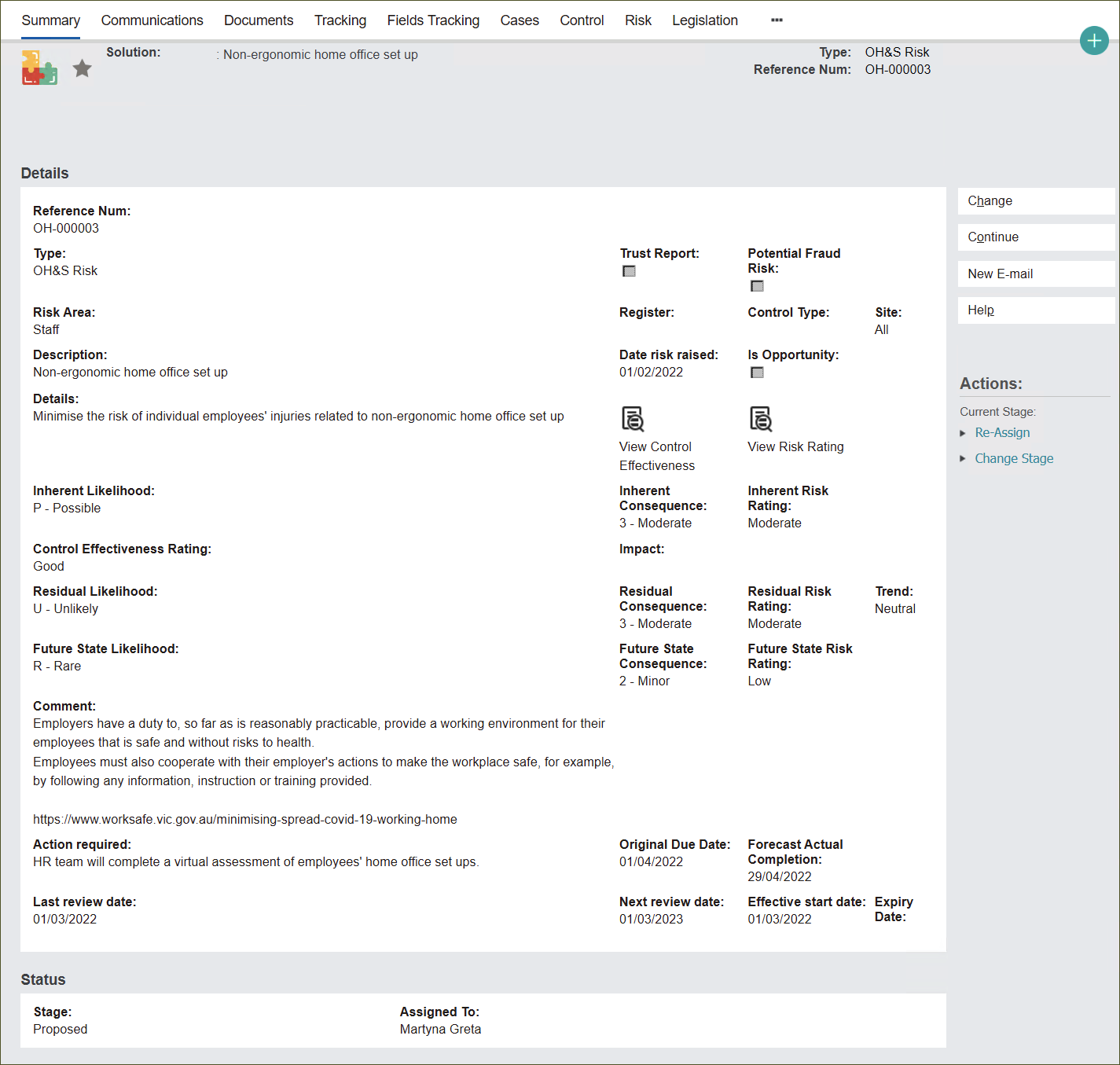
The OH&S Risk record has been created.