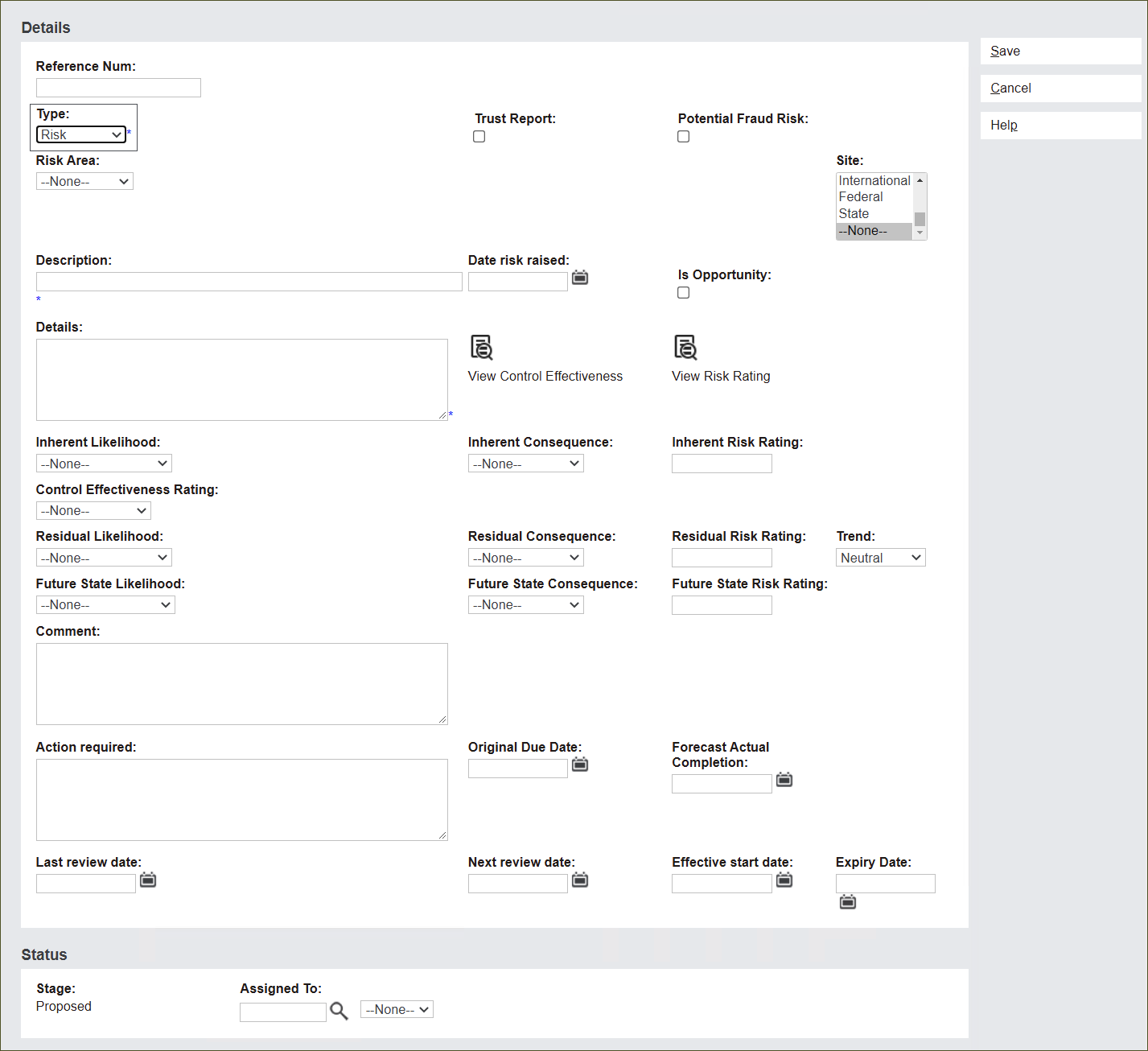
From the New Solution screen, click Type and select Risk.
The screen alters including required Details fields.
Fill in the information describing the Risk following the approach outlined below.
The Reference Num field is not editable. The system automatically generates a reference number once you are ready to Save the Solution.
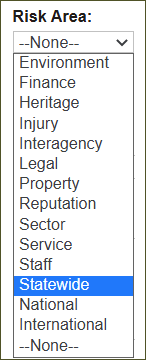
Click on the Risk Area field. Select a business area influenced by the Risk.
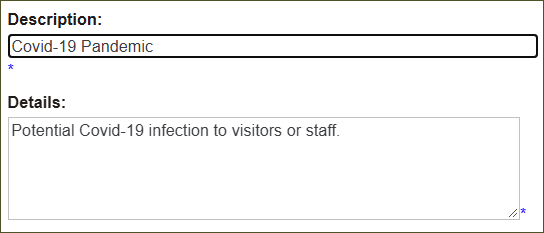
In the Description field type in a brief description of the Risk, for example Covid-19 Pandemic.
In the Details field type in more information about the Risk, for example Potential Covid-19 infection to visitors or staff.
Note: Description and Details are mandatory fields.
Navigate to the top right section of the record.
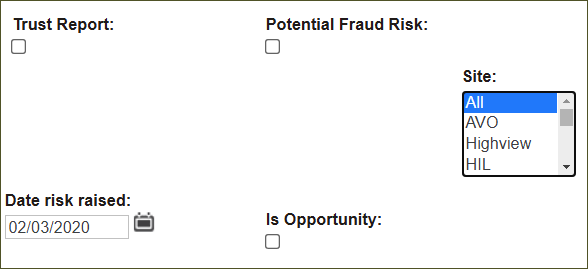
There are two tick boxes which allow you to decide whether the Risk:
• needs to be included and flagged in reports for the board of directors - Trust Report and / or
• is related to a financial risk - Potential Fraud Risk.
If the Risk falls under these categories, tick the appropriate box.
From the Site menu select a name of a site affected by the Risk. You can nominate All, multiple sites or only one site.
For example Covid 19 Pandemic affects all sites of a cemetery trust. However, a risk of aging infrastructure might affect only the heritage sites of the same cemetery trust.
The Date risk raised field refers to the initial date when the risk was reported.
Records in byondpro go through a workflow that allows for Solutions to be approved, rejected etc. The date allows for tracking of the risk register entries.
Type in the date or click the calendar icon to select the date.
The Is Opportunity tick box flags the Risk as an potential opportunity for a cemetery site.
For example, Covid-19 Pandemic can be an opportunity for a cemetery to upgrade software and live streaming services because of the changing nature of the industry.
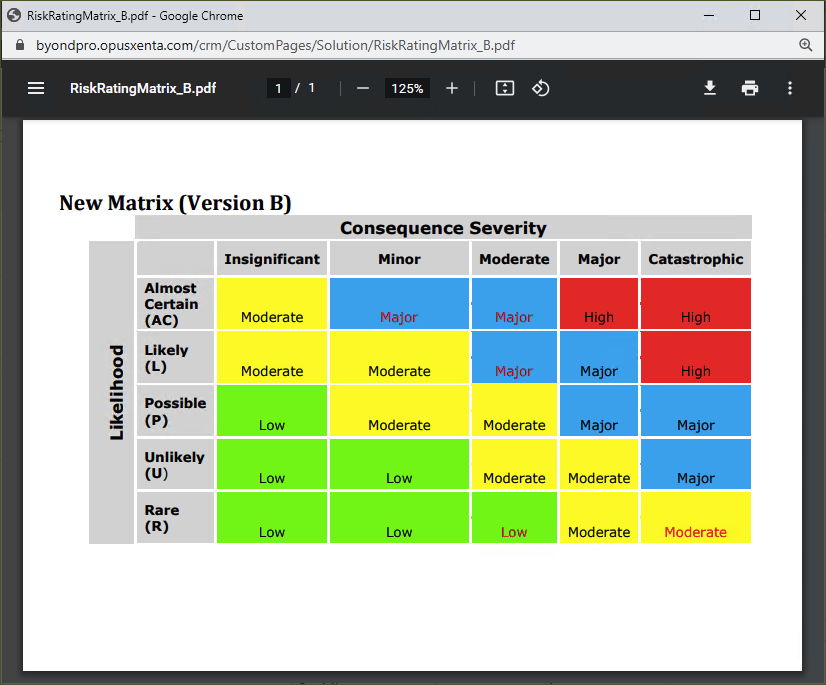
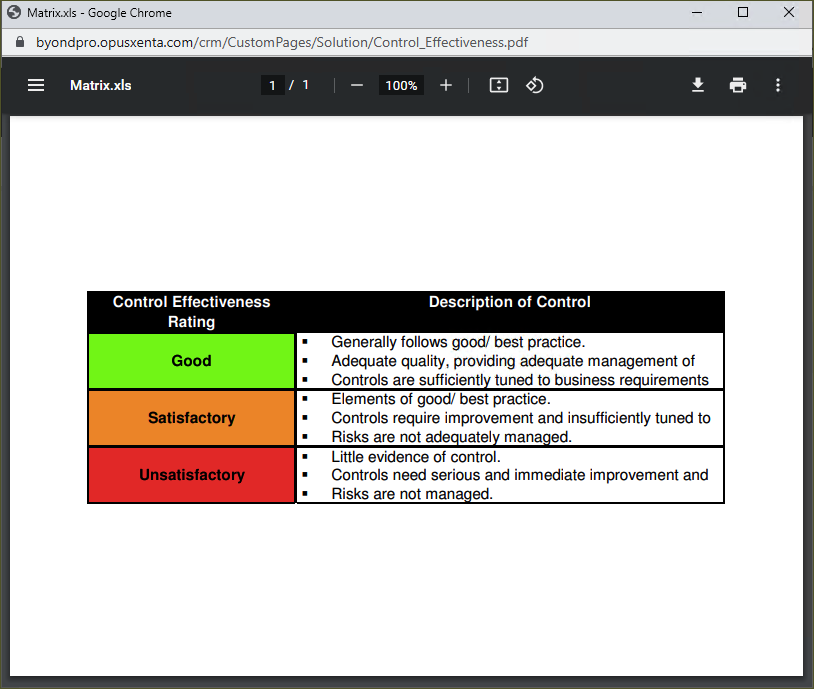
Use the Effectiveness Control rating and the Risk Rating matrix to assess the Risk.
You can view the Control Effectiveness rating and the Risk Rating matrix by clicking the buttons below.
The buttons open a pop-up window to view the corresponding rating.
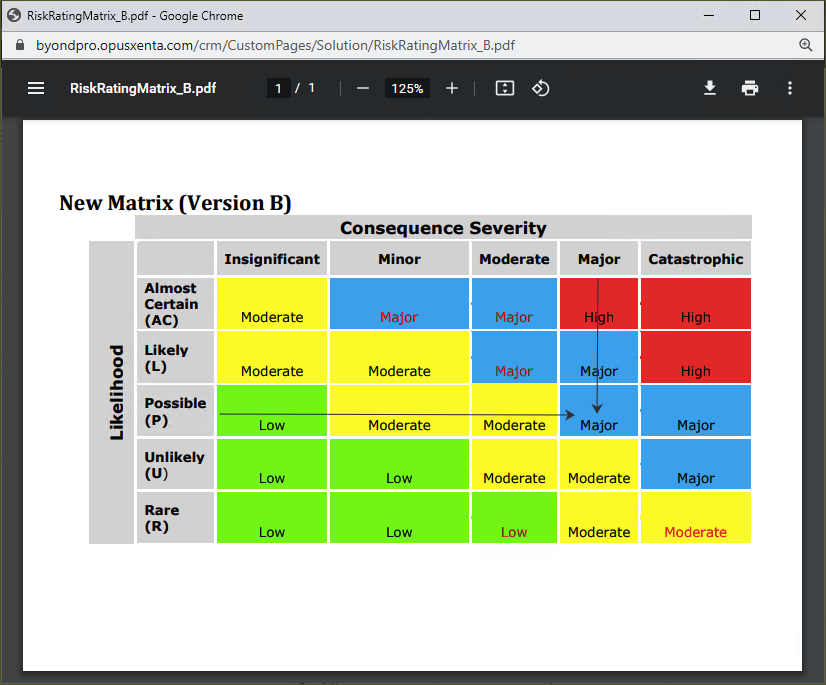
The Risk Rating matrix allows you to assess the risk against the likelihood and consequence severity of its occurrence.
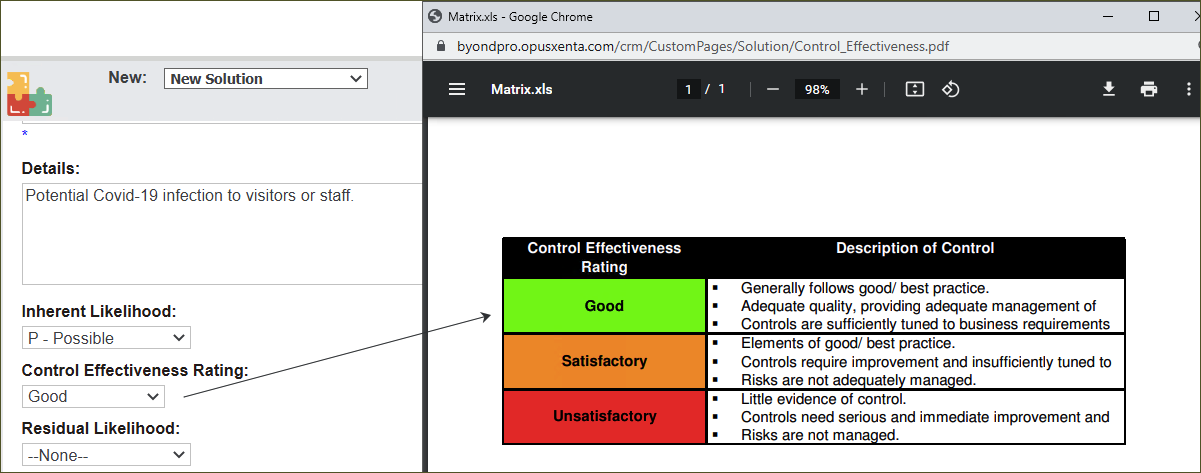
The Control Effectiveness rating allows you to assess how effective you are at risk mitigation.
Let's see the ratings in practice with an example below.
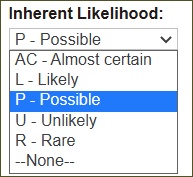
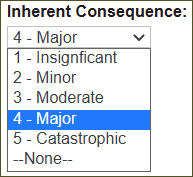
Inherent Likelihood, Inherent Consequences and Inherent Risk Rating fields assess how possible it is for the Risk to occur and how severe the consequences can be, as per Risk Rating matrix.
Press the fields Inherent Likelihood and then Inherent Consequences to select from available options.
Let’s illustrate this on the example of the Risk - Covid-19 Pandemic:
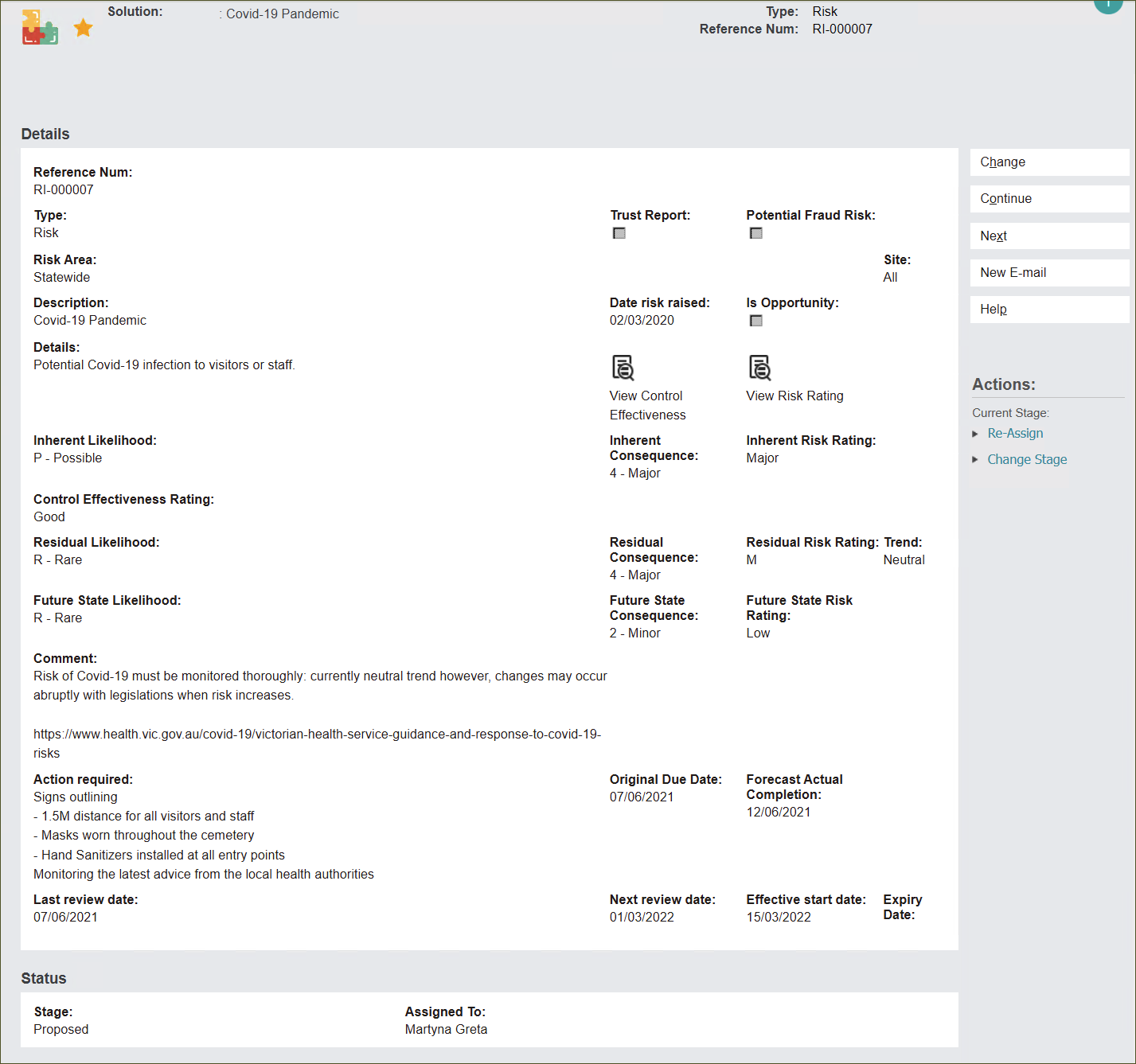
The Inherent Likelihood of Covid-19 infection to a visitor or staff at a cemetery site is Possible.
Inherent Consequences of the occurrence are Major, for example staff shortages due to quarantine requirements.
The system automatically calculated the Inherent Risk Rating as Major.
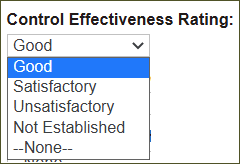
Click on the Control Effectiveness Rating field and select from available options to assess the effectiveness of your controls to mitigate the risk, as per Control Effectiveness rating.
For example, a cemetery site can rate the Control Effectiveness as Good when there are sound strategies in place to control the spread of Covid-19 among visitors and staff. However, a different site can rate the Control Effectiveness as Unsatisfactory as the business is beginning to implement some strategies to control the spread.
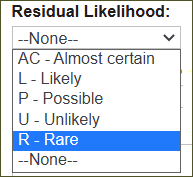
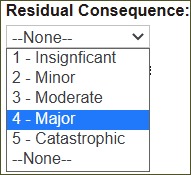
Residual Likelihood, Residual Consequence and Residual Risk Rating fileds assess the risk after implementing controls.
Click on the Residual Likelihood and Residual Consequence fields to select from available drop-down options. The system will automatically calculate the Residual Risk Rating as per Risk Rating matrix.
For example, the cemetery site has effective controls in place to manage the risk of Covid-19 Pandemic.
Judging from the Good rating of the controls the Residual Likelihood of Covid-19 infection to staff or visitors is Rare.
However, if Covid-19 infection occurs, despite of the controls, the Residual Consequence will still be Major.
The system calculated Residual Risk Rating as Moderate.
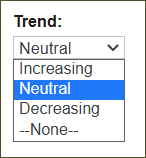
Trend is a drop-down field allowing to monitor the risk by evaluating the trend.
Click on the Trend field and select from the available options: Increasing, Neutral, Decreasing.
For example, the Work Health and Safety team assessed issues related to Covid-19 Pandemic risk and noticed that the number of related cases was the same as the last year. The team assessed the Trend of the risk as Neutral.
However, if there was an increase of the risk-related cases they might assess the Trend as Increasing.
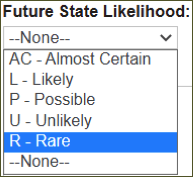
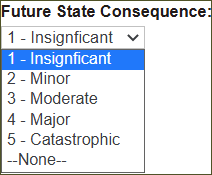
Future State Likelihood, Future State Consequence and Future State Risk Rating fields set a future target for mitigating the risk.
Click on Future State Likelihood and Future State Consequence fields and select from the drop-down options.
The system automatically calculates the Future State Risk Rating as per Risk Rating matrix.
For example, the cemetery site would like their strategies of mitigating Covid-19 Pandemic Risk to be effective enough for the Future State Likelihood as Rare and the Future State Consequence as Minor. This will allow the site to have the Future State Risk Rating as Low.
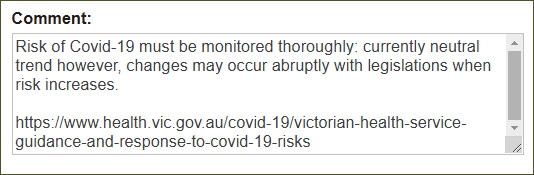
In the Comment text box type in any additional information about the Risk.
In the Action Required text box type in any further recommended tasks that support risk mitigation.
In the fields Original Due Date and Forecast Actual Completion set time frames for tasks listed in the Action Required field.
Type in the chosen date or click the calendar icon to select the date.
Last Review Date and Next Review Date fields allow to monitor the risk review process.
In the Effective Start Date field choose a starting point for the site to begin mitigating the risk.
In the Expiry Date field choose a date when the risk will not pose any hazard to the business.
This option applies to short-term risks, like risks related to infrastructure upgrades. When the building works are completed that risk is no longer valid.
For example, this field does not apply for the Covid-19 Pandemic Risk as the cemetery site has no influence on the nationwide state of the pandemic. The cemetery cannot assess when the risk expires so the field is left blank.
Type the chosen dates or click the calendar icon to select the dates.
Status is an information block describing the current Stage of the risk and the user Assigned To monitor the risk.
Stage of every newly created record will always be Proposed.
This can be edited after the Control is created when the record goes through a workflow to be accepted into a risk register.
In the Assigned To field type in or press the magnifying glass icon and select the user’s name who will monitor the risk mitigation.
Press Save to secure the record.
The Risk record has been created.