Re-assign and Change Stage
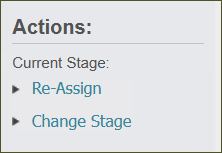
In the Actions section you can make changes to the current Status of the risk using two buttons:
Re-assign
Press the Re-assign button.
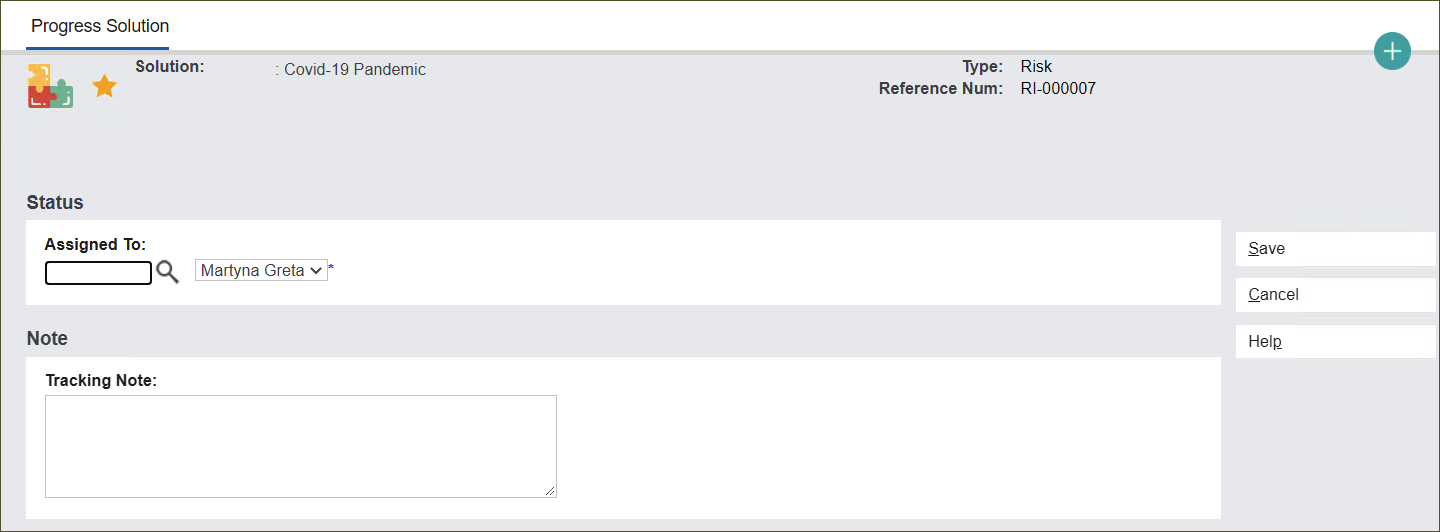
A new screen with appear called Progress Solution.
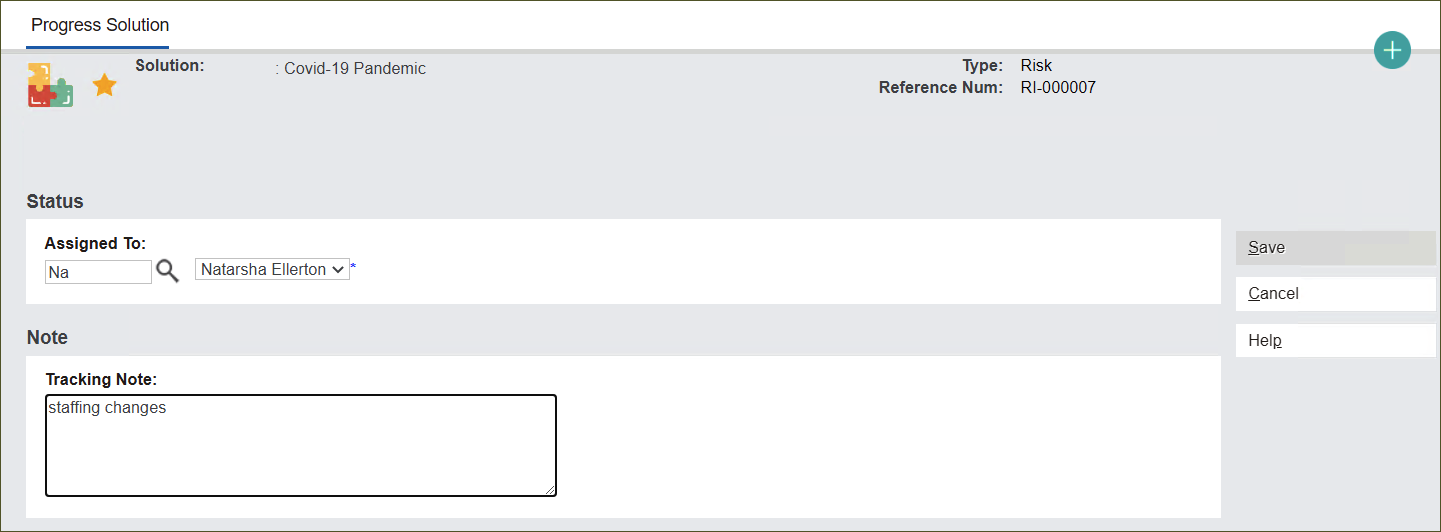
In the Status section you can change the user who manages the record.
In the Assign To field type in the user’s name or press the magnifying glass icon and select the user from a drop-down list.
In the Note section add a Tracking Note by typing in the reason for reassigning to a different user.
Press Save to secure the changes.
The changes were saved and can be viewed in the Tracking tab of the record.
Note: See more details about the tab in the
Tracking section.
Change Stage
Press the Change Stage button.
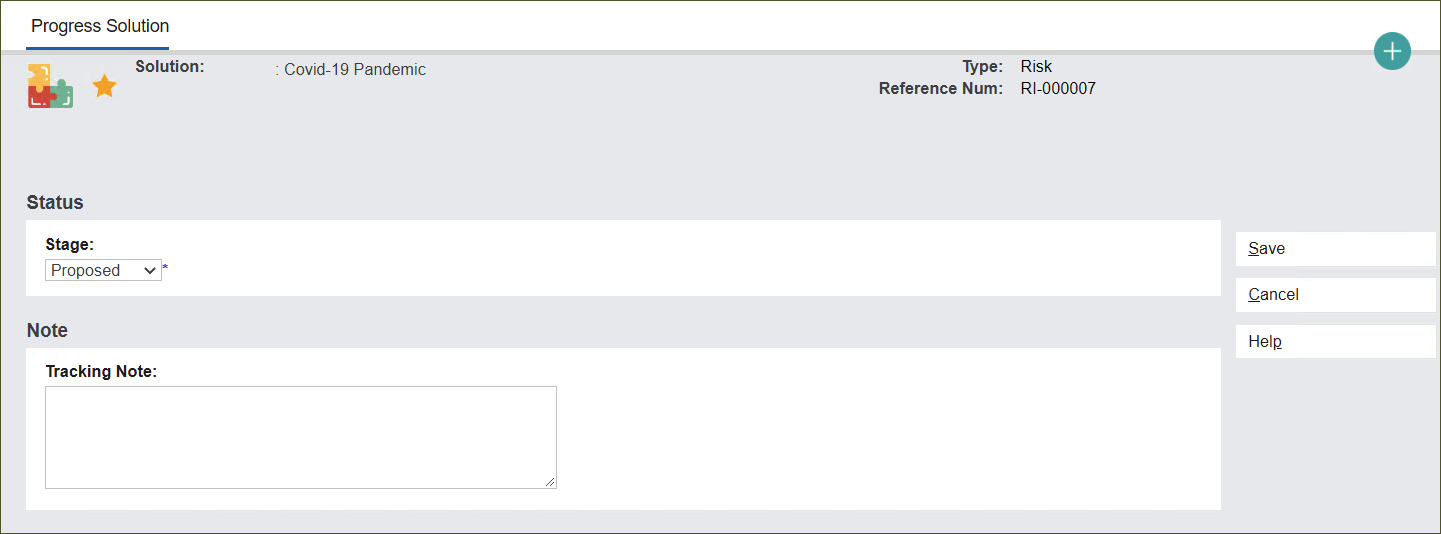
A new screen with appear called Progress Solution.
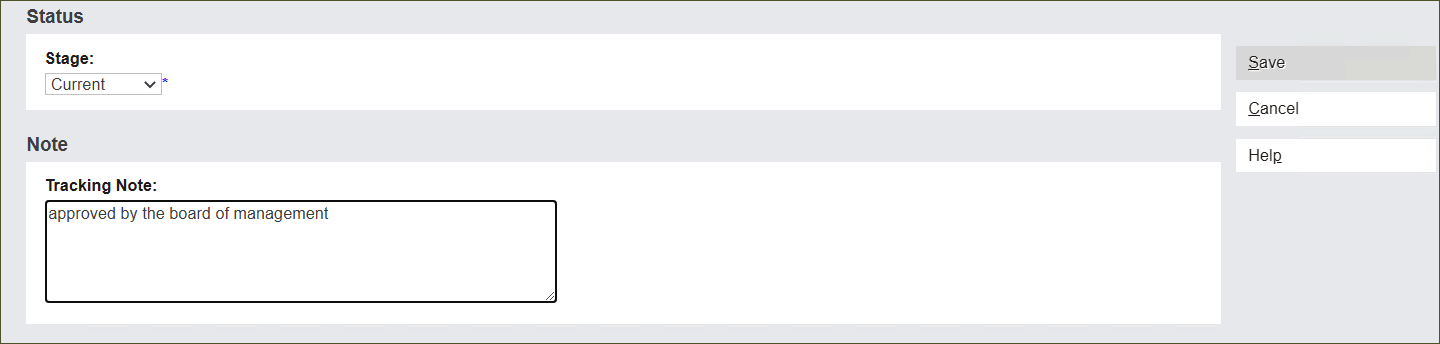
In the Status section you can change the stage of the risk.
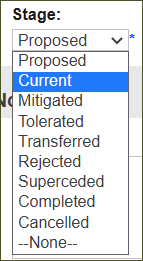
Press Stage and select the type from a drop-down list.
The Stage of every newly created Solution record is Proposed.
For example, certain Solutions might require an approval from a board of management or other entity.
After the approval is granted the Stage can be changed from Proposed to Current with a Tracking Note stating “approved by the board of management”.
The approval might not be granted, then the Stage can be changed from Proposed to Rejected.
In the Note section add Tracking Note by typing in the reason for changing the Stage.
Press Save to secure the changes
The changes were saved and can be viewed in the Tracking tab of the record.