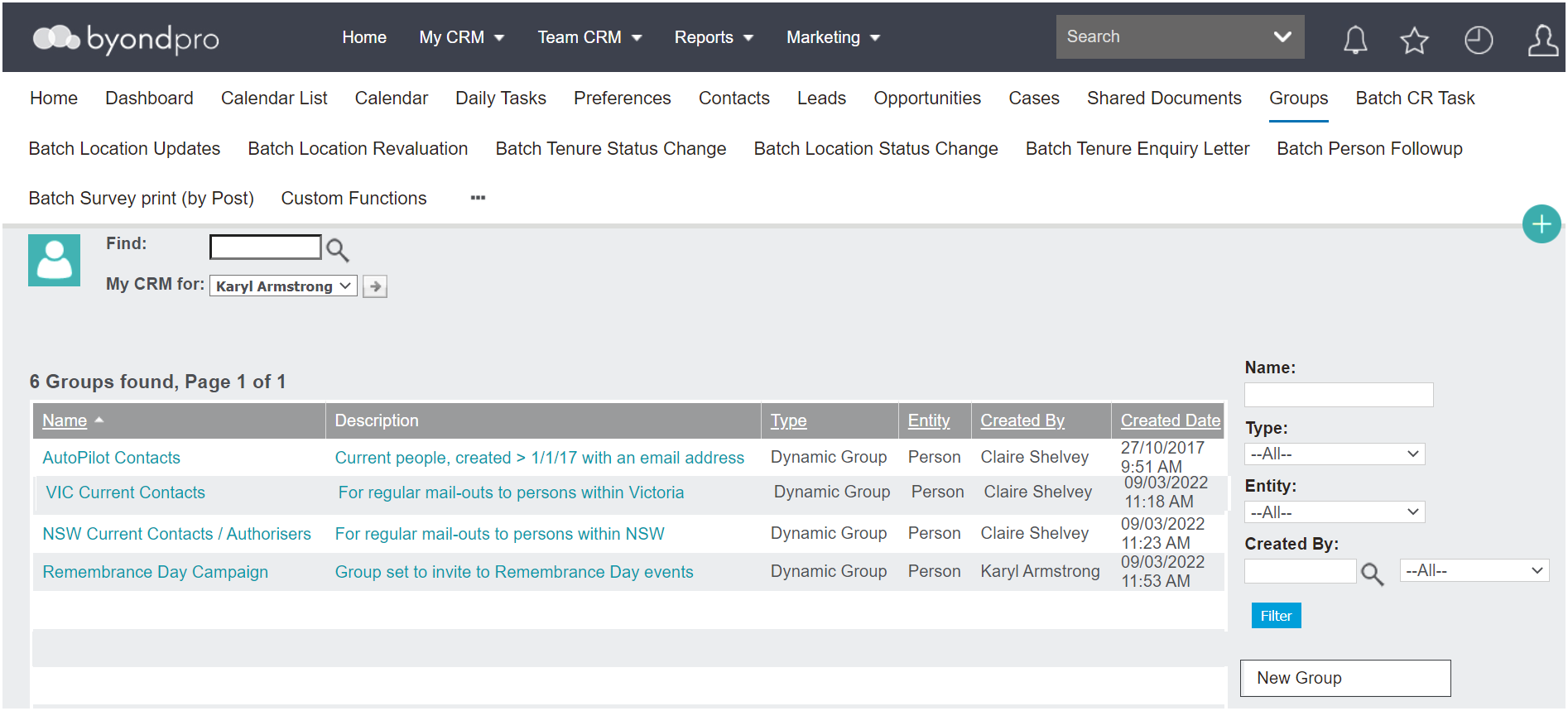
To create a new group of contacts, visit the Groups section of byondpro.
On the right-hand side of the page, select the New Group button.
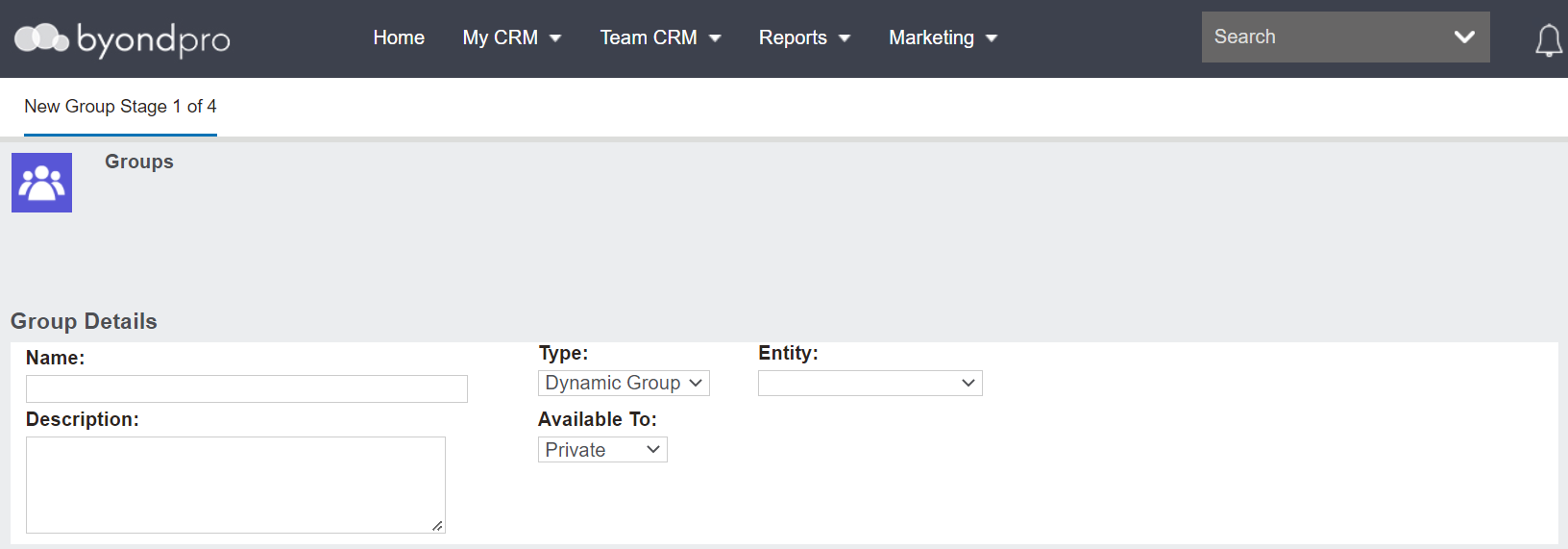
Complete the fields as necessary.
In the Name field, type in the name you would like the group to be known by.
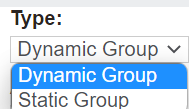
From the Type field, select whether the group will be 'Dynamic' or 'Static.'
-
A Dynamic group will add anyone who meets the group criteria to the group.
-
A Static group is built, and the content of the group only changes if a user manually adds records to the group.
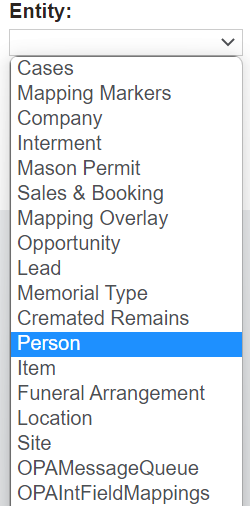
From the Entity field, select the entity or module the group is being based on.
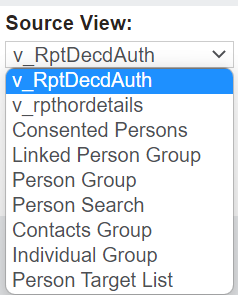
After selecting an option from the Entity field, the Source View field will display, allowing you to select which view to pull the data from which will create your group.
The selections in this field will vary depending on the Entity selected.
In the list below are the out-of-the-box Source Views for a Person entity.
Should you need a new source view created to create your group, contact your OpusXenta consultant to make one for you.
In the Description field, type in a description or purpose for the group.
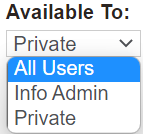
In the Available To field, select who will have access to the group. Selections include:
-
Private - Current user only
-
-
Info Admin - Users tagged as Info Admin in security rights.
Once you have completed all the fields, press the Continue button on the right-hand side of the page.
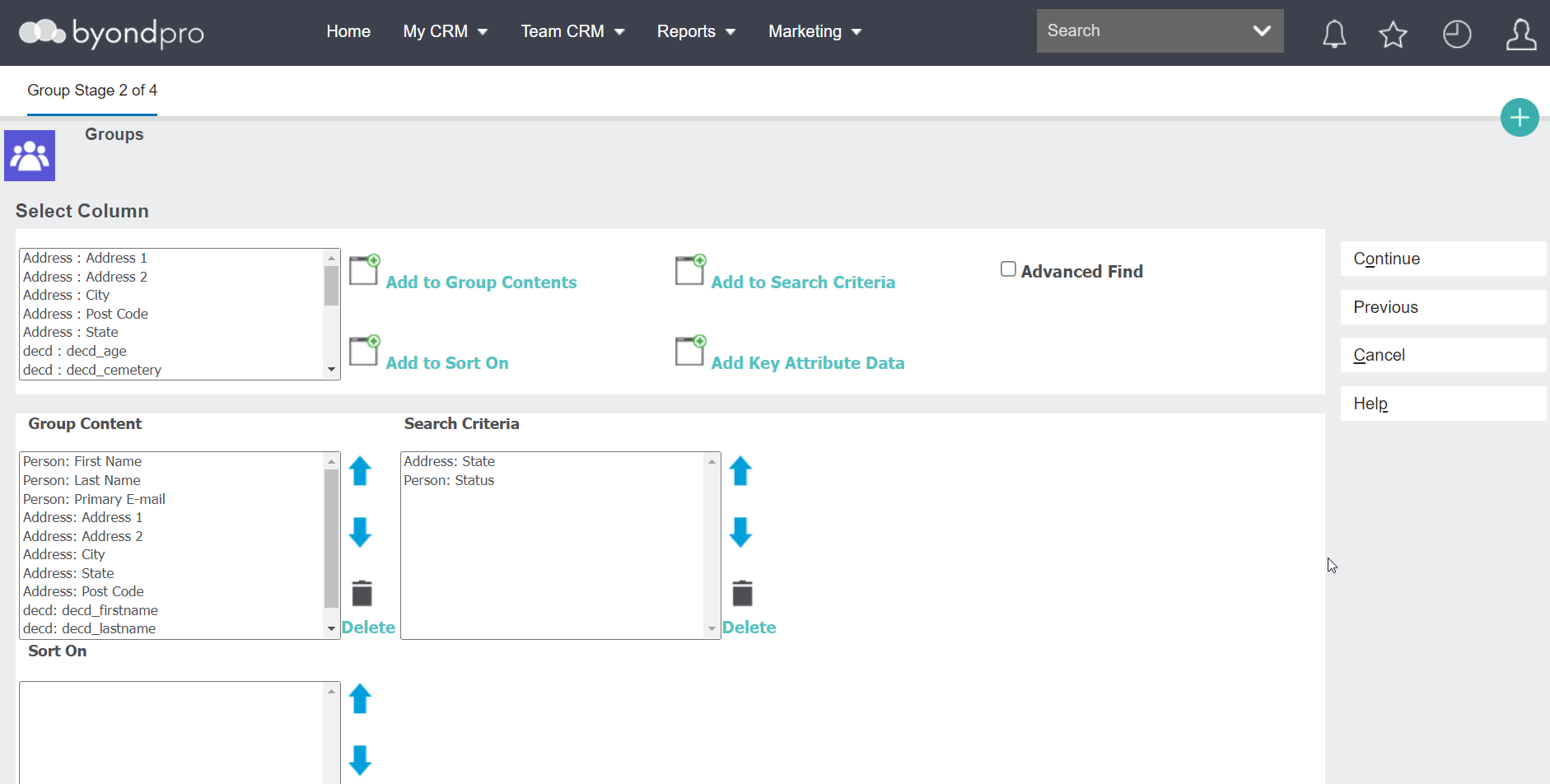
The next page you are taken to will allow you to determine the:
-
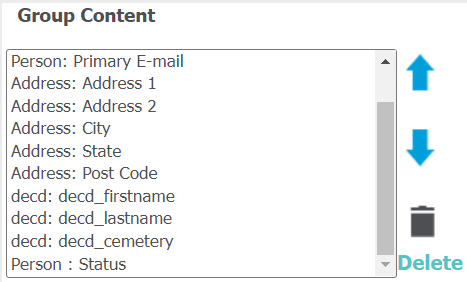
Group Contents - Fields to base the selections on
-
Search Criteria - Fields to base content on
From the Select Column field, locate the fields you want to add to the Group Content section.
Simply highlight the desired field /s in the Select Column section and select Add to Group Contents.
The highlighted field /s will then display in the Group Content section.
To add fields to the Search Criteria section, highlight the desired field /s in the Select Column section and select Add to Search Criteria.
The highlighted field /s will then display in the Search Criteria section.
To remove a field from either section, highlight the field and select the Delete icon from the right of the relevant section.
You can use the arrows to change the order in which the content appears in their relevant selections.
Should you need to expand the options for Search Criteria further, you can leave the Search Criteria section blank and tick the Advanced Find tick box.
Once completed with selecting the Group Contents and Search Criteria, select the Continue button on the right-hand side of the page.
Advanced Find
-
If you have the Advanced Find tick box selected, you will be taken to the Advanced Find screen.
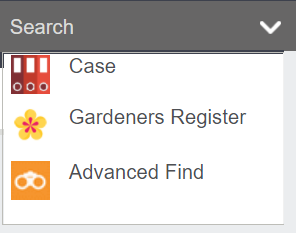
This screen is the same as the Advanced Find feature located by clicking on the arrow next to
Search on the
Toolbar of byondpro and selecting
Advanced Find.
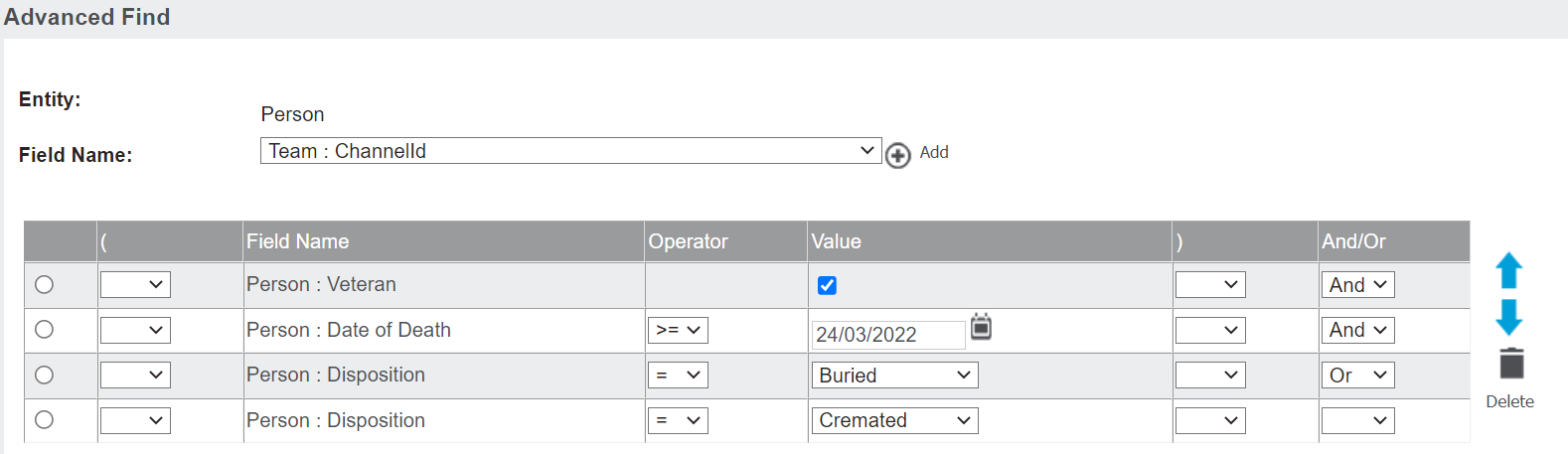
Determine the selection criteria that will help byondpro to filter the database records to build your group.
The Entity field will populate as the entity chosen on the initial group screen.
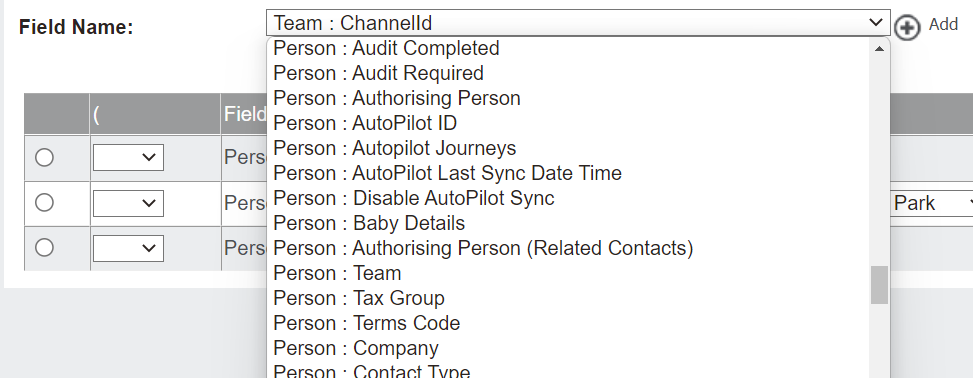
Fields in the Field Name field will be limited to fields linked with the selected entity or module.
Select the first field to start building your search criteria and select Add.
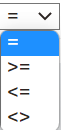
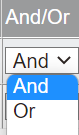
The selected field will display below, where you can choose the following clauses for the field
As with the previous page, tick the circle next to the field and select the Delete icon to remove a field.
You can use the arrows to change the order in which the content appears. .
In our selected criteria, byondpro will search all Person records that are:
-
-
With the Date of Death before 24/3/2022
-
With a Disposition of Buried or Cremated
Once you have built your search criteria, press the Continue button on the right-hand side of the page.
Bulit-In Search Criteria
-
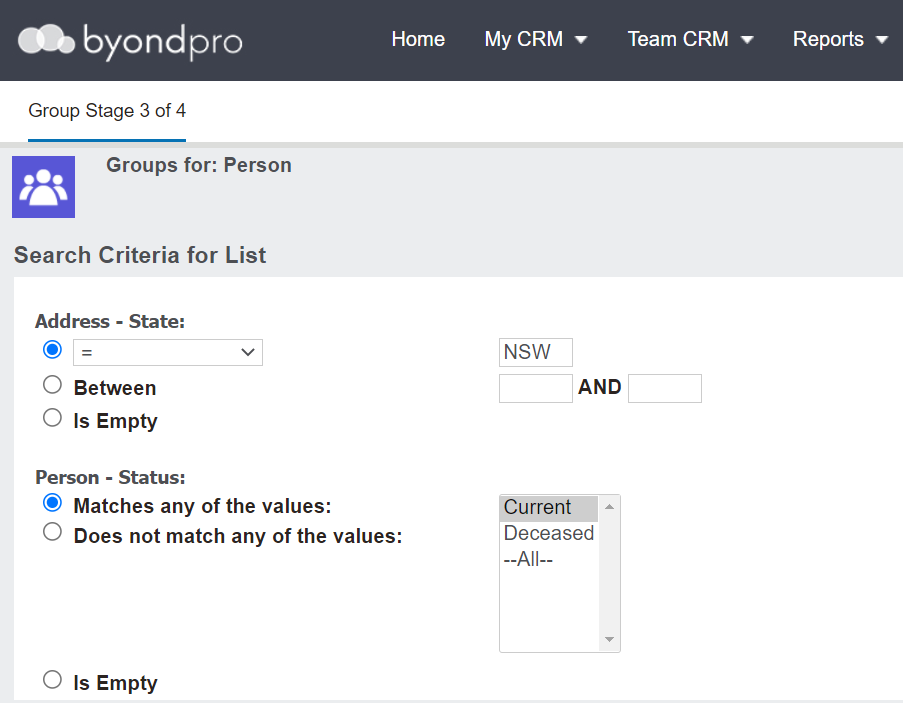
If you have selected fields in the Search Criteria section and not selected the Advanced Find tick box, you will be taken to a page where any fields entered in the Search Criteria section will need to be determined.
Your selection options may be more limited compared to using the Advanced Find feature.
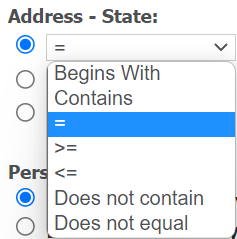
For each field displaying, complete the selection criteria that will help byondpro to filter the database records to build your group.
For our State search criteria, we have selected that the state is = NSW, meaning the database will look for person records only with the state of NSW.
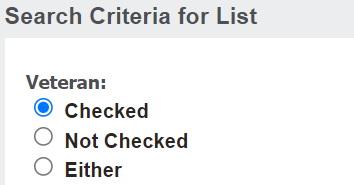
In the below example, the field of Veteran was selected as search criteria.
Based on the following selection, the group will look for all person records where the deceased is marked as a veteran.
Once all your selections have been made, press the Continue button on the right-hand side of the page.
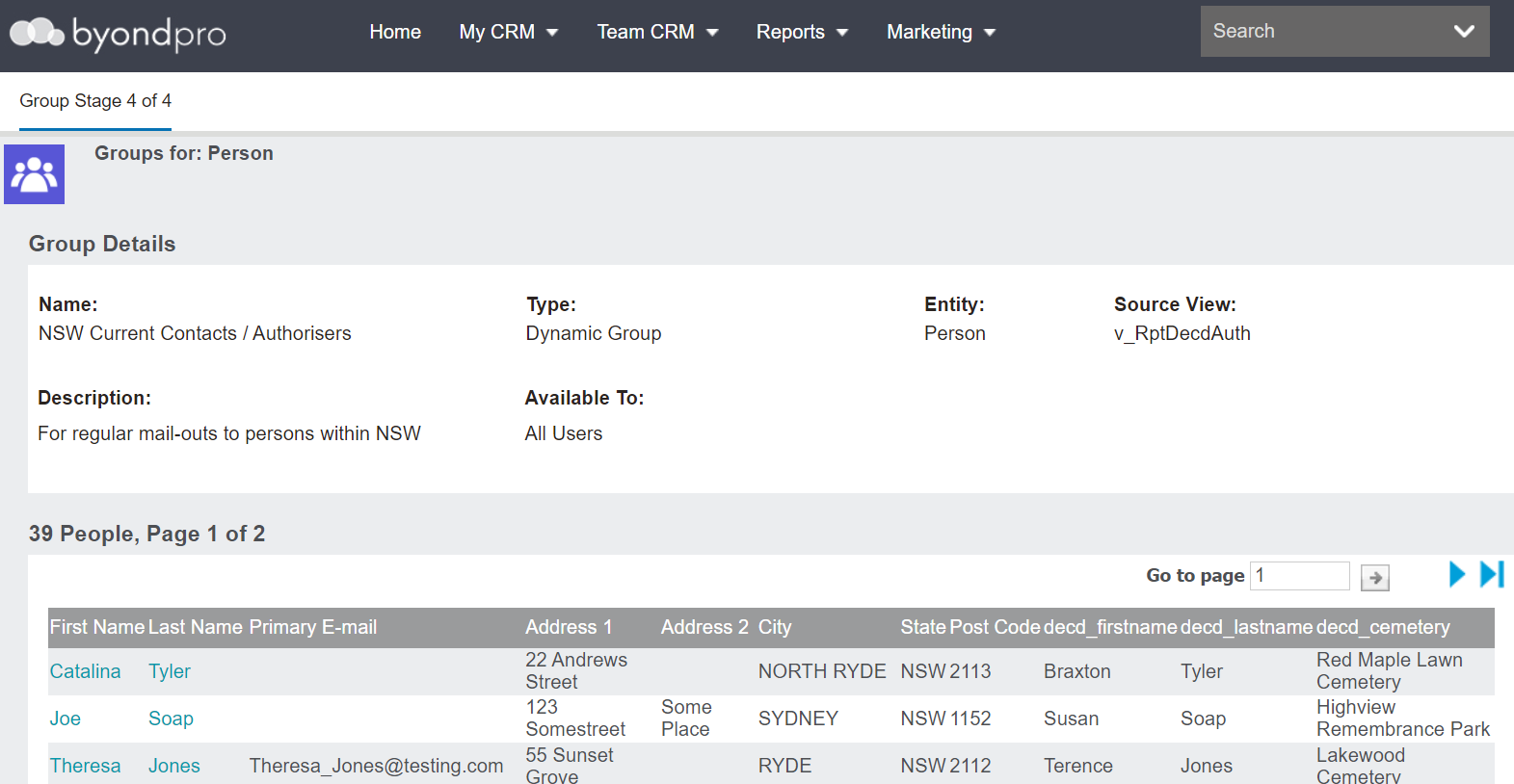
The final page displays the Group Details with the records which meet your chosen criteria.
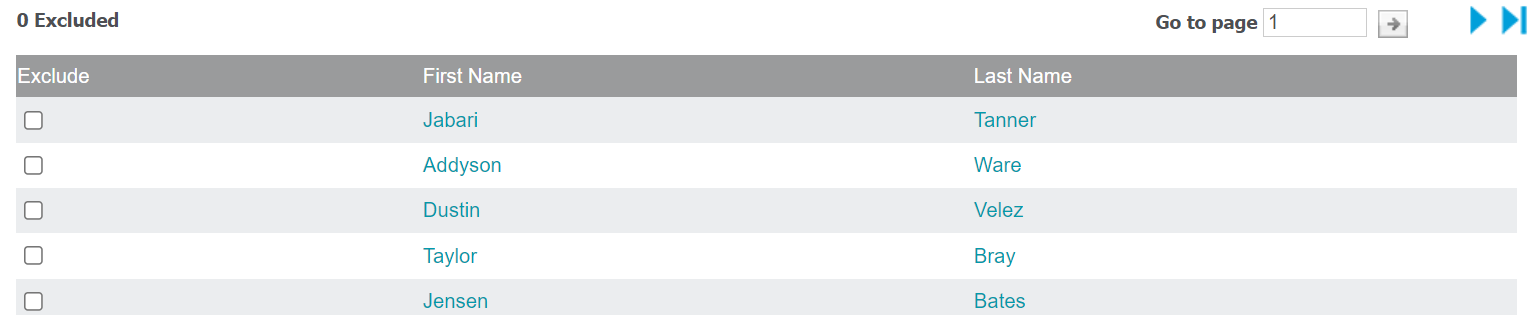
If you had chosen a Static group as the type of group, you have the option to exclude certain records from the list, by ticking the box underneath the Exclude header, in line with the record to be excluded.
Or create an empty group by selecting the Save empty static group button.
To save a group which uses the filtered records, press the Save button on the right-hand side of the page.