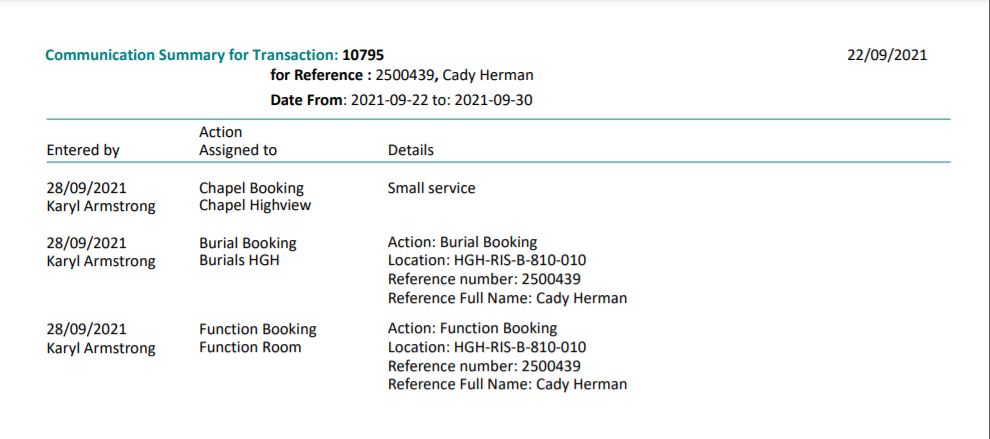
Communication Tab
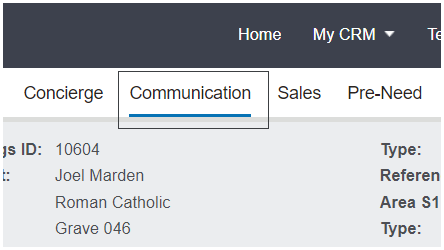
The Communication tab of the Sales & Booking lists appointments and tasks associated with the booking, including resource appointments, family appointments and correspondence. The tab is linked to the Timeline on the Summary tab of the booking.
The Timeline on the summary tab shows all appointments for the booking, such as burial, function, and chapel services. These are also displayed on the communication tab along with Additional Time appointments.
Details of the appointments display, including the
-
Date/ Time
-
Action being performed (i.e. Chapel Booking, Phone call)
-
Appointment Details
-
Assigned User
-
Location if referenced
-
Deceased if referenced
-
Details added to the appointment
-
Subject
-
Communication status.
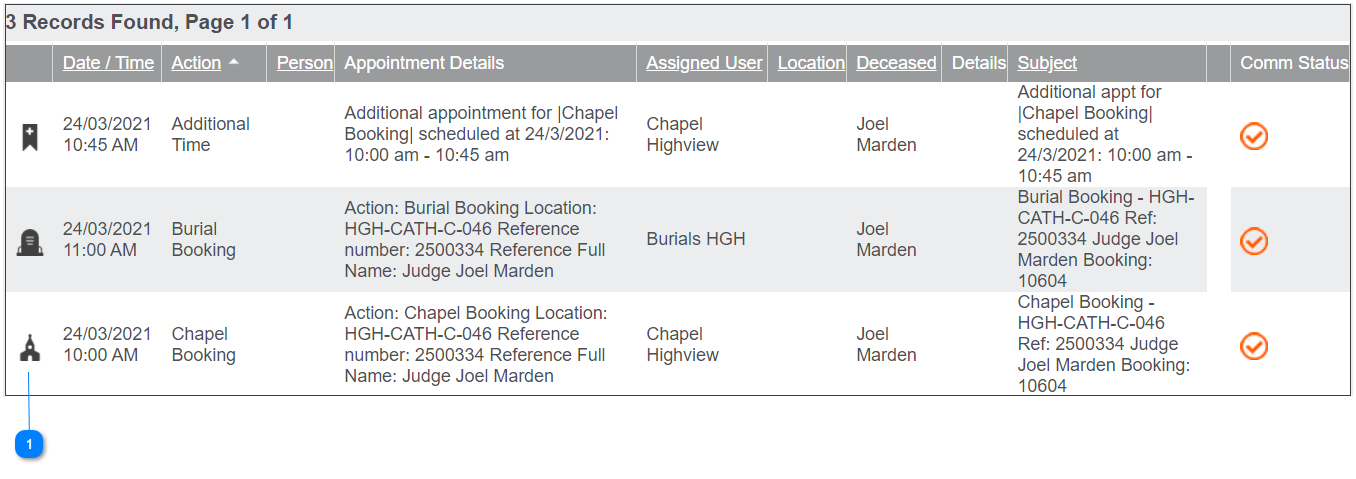


The Communication Status field, labeled comm status for short, will display as a check mark on this tab.
The Burial Booking process does not automatically change the status from pending to completed.
If users want to change the status, they can edit the appointment and change the status from Pending to Completed or Cancelled as necessary.
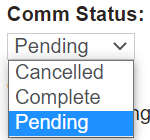
By changing the Comm Status, the color of the check mark will update.

New appointments, communications, and emails can be added on this tab, using the action buttons on the right, only if the booking has not been marked as completed.
A report can be generated of the communications for the date range specified, by choosing the Print Communications button.